Event ID 1129 appears in the System log when Group Policy cannot reach a domain controller during processing. Computer policy fails to apply while user policy sometimes still goes through, which is why the issue often stays hidden until a specific GPO refuses to take effect. This guide covers the two distinct causes behind this event and how to fix each one.
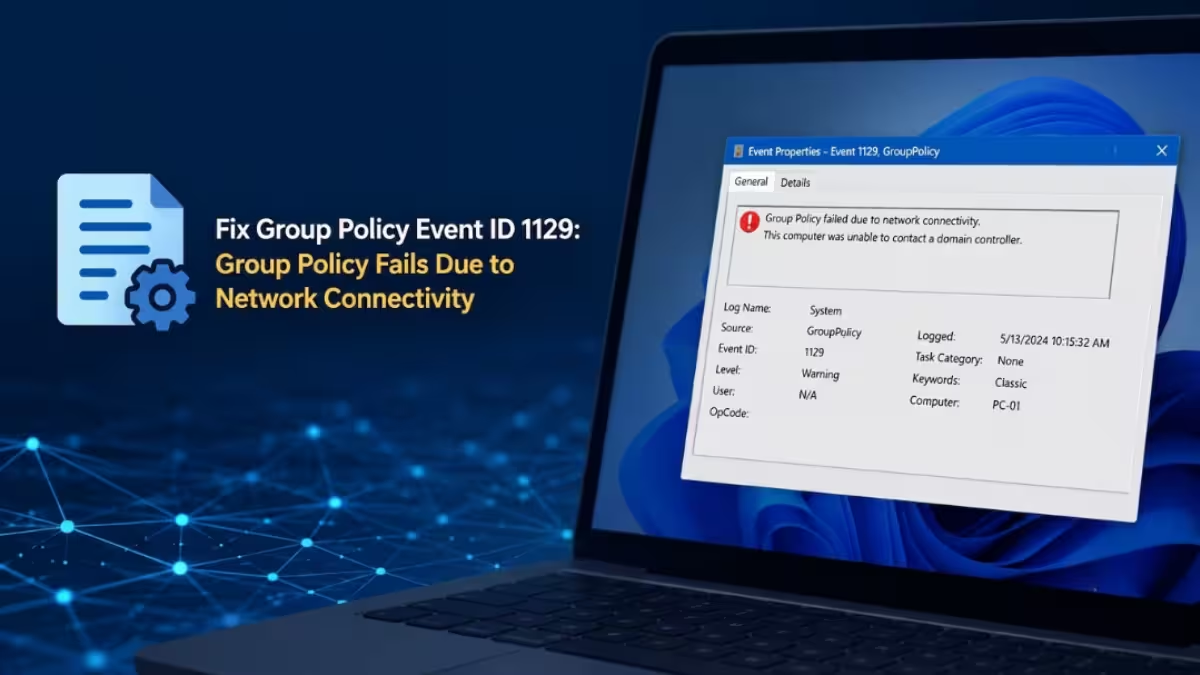
What Causes Group Policy Event ID 1129
Group Policy logs event ID 1129 when it fails to apply due to network connectivity issues. Two separate conditions produce this same event.
- LDAP port 389 connectivity to the domain controller is blocked, so the client cannot complete the TCP handshake needed for authentication.
- The network adapter has not finished initializing when Group Policy starts processing at boot, so the first attempt fails before a network path even exists.
The event description itself calls this a possibly transient condition. If a success message follows within a short time, no fix is needed. Repeated failures over several hours point to one of the two causes above.
Fix 1: Check If Event ID 1129 Is a Blocked LDAP Connection
Before touching logs or the registry, confirm whether the client can actually reach a domain controller. Open an elevated command prompt and run the following.
nltest /dsgetdc:yourdomain.comThis returns the domain controller the client currently sees. If it fails to return a DC, the problem sits with DNS or DC availability rather than a blocked port. Flush the resolver cache and confirm the client points to valid DNS servers before moving further.
ipconfig /flushdnsIf a DC does show up, test the LDAP port directly using PowerShell.
Test-NetConnection -ComputerName DC01 -Port 389A result showing TcpTestSucceeded : False confirms LDAP is blocked between the client and that domain controller. This narrows the problem down before any registry changes are needed.
Fix 2: Open LDAP Port 389 to Clear Group Policy Event ID 1129
Once the port test confirms a block, the fix sits on the network path rather than on the client machine. Work with whoever manages the firewall or network appliance sitting between the client subnet and the domain controllers, and confirm TCP port 389 is open in both directions. If the domain uses LDAPS, open port 636 as well.
To confirm the fix from the client side after the network team opens the port, enable Group Policy Service debug logging and check where the connection attempt lands.
- Open Registry Editor by pressing
Win + R, typingregedit, and pressing Enter. - Locate
HKEY_LOCAL_MACHINE\Software\Microsoft\Windows NT\CurrentVersion. - Right-click the key, select New > Key, and name it
Diagnostics. - Right-click the
Diagnosticssubkey, select New > DWORD (32-bit) Value, and name itGPSvcDebugLevel. - Set the value data to
30002in Hexadecimal. - Run
gpupdate /forcefrom an elevated command prompt. - Review the log at
%windir%\debug\usermode\gpsvc.log.
A cleared block shows a successful LDAP bind in the log instead of the earlier connection failure line.
Fix 3: Fix Group Policy Event ID 1129 at Windows Startup
If the port test passes and DC discovery works, the failure is likely tied to boot timing instead of a blocked path. The network adapter may not finish coming up before Group Policy starts its first processing attempt, so the event logs once and clears on the next refresh. Forcing Windows to wait for full network connectivity before applying computer policy addresses this directly.
- Open the Group Policy Management Console and edit a GPO linked to the affected computers.
- Go to Computer Configuration > Administrative Templates > System > Logon.
- Enable Always wait for the network at computer startup and logon.
Some network adapter drivers do not respect this policy setting. On those machines, set a startup delay directly through the registry instead.
- Open Registry Editor and locate
HKEY_LOCAL_MACHINE\SOFTWARE\Microsoft\Windows NT\CurrentVersion\Winlogon. - Create a new DWORD (32-bit) Value named
GpNetworkStartTimeoutPolicyValue. - Set the base to Decimal and enter
60as the value data. - Restart the computer.
If Group Policy still fails to apply at startup after this change, increase the value further.
Fix 4: Confirm Group Policy Event ID 1129 Is Resolved
After opening the port or applying the startup wait, confirm the change resolved the event.
gpupdate /forceA clean run reports that both computer and user policy updated without errors. Generate a results report for a full view of what applied.
gpresult /h report.htmlOpen the report and check that the previously failing GPOs now show under applied policies. In Event Viewer, the System log should stop logging 1129 and show a success entry for Group Policy processing instead.
Event ID 1129 comes down to either a blocked path to the domain controller or a network adapter that is not ready when Group Policy starts. Running the DC reachability and port checks first tells you which path you are dealing with before you touch the registry. Once LDAP port 389 is open or the startup wait policy is applied, Group Policy processing goes back to completing on the next refresh cycle.
Frequently Asked Questions
Is Event ID 1129 always a serious problem?
No. The event description itself calls it a possibly transient condition. If a success message for Group Policy processing follows shortly after, the failure cleared on its own and no fix is needed.
Why does user policy still apply when computer policy fails with this error?
User policy processing runs after a user signs in, when the network connection is usually already established. Computer policy runs earlier at boot, so it is more likely to hit the connectivity gap that triggers 1129.
How do I know if the issue is a blocked port or a startup timing problem?
Run the DC reachability and LDAP port checks first. If Test-NetConnection on port 389 fails, the issue is a blocked path to the domain controller. If the port test succeeds and DC discovery works, the failure is tied to the network adapter not being ready at boot.
Is it safe to edit the registry to fix this issue?
Registry changes carry risk if done incorrectly and can require a system rebuild in rare cases. Back up the registry before making any change, and only edit the specific keys covered in this guide.
Does opening LDAP port 636 matter if my domain does not use LDAPS?
No. Port 636 only needs to be open if the domain controller uses LDAP over SSL. If the domain relies on standard LDAP, opening port 389 is enough to resolve the connectivity block.

