Hibernate saves everything open on your desktop to disk and shuts the PC down completely, so you get a full power-off without losing your session, unlike Sleep, which keeps draining battery in the background. Windows 11 ships with this option turned off by default on most new systems, and it stays hidden from the power menu until it is manually enabled. This guide covers enabling it, adding it to the Start menu, setting it to trigger from the power button or lid close, and what to do if it still won’t show up.
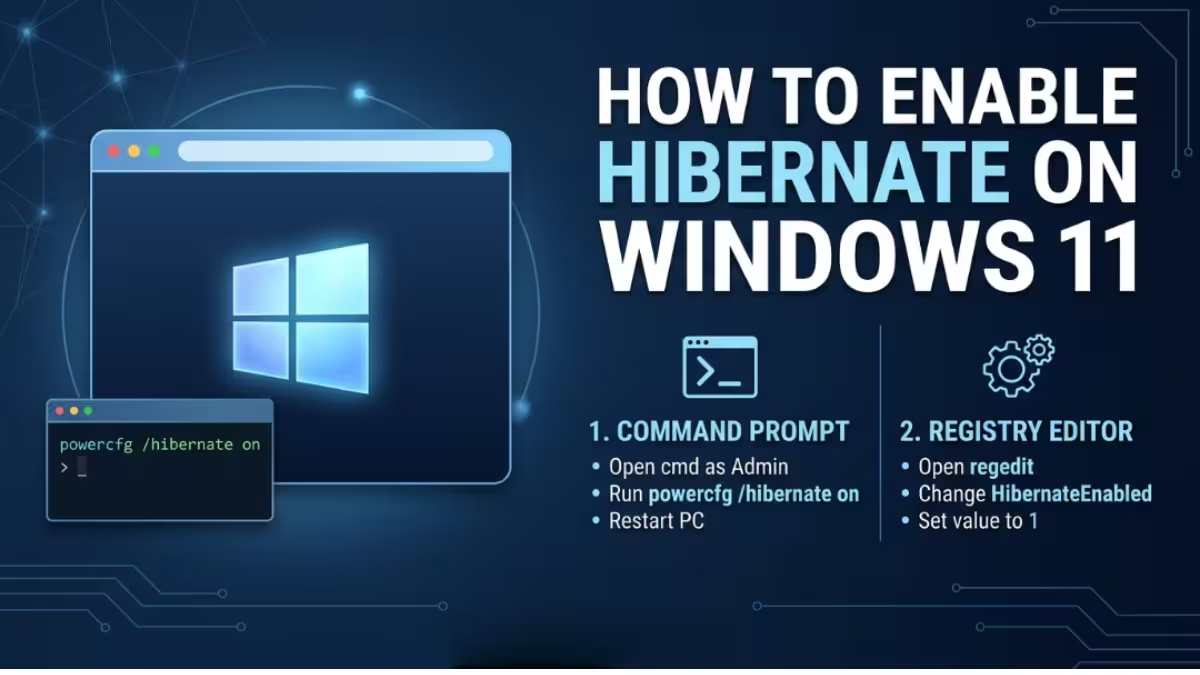
Method 1: Enable Hibernate on Windows 11 via Command Prompt
- Press
Win + S, typecmd, right-click Command Prompt, and select Run as administrator. - Run this command:
powercfg /hibernate on- Confirm it worked by running:
powercfg /a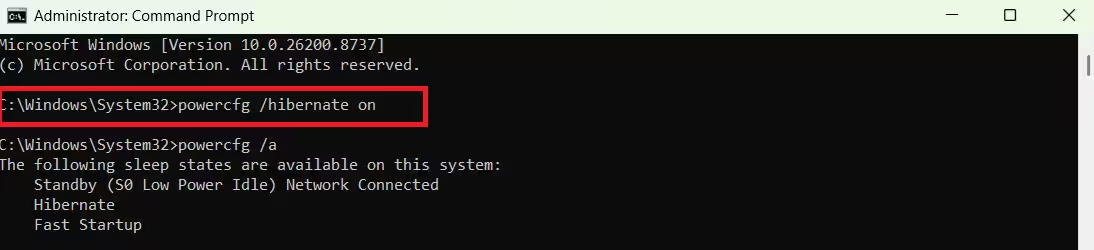
If Hibernate appears under the supported states list, the feature is now active at the system level.
Add Hibernate to the Windows 11 Start Menu
Enabling hibernation through Command Prompt does not automatically add it to the Start menu power options, so this step still needs to be done separately.
- Open Control Panel > Hardware and Sound > Power Options.
- Click Choose what the power buttons do.
- Click Change settings that are currently unavailable, since this requires admin access to modify.
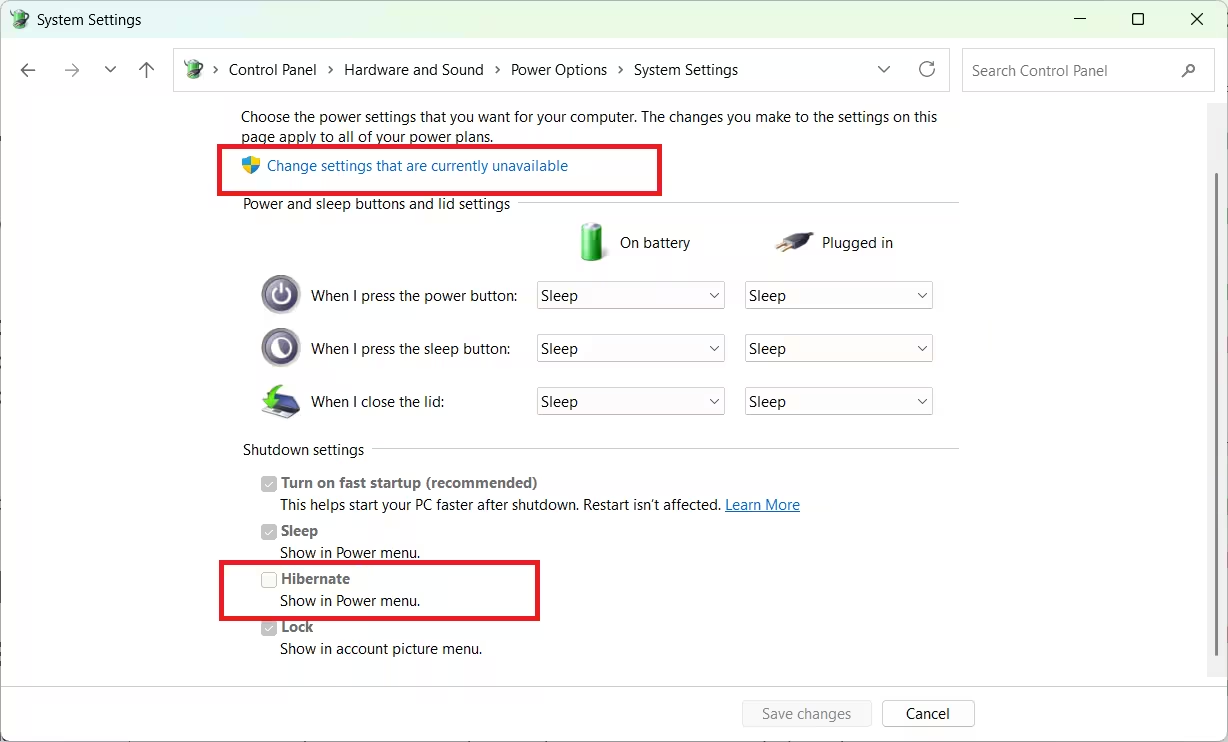
- Scroll to Shutdown settings, check the Hibernate box, then click Save changes.
Hibernate now appears in the Start menu power icon alongside Sleep, Restart, and Shut down.
Set Hibernate to Trigger on Power Button or Lid Close on Windows 11
Once Hibernate is enabled, the same Power Options screen lets you assign it as the action for the physical power button or for closing a laptop lid, instead of only accessing it through the Start menu.
- Open the Choose what the power buttons do page.
- Under Power and sleep button settings, set Hibernate as the action When I press the power button.
- Under Lid settings, set Hibernate as the action When I close the lid.
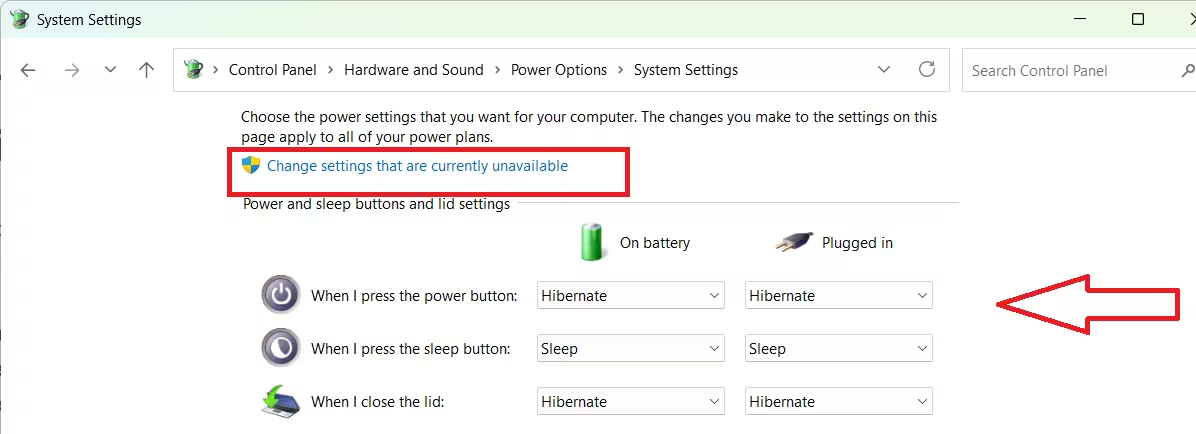
- Click Save changes to apply it.
On Windows 11 24H2 and newer, these same triggers can also be set from Settings > System > Power & battery, though toggling the actual Hibernate entry in the classic Start menu still requires the Control Panel method above.
Method 2: Enable Hibernate on Windows 11 via Registry
Registry editing is a secondary option for cases where powercfg is blocked by policy, or when scripting the change across multiple machines is easier than running a command.
- Open Start, search for
regedit, and open the Registry Editor. - Browse to:
HKEY_LOCAL_MACHINE\SYSTEM\CurrentControlSet\Control\Power- Find the
HibernateEnabledvalue, double-click it, and set it to1. - Restart the computer for it to take effect.
Back up the registry or create a restore point before editing it, since incorrect changes here can affect system stability.
Reduce hiberfil.sys Size on Windows 11
Hibernation reserves space on the system drive for hiberfil.sys, a file that can take up a large share of your installed RAM. On drives with limited free space, this is worth shrinking rather than leaving hibernation off entirely.
Run this command in an administrator Command Prompt to compress the file to roughly half its default size:
powercfg /hibernate /size 50The value is a percentage of RAM, so lowering it further frees more disk space at the cost of a slightly slower resume.
Why Hibernate Is Missing on Windows 11
- The device uses Modern Standby (S0), a low-power sleep mode common on laptops from the last several years that does not expose classic hibernation, regardless of any setting above.
- OEM firmware or a managed IT policy blocks hibernation at the driver level, so the command runs without error but nothing changes.
- The system drive lacks enough free space for
hiberfil.sys, even after resizing it. - BitLocker configurations on some devices affect how the hibernation file is created and accessed.
Disable Hibernate on Windows 11
To disable Hibernate, uncheck the box in Shutdown settings from the same Power Options screen used to enable it, then run powercfg /hibernate off in an administrator Command Prompt to fully disable the feature. Reverting the HibernateEnabled registry value back to 0 has the same effect if it was enabled that way.
Frequently Asked Questions
Why does powercfg /hibernate on run successfully but Hibernate still doesn’t appear?
This usually means the laptop uses Modern Standby (S0) instead of the classic S3 sleep state. The command sets the OS-level flag, but the firmware does not support the transition, so no UI toggle can force it to appear.
How much disk space does Hibernate need?
The hibernation file (hiberfil.sys) is created on the system drive and is typically close to the size of installed RAM by default, though it can be compressed with powercfg /hibernate /size to take up less space.
Does BitLocker affect Hibernate?
Hibernation still works with BitLocker enabled, but on some configurations resuming from hibernation prompts for the recovery key instead of unlocking automatically.
How do I check which sleep states my PC actually supports?
Run powercfg /a in an administrator Command Prompt. It lists supported states and gives a reason for any that are unavailable, such as Modern Standby restrictions.
Does enabling Hibernate through Registry work the same as using powercfg?
Yes, both methods control the same underlying setting. Registry editing is mainly useful when powercfg is restricted by policy or when applying the change through a script across multiple devices.

