The Kernel Data Inpage Error is a blue screen crash that appears when Windows fails to read a page of data from your storage drive into memory. It carries the stop code 0x0000007A and usually points to a problem with your disk, RAM, drivers, or the page file. Some users see it specifically when the PC wakes up from sleep. Here is how to fix it on both Windows 10 and Windows 11.
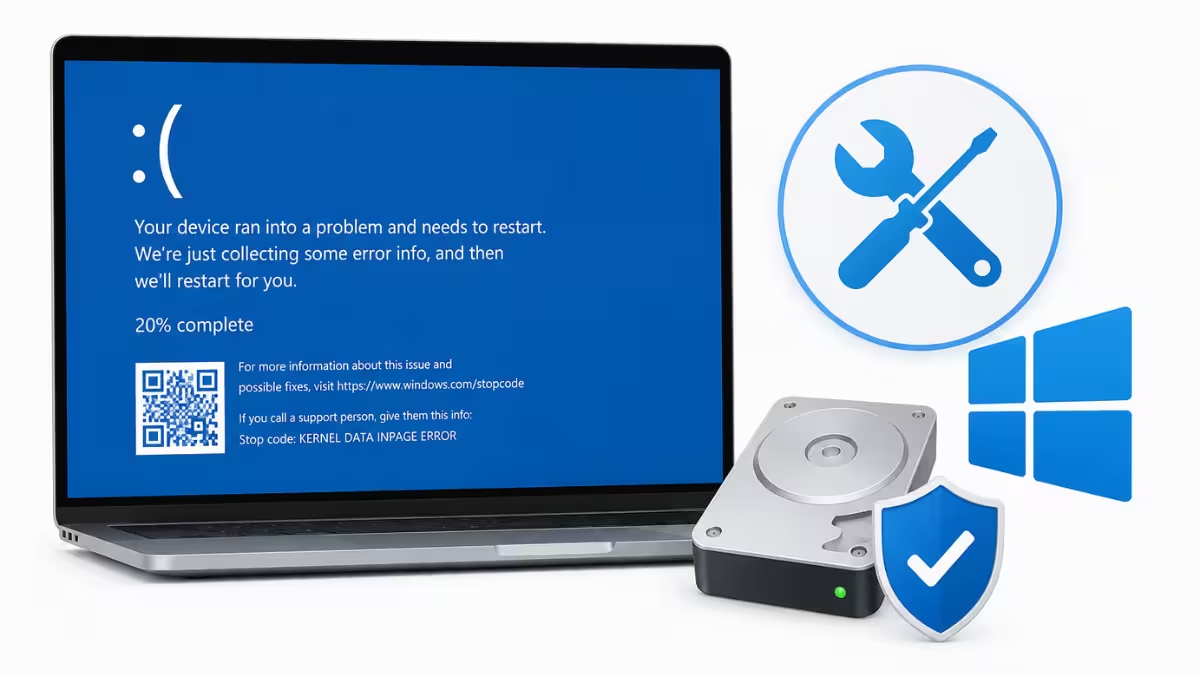
What Causes Kernel Data Inpage Error
This error has a few common root causes rather than one single trigger.
- Bad sectors or file system corruption on the storage drive
- Faulty or loose SATA/NVMe cable connections, or failing RAM
- Outdated or corrupted storage and chipset drivers
- A known firmware bug on certain 2TB WD and SanDisk NVMe SSDs under Windows 11 24H2
The error screen sometimes names the driver file involved, such as ntfs.sys, ataport.sys, dxgkrnl.sys, or tcpip.sys. That filename can point you toward which device or driver to check first.
Fix 1: Update SSD Firmware (Windows 11 24H2 NVMe Bug)
If you are on Windows 11 version 24H2 with a 2TB WD or SanDisk NVMe SSD, this is the most likely cause and should be checked first. Skip this fix if you’re on Windows 10 or don’t use one of these drives, and move straight to Fix 2.
- Press
Win + S, type Event Viewer, and open it. - Check Windows Logs > System for
stornvmeEvent ID 11 errors. - If found, visit the Western Digital support site or SanDisk support site and download the latest firmware tool for your exact SSD model.
- Run the firmware update tool and restart your PC once it completes.
This single fix resolves the crash on most affected 24H2 machines, since it corrects how the SSD controller handles Host Memory Buffer requests from Windows.
Fix 2: Run CHKDSK to Check for Disk Errors
If the firmware fix does not apply to you or the crash continues, check for disk errors next. Disk errors and bad sectors are a frequent cause of this crash on both older and newer systems.
- Right-click the Start button and open Terminal (Admin) or Command Prompt (Admin).
- Type
chkdsk /f /r /xand press Enter. - If prompted to schedule the scan on next restart, type
Yand reboot your PC. - Let the scan run fully; it may take a while on larger drives.
Fix 3: Run SFC and DISM Scans
If CHKDSK does not resolve the crash, corrupted system files could be the cause instead.
- Open Command Prompt (Admin).
- Type
sfc /scannowand press Enter, then wait for it to finish. - Next, run
DISM /Online /Cleanup-Image /RestoreHealthand let it complete. - Restart your PC and check if the error still occurs.
SFC will report either that it found and repaired corrupt files or that it found no integrity violations. If it reports repairs made, restart and monitor for the crash before moving on.
Fix 4: Update Storage and Chipset Drivers
If system files check out fine, outdated drivers are the next likely culprit. Outdated storage drivers can make a healthy drive appear as if it is failing.
- Press
Win + Xand select Device Manager. - Expand Disk drives and Storage controllers.
- Right-click each device and select Update driver, then choose automatic search.
- Restart your PC after any driver installs.
Fix 5: Check Physical Connections and RAM
If driver updates don’t help, the issue may be hardware rather than software. Loose cables or failing RAM are common on desktops and can produce the exact same stop code.
- Power off the PC and reseat the SATA and power cables on your drive if it is a desktop.
- Open Windows Memory Diagnostic by searching for it in the Start menu.
- Choose Restart now and check for problems and let the test run.
- Replace any RAM module that reports errors.
Fix 6: Run a Full Malware Scan
If none of the fixes above resolve the crash, rule out malware last. Malware can corrupt the files Windows needs to read from disk, which can also result in this crash.
- Open Settings > Privacy & security > Windows Security.
- Click Virus & threat protection, then Scan options.
- Select Full scan and click Scan now.
- Remove or quarantine any threats found and restart your PC.
Third-party antivirus tools can sometimes cause this crash themselves by falsely flagging and blocking core Windows processes. If you use a third-party security app, try temporarily disabling it to see if the error stops, and keep Windows Security enabled in its place while you test.
Fix 7: Set the Page File to Automatic
The page file stores data your RAM has offloaded, and a misconfigured one can trigger this exact error.
- Press
Win + S, type advanced system settings, and open View advanced system settings. - Under the Advanced tab, click Settings in the Performance section.
- Open the Advanced tab in the new window and click Change.
- Check Automatically manage paging file size for all drives and click OK on each screen to exit.
If this setting was already enabled, try unchecking it and setting a custom size instead, since a corrupted automatic configuration can sometimes be the cause.
Working through these fixes in order covers the most common causes, from the 24H2 firmware bug down to the page file, so most cases of Kernel Data Inpage Error should be resolved by the time you reach Fix 7.
Frequently Asked Questions
What does Kernel Data Inpage Error mean?
It means Windows tried to read a page of data from your storage drive into memory and the read failed. The underlying cause is usually a disk, RAM, driver, or page file problem rather than the kernel itself.
Is Kernel Data Inpage Error a sign of hard drive failure?
It can be, but not always. Bad sectors or a failing drive are common triggers, but the same stop code also appears due to loose cables, outdated drivers, faulty RAM, or a firmware bug on certain NVMe SSDs.
Can I fix Kernel Data Inpage Error without losing my files?
Yes, in most cases. Running CHKDSK, SFC, and DISM repairs system and disk issues without wiping data. Back up important files first as a precaution before running disk repairs.
Why does this error happen on Windows 11 24H2 specifically?
Windows 11 24H2 changed how it requests Host Memory Buffer allocation from NVMe SSDs. Certain 2TB WD and SanDisk drives have firmware that cannot handle the larger buffer size, which triggers the crash.
What should I check first if I keep getting this BSOD?
Check Event Viewer under Windows Logs > System for a stornvme Event ID 11 entry, since that points directly to the NVMe firmware issue. If nothing shows there, run CHKDSK next as it resolves most non-hardware cases.
Related Guides
- How to Fix Failed to Create DX11 Render Device in Windows 11
- How to Fix DISM Not Working in Windows 11 (8 Solutions)
- How to Fix BlueStacks Virtualization Disabled Error on Windows 11
- Spectrum Error RGE-1001 And DGE-1001: How To Fix It
- Fix Excessive DMP Files in Windows 11 System32 Folder
- How to Fix Outlook Keeps Signing Into Wrong Account

