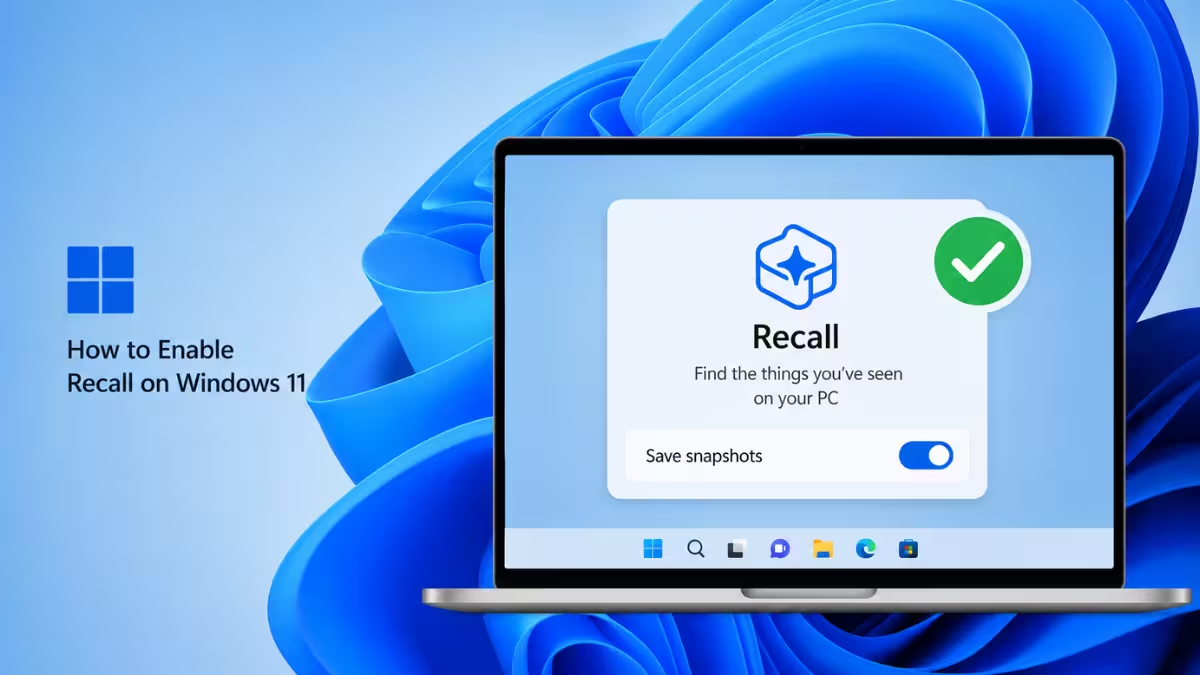
Recall is an AI-powered timeline feature on Windows 11 that saves searchable snapshots of your screen activity. It stays off by default, so you need to opt in before it starts capturing anything. This guide covers the system requirements and the exact steps to turn Recall on.
System Requirements for Recall
Recall only runs on eligible hardware. Check these requirements before trying to enable it.
- A Copilot+ PC that meets the Secured-core standard
- An NPU (neural processing unit) rated at 40+ TOPS
- At least 16GB of RAM
- At least 256GB of storage capacity
- At least 50GB of free storage space to enable Recall
- Device Encryption or BitLocker enabled
- Windows Hello Enhanced Sign-in Security enrolled with at least one biometric sign-in option
Saving snapshots automatically pauses once free storage drops below 25GB.
Method 1: Enable Recall From Settings
- Open Settings on Windows 11.
- Click Privacy & security.
- Click Recall & snapshots.
- Turn on the Save snapshots toggle switch.
Once enabled, Windows starts saving a snapshot of your active screen every few seconds and whenever the content of your active window changes.
Method 2: Enable Recall on First Launch
- Open Recall using the keyboard shortcut Windows key + J, or select it from Start > All Apps.
- When prompted, choose to allow snapshots to be saved.
- Confirm your identity using Windows Hello when asked.
You control which apps and websites are included, and you can delete snapshots, pause them, or turn them off at any time after enabling.
How Recall Works After You Enable It
Snapshots are saved and encrypted to your local hard drive. Recall does not share snapshots or associated data with Microsoft, third parties, or other Windows users on the same device.
- Every launch of Recall or change to its settings requires Windows Hello confirmation
- Your search index database is also encrypted
- Recall supports sign-in with face, fingerprint, or PIN through Windows Hello
Supported Browsers
Browser support affects how much of your browsing activity gets filtered from snapshots.
- Microsoft Edge: filters specified websites and private browsing activity
- Firefox: filters specified websites and private browsing activity
- Opera: filters specified websites and private browsing activity
- Google Chrome: filters specified websites and private browsing activity
- Other Chromium-based browsers (124 or later): filters private browsing activity only, does not filter specific websites
Using Recall After Enabling It
Once Recall is active, you can search your activity in a few ways.
- Select the timeline from Recall’s navigation bar to review snapshots by time segment.
- Hover over the timeline to preview activity, then select a point to open the snapshot.
- Type a search term, such as a dish name or app name, into the Recall search bar to find matching text or images.
- Select the microphone icon to search using your voice instead of typing.
By default, results appear from all apps with matches. You can narrow results by selecting a specific app from the filter list.
Managing the Recall Homepage
Your Recall homepage tailors itself based on recent snapshots and apps you have used. If you prefer a plain search bar instead, go to Settings > Privacy & security > Recall & snapshots > Advanced settings and turn off the customized homepage setting.
For Organizations
In managed commercial and education environments, Recall is removed by default until IT administrators allow the feature on end-user devices.
Recall is optimized for English, Chinese (simplified), French, German, Japanese, and Spanish, and content-based and storage limitations apply.
Frequently Asked Questions
Is Recall enabled by default on Windows 11?
No. Recall is opt-in. You must turn it on manually from Settings or during your first launch of the app.
What hardware do I need to enable Recall?
You need a Copilot+ PC with a 40+ TOPS NPU, 16GB of RAM, 256GB of storage, and Windows 11 version 24H2 or later.
Do I need Windows Hello to use Recall?
Yes. Recall requires Windows Hello Enhanced Sign-in Security with at least one biometric sign-in option to authenticate before it launches or lets you access snapshots.
Can I control which apps and websites Recall saves?
Yes. You can exclude specific apps and websites, and you can pause, delete, or turn off snapshots at any time after enabling Recall.
Does enabling Recall send my data to Microsoft?
No. Snapshots and their associated data stay encrypted on your local device and are not shared with Microsoft, third parties, or other users on the same device.
Read More:

