Tiny11 gives you a slimmer Windows 11 with fewer preinstalled apps, no forced Microsoft account, and less background clutter. You can get a Tiny11 ISO based on version 25H2 in two ways: download a ready-made image from the developer, or build your own from a clean 25H2 source using Tiny11 Builder.
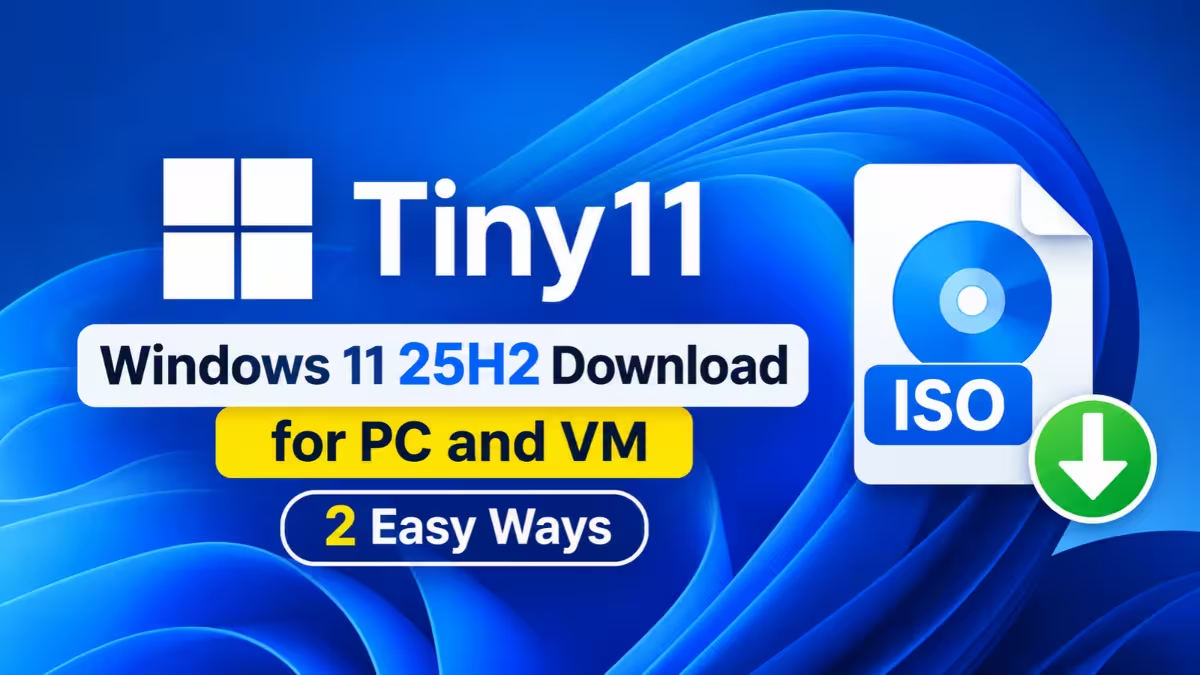
There is one catch. Microsoft now serves version 26H2 on its download page and no longer hands out 25H2 images. To build a 25H2 version yourself, you first need to generate the source ISO with UUP Dump. This guide covers every route.
Tiny11 ISO Download Options for Windows 11 25H2 at a Glance
| Method | Effort | Best for |
|---|---|---|
| Prebuilt Tiny11 ISO | Lowest | Quick testing, virtual machines |
| Tiny11 Builder app (GUI) | Medium | Most users who want control |
| Tiny11 Builder PowerShell script | Medium | Users comfortable with the terminal |
Requirements Before You Download or Build a Tiny11 ISO
- A Windows PC with roughly 70 GB of free space on the system drive (or another drive for the workspace)
- A stable internet connection, since the source download runs several GB
- About an hour of build time if you integrate updates
- A USB drive of 8 GB or more if you plan to install on real hardware
- A valid Windows 11 license, because Tiny11 does not include one
What Tiny11 Builder Removes From Windows 11 25H2
Community developer NTDEV maintains Tiny11 Builder. It takes an official Windows 11 image, strips out components you don't want, and repacks everything into a new ISO. Older releases worked only through PowerShell scripts. Newer releases add a WinUI 3 desktop app that walks you through the process with clickable screens, saved configurations, and progress tracking.
Depending on your choices, the tool can remove Clipchamp, News, Weather, Xbox apps, OneDrive, Microsoft Edge, and other bundled software. It can also trim services, drivers, language packs, and system packages, and it sets up the installer so you can finish setup with a local account.
Tiny11 vs Tiny11 Core vs Custom: Which Build Mode Should You Pick?
Pick your mode before you download anything, because it decides whether the final system stays usable for daily work.
- Tiny11: Removes most bloatware but keeps Windows Update, Defender, and recovery tools. Choose this for a real PC.
- Tiny11 Core: Goes much further. It removes the Windows Recovery Environment, disables Microsoft Defender, and turns off Windows Update. Use it only inside a virtual machine or for throwaway testing.
- Custom: Lets you tick exactly which apps and components to drop. Good for experienced users who know what each part does.
My advice: stick with Tiny11 or a careful Custom build on any machine you rely on. A system that can't update or defend itself becomes a liability fast.
Tiny11 ISO Direct Download for Windows 11 25H2 (Prebuilt Images)
If you don't want to build anything, NTDEV publishes ready-to-use Tiny11 images on the Internet Archive. You'll find standard and Core builds for both x64 and ARM64 PCs.
- Open NTDEV's Internet Archive page.
- Pick the build that matches your processor (x64 for most Intel and AMD PCs, ARM64 for Snapdragon and Copilot+ devices).
- Choose standard Tiny11 unless you only need a VM test image.
- Download the ISO file.
Prebuilt images save time, but you have to trust whoever made them. For your main computer, building your own ISO from an official source gives you more confidence in what goes into it.
How to Get the Windows 11 25H2 Source ISO With UUP Dump
Both build methods below need a clean 25H2 ISO. Since Microsoft no longer offers it, use UUP Dump, which assembles the image from Microsoft's own update servers.
- Go to the UUP Dump website and open the Downloads tab.
- Find Windows 11 version 25H2 and pick the newest x64 build. Make sure the build number is 26200.xxxx or higher. Choose arm64 if you own an ARM-based PC.
- Set your language and click Next.
- Select the editions you want in the image, then click Next again.
- Choose Download and convert to ISO.
- Enable Include updates (Windows converter only) so the final image comes fully patched. Expect this to add close to an hour.
- Click Create download package and save the ZIP file.
- Extract the ZIP to a folder on a drive with plenty of space.
- Right-click uup_download_windows.cmd and choose Run as administrator.
- If SmartScreen warns you, click More info and then Run anyway.
- When prompted, press R and Enter to start. Let the script download and convert everything.
- Press 0 when it finishes to close the window.
You now have a Windows 11 25H2 ISO in the same folder.
If the script fails partway through, run Remove_Failure_MountDr_TempDir.cmd as administrator from the same folder, then start UUP Dump again.
Build a Tiny11 25H2 ISO With the Tiny11 Builder App
The graphical app suits most people because you never type a command.
- Visit the Tiny11 Builder GitHub releases page.
- Under Assets, download the latest app package for x64 or ARM64.
- Extract it and double-click Tiny11Builder.exe. If Windows shows a warning, choose Run anyway, and accept the UAC prompt.
- Click Start.
- Click Choose ISO and select the 25H2 ISO you made with UUP Dump.
- Pick the edition you want under Edition to build, then click Next.
- Select Tiny11, Tiny11 Core, or Custom, and click Next.
- Set your workspace and output folder. If your C: drive is short on space, point both to another drive. Give the new ISO a name.
- Optionally switch on Turbo mode to speed up the build. Leave compression at default if you're unsure.
- Click Review, check your selections, and click Continue.
- Click Build, then confirm with Build once more.
When the progress bar completes, your debloated 25H2 ISO sits in the output folder you chose.
Build a Tiny11 25H2 ISO With the PowerShell Script
Prefer the terminal? The original script still works fine.
Step 1: Download the latest source ZIP from the Tiny11 Builder GitHub page and extract it.
Step 2: In File Explorer, right-click your 25H2 ISO and select Mount. Note the drive letter Windows assigns.
Step 3: Open Start, search for PowerShell, and run it as administrator.
Step 4: Allow scripts to run for this session:
Set-ExecutionPolicy UnrestrictedStep 5: Launch the builder, replacing the path with your own folder:
& "C:\PATH\TO\SCRIPT\tiny11maker.ps1"The folder also holds tiny11Coremaker.ps1. Run that one only if you want the Core build for a VM, since it removes Store parts, disables Defender, and shuts off Windows Update.
Step 6: Type R and press Enter.
Step 7: Enter the drive letter of the mounted ISO.
Step 8: Enter the index number of the edition you want. UUP Dump images usually list only one or two editions, so don't worry if you see fewer than usual.
Step 9: Wait for the script to finish, then press Enter to exit.
Step 10: Lock PowerShell back down:
Set-ExecutionPolicy RestrictedThe script drops the finished Tiny11 ISO into its working folder.
How to Make a Tiny11 Bootable USB With Rufus
To install on a physical PC, flash the ISO to a USB drive with Rufus or Ventoy.
- Back up the USB drive, because Rufus wipes it.
- Open Rufus and confirm the correct drive shows under Device.
- Click SELECT and pick your Tiny11 ISO.
- Click START, review the optional setup tweaks Rufus offers, and confirm.
- Wait for the status to read READY, then eject the drive.
Boot the target PC from the USB through its boot menu (often F12, F11, F9, Esc, or Delete) and run through Windows Setup as usual. Double-check the target disk before you format anything.
Want zero risk? Load the ISO into VirtualBox, VMware, or Hyper-V first and see how it behaves.
Tiny11 25H2 Errors and How to Fix Them
- UUP Dump stops with errors: Run the cleanup script mentioned above, free up disk space, and restart the process.
- Build runs out of space: Move the workspace and output to a drive with at least 70 GB free.
- Only one edition appears: That's normal for UUP Dump sources. Pick the edition you own a license for when building the image.
- Windows Update or Defender missing after install: You built Core mode. Rebuild with standard Tiny11 for daily use.
- SmartScreen blocks the app: The builder isn't signed by Microsoft. Download only from the official GitHub page, then use Run anyway.
Frequently Asked Questions
Is Tiny11 legal?
Tiny11 modifies an official Windows image and does not crack activation. You still need a genuine Windows 11 license to activate it.
Can I still get Windows updates on Tiny11?
Yes, with the standard Tiny11 build. Core builds, and Custom builds that strip update components, cannot receive updates.
Why not just use the 26H2 ISO?
You can. Microsoft offers 26H2 directly, so you skip UUP Dump. Choose 25H2 only if you specifically want that version for compatibility or testing.
Does Tiny11 work on ARM PCs?
Yes. Download the arm64 source from UUP Dump and the ARM64 build of the app, or grab the ARM prebuilt ISO.
Will Tiny11 let me skip the Microsoft account?
Yes. Tiny11 Builder configures setup so you can create a local account during installation.
Is Tiny11 safe for my main PC?
The standard build works well for many people, but removed components can break certain apps or features. Test it in a virtual machine before you commit your primary computer.