You installed Windows 11, skipped the product key, and now Settings refuses to let you pick dark mode. The Personalization page shows a message asking you to activate Windows, and every option on it stays greyed out. The good news: Microsoft only blocks the Settings page. The actual dark mode switch still works, and you can flip it yourself in under a minute.
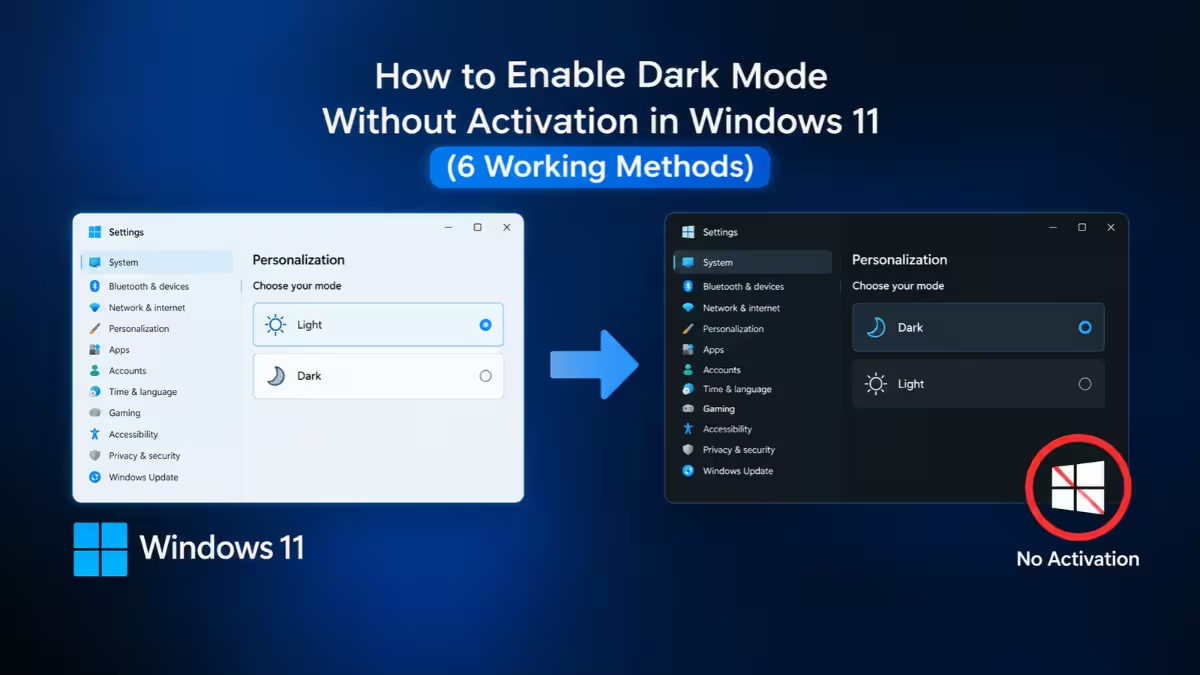
This guide walks you through every reliable method, from a simple double-click to a one-line command.
Why Dark Mode Is Greyed Out on Unactivated Windows 11
Microsoft ties personalization to activation. On an unactivated copy, Windows 11 locks wallpaper, accent colors, lock screen, themes and the light/dark choice inside Settings. Everything else, including security updates and even Pro features like Group Policy and BitLocker, keeps working.
Windows stores your color mode as two values in your user registry:
| Registry value | What it controls | Dark | Light |
|---|---|---|---|
| AppsUseLightTheme | Settings, File Explorer, Store apps and other supported apps | 0 | 1 |
| SystemUsesLightTheme | Taskbar, Start menu, Action Center and system menus | 0 | 1 |
Windows reads these values regardless of activation status. Change them, and dark mode follows.
Fastest Fix: Apply the Built-In dark.theme File
This method needs no registry editing at all, so start here.
- Open File Explorer.
- Paste
C:\Windows\Resources\Themesinto the address bar and press Enter. - Double-click dark.theme.
Windows applies the full dark theme instantly, including a darker wallpaper. If the theme file doesn't switch everything, move on to the registry method below.
Turn On Dark Mode Through Registry Editor
This gives you direct control over both settings.
- Press Windows + R, type
regeditand press Enter. Click Yes on the UAC prompt. - Paste
HKEY_CURRENT_USER\Software\Microsoft\Windows\CurrentVersion\Themes\Personalizeinto the Registry Editor address bar and press Enter. - In the right pane, double-click AppsUseLightTheme, type
0in Value data and click OK. - Double-click SystemUsesLightTheme, type
0and click OK. - Close Registry Editor.
Value missing? Right-click an empty area in the right pane, choose New > DWORD (32-bit) Value, enter the exact name, and set it to 0.
Apply the change
Your taskbar may stay light until Explorer reloads. Press Ctrl + Shift + Esc to open Task Manager, right-click Windows Explorer and select Restart. The screen flickers briefly and returns in dark mode. Signing out or rebooting does the same job.
Enable Dark Mode With a Command Prompt Command
Prefer typing over clicking? Open Command Prompt from the Start menu and paste these lines:
reg add "HKCU\Software\Microsoft\Windows\CurrentVersion\Themes\Personalize" /v AppsUseLightTheme /t REG_DWORD /d 0 /f
reg add "HKCU\Software\Microsoft\Windows\CurrentVersion\Themes\Personalize" /v SystemUsesLightTheme /t REG_DWORD /d 0 /f
taskkill /f /im explorer.exe & start explorer.exe
The first two lines write the dark values, and the last line reloads Explorer. Since these keys belong to your own user profile, a regular Command Prompt works fine. You don't need admin rights.
Switch to Dark Mode Using PowerShell
PowerShell fans can do the same thing with this block:
$path = "HKCU:\Software\Microsoft\Windows\CurrentVersion\Themes\Personalize"
Set-ItemProperty -Path $path -Name AppsUseLightTheme -Value 0 -Type DWord
Set-ItemProperty -Path $path -Name SystemUsesLightTheme -Value 0 -Type DWord
Stop-Process -Name explorer -Force
Windows usually relaunches Explorer automatically. If your taskbar doesn't reappear, open Task Manager, click Run new task, type explorer and press Enter.
Create a One-Click Dark Mode .reg File
Set up fresh Windows installs often? Build a one-click dark mode switch and keep it on a USB drive.
Copy this code:
Windows Registry Editor Version 5.00

[HKEY_CURRENT_USER\Software\Microsoft\Windows\CurrentVersion\Themes\Personalize]
"AppsUseLightTheme"=dword:00000000
"SystemUsesLightTheme"=dword:00000000- Open Notepad and paste the code.
- Click File > Save as, change Save as type to All files, and name it
darkmode.reg. - Double-click the file and confirm with Yes.
- Restart Windows Explorer or reboot.
For a matching light mode file, save a copy with both 00000000 values changed to 00000001.
Use a Contrast Theme If You Can't Edit the Registry
Can't touch the registry on this PC? Windows leaves accessibility features unlocked, and contrast themes give you a dark screen immediately.
Go to Settings > Accessibility > Contrast themes, pick Night sky or Aquatic, and click Apply. Toggle it anytime with Left Alt + Left Shift + Print Screen.
Keep expectations realistic here. Contrast themes use bold, high-contrast colors and change how every window looks, so they feel nothing like the polished native dark mode.
Set Dark Apps With a Light Taskbar (or the Reverse)
Since the two values work independently, you can split the look:
- AppsUseLightTheme = 0, SystemUsesLightTheme = 1: dark apps with a light taskbar and Start menu.
- AppsUseLightTheme = 1, SystemUsesLightTheme = 0: dark taskbar and Start menu with light apps.
How to Turn Off Dark Mode and Return to Light Mode
Set both values to 1 and restart Explorer. In Command Prompt:
reg add "HKCU\Software\Microsoft\Windows\CurrentVersion\Themes\Personalize" /v AppsUseLightTheme /t REG_DWORD /d 1 /f
reg add "HKCU\Software\Microsoft\Windows\CurrentVersion\Themes\Personalize" /v SystemUsesLightTheme /t REG_DWORD /d 1 /f
taskkill /f /im explorer.exe & start explorer.exe
Or double-click aero.theme in C:\Windows\Resources\Themes.
Dark Mode Not Working? Fix Common Problems
Some apps still look light. Many apps, such as Chrome, Edge and Office, carry their own theme setting. Open the app's settings and choose Dark or Use system setting.
The taskbar didn't change. You skipped the Explorer restart. Restart it from Task Manager or sign out.
Dark mode reverts after an hour. This happens on work laptops managed by Intune or Group Policy. Your IT admin controls the theme, and the policy overwrites your change on each refresh. Talk to IT instead of fighting it.
Microsoft greys out the dark mode toggle on unactivated Windows 11, but it never disables the setting underneath. Double-click dark.theme for the quickest fix, or set AppsUseLightTheme and SystemUsesLightTheme to 0 for full control. Restart Explorer, and your PC goes dark in seconds.
Frequently Asked Questions
Does this work on Windows 10?
Yes. Windows 10 uses the same two registry values at the same path, so every method above works there too.
Will dark mode survive a reboot or Windows update?
Yes. The values live in your user profile, so dark mode stays on after restarts and updates. If you activate Windows later, Settings will simply show Dark as already selected.
Can I change the wallpaper and accent color this way?
No. These tweaks only control light and dark mode. However, double-clicking any .theme file in C:\Windows\Resources\Themes changes the wallpaper along with it, and you can right-click any image and choose Set as desktop background.
Is editing these registry values safe?
Yes. Both values sit under your own user account, nothing critical depends on them, and setting them back to 1 restores the original look completely. Just avoid changing any other keys.
Does this activate Windows or remove the watermark?
No. The "Activate Windows" watermark and the Settings banners stay until you enter a valid product key. These methods only change the color mode.
Related Guides
- Windows 11 KB5077240 Update Adds Built-In Speed Test, RSAT Support, and Dark Mode Fixes
- How to Hide Name and Profile Picture on Start Menu in Windows 11
- How to Set a Different Zoom Level for Each Monitor in Windows 11
- How to Clear Cache on Windows 11 (7 Easy Methods)
- Windows 11 26H2 Is Out: How to Get the 2026 Update on 25H2 and 24H2