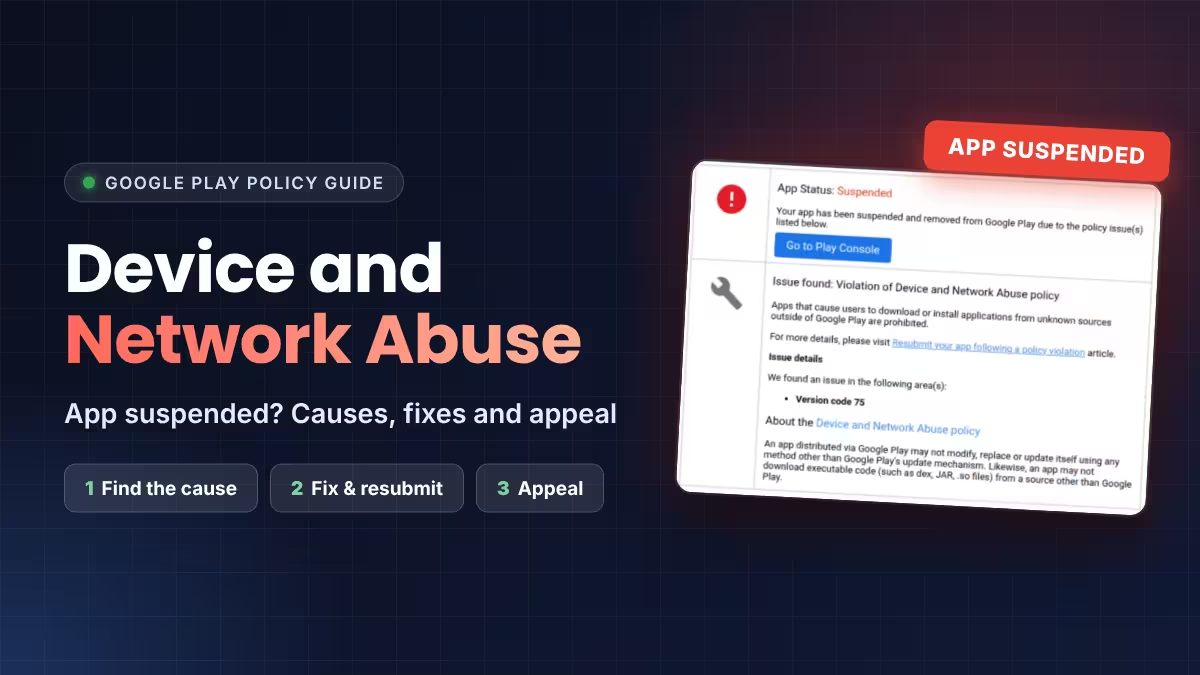
You open your inbox and find the email every Android developer fears. Google Play has suspended your app and removed it from the store. The reason: a violation of the Device and Network Abuse policy. The message names a version code, quotes a policy line, and says nothing else.
This guide explains what that policy actually targets, what usually triggers it, and how to get a suspended app back on Google Play.
What Is the Google Play Device and Network Abuse Policy?
The Device and Network Abuse policy protects users' devices, data, and networks from apps that interfere with them. The flag developers hit most often comes from two rules inside it.
- An app installed from Google Play must not modify, replace, or update itself through any channel other than the Google Play update system.
- An app must not download executable code, such as dex, JAR, or .so files, from anywhere outside Google Play.
The reasoning is simple. Without these rules, malware could pass review as a clean build, then pull in malicious code after approval. Google closes that door by treating any self-update or outside code download as a violation, without checking what the code does.
Why the Google Play Suspension Email Never Names the Cause
Most notices show only the policy name, the quoted rule, and the version code of the flagged build. They do not name the library, the file, or the line of code. That gap makes the problem feel random, but the version code gives you your first real clue. The violation lives in that specific build, so anything that changed in that release is a suspect.
Common Causes of a Device and Network Abuse Suspension
Your own code may not be the source. Check these areas in order.
- Third-party SDKs and ad mediation adapters. An SDK can fetch and load its own code at runtime. You ship it, so Google holds you responsible for it.
- Custom update prompts. An in-app "download the new version" button that installs an APK from your own server breaks the rule. Use Google's in-app update API instead. Private Android app stores follow different rules, but a build on Google Play must update only through Play.
- Over-the-air code updates. Hot-update and live-update plugins that replace app code outside Play can trigger the flag, especially in hybrid and cross-platform apps.
- WebViews that fetch and run executables. Loading web content is fine. Downloading and running binary code is not.
- Plugin or module loading from a remote server. Any feature that pulls a code module from your backend at runtime falls under the same rule.
- Automated false positives. Some developers report suspensions even with a minimal, mostly Google-only library set. Automated scanners make mistakes, which is why appeals matter.
How to Find What Triggered the Flag in Your App Version
Guessing wastes time, and a repeat violation makes things worse. Work through a short checklist instead.
- Open the flagged version code and compare it with your last clean release.
- List every library and SDK version that changed between the two builds.
- Search your project for runtime code loading, such as class loaders, dynamic module downloads, and APK install intents.
- Review the update logic. Make sure users only receive updates through Google Play.
- Read each SDK's documentation and release notes for notes about dynamic code or policy compliance.
- Remove or downgrade any SDK you cannot vouch for, especially non-essential ones.
How to Fix a Suspended App and Resubmit It on Google Play
Start in Play Console. Open your app, go to Policy status in the left menu, and read the enforcement details. For a suspended app, that page also carries the appeal option.
Then follow Google's resubmission steps after a policy violation.
- Fix the issue in your code or dependencies.
- Build a new, compliant app bundle with a higher version code.
- Upload it across all tracks and deactivate any non-compliant bundle.
- Submit the appeal from Policy status.
Do not republish the app before you fix the violation. A repeat violation can add strikes and put your whole developer account at risk, so keep your Google Play trader status details accurate too.
How to Appeal a Google Play App Suspension Successfully
Treat the appeal as a single, careful submission. Google's own guidance says email replies to the original notice are not reviewed, so use the appeal form in Play Console.
- State the exact version code you fixed.
- List what you removed or changed, such as SDK names and versions.
- Confirm that the app has no self-update logic and no runtime code downloads.
- Keep the tone factual and short. Skip emotional language and long stories about your user count.
If you believe the flag was a false positive and found nothing wrong, say that plainly, and show that you reviewed your dependencies and tested a clean build.
How to Avoid Device and Network Abuse Flags in Future Releases
- Keep your third-party library list as short as you can.
- Update every SDK to its latest stable version before each release.
- Record the SDK versions that ship in every build, so you can compare quickly after any flag.
- Use Google's in-app update API for update prompts and nothing else.
- Avoid hot-update plugins for apps that ship through Google Play.
- Test each release build for network calls that download code.
Frequently Asked Questions
What does Device and Network Abuse mean on Google Play?
It is a policy that stops apps from interfering with devices, data, or networks. The most common trigger is an app that updates itself, or loads executable code, outside the Google Play update system.
Can an ad SDK cause a Device and Network Abuse suspension?
Yes. If an SDK downloads and runs code from an outside source, Google can hold your app responsible, because you ship the library. That said, a suspension does not prove an SDK is guilty, so compare builds before you blame one.
Does my app need to offer APK downloads to get this violation?
No. The policy covers any app that updates itself or loads executable code from outside Google Play, even if your app never offers an APK download.
Can I get my app reinstated after a suspension?
Often, yes. Fix the issue, upload a compliant bundle, and appeal from the Policy status page in Play Console. Success depends on whether you actually removed the cause or Google agrees the flag was an error.
Should I republish the app while I wait for the appeal?
No. Fix the violation first. Republishing a non-compliant build can create new strikes against your developer account.
Related Guides
- Google Play Trader Status: How to Declare It, Who Must Do It and What Goes Public
- Best Private Android App Stores: Install Apps Without a Google Account
- How to Spot Fake AI Apps and Avoid Malware Before You Install
- How to Build Android Apps Using Google AI Studio (No Setup Required)
- Charger Alarm Anti-Theft App: Stop Phone Theft While Charging on Android