An indie developer woke up to an email at 2 AM telling him Google Play had suspended his app. The app scanned physical Pokémon trading cards, and its description clearly said it had no official link to the brand. Google still flagged it for impersonating Pokémon TCG Pocket, a digital card game that works nothing like a scanner. Minutes after he appealed, an automated reply denied it and told him to upload a brand new app.
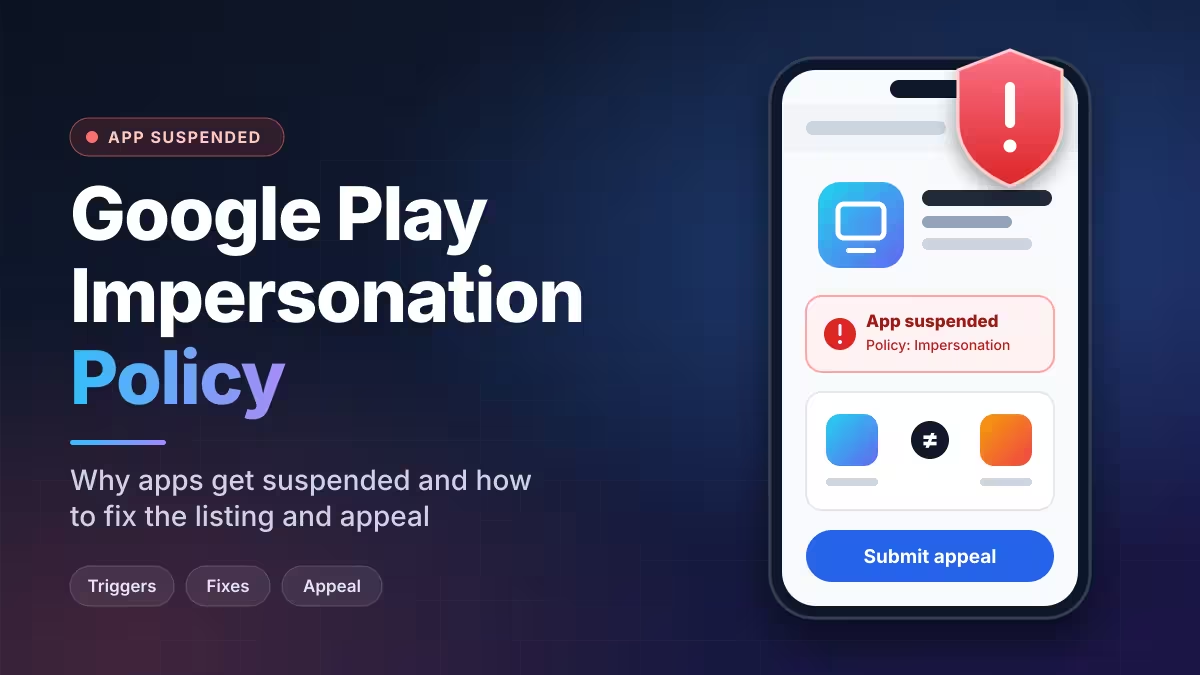
Cases like this keep showing up in developer forums, and most of them trace back to one rule: the Google Play Impersonation policy. If your app touches any popular brand, game, or service, you need to understand how this policy works before you publish.
What Is the Google Play Impersonation Policy?
Google does not allow apps that mislead users by pretending to be another developer, company, entity, or app. Your app also cannot suggest that a brand made it, endorsed it, or partnered with it when no such relationship exists. You can read the full rule on the official Impersonation policy page in the Play Console Help Center.
The policy works alongside the Metadata policy, which bans misleading or irrelevant content in your store listing. Together, they cover almost every visible part of your app:
- App title
- App icon
- Developer name
- Short and full description
- Screenshots and promo video
- Feature graphic
Google reviews all of these elements, and so do its automated systems. One mistake in any of them can take your whole app down.
Why Google Play Suspends Apps Even With a "Not Affiliated" Disclaimer
Many developers believe a line like "This app is not affiliated with Nintendo" keeps them safe. In practice, it often does the opposite.
Automated review systems scan your listing for protected brand names. They usually do not read context. A sentence that says "not official Pokémon app" still contains the word "Pokémon," and the scanner counts it. Some developers who hold real licensing deals have still had to remove brand mentions from their listings to clear a flag.
A disclaimer also fails if the rest of your listing points the other way. If your screenshots show a famous character or your icon uses a brand's colors and shapes, a text disclaimer will not convince a reviewer that users won't get confused.
Brand owners can also file complaints directly. Large companies actively monitor the Play Store, and a report from a rights holder can trigger a removal even when the automated system missed your app at launch.
Common Impersonation Triggers in Your Play Store Listing
These patterns cause most impersonation suspensions:
Brand names in the title. A title like "Pokémon Card Scanner" reads like an official product. Reviewers treat the title as the strongest signal of identity.
Lookalike icons. Copying a brand's logo, mascot, color scheme, or icon layout creates confusion even if you never use the name.
Character art in screenshots. Showing copyrighted characters, game art, or logos in your screenshots counts against you, even when the app itself uses them only as data.
Developer names that imply a link. A developer name such as "Official Game Tools" or one that includes a brand name suggests a relationship that doesn't exist.
Keyword stuffing in the description. Repeating brand names to rank for searches looks both spammy and misleading.
Similar names to existing apps. If your app name sits too close to a popular app in the same category, users may download yours by mistake, and Google treats that as impersonation.
How to Name an App for a Trademarked Product Without Getting Flagged
You can build tools for popular games and products. Thousands of companion apps, trackers, and scanners exist on Google Play. The key is to describe what your app does without making it look like the brand made it.
Follow these rules for safer naming:
- Lead with your own brand. Use a unique name like "CardLens" or "DeckScan" as the main title.
- Describe the function, not the brand. "Trading Card Scanner and Price Tracker" tells users what they get without borrowing anyone's name.
- Keep brand names out of the title and icon. If you must mention a product, place it lower in the full description where it explains compatibility.
- Use only your own art. Design original icons and capture screenshots that show your interface, not the brand's artwork.
- Get written permission when possible. If you have a licensing deal, keep a signed agreement ready. Google accepts proof of authorization through its support forms.
Keep in mind that the title has a 30 character limit, so a short, original brand name also helps you fit inside Google's store listing best practices.
How to Fix and Appeal a Google Play Impersonation Suspension
A Google Play suspension feels final, but you still have a few options. Work through them in order.
Read the Policy Email Carefully
Google's email names the policy and usually lists the specific elements it flagged, such as your icon or title. Note every item. Your appeal and your fix both depend on these details.
Check Your Entire Listing
Review your title, icon, screenshots, feature graphic, description, and developer name. Remove every brand name, logo, and character image, including disclaimers that mention the brand. Check all translated listings too, since the policy applies to every language.
File a Specific Appeal
Submit your appeal through the Play Console policy status page. Keep it short and factual:
- Explain what your app does and how it differs from the app Google named.
- List the exact changes you will make or have made.
- Attach proof of any license or permission you hold.
Avoid angry language. Generic appeals often get generic, automated replies, while specific ones have a better chance of reaching a human reviewer.
Reply to Automated Denials
If you receive a copy and paste denial, you can reply to the same email thread with more detail. Developers have reported that a follow-up response sometimes moves the case back into review.
Publish a New Compliant App as a Last Resort
When Google refuses to reinstate the original app, it may suggest publishing a new, compliant version under a new package name. This option only works if your developer account remains in good standing. You lose your reviews, ratings, and install history, so treat it as a final step.
How to Protect Your Google Play Developer Account From Termination
A single suspension hurts one app. Repeated violations can get your entire Google Play developer account terminated, which takes down every app you own.
To reduce that risk:
- Keep your developer contact email active and your Google Play trader status details current, and check your inbox daily.
- Back up your app signing key, listing text, and graphic assets.
- Fix any policy warning the same day you receive it.
- Avoid publishing several apps that target the same brand at once.
Google Play Impersonation Policy Checklist Before You Publish
Run through this list before every release or listing update:
- The title uses your own brand name and describes the function.
- The icon is original and does not copy any brand's logo, mascot, or colors.
- Screenshots show your own interface without third-party characters or logos.
- The developer name does not include any brand or the word "official."
- The description does not repeat brand names for keywords.
- Translated listings follow the same rules.
- You hold written permission for any brand content you do use.
Frequently Asked Questions
What is impersonation on Google Play?
Impersonation happens when an app suggests it belongs to, or has approval from, another developer, company, or app without any real relationship. Google checks the title, icon, developer name, description, and screenshots for this.
Can I mention a brand name in my app description?
You can mention a brand to explain compatibility, but it still carries risk. Automated systems may flag the name even with a disclaimer, so keep mentions minimal and never place them in the title or icon.
Does a "not affiliated" disclaimer prevent suspension?
No. A disclaimer does not override a listing that uses brand names, logos, or character art. Automated scanners often flag the brand name inside the disclaimer itself.
Can I appeal a Google Play impersonation suspension?
Yes. Submit an appeal through the Play Console, explain how your app differs from the named app, and list the changes you made. Attach proof of permission if you have it.
Why does Google tell me to upload a new app?
Google suggests this when it decides not to reinstate the original listing. You can publish a new compliant app only if your developer account stays in good standing, but you lose the old app's reviews and installs.
Can impersonation get my developer account banned?
Yes. Serious or repeated violations can lead to account termination, which removes all of your apps from Google Play.
Related Guides
- Google Play Device and Network Abuse Suspension: Causes, Fixes and How to Appeal
- Google Play Trader Status: How to Declare It, Who Must Do It and What Goes Public
- Best Private Android App Stores: Install Apps Without a Google Account
- How to Build Android Apps Using Google AI Studio (No Setup Required)