Activating your Twitch account links your device to your profile using a short code from the Twitch app and the activation page at twitch.tv/activate. This process works across smart TVs, gaming consoles, streaming sticks, and mobile devices.
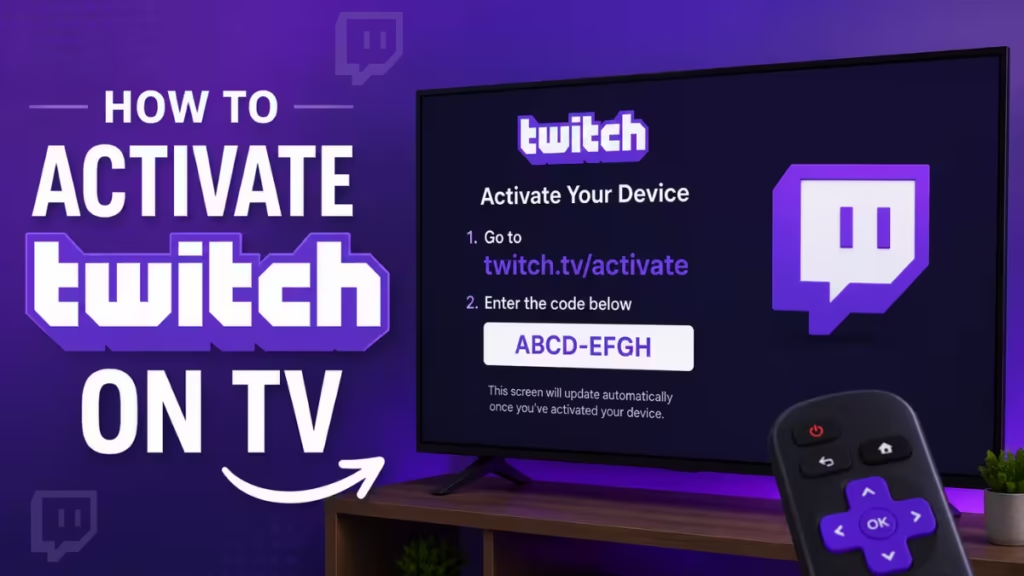
Before you start, make sure your device connects to the internet and you are logged into the correct Twitch account on your phone or PC.
This guide covers activation steps for every major platform, plus tips to fix common problems.
Supported Devices for Twitch Activation
- PlayStation 3, PlayStation 4, PlayStation 5
- Xbox 360, Xbox One, Xbox Series S/X
- Android
- iOS
- Chromecast
- Apple TV
- Amazon Fire TV
Note: Roku no longer officially supports the Twitch app. You may need to use a third-party channel or sideloading method to get Twitch on Roku.
How to Activate Twitch on iOS
- Open the App Store from your iPhone or iPad home screen.
- Tap the search bar, type Twitch, and tap Search.
- Tap the official Twitch app, then tap the download button and wait for it to install.
- Open the app and tap Log In.
- Enter your username and password.
- Twitch will send a verification code to your email. Enter that code to complete activation.
How to Activate Twitch on Android
- Open the Play Store from your home screen.
- Tap the search bar, type Twitch, and search.
- Select the official Twitch app and tap Install.
- Once the installation finishes, open the app and tap Log In.
- Enter your username and password.
- Check your email for a verification code, enter it in the app, and you are ready to use Twitch.
How to Activate Twitch on PlayStation (PS3, PS4, PS5)
- Open the PlayStation Store on your console.
- Search for Twitch, then download and install the app. The steps look slightly different on each model, but the overall process is the same.
- Open the app and select Sign In.
- Enter your Twitch username and password.
- On your phone or PC, go to twitch.tv/activate.
- Enter the code displayed on your PlayStation screen, then press OK.
- You can now watch or stream Twitch on your PlayStation.
How to Activate Twitch on Xbox (360, One, Series S/X)
- Open the Microsoft Store on your Xbox console.
- Search for Twitch and download the app. The process works the same on Xbox 360, One, and Series S/X.
- Once the installation finishes, open Twitch and tap Log In.
- Enter your username and password.
- Go to twitch.tv/activate on your phone or PC.
- Type in the code shown on your Xbox screen and click Activate.
Your Xbox is now linked to your Twitch account.
How to Activate Twitch on Chromecast
Chromecast works differently from other platforms. Instead of a device app, you cast directly from your phone or tablet.
- Download the Twitch app from the App Store or Play Store if you do not have it already.
- Make sure your phone or tablet and your Chromecast connect to the same Wi-Fi network.
- Open the Twitch app and tap the Cast button at the top of the screen.
- Select your Chromecast from the list.
No activation code is needed. The stream comes from your mobile device, so you only need to be logged into Twitch on your phone or tablet.
How to Activate Twitch on Apple TV
- Turn on your Apple TV and open the App Store from the home screen.
- Go to Search, type Twitch, and wait for the results.
- Select the official Twitch app and tap Get to download and install it.
- Once the app installs, open it and log in to your Twitch account.
You can now watch your favorite streams directly on your Apple TV.
How to Activate Twitch on Fire TV
- Turn on your Fire TV device and go to the Amazon Appstore from the main menu.
- Search for Twitch, select the app, and open its page.
- Click Get to download and install the app.
- Once installed, click Open to launch Twitch.
- Wait for the app to load, then find the Sign In button in the left menu.
- Follow the on-screen instructions and sign in using twitch.tv/activate.
How to Enable Two-Factor Authentication on Twitch
After activating your account, turn on two-factor authentication (2FA) to keep your account secure.
- Visit your Twitch Settings page.
- Go to the Security and Privacy tab.
- Under Security, click Set Up Two-Factor Authentication.
- Follow the prompts to link your mobile number and verify it.
You will now see a 2FA prompt every time you log in to Twitch.
How to Verify Your Account for Streaming
Once your account is active, verify it to unlock broadcasting features.
- Click your profile icon in the top-right corner of Twitch.
- Select Creator Dashboard.
- Go to Settings and then Stream.
- Confirm your email is verified and your account shows as fully activated for broadcasting.
Twitch Activation Not Working on TV or Console: How to Fix It
If the activation code does not work or the process fails, try these steps:
- Check your internet connection: A weak or unstable connection causes activation failures. Switch to a stronger Wi-Fi signal or restart your router.
- Re-enter the code carefully: Typos are the most common reason activation fails. The code is case-sensitive, so enter it exactly as it appears on your device screen.
- Get a new code: Activation codes expire after a few minutes. Go back to the Twitch app on your device and generate a new code, then enter it right away.
- Clear your browser cache: If you use a browser to visit twitch.tv/activate, old cached data can block the process. Clear your browser cache and try again.
- Use a different browser: If the activation page fails to load or submit, switch to Chrome, Firefox, or Edge and try again.
- Confirm your Twitch account is verified: You need a verified email address to activate your account on a new device. Check your Twitch email settings and verify your address if you have not done so.
Frequently Asked Questions
Can I activate Twitch on multiple devices at the same time?
Yes. You can activate Twitch on multiple devices using the same account. Each device shows its own activation code during the process.
Is Twitch activation free?
Yes. Activating your Twitch account on any device costs nothing. Some Twitch features like subscriptions and channel upgrades require payment, but basic activation is always free.
How do I remove a device from my Twitch account?
Go to your Twitch account settings, find the connected devices section, and remove any device you no longer use. This helps keep your account secure.
What if I forget which device is logged in?
Visit your Twitch account settings and review the list of connected devices. Remove any unfamiliar device and change your password as a precaution.
Activating your Twitch account on any device takes only a few minutes. Open the Twitch app on your device, note the activation code, and enter it at twitch.tv/activate on your phone or PC. Once linked, you can watch streams, chat with communities, and start broadcasting your own content. If activation fails, check your internet connection, re-enter the code carefully, or generate a new code and try again.
Related Guides

