If you are seeing Error Code ARAU0137 in ARC Raiders, it means the game is failing to connect to its online services during login. This issue usually appears right after launch and prevents you from accessing the game entirely, even when your setup seems fine.
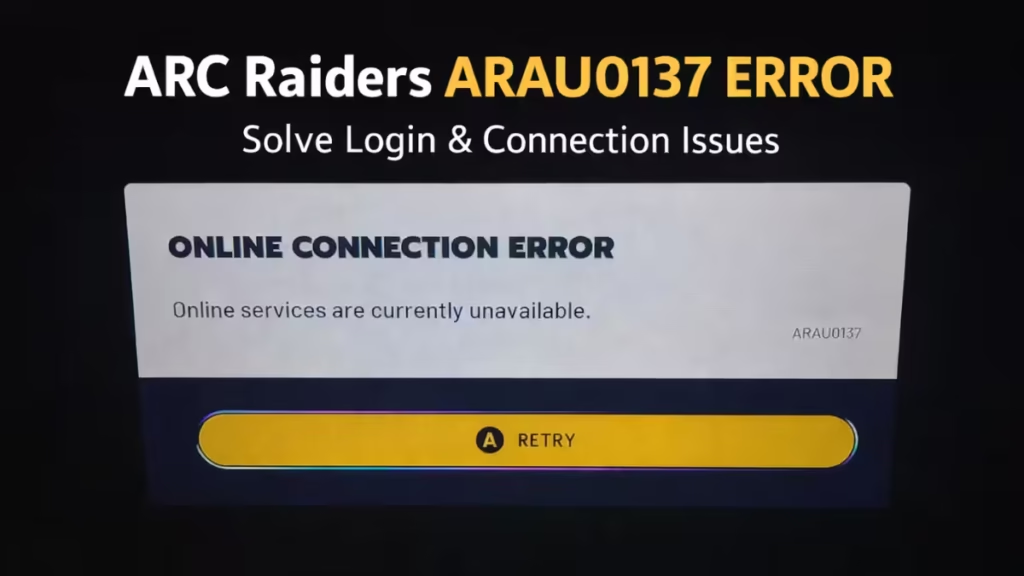
This guide explains what the ARAU0137 error means and provides clear, step-by-step methods to fix it. Whether you are playing on PC, Xbox, or a handheld device, these solutions will help you restore the connection and get back into the game quickly.
What Is Error Code ARAU0137?
Error ARAU0137 is an online connection or authentication failure. The game fails to complete the login handshake with its servers.
You will notice:
- Game stuck after launch
- Login fails instantly
- No option to proceed
This happens across PC, Xbox, and handheld devices, so the issue is not device-specific.
How to Fix ARAU0137 Error (Step-by-Step)
Follow these methods in order. Most users fix the issue within the first few steps.
1. Restart Game and Device
Start with a full restart.
- Close ARC Raiders completely (do not minimize)
- Restart your PC / console
- Relaunch the game
This clears temporary connection glitches and handshake failures.
2. Check for Game and System Updates
Outdated systems often cause authentication errors.
- Update ARC Raiders (Steam / Xbox)
- Update Windows or console OS
- Restart after updating
Some users fixed ARAU0137 only after updating system components.
3. Repair Game Files
Corrupted files can block login.
On PC / Xbox App:
- Open game settings
- Go to Manage → Files → Repair
This restores missing or broken files.
4. Fix Xbox Connection Issue (Important for Console Users)
If you play on Xbox, this is one of the most effective fixes.
Steps:
- Install Xbox Insider Hub
- Join Update Preview (Omega ring)
- Update your console
- Restart and launch the game
This forces a newer system build that resolves connection handshake failures.
5. Clear Local Saved Data (Console Only)
Corrupted local data can break login.
- Go to storage settings
- Delete local saved data only
- Keep cloud sync enabled
This resets local files without losing progress.
6. Reset Gaming Services (PC / Handheld Fix)
This is useful for Windows devices and handhelds.
- Uninstall Xbox Gaming Services
- Restart your system
- Reinstall Gaming Services
This fixes backend authentication issues blocking login.
7. Check Internet and Sync System Time
Connection and timing issues can break authentication.
- Enable automatic date & time
- Restart your router
- Switch to a stable network
Incorrect system time can prevent server authentication.
8. Verify Subscription (Game Pass Users)
If you use Game Pass:
- Ensure your subscription is active
- Sign out and sign back in
Some users fixed ARAU0137 after restoring proper account authentication.
Why This Error Happens Even After Fixes
Sometimes, none of the fixes will work even after trying everything. This usually means the problem is not on your side. The servers may be overloaded, backend services could be temporarily down, or developers may not have released a fix yet.
Since ARC Raiders is an always-online game, server-related issues can trigger this error quite often. In such situations, the best option is to wait for the servers to stabilize and try again later.
FAQs
Is ARAU0137 a server issue?
Yes, in many cases. It often appears during server instability or updates.
Does it affect PC and console?
Yes. Players report it on PC, Xbox, and handheld devices.
Will I lose progress if I clear data?
No, if you delete local data only and keep cloud sync.
Is there an official fix?
No dedicated patch yet. Current solutions are workarounds.
To fix the ARAU0137 error, restart your game and system, then update both the game and your OS. Repair game files if needed.
Console players should update Xbox (Insider fix if required) and clear local data, while PC users can reset Gaming Services. Also check your internet, sync system time, and verify your Game Pass subscription. Most users fix the issue with just a few of these steps.

