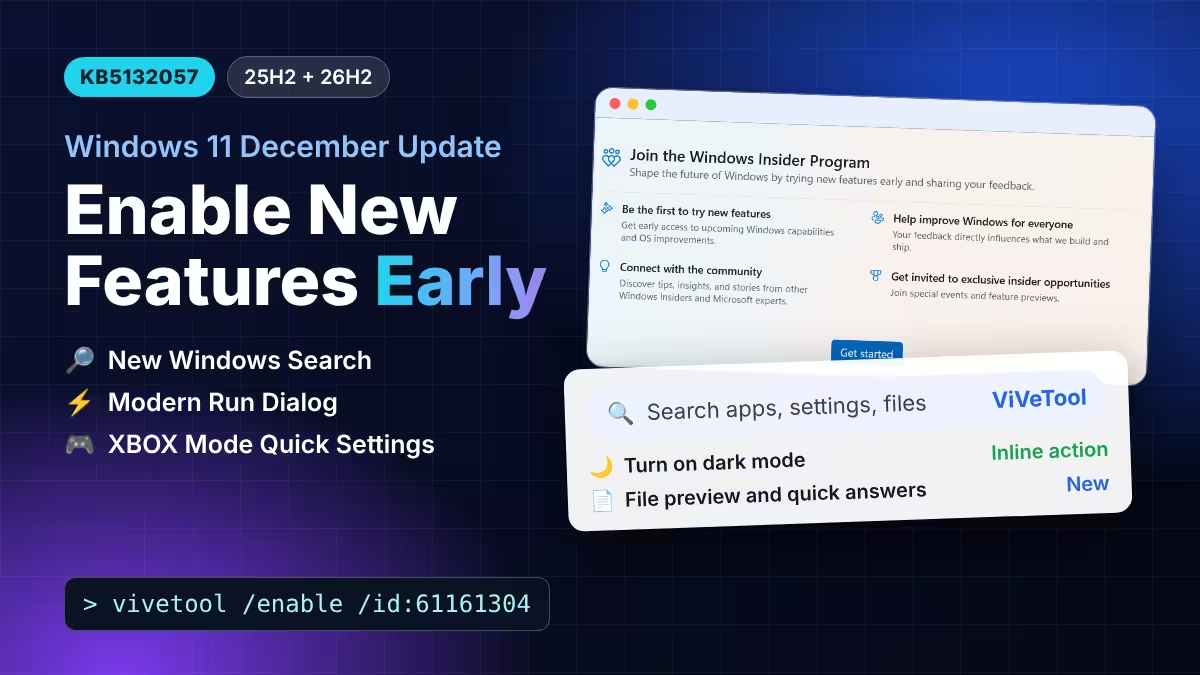
Microsoft ships the December update for Windows 11 on December 8, and you do not have to wait for it. KB5132057 brings a rebuilt Windows Search, a modern Run dialog, Quick Settings inside XBOX mode, and a few accessibility upgrades. Microsoft turns these features on in stages, so two PCs on the same build can show different options. You can skip the queue with a free tool called ViVeTool, or you can switch on the settings Microsoft already exposes.
This guide shows you how to get the update, which commands unlock each feature, and how to roll everything back if something breaks.
New Features in Windows 11 KB5132057 (25H2 and 26H2)
The update targets Windows 11 version 25H2 (build 26200.10066) and version 26H2 (build 26300.10066). Here are the changes that matter most:
- New Windows Search: A single clean results list, faster performance, inline actions such as dark mode, Bluetooth, volume mute, and brightness, plus file previews and quick answers for weather and stocks. It launches in English first.
- Modern Run dialog: A WinUI design with a cleaner layout and better usability.
- Windows Hello brightness boost: Face recognition can brighten your screen in a dim room so the camera sees you.
- XBOX mode Quick Settings: The full Quick Settings panel now sits in the Gaming Task View bar.
- Faster File Explorer search: Search from This PC now uses the index.
- Widgets alerts: Windows notifies you when an app you install adds a new widget.
- Accessibility: A pointer indicator for low vision users, a Magnifier help menu, and wider Narrator math support.
- Red capture border: Screen capture now draws a red frame instead of a yellow one.
- Web sign-in for hybrid devices: Microsoft Entra hybrid joined PCs can sign in without a password.
How to Install KB5132057 Before the Official Release
You have two routes, depending on the date.
Install from the Release Preview Channel
Microsoft pushed the build to the Release Preview channel on November 13. Enroll your PC like this:
- Open Settings and select Windows Update.
- Open Windows Insider Program and click Get started.
- Link your Microsoft account and click Continue.
- Select Advanced options, turn on Show Release Preview, and choose Release Preview.
- Restart the PC.
- Return to Windows Update, turn on Get the latest updates as soon as they're available, and click Check for updates.
- Restart again when the install finishes.
Install from Windows Update (Optional Update)
Microsoft normally releases the preview as an optional update in the last week of the month. You do not need the Insider Program for it:
- Open Settings and go to Windows Update.
- Turn on Get the latest updates as soon as they're available.
- Click Check for updates, then select Download and install on the optional update.
- Restart the PC.
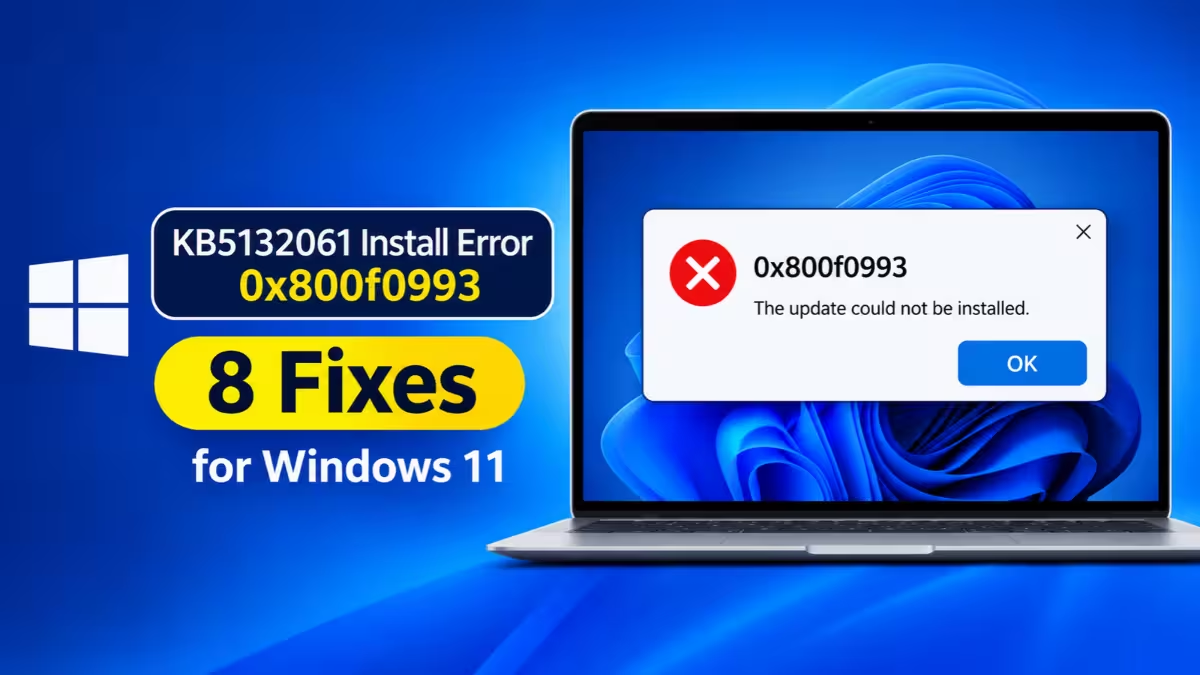
If the download fails with error 0x800f0993, work through the fixes in that guide. Everyone else gets the same update through the regular December 8 Patch Tuesday release.
How to Enable KB5132057 Features with ViVeTool
After the update installs, some features still stay hidden because of the staged rollout. ViVeTool flips those hidden switches for you. It is a third-party tool, so Microsoft does not support it. Feature IDs can stop working after later updates, so treat each command as a try-it option.
Download and Set Up ViVeTool
- Download the latest ViVeTool zip from its GitHub releases page.
- Right-click the zip file, choose Extract all, and pick a folder such as
C:\ViVeTool. - Open Start, search for Command Prompt, right-click it, and choose Run as administrator.
- Move into the folder with this command, using your own path:
cd C:\ViVeToolViVeTool Commands for Windows Search, Run Dialog, and XBOX Mode
Run only the commands for the features you want.
Feature bundle for the whole update:
vivetool /enable /id:61161304New Windows Search:
vivetool /enable /id:58381341If the search box looks the same after a restart, run this longer version instead:
vivetool /enable /id:58381341,59210771,59210767Modern Run dialog:
vivetool /enable /id:58381341,58527096,57156807,57259990Quick Settings in XBOX mode:
vivetool /enable /id:59956305Restart your PC after you run any of these commands. The changes do not apply until you reboot.
Enable the New Run Dialog and Other Features from Settings
Some features need no commands at all. Once the update reaches your PC, flip these settings yourself:
- Run dialog: Go to Settings > System > Advanced and turn on the modern Run option. Press Win + R to test it. Turn the option off if you prefer the classic box.
- Windows Hello brightness: Go to Settings > Accounts > Sign-in options > Facial recognition (Windows Hello) and turn on Automatically adjust screen brightness during face recognition.
- Pointer indicator: Go to Settings > Accessibility > Mouse pointer and touch and turn on Pointer indicator. Then press Windows key + Ctrl + Shift + X to toggle it.
- Magnifier shortcut: Go to Settings > Accessibility > Magnifier to choose whether Windows key + Plus launches Magnifier.
If you cannot find a toggle, your PC has not received that feature yet, or your organization has blocked the page with a policy.
How to Disable the New Features or Reset ViVeTool
Open an elevated Command Prompt in the ViVeTool folder and disable the ID you enabled:
vivetool /disable /id:61161304Repeat the command for each ID you turned on, then restart. To wipe every custom flag in one step, run this and restart:
vivetool /fullresetFrequently Asked Questions
Does the 61161304 command unlock every feature?
No. It enables the update's main feature bundle, but Microsoft still gates some features by hardware, region, or server-side rollout. A few features need their own IDs.
Is ViVeTool safe to use?
ViVeTool only activates flags that already exist in your copy of Windows. It does not add code. Still, Microsoft does not support it, and hidden features can have bugs. Create a restore point and back up Windows 11 before you start and keep the reset command handy.
Why does my PC show different features than another PC on the same build?
Microsoft enables new features for a small group of devices first and widens the group over time. This lets the company catch problems early and stop them from spreading.
Will the new Windows Search work in languages other than English?
Not at launch. The new Search experience starts in English only.
When does everyone get the update?
The regular release lands on December 8 through Patch Tuesday. The optional preview arrives earlier, usually in the last week of November.
Can I go back to the old Run dialog?
Yes. Turn off the modern Run option in Settings > System > Advanced, or disable its ViVeTool IDs and restart.
Related Guides
- How to Turn Off Bing Web Results in Windows 11 Search
- Windows 11 26H2 Not Showing Up? How to Get the Update Manually
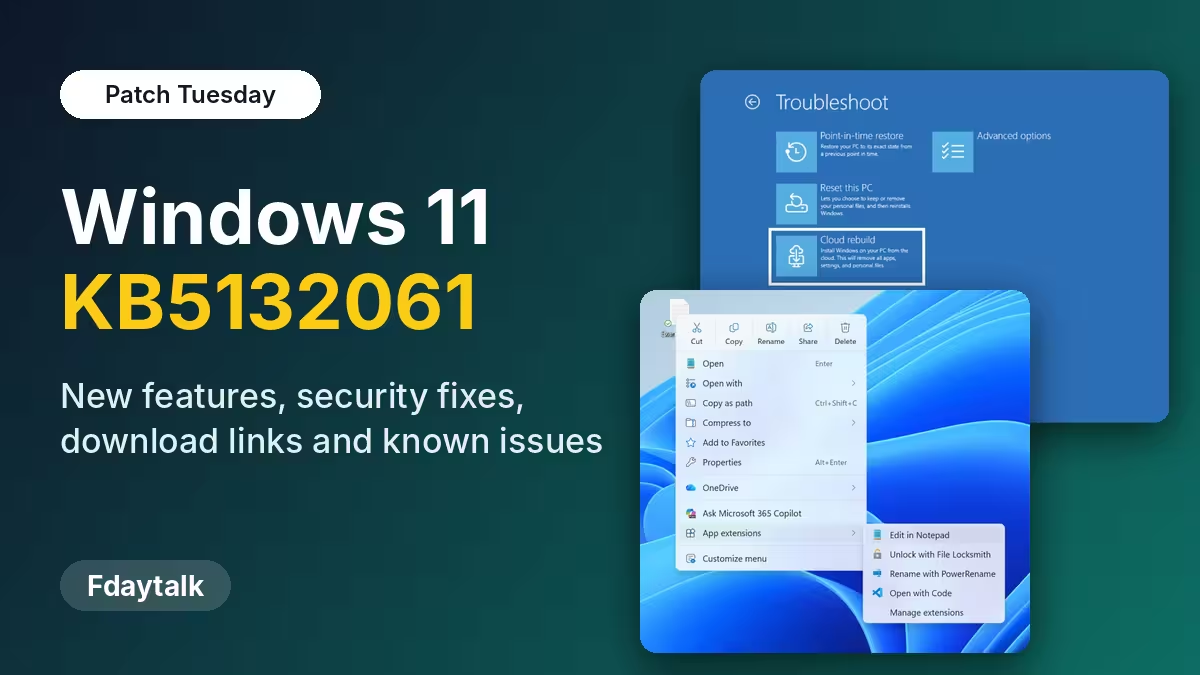
- Windows 11 KB5132061 Is Out: Customizable Context Menu, Cloud Rebuild, Download Links and Known Issues
- Windows 11 Registry Editor: Is Microsoft Really Replacing Regedit With This WinUI App?
- Essential Windows 11 Settings and Tools Every User Should Know