Windows 11 hides an advanced CPU control called Processor Performance Boost Mode from the standard Power Options menu. By default, you only see basic settings like minimum and maximum processor state. Unlocking this hidden setting lets you decide how aggressively your CPU uses turbo or boost frequencies, giving you real control over performance, temperatures, battery life, and fan noise.
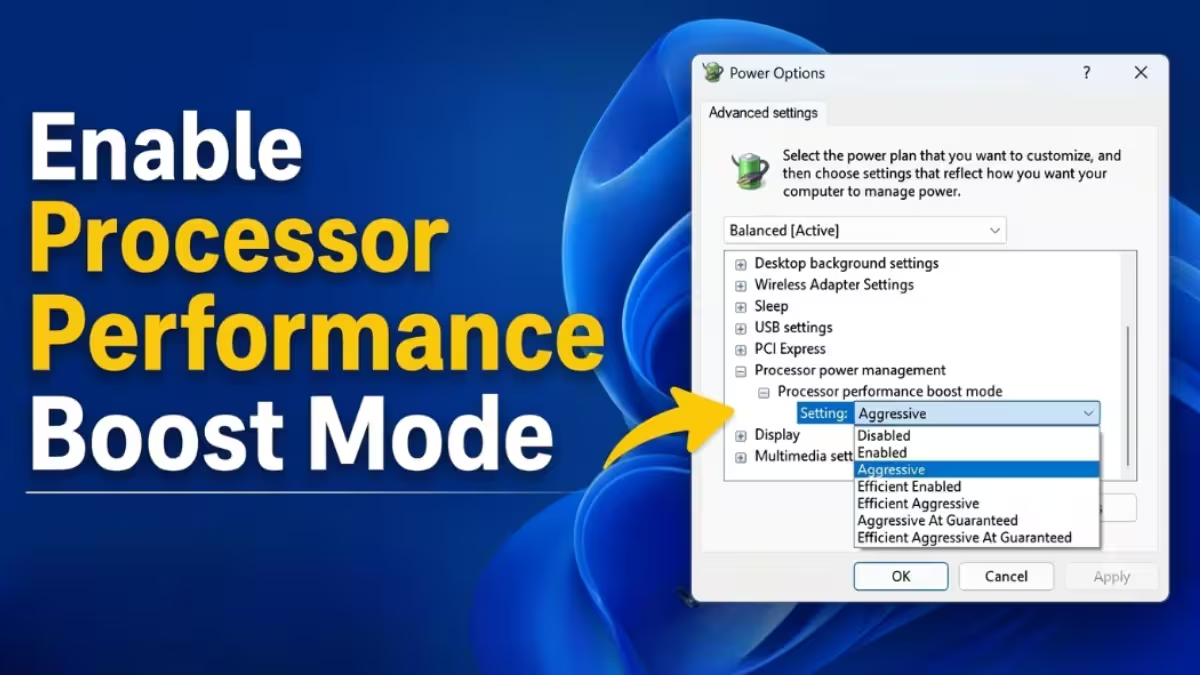
This guide shows you how to enable Processor Performance Boost Mode using the Registry Editor or a PowerCfg command, and how to configure the right mode for your system.
What Is Processor Performance Boost Mode?
Modern processors from Intel and AMD can temporarily increase their clock speed above the base frequency when a workload demands it. Intel calls this Turbo Boost; AMD calls it Precision Boost. These technologies allow the CPU to deliver extra performance for short bursts without running at peak frequency all the time.
Processor Performance Boost Mode is a Windows power management setting that controls how aggressively the operating system requests these higher clock speeds from the CPU. A more aggressive mode pushes the processor to boost faster and stay boosted longer. A less aggressive or disabled mode keeps the CPU closer to its base frequency, which reduces heat, fan noise, and power draw.
This setting does not overclock your processor. It only changes how Windows interacts with your CPU’s existing boost hardware. The processor’s maximum turbo frequency, as defined by the manufacturer, stays unchanged.
Why Should You Enable This Setting?
Windows hides this setting by default, so most users never see it. Enabling it does not change your current behavior right away. It simply makes the control visible in Power Options so you can adjust it.
You might want to enable it for several reasons:
- Your laptop runs hot and loud during normal tasks, and you want to reduce boost aggressiveness to lower temperatures and fan noise.
- You want to extend battery life on a portable device by limiting how often the CPU jumps to high frequencies.
- You run demanding workloads like gaming or video editing on a well-cooled desktop and want to push the CPU to boost more aggressively.
- You want finer control over the balance between responsiveness and efficiency than the standard Power Plans offer.
Step 1: Unlock the Setting Using Registry Editor
The Registry Editor method works on all Windows 11 versions. You need to change a single DWORD value to make the Processor Performance Boost Mode option appear in Power Options.
Before you start: Back up the Registry or create a System Restore Point. Incorrect Registry changes can cause system instability.
- Press Win + R to open the Run dialog. Type
regeditand press Enter. If a UAC prompt appears, click Yes. - In the Registry Editor address bar, paste the following path and press Enter:
HKEY_LOCAL_MACHINE\SYSTEM\CurrentControlSet\Control\Power\PowerSettings\54533251-82be-4824-96c1-47b60b740d00\be337238-0d82-4146-a960-4f3749d470c7- In the right pane, find the Attributes DWORD value and double-click it.
- Change the Value data from
1to2and click OK. - Close the Registry Editor.
You do not need to restart your computer in most cases. If the setting does not appear in the next step, restart Windows and try again.
Alternative Method: Use a PowerCfg Command
If you prefer the command line, you can run a single PowerCfg command in an elevated Command Prompt to unhide the setting:
powercfg -attributes SUB_PROCESSOR PERFBOOSTMODE -ATTRIB_HIDEOpen Command Prompt as Administrator, paste the command, and press Enter. This method may not work on all Windows 11 builds. If the setting does not appear in Power Options after running the command, use the Registry method above instead.
Step 2: Configure Processor Performance Boost Mode
Once you unlock the setting, follow these steps to configure it:
- Click the Start button, type Edit power plan in the search box, and open it.
- Click Change advanced power settings.
- In the Power Options dialog, expand Processor power management.
- Expand Processor performance boost mode.
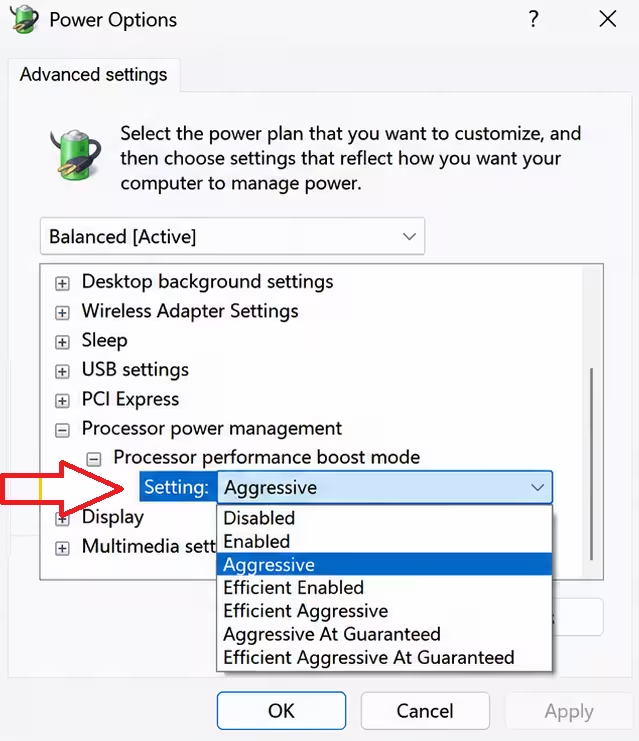
- You will see two dropdowns: On battery and Plugged in. Select the mode you want for each.
- Click Apply and then OK.
The changes take effect immediately. You do not need to restart your PC.
Processor Performance Boost Mode Options Explained
Windows 11 offers up to seven boost modes depending on your processor, firmware, and Windows version. Not every mode appears on every system.
Classic Modes
| Mode | What It Does | Best For |
|---|---|---|
| Disabled | Prevents the CPU from using any boost frequencies above its base clock speed. | Laptops where battery life, lower temperatures, and quiet operation are the priority. |
| Enabled | Allows standard boost behavior when additional performance is needed. | Everyday use with a balance between performance and efficiency. |
| Aggressive | Pushes the CPU to enter higher boost states faster and sustain them longer. | Gaming desktops and workstations with good cooling. |
| Efficient Enabled | Allows boosting but places greater weight on power efficiency. | Laptops that need mild boost without extra heat. |
| Efficient Aggressive | Delivers more responsive boosting while still factoring in power efficiency. | Mixed-use systems that need a balance between speed and efficiency. |
At Guaranteed Variants
The “guaranteed” frequency refers to the processor’s rated base frequency.
| Mode | What It Does | Best For |
|---|---|---|
| Aggressive at Guaranteed | Aggressively boosts the CPU above its guaranteed performance level when conditions allow. | Performance-focused users who want higher and more sustained boost activity. |
| Efficient Aggressive at Guaranteed | Delivers strong boost above the guaranteed level while keeping power use in check. | Users who want strong performance with better power efficiency. |
Which Mode Should You Choose?
Your choice depends on your hardware and what you want to optimize.
For gaming desktops and plugged-in laptops: Use Aggressive or Aggressive at Guaranteed. These modes encourage the CPU to enter boost states quickly and stay there during load, which reduces frequency ramp-up delays. Monitor your temperatures after switching, especially on laptops.
For everyday productivity on a laptop: Use Enabled or Efficient Enabled. These modes let the CPU boost when needed but avoid the sustained high-frequency behavior that raises heat and drains the battery.
For maximum battery life: Use Efficient Enabled or Disabled. Limiting boost frequency reduces how often the CPU spikes its power draw, which directly extends runtime on battery.
For mixed-use systems: Use Efficient Aggressive or Efficient Aggressive at Guaranteed. These modes give you better performance than Enabled while using power more intelligently than the fully Aggressive modes.
After changing the setting, use your PC normally for a few days. Watch temperatures, fan behavior, battery life, and responsiveness before deciding to adjust further.
Is It Safe to Disable Processor Performance Boost Mode?
Yes. Disabling boost does not damage your processor or cause stability issues. It simply prevents the CPU from running above its base clock speed. You may notice slower performance in CPU-intensive tasks like video encoding or compiling code, but everyday tasks like browsing, document editing, and streaming rarely rely on boost frequencies.
Related Guides
- How to Enable Hidden CPU Boost Mode on Windows 11
- How to Enable Low Latency Profile (CPU Boost) on Windows 11 Using ViveTool
- Windows 11 Low Latency Profile: What It Does and How It Works
Frequently Asked Questions
Does enabling this setting overclock my CPU?
No. Processor Performance Boost Mode only changes how Windows requests boost frequencies that your CPU already supports. It cannot push your processor beyond the maximum turbo frequency set by the manufacturer.
Why do I not see all the boost mode options?
The available options depend on your processor model, system firmware, active power plan, and Windows 11 version. Some modes only appear on specific Intel or AMD platforms.
Will switching to Aggressive mode improve my gaming frame rates?
It may reduce CPU-related bottlenecks by helping the processor respond faster to short workload spikes. However, many games are GPU-bound, so the frame-rate improvement may be small or unnoticeable outside of benchmarks.
Can I configure different modes for battery and plugged-in states?
Yes. The Power Options menu shows separate dropdowns for On battery and Plugged in, so you can run Aggressive when plugged in and Efficient Enabled or Disabled on battery at the same time.

