If you are enrolled in the Windows Insider Program and want to move to a different channel, you no longer need to wipe your PC and start from scratch. Microsoft now supports in-place channel switching that preserves your files, apps, and settings. This guide walks you through every method available, from the Settings app to PowerShell and the Registry Editor, so you can pick the approach that fits your situation.
What Are the Windows Insider Channels?
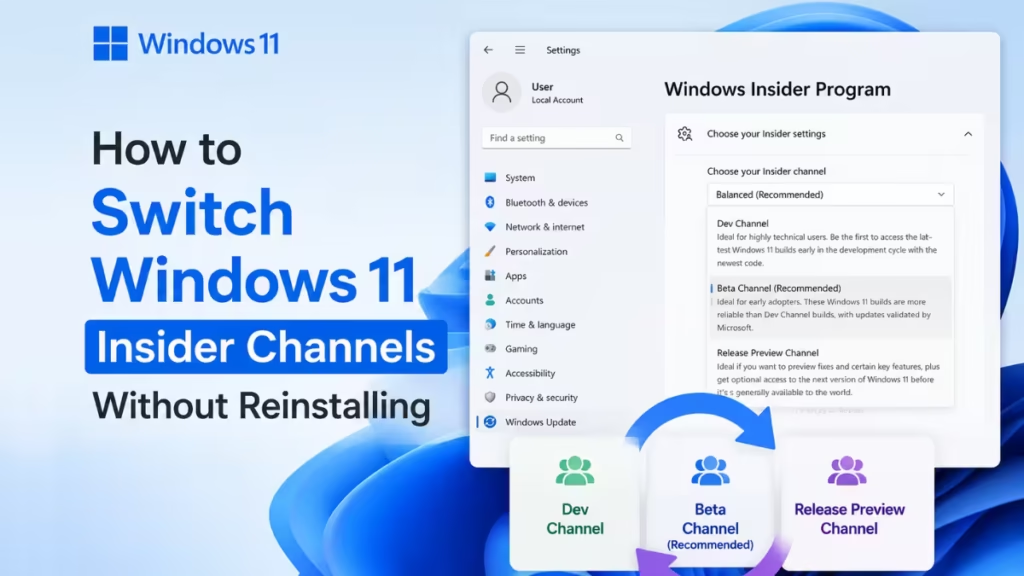
Microsoft recently overhauled the Windows Insider Program and renamed its channels. Here is the current structure:
| Channel | Build Type | Stability |
|---|---|---|
| Experimental Future Platforms | Earliest preview, not tied to any production release | Very unstable |
| Experimental (26H1 / 27H2) | Pre-release feature testing | Unstable |
| Beta | Validated builds close to public release | Moderate |
| Release Preview | Near-final builds | Most stable |
Note: The old Canary and Dev channel names still appear in the Windows registry under the hood. The Settings UI now shows the new names, but the registry values remain unchanged.
Before You Switch Channels
Check these requirements before proceeding:
- Windows 11 version 21H2 or newer
- A Microsoft account (or Azure AD account) enrolled in the Windows Insider Program
- Administrator privileges on the device
- An active internet connection
- A current backup of your important files (especially if you plan to downgrade channels)
Warning: Switching from a higher channel (Experimental) down to a lower one (Beta or Release Preview) is not always supported through in-place upgrade. You may need a clean installation for downgrades.
Method 1: Switch Windows 11 Insider Channels Without Reinstalling (Settings App)
This is the simplest method and works for most users. Windows now processes the channel change as an in-place upgrade, so your files and apps stay intact.
- Open Settings (press
Win + I). - Click Windows Update in the left sidebar.
- Click Windows Insider Program.
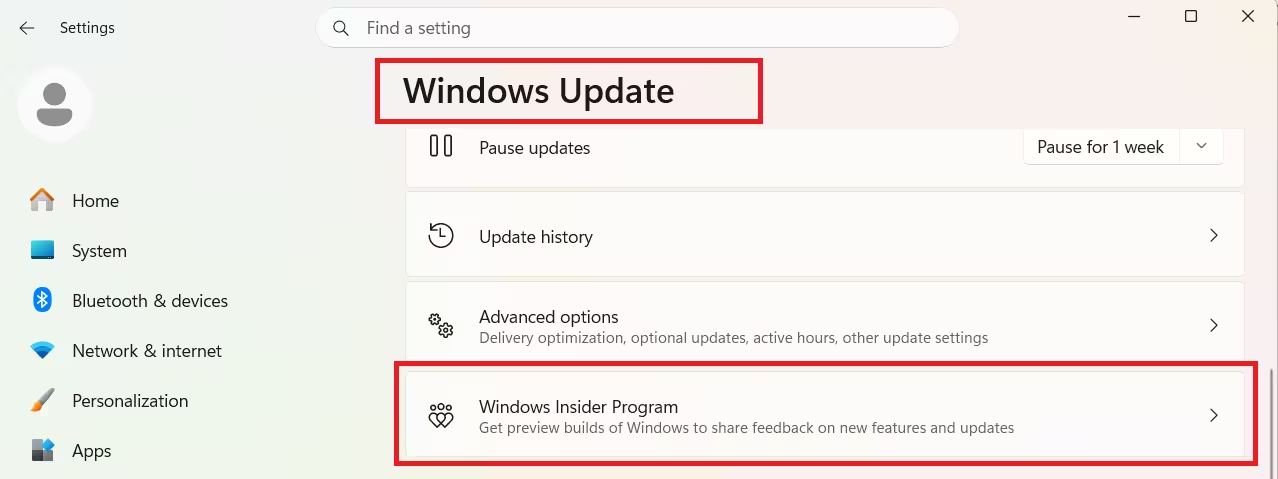
- Under Choose your Insider settings, select your target channel: Experimental, Beta, or Release Preview.
- Click Advanced options and choose the Windows 11 version you want to test (25H2 or 26H1).
- Go back to Windows Update and click Check for updates.
- Let Windows download the in-place upgrade package.
- Click Restart now to complete the switch.
After the restart, your device runs on the new channel with all your files, apps, and settings preserved.
Note: The Experimental Future Platforms channel does not support in-place switching. Selecting it still requires a clean installation because it is not tied to any production Windows release.
The Release Preview option only appears in the channel list if it was previously enabled under Advanced options.
Method 2: Switch Channels Using the Registry Editor
Use this method when Settings access is restricted, or when you need to pre-configure a test image.
Warning: Editing the registry incorrectly can cause serious system problems. Back up your registry before making any changes.
- Press
Win + R, typeregedit, and press Enter to open Registry Editor as Administrator. - Navigate to:
HKEY_LOCAL_MACHINE\SOFTWARE\Microsoft\WindowsSelfHost\Applicability - Double-click each entry below and set the values: Entry Value BranchName
CanaryChannel,Dev,Beta, orReleasePreviewContentTypeMainlineRingExternal - Navigate to:
HKEY_LOCAL_MACHINE\SOFTWARE\Microsoft\WindowsSelfHost\UI\Selection - Double-click each entry below and set the values: Entry Value UIBranch
CanaryChannel,Dev,Beta, orReleasePreviewUIContentTypeMainlineUIRingExternal - Restart your device to apply the changes.
Note: After the restart, you may need to re-authenticate on the Windows Insider Program settings page.
Method 3: Switch Channels Using PowerShell
This method automates the registry changes through a PowerShell script. It works well for IT admins who need to reconfigure multiple machines via SCCM, Intune, or Group Policy.
- Open PowerShell as Administrator (right-click the Start button and select Terminal (Admin)).
- Run the following commands. Replace
ChannelNamewithCanaryChannel,Dev,Beta, orReleasePreview:
Set-ItemProperty -Path "HKLM:\SOFTWARE\Microsoft\WindowsSelfHost\Applicability" -Name "BranchName" -Value "ChannelName"
Set-ItemProperty -Path "HKLM:\SOFTWARE\Microsoft\WindowsSelfHost\Applicability" -Name "ContentType" -Value "Mainline"
Set-ItemProperty -Path "HKLM:\SOFTWARE\Microsoft\WindowsSelfHost\Applicability" -Name "Ring" -Value "External"

Set-ItemProperty -Path "HKLM:\SOFTWARE\Microsoft\WindowsSelfHost\UI\Selection" -Name "UIBranch" -Value "ChannelName"
Set-ItemProperty -Path "HKLM:\SOFTWARE\Microsoft\WindowsSelfHost\UI\Selection" -Name "UIContentType" -Value "Mainline"
Set-ItemProperty -Path "HKLM:\SOFTWARE\Microsoft\WindowsSelfHost\UI\Selection" -Name "UIRing" -Value "External"- Restart the device to apply the changes.
Method 4: Switch Channels Using a .reg File
This method suits offline environments or individual machines where you want to apply changes without scripting tools.
- Open Notepad.
- Paste the following code. Replace both
ChannelNameplaceholders with your target channel value (CanaryChannel,Dev,Beta, orReleasePreview):
Windows Registry Editor Version 5.00

[HKEY_LOCAL_MACHINE\SOFTWARE\Microsoft\WindowsSelfHost\Applicability]
"BranchName"="ChannelName"
"ContentType"="Mainline"
"Ring"="External"

[HKEY_LOCAL_MACHINE\SOFTWARE\Microsoft\WindowsSelfHost\UI\Selection]
"UIBranch"="ChannelName"
"UIContentType"="Mainline"
"UIRing"="External"- Save the file with a
.regextension (for example,switch-insider-channel.reg). - Double-click the
.regfile to merge it into the registry. - Accept the UAC prompt when it appears.
- Restart your device.
Method 5: Switch Channels Without a Microsoft Account (OfflineInsiderEnroll)
If you test Windows 11 Insider builds without a Microsoft account, the tool OfflineInsiderEnroll by abbodi lets you enroll in any channel directly from the command line with no login required.
The latest version (2.6.6) adds support for Microsoft's new channel names. Here is how to use it:
- Download
OfflineInsiderEnroll.cmdfrom the developer's GitHub page. - Right-click the file and select Run as administrator.
- A numbered menu appears: Number Channel 1 Experimental Future Platforms (formerly Canary 296xx) 2 Experimental (26H1) (formerly Canary 28020) 3 Experimental (formerly Dev Insider 26300) 4 Beta (26220) 5 Release Preview (26200) 6 Refresh Windows Update scan cache 7 Reset Insider configuration 8 Stop receiving Insider builds 9 Exit without changes
- Type the number for your target channel and press Enter.
- Open Windows Update and check for updates to pull the new channel's build.
Note: The "Reset Insider configuration" option removes your current setup but leaves the boot flag for Flightsigning in place. The "Refresh WU scan cache" option resets the scan result but does not trigger a new scan automatically.
When You Still Need a Clean Installation
In-place channel switching works for most scenarios, but a clean installation remains required in these cases:
- Switching to Experimental Future Platforms: This channel runs builds that are not tied to any production release of Windows. Microsoft does not support in-place upgrades into or out of this channel.
- Downgrading from a higher channel to a lower one: If your current Insider build number is higher than any build available in the target channel, Windows cannot downgrade in-place. Back up your files and perform a clean installation of the desired channel build.
- Opting out of Insider builds entirely: You can toggle the unenrollment option on the Insider settings page, but your device continues receiving Insider builds until it aligns with a public production release. A clean installation is the only reliable way to return to a standard public build immediately.
How to Leave the Insider Program via the Registry (Fast Method)
If you want to force your device off the Insider track right now:
- Open Registry Editor as Administrator.
- Navigate to:
HKEY_LOCAL_MACHINE\SOFTWARE\Microsoft\WindowsSelfHost - Right-click the WindowsSelfHost key and select Delete.
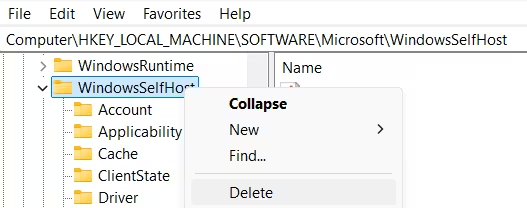
- Restart your device.
- Mount the official Windows 11 25H2 ISO (download from microsoft.com), then run the in-place upgrade to return to a stable public build.
- After the upgrade completes, re-enroll in the Insider Program and select the Release Preview channel if you want to stay close to public builds.
Risks to Know Before Switching
| Risk | What Can Happen | How to Recover |
|---|---|---|
| Instability from Experimental or Dev builds | App crashes, driver conflicts, UI issues, battery drain | Switch to a more stable channel if your build allows it; otherwise, clean install |
| Blocked channel downgrade | Channel change fails silently; device keeps receiving higher builds | Back up files and clean install the target channel build |
| Compatibility issues with apps | Business or legacy apps behave incorrectly | Use Release Preview for better app compatibility; clean install if needed |
Frequently Asked Questions
Can I switch from Beta to Release Preview without losing files?
Only if your current Beta build number is not higher than the latest Release Preview build. If Windows prompts for a wipe, delete the WindowsSelfHost registry key, run the official 25H2 ISO in-place upgrade, then re-enroll in Release Preview.
Does switching channels delete my personal files?
In-place channel switching through Settings preserves your files, apps, and settings. Registry and script methods change the enrollment data but do not trigger the upgrade on their own. You still need to check for updates in Windows Update to pull the new build.
How often do Insider builds arrive after I switch?
Build frequency depends on the channel. Experimental channels receive builds more frequently and unpredictably. Beta and Release Preview channels follow a more regular cadence closer to Microsoft's release schedule.
Can IT admins control channel assignments across multiple devices?
Yes. Administrators can manage Insider Program participation through Group Policy, Windows Update for Business, or Microsoft Intune. Centrally managed policies can override registry modifications made manually or via script.
Related Guides
- Windows 11 Insider Preview Build 28020.1619 Rolls Out to Canary Channel
- Microsoft Blocks Windows 11 and Server Insider ISO Downloads, Rufus Also Affected
- Windows Insider Watermark Bug Fix Finally Confirmed by Microsoft
- Windows 11 Insider Build 27950 Fixes Screen Flickering, Taskbar, and Audio Issues