You finally sit down for a raid session, open the Battlestate Games launcher to grab the latest update, and a pop-up stops you cold: “Downloaded file checksum does not match (Error 108003).”
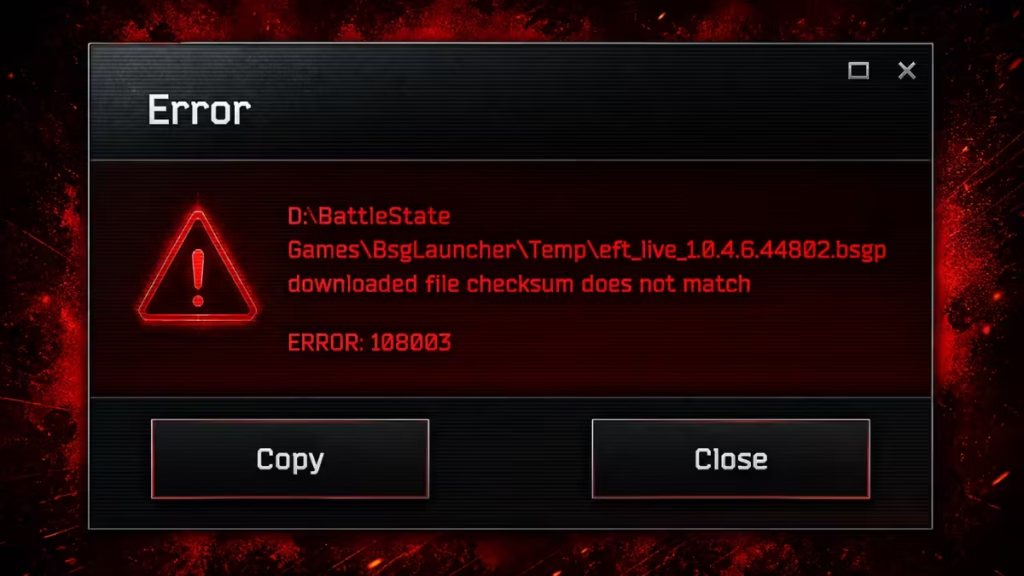
This is not a corrupted install on your end. Tarkov Error 108003 is a known server-side routing problem with BSG’s Content Delivery Network. You can fix it in about three minutes by editing a single Windows file, and you will not need to reinstall the game.
Here is exactly what is happening and how to resolve it.
What Causes Tarkov Error 108003?
The error traces back to one specific CDN node: cdn-11.eft-store.com. That server is broken and delivers incomplete update packages. Your BSG launcher receives the partial data, compares it against the developer’s checksum value, and correctly rejects it because the file does not match.
A checksum is a mathematical fingerprint assigned to a file. If the downloaded file does not match that fingerprint exactly, the launcher throws this error to stop you from installing a damaged build.
You can diagnose the problem before the error even appears. Check your launcher’s total download size:
- ~32 GB shown means you are routed to the broken CDN node.
- ~50 GB shown means you are on a healthy server and the update should proceed normally.
Like Escape from Tarkov Error 228 and the Escape from Tarkov 1000 Backend Error, this issue originates on BSG’s infrastructure rather than your local machine, which is why file repair tools inside the launcher cannot fix it. The repair tool checks files already on your drive; it cannot fix data that failed to arrive correctly from a broken remote server.
How to Fix Tarkov Error 108003 (Hosts File Fix)
The fix works by blocking cdn-11.eft-store.com in your Windows hosts file. When your system cannot reach that broken node, the BSG launcher automatically reroutes to a working CDN server.
Two methods are listed below. Method 1 works for most users.
Method 1: Desktop Drag-and-Drop (Recommended)
- Close the BSG Launcher completely. Check your system tray to confirm it is not still running in the background.
- Open Windows File Explorer and navigate to:
C:\Windows\System32\drivers\etc - Locate the file named hosts (no file extension).
- Drag and drop the hosts file directly onto your Desktop. This step bypasses the strict Administrator permissions that the System32 folder enforces.
- Open the hosts file on your Desktop with Notepad.
- Scroll to the very bottom of the file and add a new line with this exact text:
127.0.0.1 cdn-11.eft-store.comImportant: Do not add a
#character at the start of that line. Lines beginning with#are comments and your system ignores them entirely.
- Save the file and close Notepad.
- Drag the hosts file from your Desktop back into
C:\Windows\System32\drivers\etc. - Reopen the BSG Launcher. Your download should now show the correct ~50 GB size and proceed without the checksum error.
Method 2: Notepad as Administrator
Use this method if your system blocks the drag-and-drop approach.
- Press the Windows key, type Notepad, right-click the application, and select Run as administrator.
- Click File > Open and paste the following path into the file name bar:
C:\Windows\System32\drivers\etc\hosts - Before clicking Open, change the dropdown in the bottom-right corner from Text Documents to All Files (*.*) so the hosts file becomes visible.
- Add this line to the very bottom of the document:
127.0.0.1 cdn-11.eft-store.com- Save the file, close Notepad, and restart your PC.
- Reopen the BSG Launcher and start the update.
Critical: Remove the Hosts Entry After the Game Installs
Once your game has fully downloaded and installed, go back into the hosts file and delete the line you added.
This step is easy to forget, and skipping it causes problems down the road. BSG rotates its CDN servers between major updates and wipes. If you leave the block in place, future updates may fail because your PC is now blocking a perfectly healthy server that happened to inherit the cdn-11 address.
The fix is temporary by design. Apply it, update the game, then clean it up.
Bonus: Faster Download Speeds
A useful side effect of bypassing the broken node is a significant speed boost. Many players report their download speeds jumping from around 10 MB/s to a steady 60 MB/s after applying the block. The broken server was not just serving corrupted files; it was also throttling throughput. Rerouting to a healthy CDN removes both problems at once.
How to Clear the BSG Launcher Temp Folder
If you still see issues after applying the hosts fix, clearing the launcher’s temp folder can help flush any partially downloaded files.
Navigate to C:\Battlestate Games\BsgLauncher\Temp, select all the contents inside the folder, and delete them. Then restart your launcher and try the update again.
Frequently Asked Questions
What does Tarkov Error 108003 mean?
Tarkov Error 108003 means the BSG launcher downloaded a file that failed its checksum verification. The file delivered by BSG’s CDN server is incomplete, so the launcher rejects it to prevent a broken install.
How do I fix Tarkov Error 108003?
Add the line 127.0.0.1 cdn-11.eft-store.com to your Windows hosts file at C:\Windows\System32\drivers\etc\hosts. This blocks the broken CDN node and forces the BSG launcher to reroute to a working server.
Why does my Tarkov download show 32 GB instead of 50 GB?
A download size of around 32 GB means your launcher is connected to the broken CDN node serving an incomplete package. After applying the hosts file fix, the size should correct itself to around 50 GB.
Will editing the hosts file get me banned in Tarkov?
No. Editing your Windows hosts file only affects local network routing. It has zero interaction with BattleEye anti-cheat and does not modify any game files or client code.
Do I need to reinstall Tarkov to fix Error 108003?
No. The problem is with BSG’s remote CDN server, not your existing game installation. The hosts file fix resolves it in minutes without touching your current game files.
Related Game Error Fixes
- Escape from Tarkov Error 213: How to Fix Authentication Issues
- How to Fix Escape from Tarkov Error 228
- Tarkov Black Screen After Raid Error: How to Fix It

