The “third-party software is interfering with Roblox” error appears as a Windows Explorer notification and stops you from joining any game. Roblox detects a conflicting program on your PC and blocks the connection before you can load an experience.
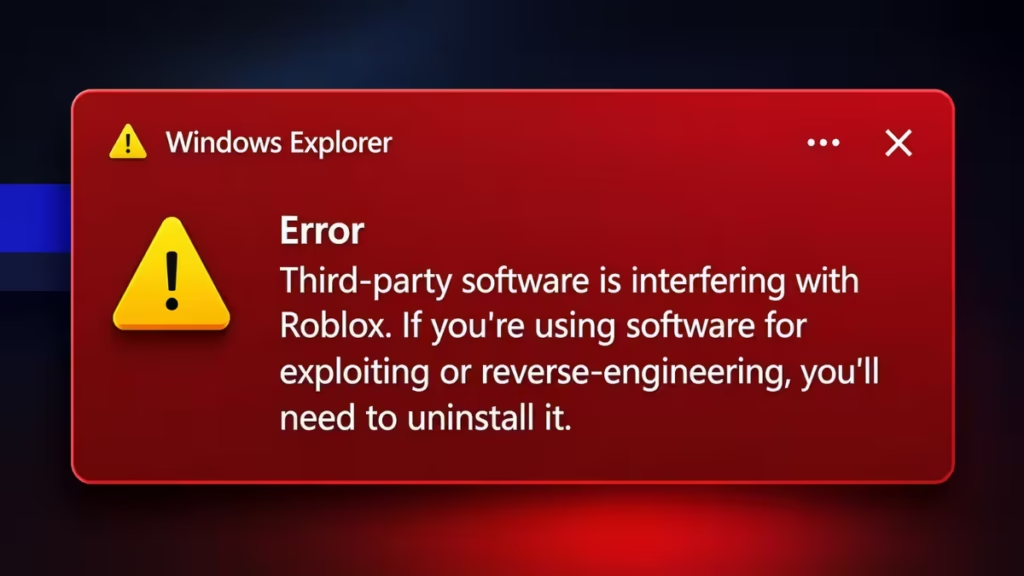
This error typically comes from one of three sources: a background app conflicting with the Roblox client, your antivirus flagging Roblox as a threat, or an exploit tool running on your machine. All three scenarios are fixable, and the steps below walk you through each one.
What Causes the “Third-Party Software Is Interfering with Roblox” Error
Roblox scans for programs that can interfere with its client both at launch and during gameplay. The error triggers when it finds:
- Auto-clickers, macro tools, or secondary game launchers running alongside the Roblox client
- Antivirus software blocking Roblox processes as a false positive
- Exploit or cheat tools active on your PC (the most common trigger)
- Firewall rules restricting Roblox network traffic
- A corrupted or outdated Roblox installation that fails internal checks
Fix 1: Restart Your Computer
Before trying anything complex, do a full restart. A restart clears temporary processes and removes any conflicting background program that carried over from a previous session.
After the restart, open Roblox and try to join a game. If the error is gone, a lingering background process was the cause. If it returns, move to the next fix.
Fix 2: Close All Background Apps from the System Tray
Background apps that load silently at startup are a common trigger for this error. Closing them removes the conflict without requiring a full uninstall.
- Look at the bottom-right corner of your taskbar and click the up arrow (Show hidden icons).
- Right-click each running application and select Quit or Exit.
- Right-click and close everything listed there, including game launchers, overlay tools, macro software, and any other utility running in the background.
- Open Roblox and try joining a game.
If Roblox loads without the error after this, one of those applications was causing the conflict. Re-open them one at a time to identify the specific culprit, then keep that app closed whenever you play.
Fix 3: Remove Exploit and Cheat Tools
Roblox actively scans for exploit tools and cheat software. If you have any installed, including Delta Executor or similar programs, Roblox detects them and blocks your access immediately.
Uninstall the tool completely:
- Press Windows + I to open Settings.
- Go to Apps > Installed Apps.
- Search for the exploit tool by name.
- Click the three dots next to it and select Uninstall.
- Restart your computer before launching Roblox again.
Even leftover files from a partial uninstall can trigger the error. After uninstalling, check the %AppData% and %LocalAppData% folders for any remaining folders related to the tool and delete them manually.
Fix 4: Add Roblox as an Antivirus Exception
Your antivirus may flag Roblox as suspicious and block it from running correctly. This is a false positive. Adding Roblox to the exceptions list gives it unrestricted access without disabling your antivirus entirely.
Roblox stores its files here:
C:\Users\(Your Windows Username)\AppData\Local\RobloxFor Windows Security:
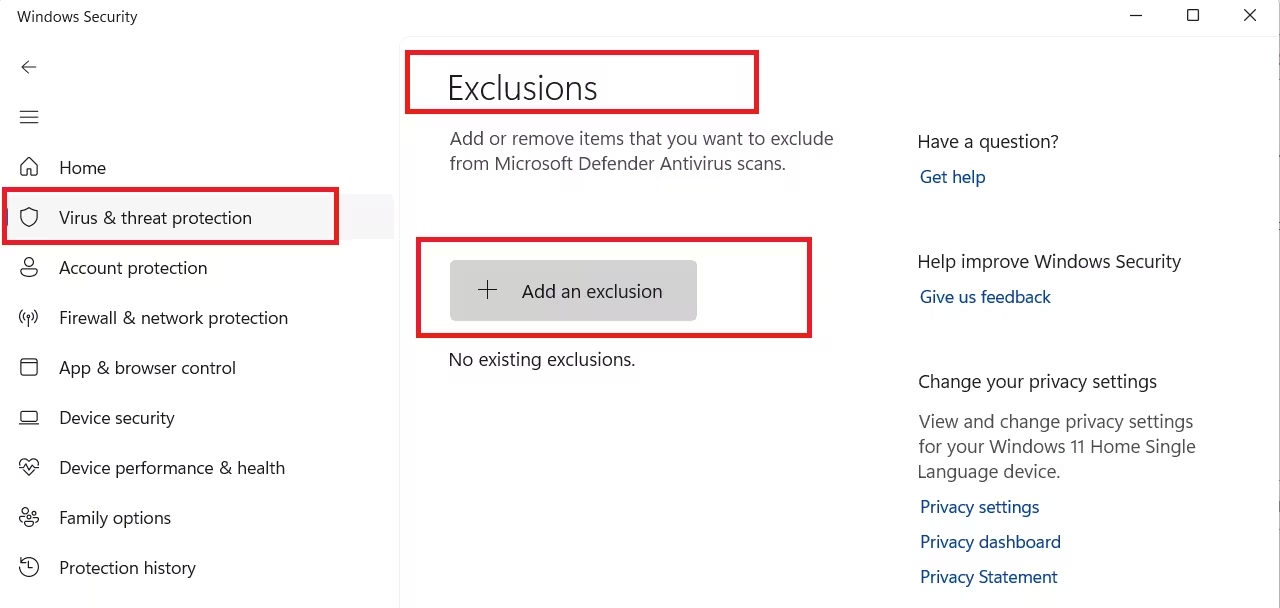
- Open the Start menu and search for Windows Security.
- Go to Virus and Threat Protection > Manage Settings.
- Scroll down to Exclusions and click Add or Remove Exclusions.
- Click Add an Exclusion, select Folder, and paste the Roblox path above.
For third-party antivirus programs (Norton, Avast, Bitdefender, etc.):
Open the program and look for an Exceptions, Exclusions, or Whitelist section. Add the full Roblox folder path there.
Also update your antivirus to the latest version before adding the exclusion. Updates often resolve false positive detections automatically, so a version update alone may fix the problem.
Tip: Do not disable your antivirus entirely to run Roblox. Adding an exception is the safer and permanent fix.
Fix 5: Allow Roblox Through Windows Firewall
Windows Firewall can block Roblox network traffic and trigger this error. Allowing Roblox through the firewall gives it unrestricted access to the internet.
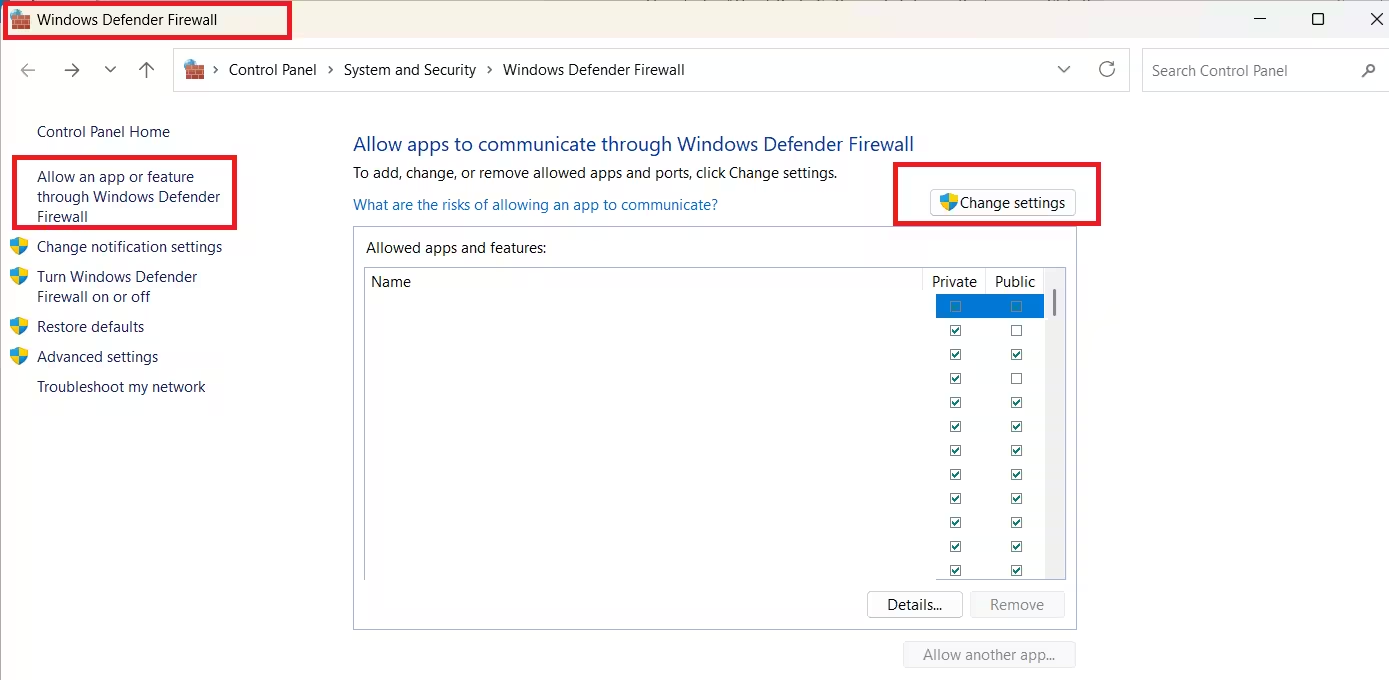
- Press Windows + S, type Control Panel, and open it.
- Go to System and Security > Windows Defender Firewall.
- Click Allow an app or feature through Windows Defender Firewall on the left side.
- Click Change Settings, then scroll down and find Roblox in the list.
- Check both the Private and Public boxes next to it.
- Click OK to save.
If Roblox does not appear in the list, click Allow another app, browse to the Roblox installation folder, and add it manually.
Fix 6: Open UDP Ports 49152 to 65535
Roblox depends on UDP ports in the range 49152 to 65535. If your router or ISP blocks these ports, Roblox cannot establish a stable connection, which can produce third-party interference errors alongside connection failed messages.
To open these ports, log in to your router’s admin panel and navigate to the port forwarding or firewall section. The admin address is printed on the label on your router, or you can find it by running ipconfig in Command Prompt and checking the Default Gateway value. Add a rule to allow all UDP traffic in the range 49152 to 65535 for your PC’s local IP address.
If you are unsure how to do this, contact your internet service provider and ask them to open the Roblox UDP port range for your connection.
Fix 7: Reinstall Roblox
A corrupted Roblox installation can produce this error even when no third-party software is actually running. A clean reinstall replaces all affected files.
Uninstall Roblox:
- Press Windows + I and go to Settings > Apps > Installed Apps.
- Search for Roblox.
- Click the three dots and select Uninstall.
- Confirm and wait for the process to finish.
Reinstall Roblox:
- Go to roblox.com and log in.
- Click Play on any game to download the Roblox installer.
- Run the installer and let it complete.
- Open Roblox and try joining a game.
If you see Error Code 280 before or after reinstalling, your Roblox client was likely out of date. A fresh install resolves that alongside the third-party interference error.
Fix 8: Install Roblox from the Microsoft Store
If the standard installer still triggers the error, try the Microsoft Store version of Roblox. The Store version uses a different installation pipeline that can avoid conflicts that affect the standard installer.
- Open the Start menu and search for Microsoft Store.
- In the Store, search for Roblox.
- Select the first result and click Install.
- Once installed, open Roblox from the Start menu and try joining a game.
The Microsoft Store version of Roblox runs in a sandboxed environment, which prevents certain background apps from interfering with the client.
Quick Fixes
| Fix | When to Try It |
|---|---|
| Restart computer | Always try this first |
| Close background apps | Non-essential software is running in the tray |
| Remove exploit tools | Hacks or cheats are installed on your PC |
| Add antivirus exception | Antivirus is scanning or blocking Roblox files |
| Allow through Windows Firewall | Firewall is blocking Roblox network access |
| Open UDP ports 49152-65535 | Getting connection errors alongside this error |
| Reinstall Roblox | None of the above fixes worked |
| Install from Microsoft Store | Standard install keeps failing after reinstall |
Frequently Asked Questions
Does the third-party software error mean my Roblox account is banned?
No. This error blocks you from joining games but does not affect your account status. It means Roblox detected a conflicting program on your PC, not that your account received a ban. Once you remove or close the conflicting software, you can play again normally.
Why does this error appear even after I uninstall the conflicting app?
Some programs leave behind background services or startup entries even after uninstalling. Open Task Manager, check the Startup tab, and disable any entries related to the removed app. Then restart your PC and try Roblox again.
Can a VPN cause the third-party software interference error in Roblox?
Yes. Some VPN clients install network drivers that Roblox flags as interference. Disconnect and fully close your VPN before launching Roblox. If the error clears, your VPN software is the cause. Try a different VPN or switch protocols before using it alongside Roblox.
Why did this error suddenly appear when I did not install anything new?
A Windows Update or an automatic update to an existing app can introduce new background processes that conflict with Roblox. Check your system tray for any recently updated software and close it before launching Roblox.
Does this error affect Roblox on mobile or only on PC?
This specific error only appears on Windows PC. The Windows Explorer notification is exclusive to the desktop client. Mobile versions of Roblox on Android and iOS do not show this error.

