A Remote Access Trojan (RAT) is one of the most dangerous forms of malware on Windows. Unlike ransomware that locks your files or adware that floods your screen with pop-ups, a RAT silently hands an attacker full control of your PC, including your files, webcam, keyboard input, and network activity, without you ever knowing.
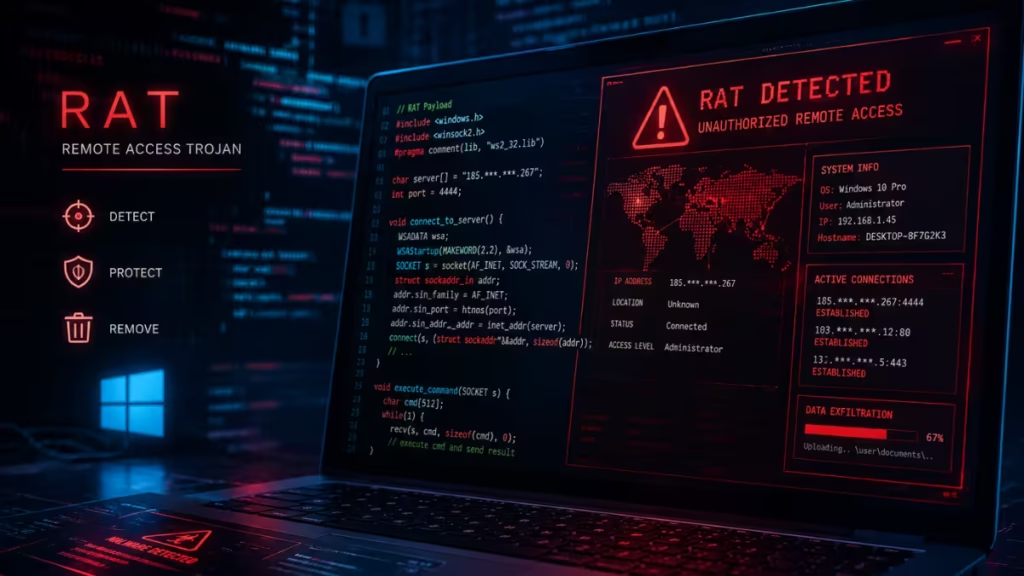
This guide explains what a RAT is, how to spot an infection on Windows 10 or 11, and how to remove it completely.
What Is a Remote Access Trojan (RAT)?
A Remote Access Trojan is a type of malware that gives an attacker remote administrative control over an infected computer. Once active, the attacker can steal files, log keystrokes, access your webcam, install additional malware, and use your machine as a proxy to commit crimes, all without your knowledge or consent.
The name “Trojan” comes from the Greek myth of the Trojan horse. Like that hollow wooden horse, a RAT disguises itself as a legitimate file or program. You download and open it, and the malware installs silently in the background. It does not appear in your installed programs list or in running processes, which makes it extremely difficult to detect without dedicated tools.
RATs first appeared in the 1990s, originally used for harmless pranks. By 2010, more capable variants like DarkComet, Gh0st, and PoisonIvy emerged, expanding targets from Windows PCs to Android and iOS devices.
Common Signs Your PC Is Infected with a RAT
RATs are built to stay hidden. Many infections run for weeks or months without any obvious trace. These warning signs can point to an active infection:
- Unexplained slowdowns: RATs consume CPU and RAM in the background. If your PC feels sluggish during idle periods, open Task Manager and check for unfamiliar processes with high resource usage.
- Antivirus crashes or disables itself: Some RATs actively disable or corrupt security software to avoid detection.
- Files or programs you did not install: Unfamiliar entries in your Apps list or files appearing in unexpected directories are a clear red flag.
- Browser redirects: Constant redirects to unknown websites or pages that refuse to load can indicate a RAT manipulating your network traffic.
- Webcam indicator light activating on its own: If your webcam light turns on when you are not running any camera app, something is accessing it without permission.
- Unusual outbound network traffic: RATs communicate with a remote command-and-control server. You can spot this activity in Resource Monitor under the Network tab.
Two or more of these symptoms occurring together warrant an immediate scan.
How RATs Spread
Understanding how RATs reach a machine helps you avoid them.
- Email attachments: The most common delivery method. An attacker sends a convincing email with an attached PDF, Word document, or ZIP file. Opening the attachment installs the RAT silently.
- Fake download pages: Attackers build sites that closely mimic legitimate software download pages. The installer bundles the RAT alongside the program you actually wanted.
- Cracked software and game cracks: Pirated software is one of the highest-risk infection sources on Windows. Cracks and keygens frequently bundle RATs because users often disable antivirus to run them.
- Phishing links: A malicious link in an email or message redirects you to a page that exploits a browser vulnerability or triggers a fake software update prompt.
- Infected USB drives: RATs spread through shared USB drives, particularly in workplaces or school environments.
Common RAT Variants Found on Windows
Not all RATs behave the same way. Knowing which variants target Windows helps you understand what a removal tool needs to catch.
1. DarkComet: One of the most widely used RATs since the early 2010s. DarkComet gives an attacker full remote control, keylogging, webcam access, and file system browsing. Standard tools like Malwarebytes and ESET detect it reliably.
2. Gh0st RAT: Originally developed in China and later leaked publicly. Gh0st is modular, meaning attackers can customize what it does. It targets Windows systems and has been used in state-sponsored attacks. Behavioral detection engines catch it better than signature-only scanners.
3. PoisonIvy: A widely distributed RAT toolkit that became popular because of its simple graphical interface for attackers. It logs keystrokes, captures webcam footage, and retrieves files. It has been active since 2005 and dozens of variants exist. Most major security tools detect current variants.
4. AsyncRAT: One of the most active RATs in recent years. AsyncRAT is open source, which means attackers constantly modify it to evade signature detection. It spreads primarily through phishing emails and targets Windows 10 and 11. Behavioral blockers catch it more reliably than signature scans.
5. Remcos: Marketed as a legitimate remote administration tool but widely abused for malicious purposes. Remcos hides in phishing attachments and can disable Windows Defender before establishing persistence. Dedicated removal tools catch it during offline or Safe Mode scans.
6. Cloud9: A browser-based RAT that targets Chrome on Windows. Unlike traditional RATs, Cloud9 does not install as a standalone program. It injects into the browser through a malicious extension and steals session cookies, credentials, and performs DDoS attacks. Removing it requires clearing browser extensions and running a full system scan.
7. XWorm: A newer RAT that combines remote access with ransomware and keylogging capabilities in a single payload. It spreads through phishing campaigns and Discord links. Real-time behavioral protection catches it better than scheduled scans.
If you know which variant infected your PC, search for its exact name alongside your removal tool to confirm it covers that specific strain.
How to Detect a RAT on Windows 11/10
These manual checks help confirm suspicious activity before you run a removal tool.
Check Task Manager for Unknown Processes
- Press Ctrl + Shift + Esc to open Task Manager.
- Click More details if the simplified view appears.
- Sort processes by CPU or Memory.
- Right-click any unfamiliar process and select Search online to identify it.
Look for processes with random or generic names that consume resources during idle periods.
Check Network Activity in Resource Monitor
- Open Task Manager, click the Performance tab, then click Open Resource Monitor at the bottom.
- Click the Network tab.
- Expand Network Activity and look for unknown processes sending or receiving data.
Consistent outbound traffic from a process you do not recognize is a strong indicator of infection.
Check Startup Programs
- In Task Manager, click the Startup tab.
- Look for unfamiliar entries set to Enabled.
- Right-click any entry you do not recognize and select Disable, then search the name online.
Run a Windows Defender Offline Scan
Windows Defender includes an offline scan that runs before Windows loads, which makes it harder for a RAT to hide or block the scan.
- Open Windows Security from the Start menu.
- Go to Virus & threat protection > Scan options.
- Select Microsoft Defender Antivirus (offline scan) and click Scan now.
Your PC restarts, runs the scan, and returns to Windows with a full report of any threats found.
Step-by-Step RAT Removal Guide
Step 1: Disconnect from the Internet
Disconnecting cuts off the RAT’s communication with its command-and-control server. This stops the attacker from sending new commands or pulling additional data while you work on removal.
Unplug your Ethernet cable or turn off Wi-Fi before proceeding.
Step 2: Boot into Safe Mode
Safe Mode loads Windows with only essential drivers and services. This prevents most RATs from starting automatically and makes them easier to detect and remove.
- Hold Shift and click Start > Power > Restart.
- On the recovery screen, go to Troubleshoot > Advanced options > Startup Settings.
- Click Restart, then press 4 or F4 to select Safe Mode.
If you need internet access to download tools, press 5 or F5 for Safe Mode with Networking instead.
Step 3: Run a Full Scan with a Dedicated Removal Tool
Windows Defender is a solid first pass, but a dedicated malware removal tool catches threats that Defender can miss.
Option 1: Malwarebytes (free version)
- Download the Malwarebytes installer from the official Malwarebytes website on a clean, uninfected device.
- Transfer the installer to your infected PC via USB.
- Install it and run a Full Scan.
- Quarantine all detected threats when the scan completes.
Option 2: Microsoft Safety Scanner
Microsoft Safety Scanner is a portable tool that requires no installation. Download it from Microsoft’s official site, copy it to USB, and run a full scan in Safe Mode.
Step 4: Delete All Quarantined Threats
After the scan finishes, open the quarantine list in your removal tool and permanently delete every flagged item. Quarantine holds threats isolated but does not remove them from your system.
Step 5: Check the Registry for Persistence Entries
Some RATs write entries to the Windows Registry to survive reboots.
Only attempt this if you are comfortable with Registry editing. Incorrect changes can break Windows.
- Press Win + R, type
regedit, and press Enter. - Navigate to both of these locations:
HKEY_CURRENT_USER\Software\Microsoft\Windows\CurrentVersion\RunHKEY_LOCAL_MACHINE\SOFTWARE\Microsoft\Windows\CurrentVersion\Run
- Look for entries pointing to unfamiliar file paths.
- Right-click and delete anything you cannot identify as a legitimate program.
Step 6: Restart and Run a Second Scan
After rebooting, run another full scan to confirm complete removal. RATs frequently drop secondary components that a first scan can miss. A clean second scan confirms the infection is gone.
Step 7: Change Your Passwords
If a RAT was active on your PC, treat your passwords as compromised. Change passwords for email, banking, and any other accounts you accessed from that machine. Change them from a separate, clean device first before returning to the recovered PC.
Step 8: Re-enable Real-Time Protection
Confirm Windows Security real-time protection is active after removal.
- Open Windows Security.
- Go to Virus & threat protection > Manage settings.
- Verify Real-time protection is turned On.
Best Anti-Trojan Software to Prevent Future Infections
1. MalwareFox
MalwareFox runs a lightweight real-time scanner with a behavioral detection engine that monitors process activity for RAT and trojan patterns. It handles banking trojans, downloaders, and RAT variants without the resource overhead of a full security suite. Pricing starts at around $29.95 per year.
2. Malwarebytes Premium
Malwarebytes is one of the most widely used dedicated malware removal tools. The free version handles on-demand scans only. The Premium tier adds real-time protection and ransomware blocking. If you already use Windows Defender as your primary antivirus, Malwarebytes Premium works as a reliable second layer without conflicts.
3. Avast Free Antivirus
Avast offers a strong free trojan scanner with real-time scanning included, which puts it ahead of the free Malwarebytes tier. If you have no budget for a paid tool and want real-time coverage, Avast is a functional option. Note that Avast has faced scrutiny over past data collection practices, so review its current privacy policy before installing.
Frequently Asked Questions
What does a Remote Access Trojan do to your PC?
A RAT gives an attacker full administrative control over your machine. They can steal files, log every keystroke, activate your webcam, install additional malware, and use your PC as a proxy to carry out other attacks, all without triggering any visible alerts.
How long can a RAT stay hidden on Windows?
A RAT can remain undetected for weeks or months. Because it hides from the installed programs list and running processes, only a dedicated malware scanner running in Safe Mode or offline mode has a reliable chance of finding it.
Can Windows Defender remove a Remote Access Trojan?
Windows Defender catches many common RAT variants, but it misses newer or modified strains. Running a Defender offline scan alongside a dedicated tool like Malwarebytes or Emsisoft gives you the most thorough coverage.
Do I need to reinstall Windows after a RAT infection?
Not in most cases. A Safe Mode scan followed by a second confirmation scan removes the majority of RAT infections completely. Reinstalling Windows is only necessary if the RAT embedded itself in UEFI firmware or if multiple scans still detect active threats after removal.
Can a RAT infect Windows 11?
Yes. RATs like AsyncRAT, Remcos, and XWorm actively target Windows 11. The OS does not prevent RAT infections on its own. Real-time protection from a dedicated tool is the only reliable way to block them before they install.

