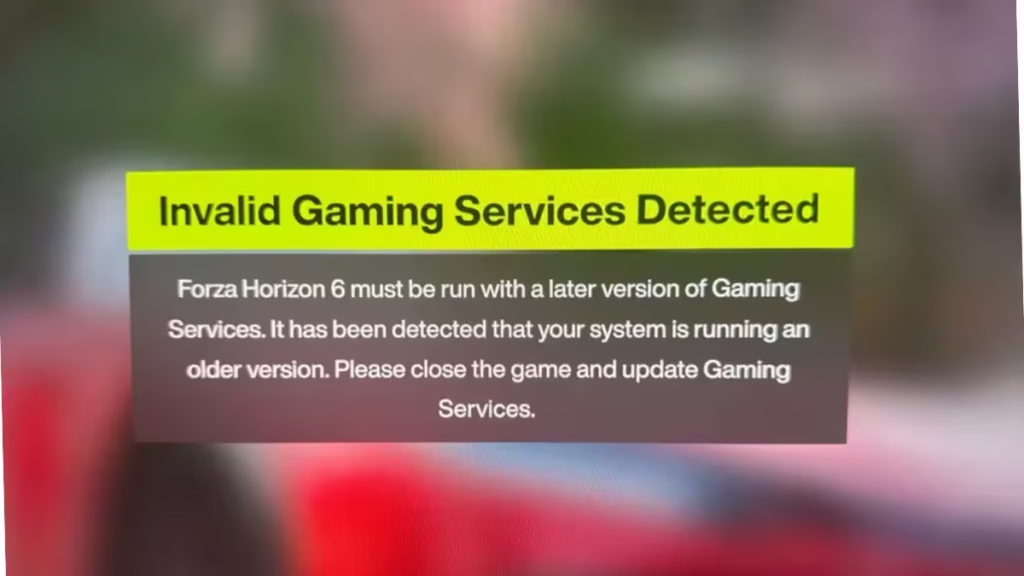
Forza Horizon 6 launched to massive excitement, but many PC players hit the Invalid Gaming Services Detected error right at launch. The error blocks the game from opening entirely and leaves players stuck before they even reach the main menu.
This guide walks you through every working fix, including updating Gaming Services, repairing or reinstalling it through Windows Settings, and using the official Gaming Services Repair Tool.
What Is the Invalid Gaming Services Detected Error in Forza Horizon 6?
The error message reads:
“Forza Horizon 6 must be run with a later version of Gaming Services. It has been detected that your system is running an older version. Please close the game and update Gaming Services.”
Gaming Services is a Microsoft background application that handles Xbox-related features on Windows PCs, including game verification, multiplayer support, cloud saves, and Game Pass integration. When this application runs on an outdated or corrupted version, Forza Horizon 6 refuses to launch.
The game typically closes automatically after displaying the error, and the in-game menu becomes inaccessible. To force-quit the game, press Ctrl + Shift + Esc to open Task Manager, find Forza Horizon 6 in the list, and click End Task.
This error affects players launching through Steam, the Xbox App, and Game Pass equally, because Forza Horizon 6 depends on Xbox backend systems for authentication and online connectivity regardless of the platform you use.
Why Does This Error Appear?
The Invalid Gaming Services Detected error in Forza Horizon 6 appears for several reasons:
- Your Gaming Services app is running an older version below the minimum required (36.113.2002)
- Gaming Services files are corrupted or partially installed
- An incomplete Windows update or Microsoft Store sync broke the Gaming Services installation
- Gaming Services is missing from the PC entirely
Launch-day server pressure and software compatibility issues contributed to the spike in reports during Forza Horizon 6’s release window. Early Access players using the Premium Edition were among the first to encounter the problem.
Fix 1: Update Gaming Services via Microsoft Store
This is the fastest fix and works for most players. Follow these steps:
- Press the Windows key, search for Microsoft Store, and open it.
- Click Library or Downloads in the bottom-left corner.
- Click Check for Updates in the top-right corner.
- Find Gaming Services in the update list.
- Click Update next to it.
- Restart your PC once the update finishes.
- Relaunch Forza Horizon 6.
If the Update button is not visible, your Gaming Services is already on the latest version. If Gaming Services does not appear in the list at all, you need to install it fresh. Proceed to Fix 3 below.
After updating, verify that your Gaming Services version number is 36.113.2002 or higher. Running any version older than this minimum will trigger the error on every launch.
Fix 2: Repair or Reinstall Gaming Services Through Windows Settings
If updating does not resolve the Invalid Gaming Services Detected error, repair or reinstall the application directly through Windows Settings.
Step 1: Repair Gaming Services
- Open Windows Settings (Windows key + I).
- Go to Apps, then Installed Apps.
- Search for Gaming Services in the search bar.
- Click the three-dot menu next to Gaming Services.
- Select Advanced Options.
- Scroll down and click Repair.
- Relaunch Forza Horizon 6 after the repair completes.
Step 2: Reinstall Gaming Services (if Repair Fails)
If the Repair option does not fix the problem:
- Return to Advanced Options for Gaming Services in Installed Apps.
- Scroll down and click Uninstall.
- Restart your PC.
- Open Microsoft Store after logging back in.
- Search for Gaming Services or visit its official store page directly.
- Click Install.
- Launch Forza Horizon 6 once the installation finishes.
You do not need to restart your PC after installing Gaming Services for the change to take effect. The game should work immediately.
Fix 3: Use the Gaming Services Repair Tool
Microsoft provides an official Gaming Services Repair Tool for PC that automates the entire fix process. This tool is especially useful if the manual methods only provide a temporary solution or if the error keeps returning after restarts.
The Repair Tool:
- Installs Gaming Services if it is missing
- Updates it to the latest version if it is outdated
- Fixes corrupted files in the Gaming Services installation
- Performs the same checks on the Xbox App for added stability
You can run it in two ways: directly inside the Xbox app, or by downloading a standalone version.
Note: On Windows 22H2 or older, you may need to be logged in as the Local Administrator to run the Repair Tool. If it fails to run, update your Windows version first.
Method A: Run the Repair Tool Inside the Xbox App
Microsoft integrated the Repair Tool directly into the Xbox app for PC starting from version 2311.1001.7.0. This is the quickest way to run it without downloading anything.
First, confirm your Xbox app version is new enough:
- Launch the Xbox app for PC.
- Click your Profile picture.
- Go to Settings, then About.
- Check the Version number.
If your version is older than 2311.1001.7.0, update it first:
- Open Microsoft Store.
- Click Library.
- Click Get Updates, then click Update or Update All.
Once your Xbox app is on version 2311.1001.7.0 or newer, run the Repair Tool:
- Launch the Xbox app for PC.
- Click your Profile picture.
- Click Support.
- Click Gaming Services Repair Tool.
- Click Start Troubleshooting.
Method B: Run the Downloadable Version
If you prefer the standalone tool, or if the Xbox app method does not work:
- Open the Gaming Services Repair Tool page on the official Xbox Support website.
- Click on the Downloadable Version menu.
- Download the Gaming Services Repair Tool for PC.
- Run the downloaded program. No installation is required.
- Let the tool complete all its checks and repairs automatically via the command prompt.
- Before pressing any key at the final prompt, open Forza Horizon 6 and confirm the error is gone.
- Return to the command prompt window and press Y, then hit Enter to close the tool.
If the Invalid Gaming Services Detected error reappears after a system restart, run the Repair Tool again. It takes under a minute to complete and resolves the issue quickly on repeat runs.
Fix 4: Reset Microsoft Store Cache
If none of the above fixes work, resetting the Microsoft Store cache can clear sync issues that block proper Gaming Services updates.
- Press Windows key + R to open the Run dialog.
- Type
wsreset.exeand press Enter. - Wait for the Microsoft Store to reset and reopen automatically.
- Sign back into your Xbox account in the Xbox App.
- Retry updating Gaming Services from the Microsoft Store.
Some players on Reddit reported this step resolved persistent cases where Gaming Services appeared up to date but the error kept appearing.
Minimum Gaming Services Version for Forza Horizon 6
Forza Horizon 6 requires Gaming Services version 36.113.2002 or later to run on PC. Any version below this number triggers the Invalid Gaming Services Detected error on launch.
To check your current Gaming Services version:
- Open Microsoft Store.
- Go to Library.
- Find Gaming Services in the installed apps list.
- The version number displays below the app name.
Check this version number after every update or reinstall to confirm you meet the minimum requirement before launching the game.
Frequently Asked Questions
Why does the Invalid Gaming Services Detected error keep coming back after every restart?
The manual Microsoft Store update method sometimes reverts Gaming Services to an older version after a system shutdown. This is a known issue with how Windows manages the app. Using the Gaming Services Repair Tool before launching the game handles this more reliably until Microsoft pushes a permanent fix.
Does this error affect Xbox Series X and Series S players too?
No. The Invalid Gaming Services Detected error only affects Windows PC players. Xbox console players do not use the Gaming Services application, so they can launch Forza Horizon 6 without this issue.
Will updating Gaming Services break any of my other Xbox games?
No. Updating Gaming Services to the latest version improves compatibility across all Xbox and Game Pass titles on Windows. It does not reset game progress, remove saved data, or affect any other installed games.
How do I check my Gaming Services version number on PC?
Open Microsoft Store, go to Library, and find Gaming Services in your installed apps list. The version number appears below the app name. Forza Horizon 6 requires version 36.113.2002 or higher to launch without errors.
Can I use the Gaming Services Repair Tool if I launched Forza Horizon 6 through Steam?
Yes. The Repair Tool works regardless of whether you use Steam, the Xbox App, or Game Pass. Since Forza Horizon 6 depends on Xbox backend systems for authentication and online features on all platforms, fixing Gaming Services resolves the error across every launcher.

