If you launch a game and see Error 30005: CreateService failed with 1072, EasyAntiCheat (EAC) cannot start its Windows service. The error typically blocks the game at the anti-cheat initialization screen before you even reach the main menu.
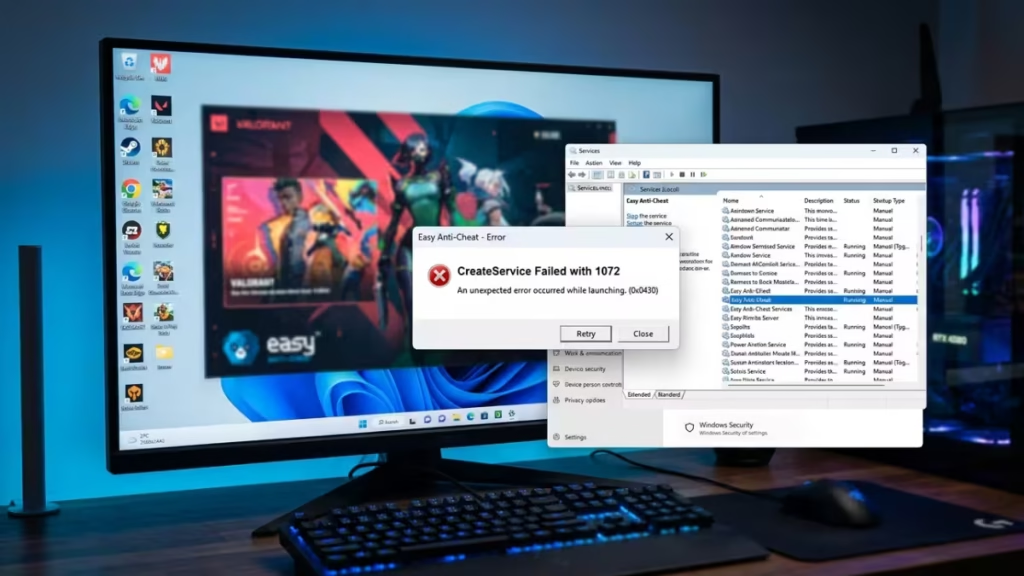
This guide covers every working fix for the error across games like Apex Legends, Fortnite, Vermintide 2, and Dead by Daylight.
What Causes CreateService Failed with 1072?
Error code 1072 is a Windows service error. It means the EasyAntiCheat service entry already exists in Windows but sits in a disabled or marked-for-deletion state. When the game tries to launch EAC, Windows refuses to create a new service instance over the old broken one.
Here is what typically causes it:
- An interrupted or incomplete EAC installation
- Corrupt service entries left in the Windows registry
- A third-party antivirus or security tool that blocked or deleted EAC files
- Manual deletion of EAC files or folders without a proper uninstall
- A Windows update that disrupted service permissions
Fix 1: Use the EAC Repair Tool
The EasyAntiCheat repair tool is the fastest first step. It rebuilds the broken service entry directly.
- Open your game’s installation folder.
- Open the EasyAntiCheat subfolder.
- Right-click EasyAntiCheat_Setup.exe and select Run as administrator.
- Select your game from the dropdown menu.
- Click Repair Service.
- Wait for the repair to complete, then relaunch the game.
This fixes the corrupted service registration in most cases.
Fix 2: Re-enable the EAC Service Manually
Windows sometimes marks the EAC service as disabled after a failed install or a system conflict. Re-enabling it through Command Prompt restores normal operation.
- Press Win + R, type
cmd, and press Ctrl + Shift + Enter to open Command Prompt as administrator. - Run this command to set the service startup type back to on-demand:
sc config EasyAntiCheat start= demand- Then start the service:
sc start EasyAntiCheat- Close Command Prompt and launch your game.
Fix 3: Delete and Reinstall the EAC Service
If Fix 2 does not work, delete the broken service entry entirely and reinstall it clean.
- Open Command Prompt as administrator.
- Delete the existing EAC service entry:
sc delete EasyAntiCheat- Navigate to your game folder, open the EasyAntiCheat subfolder, right-click EasyAntiCheat_Setup.exe, and run it as administrator.
- Select your game and click Repair Service to reinstall the service from scratch.
- Relaunch the game.
Fix 4: Check the Services Panel
The Windows Services panel lets you inspect the EAC service state directly and force it back to a working configuration.
- Press Win + S, type
services.msc, and press Enter. - Scroll down and locate EasyAntiCheat in the list.
- If the status shows Disabled or the service is missing, right-click it and select Properties.
- Set Startup Type to Manual.
- Click Start, then click OK.
- Relaunch your game.
Fix 5: Run a Selective Startup to Isolate Conflicts
A background application, such as an antivirus, overlay tool, or third-party security software, can block the EAC service from running. A selective startup helps you identify the culprit.
- Press Win + R, type
msconfig, and press Enter. - On the General tab, select Selective Startup.
- Uncheck Load startup items.
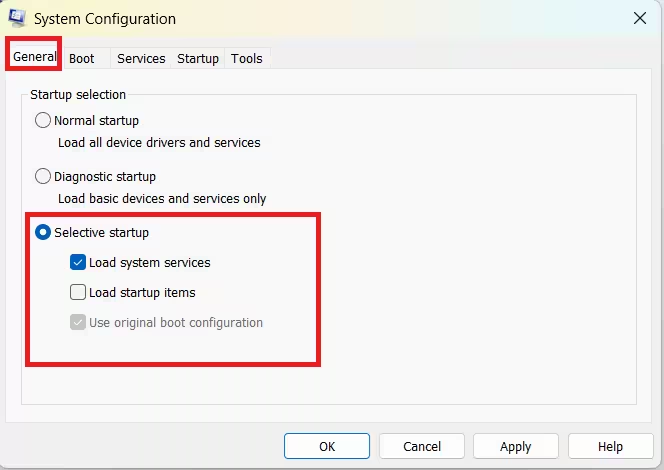
- Click OK and restart your PC.
- Try launching your game.
If the error disappears, a startup application was blocking EAC. Re-enable your startup apps one by one, restarting after each, until the error returns. The last app you enabled is the conflict.
Fix 6: Add Antivirus and Firewall Exceptions
Antivirus software frequently quarantines or blocks EAC files because of how anti-cheat tools interact with system processes. Adding the right exceptions prevents the software from interfering.
Add exceptions for these items in your antivirus and Windows Firewall settings:
- Your full game installation folder
- The EasyAntiCheat subfolder inside the game folder
EasyAntiCheat_Setup.exeEasyAntiCheat.exe(located inC:\Program Files (x86)\EasyAntiCheat\)
After adding exceptions, run the EAC Repair Tool from Fix 1 again, then launch the game.
Fix 7: Run Executable Files as Administrator
Insufficient permissions can prevent the EAC service from registering correctly. Setting the key executables to always run as administrator resolves permission-related failures.
- Open your game folder and locate these files:
start_protected_game.exe- Your game launcher executable (such as
Apexlauncher.exe) EasyAntiCheat_EOS_Setup.exeEasyAntiCheat.exe
- Right-click each file and select Properties.
- Go to the Compatibility tab.
- Check Run this program as an administrator.
- Click Apply and OK for each file.
- Launch the game.
Fix 8: Run System File Checker
Corrupt Windows system files can disrupt service registration. The System File Checker (SFC) scan detects and repairs them automatically.
- Open Command Prompt as administrator.
- Run the following command:
sfc /scannow- Wait for the scan to complete. If SFC finds and repairs any issues, restart your PC and try launching the game again.
Fix 9: Reinstall the Game Completely
If none of the above fixes resolve the error, a full reinstall gives EAC a completely clean start.
- Uninstall the game through your game launcher or Settings > Apps.
- After uninstalling, manually delete the game’s remaining folder from your drive if it still exists.
- Also delete the EasyAntiCheat folder from
C:\Program Files (x86)\if it remains. - Restart your PC.
- Reinstall the game fresh from your launcher.
- Launch the game and let EAC complete its first-time setup.
Error 30005 CreateService failed with 1072 blocks EasyAntiCheat from starting its Windows service, but every cause has a direct fix. Start with the EAC repair tool, re-enable or delete the broken service entry through Command Prompt, and check that your antivirus is not blocking EAC files. If the error persists, a full reinstall clears any remaining corruption and gives EAC a clean start. Follow the prevention steps to avoid running into the same problem after future Windows updates or antivirus changes.

