A full C drive slows your PC down, blocks Windows updates, and makes apps lag once usage crosses 85 percent of the drive’s total space. You do not need to guess what is filling it up. Windows Settings shows you the exact breakdown in under a minute, and if you need to dig deeper, tools like Disk Cleanup, WinDirStat, and the DiskUsage command can pinpoint the exact files and folders responsible. This article walks through each method starting with the fastest one, so you can stop wherever you find your answer.
Check What Is Eating Your C Drive Space in Windows Settings
Windows Settings breaks down your C drive by category without installing anything.
- Press Windows + I to open Settings.
- Click System.
- Click Storage.
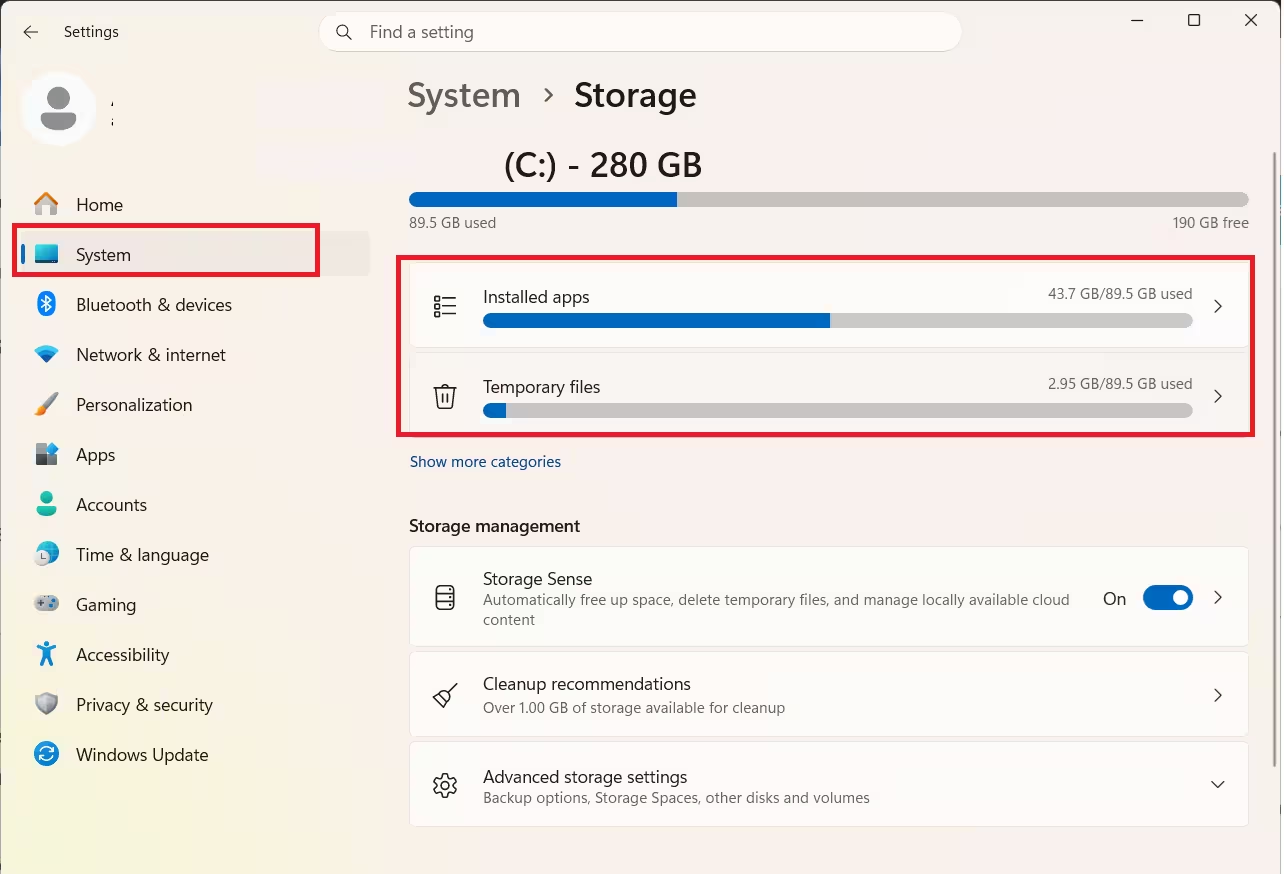
- Wait for Windows to calculate usage, then review the breakdown by Apps, Temporary files, Documents, Pictures, and other categories.
- Click any category to see the individual files and folders inside it.
- Click Show more categories to reveal other items using space, like OneDrive files or files from other user accounts.
This breakdown covers almost everything stored on the drive. That includes system files, apps, games, and files from other accounts if you share the PC with someone.
Fix a Full C Drive Automatically with Storage Sense
Once you know which categories are eating your space, Storage Sense handles the cleanup for you going forward instead of making you repeat the Settings check every few weeks.
- Go to Settings > System > Storage.
- Toggle Storage Sense to On.
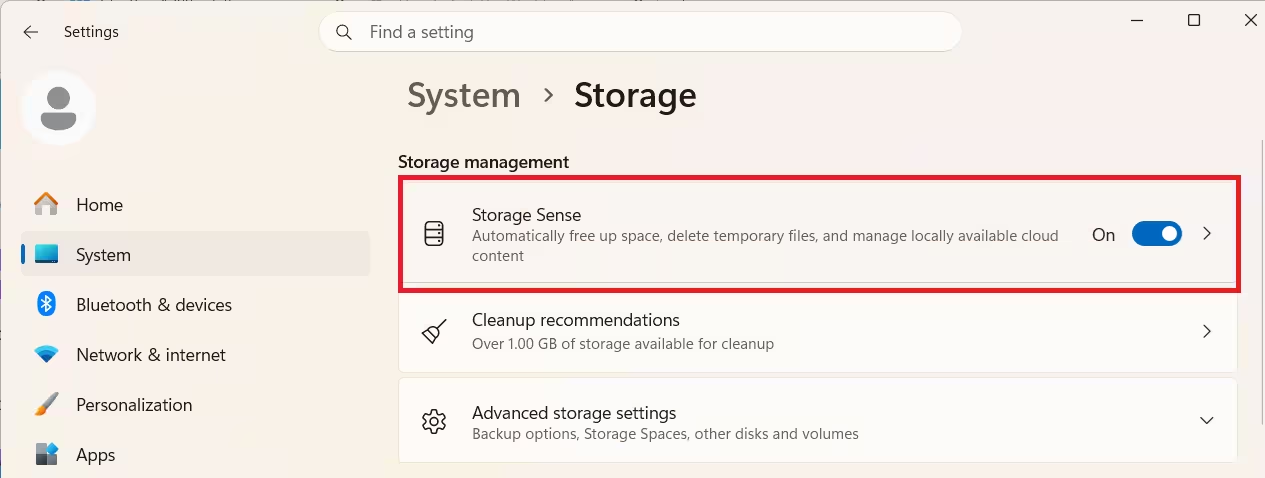
- Click Configure Storage Sense or run it now.
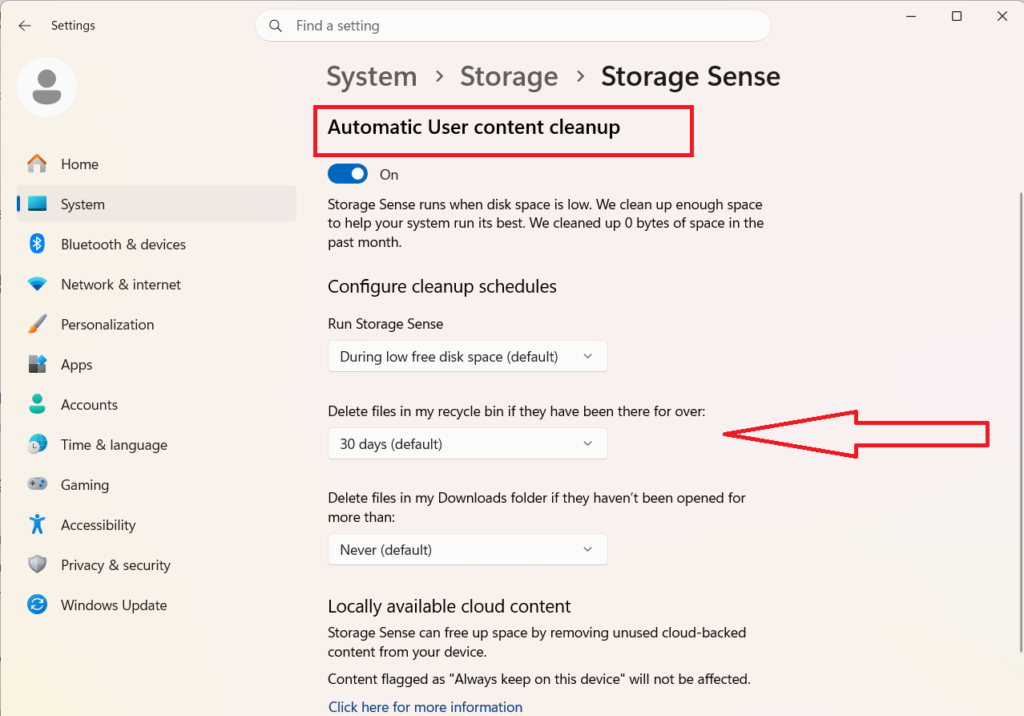
- Set it to delete temporary files automatically.
- Also set it to empty the Recycle Bin and remove old Downloads folder items on a schedule.
Clear Old System Files Eating Your C Drive Space with Disk Cleanup
Storage Sense catches new junk going forward, but it will not touch old leftovers already sitting on your drive, such as files from a past Windows update. Disk Cleanup finds those files that the Settings breakdown does not always show, including old Windows installation data.
- Press Windows + S.
- Type Disk Cleanup and open the app from the search results.
- Select the C: drive and click OK.
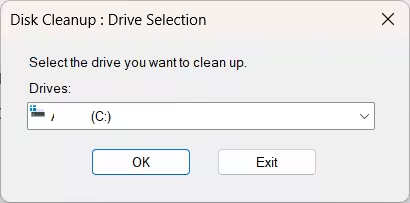
- Wait while Disk Cleanup calculates how much space you can recover.
- Click Clean up system files to load extra options.
- Select the C: drive again.
- Check items such as Windows Update cleanup, Delivery Optimization files, and Previous Windows installation files.
- Click OK to delete the selected items.
Run Disk Cleanup as an administrator. Some cleanup categories stay hidden unless you open the app with admin rights.
Find the Exact Files Eating Your C Drive Space with WinDirStat
Settings and Disk Cleanup work well for common junk, but they will not tell you which specific file or folder is the biggest space hog on your drive. For that, WinDirStat maps every file and folder on your drive as a colored rectangle. Bigger files show up as bigger rectangles, so large files are easy to spot at a glance.
- Right-click the Start button and select Terminal (Admin), or search for Command Prompt and choose Run as administrator.
- In the window that opens, type
winget install WinDirStat.WinDirStat. - Press Enter and wait for the install to finish.
- Open WinDirStat from Start.
- Select Individual Drives.
- Choose your C drive and click OK.
- Review the tree list on the left to see which folder uses the most space.
- Check the treemap at the bottom. Bigger rectangles mean bigger files.
- Colors in the treemap group files by type, so you can see at a glance which file types take up the most room.
- Right-click any file to open its location or delete it directly from within WinDirStat.
WinDirStat is made by a third party, not Microsoft. Install it using the winget command above, or download it from its official website, to avoid unwanted bundled software from unrelated download sites.
Pinpoint What Is Eating Your C Drive Space with the DiskUsage Command
WinDirStat is great for a visual overview, but if you already know which folder to check and just want exact numbers, DiskUsage gets you there faster. It is a built-in tool that runs inside Command Prompt and gives you exact numbers instead of a picture. It works by typing commands, which is less visual than the other methods above, but it can be more precise once you get used to it.
- Open Command Prompt as administrator.
- Type
diskusage PATH/TO/LOCATION /hand press Enter. (Replace PATH/TO/LOCATION with the folder you want to check.) - For example, type
diskusage C:\Users\user\Videos /hto scan the Videos folder. - To find only large files, add
/minFileSize=FILE-SIZE-KBbefore the path. Replace FILE-SIZE-KB with a size in kilobytes. - For example, type
diskusage /minFileSize=524288 C:\Users\user\Videos /hto list files larger than 512MB in the Videos folder. - To list the biggest files first, add
/u=NUMBERafter the path. Replace NUMBER with how many files you want to see. - For example, type
diskusage C:\ProgramData /h /u=5to see the five largest files inside ProgramData. - To list the biggest folders first instead of files, add
/t=NUMBERafter the path in the same way. - Type
diskusage /?to see the full list of available options.
The /h flag makes the results easier to read. It shows file sizes in KB, MB, or GB instead of a long string of numbers.
A No-Software Way to Check What Is Eating Your C Drive Space
If you do not want to install anything or open Command Prompt, you can still catch the most common space hogs with File Explorer alone. This method needs no extra software and works in under a minute.
- Open File Explorer.
- Click This PC to see remaining space on the C drive.
- Open the Downloads folder and sort by size to spot forgotten large files.
- Right-click the Recycle Bin and check Properties to see how much space it holds.
- Search the C drive for a folder named Windows.old, which can hold 10 to 30GB from a past Windows upgrade.
Common Causes: Why Your C Drive Keeps Filling Up
Now that you know how to find the space hogs, it helps to understand why they build up in the first place so you can prevent the same problem next month.
- Windows Update leaves behind temporary and previous installation files after every upgrade.
- Browsers and apps build up cache and temporary files over time.
- The default Downloads folder sits on the C drive and silently collects large files.
- Page files and other files that Windows manages automatically grow larger as you install more programs and run more background processes.
How to Delete the Files You Find
Once you know which files and folders are eating your space, deleting them takes just a few steps.
- Right-click the Recycle Bin on your desktop and select Empty Recycle Bin to reclaim space instantly.
- Open Settings > Apps > Installed apps, sort by size, and uninstall any large app or game you no longer use.
- Open your Downloads folder, sort by size, and delete old installers or files you no longer need.
- In your browser, go to Settings > Privacy and security, then clear cached images and files.
- For any large file you found using WinDirStat, DiskUsage, or File Explorer, right-click it and select Delete.
Always check a file’s name and location before deleting it. Skip anything inside system folders like Windows or Program Files unless you are certain it is safe to remove.
Frequently Asked Questions
Why is my C drive full without any obvious reason?
Windows Update leftovers, browser cache, and a cluttered Downloads folder are the most common hidden causes. Page files and temporary system data also grow quietly in the background.
How do I check my C drive space without installing software?
Open Settings > System > Storage for a full breakdown, or check This PC in File Explorer alongside the Downloads folder and Recycle Bin for a fast manual check.
Is WinDirStat safe to use?
WinDirStat only deletes a file if you choose to delete it. It does not remove anything on its own. Install it using winget or its official website to avoid bundled software from unrelated download sites.
What is a safe amount of free space to keep on the C drive?
Keep usage below 85 percent capacity where possible, since Windows update installs, temporary files, and app caches need working room to avoid slowdowns and failed updates.
Related Guides
- How to Format ReFS Drive on Windows (All Methods + Registry Fix)
- How to Format BitLocker Encrypted Drive Using CMD (No Password Needed)
- How to Create a Full Backup of Windows 11 PC on an External USB Drive
More Drive & USB Guides
- How to Use Disk Management in Windows 11: Create, Delete, Format Partitions
- How to Format a FAT32 Drive Larger Than 32GB in Windows 11
- How to Format 64GB, 128GB or Larger USB to FAT32 on Windows
Driver & Troubleshooting Guides
- How to Reinstall Bluetooth Driver on Windows 11
- How to Fix External Hard Drive Not Recognized After Force Eject
- Secure Boot State Off in System Information But On in BIOS: How to Fix It
More Windows Tools Worth Checking

