Windows 11 asks for a password or PIN every time the PC boots or wakes from a full shutdown. Auto login removes that step by signing a chosen account in automatically as soon as the system starts, taking the user straight to the desktop without any prompt.
This is built into Windows through the same account settings used to manage sign-in options, so no third-party software is required. It can be turned on through the netplwiz tool or directly through the registry, and it can be reversed the same way if the login screen is needed again later.
How Auto Login Works on Windows 11
Auto login stores the account credentials in the system and uses them to sign in without user input during boot.
This is useful on a personal desktop where only one person uses the machine and repeated sign-ins slow down the boot process. It is not recommended on laptops or any device that leaves the house, since anyone who powers it on gets immediate access to the account.
Method 1: Enable Auto Login Using netplwiz
This method uses the built-in Windows user accounts tool and works on both Microsoft and local accounts. If your PC currently signs in with a PIN, then Windows Hello has to be turned off first, otherwise the checkbox in step 8 simply will not show up. If the PC already signs in with a password instead of a PIN, skip ahead and start from step 5. Follow the steps below in order:
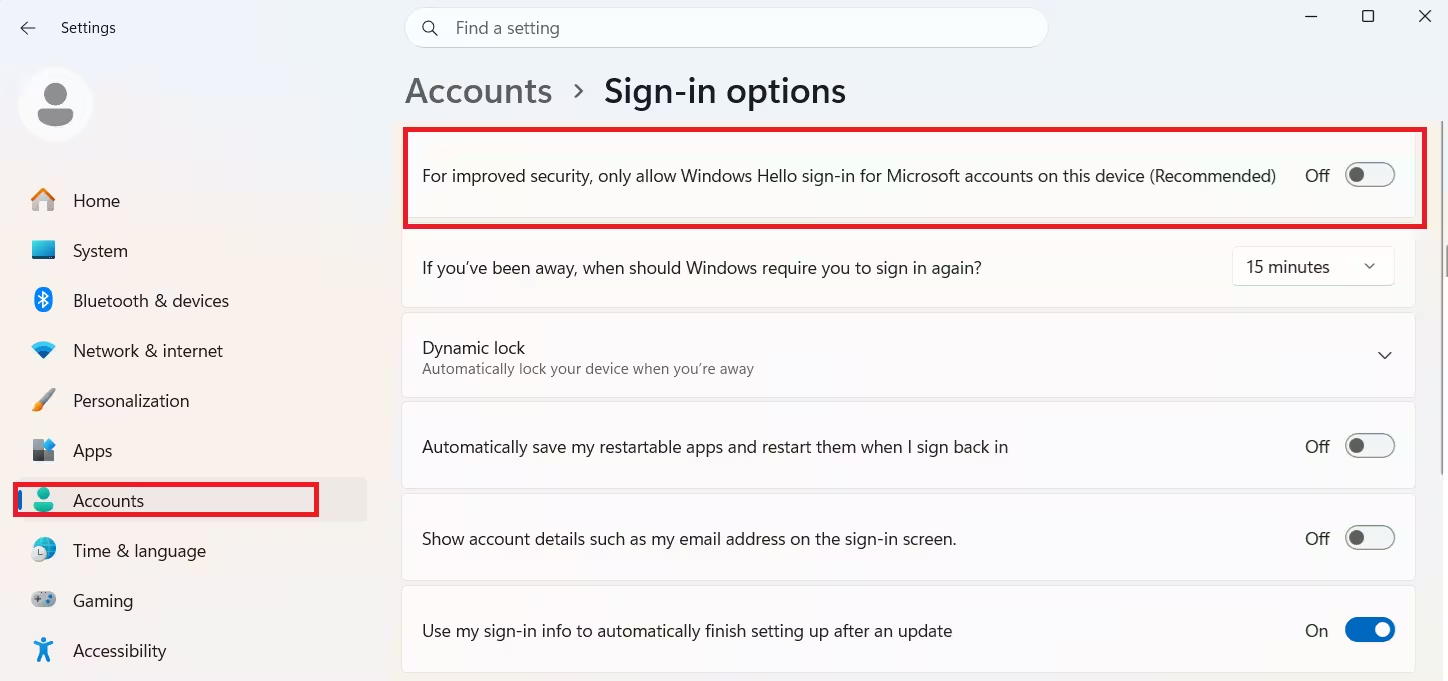
- Go to Settings > Accounts > Sign-in options.
- Under Additional settings, turn off For improved security, only allow Windows Hello sign-in for Microsoft accounts on this device.
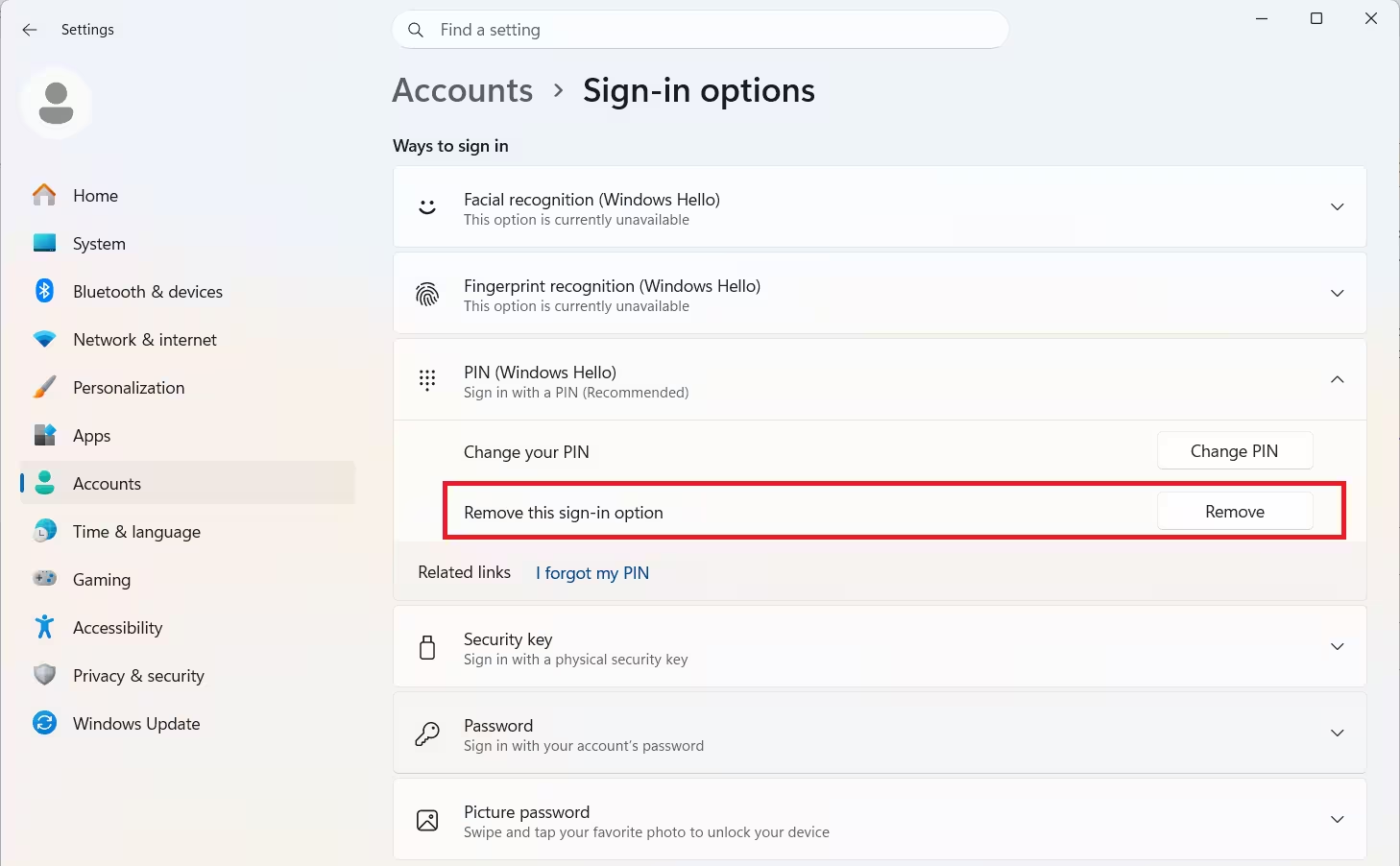
- Open PIN (Windows Hello), click Remove, and confirm with the account password.
- Restart the PC once.
- Press
Win + Rto open Run. - Type
netplwizand press Enter. - In the User Accounts window, select the account to sign in automatically.
- Uncheck Users must enter a user name and password to use this computer.
- Click Apply.
- Enter the account’s username and password in the confirmation prompt, then click OK.
- Restart the PC to confirm it boots straight to the desktop.
If the checkbox is greyed out, the PC is likely managed by a work or school policy, and auto login may be blocked by the organization’s administrator.
Method 2: Enable Auto Login Using Registry Editor
This method is useful when netplwiz does not save the setting, which can happen on some builds after a Windows update.
- Press
Win + R, typeregedit, and press Enter. - Navigate to:
HKEY_LOCAL_MACHINE\SOFTWARE\Microsoft\Windows NT\CurrentVersion\Winlogon - Set
AutoAdminLogonto1. - Set
DefaultUsernameto the account’s username. - Add a new string value named
DefaultPasswordand set it to the account’s password. - If
DefaultDomainNameexists, leave it blank for a local account. - Close Registry Editor and restart the PC.
Storing a password in the registry means anyone with access to the registry can read it in plain text. This method carries more risk than netplwiz and should only be used on a trusted personal device.
Method 3: Enable Auto Login Using the Sysinternals AutoLogon Tool
This method uses Microsoft’s own AutoLogon utility, part of the Sysinternals Suite, and avoids editing the registry by hand.
- Download AutoLogon from the official Microsoft Learn Sysinternals page.
- Extract the downloaded zip file to a known folder.
- Double-click Autologon64.exe (or Autologon.exe on 32-bit systems).
- Accept the license prompt on first run.
- Enter the username, domain (leave blank for a local account), and password in the tool’s fields.
- Click Enable.
- Restart the PC to confirm it signs in automatically.
The tool encrypts the password before storing it, which makes it safer than adding DefaultPassword manually in Registry Editor. To turn auto login off later, reopen the tool and click Disable.
Auto Login Does Not Work with Windows Hello
Auto login is disabled automatically if the account uses a PIN, fingerprint, or face recognition through Windows Hello.
To use auto login, the account first needs to switch back to a traditional password. This is done under Settings > Accounts > Sign-in options, by removing the PIN and any biometric sign-in methods before applying the netplwiz steps above.
Frequently Asked Questions
Is auto login safe on Windows 11?
Auto login is safe only on a personal, non-portable device where no one else has physical access. On shared or portable devices, it removes the login screen as a barrier and exposes the account to anyone who turns the PC on.
Does auto login work after a Windows update?
Auto login can be reset after a major Windows update if the update rewrites the Winlogon registry keys. Reapplying the netplwiz or registry steps restores it.
Can auto login be set for a Microsoft account?
Yes. The netplwiz method works for both Microsoft and local accounts, as long as Windows Hello sign-in options are turned off first.
Can auto login be turned off later?
Yes. Reopening netplwiz and rechecking Users must enter a user name and password to use this computer restores the login screen. For the registry method, setting AutoAdminLogon back to 0 has the same effect.
Does auto login work with more than one user account on the same PC?
Auto login signs in only the single account entered during setup. Other accounts on the same PC still see the normal login screen if they are selected instead of the auto login account.
Related Windows Errors and Fixes
- Blank White Window on Windows 11 Login: How to Fix It
- How to Fix Xbox App Login Error 0x89235107 on Windows
- How to Fix RDP to Azure Server Using Entra ID (Azure AD Login Issues Explained)
Windows How-To

