Active Directory Users and Computers (ADUC) does not ship with Windows 11 by default. It has to be added through the Remote Server Administration Tools (RSAT) package before you can manage domain users, computers, or groups from your PC. This guide walks through every install method available on Windows 11, including options for restricted networks and bulk device rollouts, plus how to open the console once it is installed.
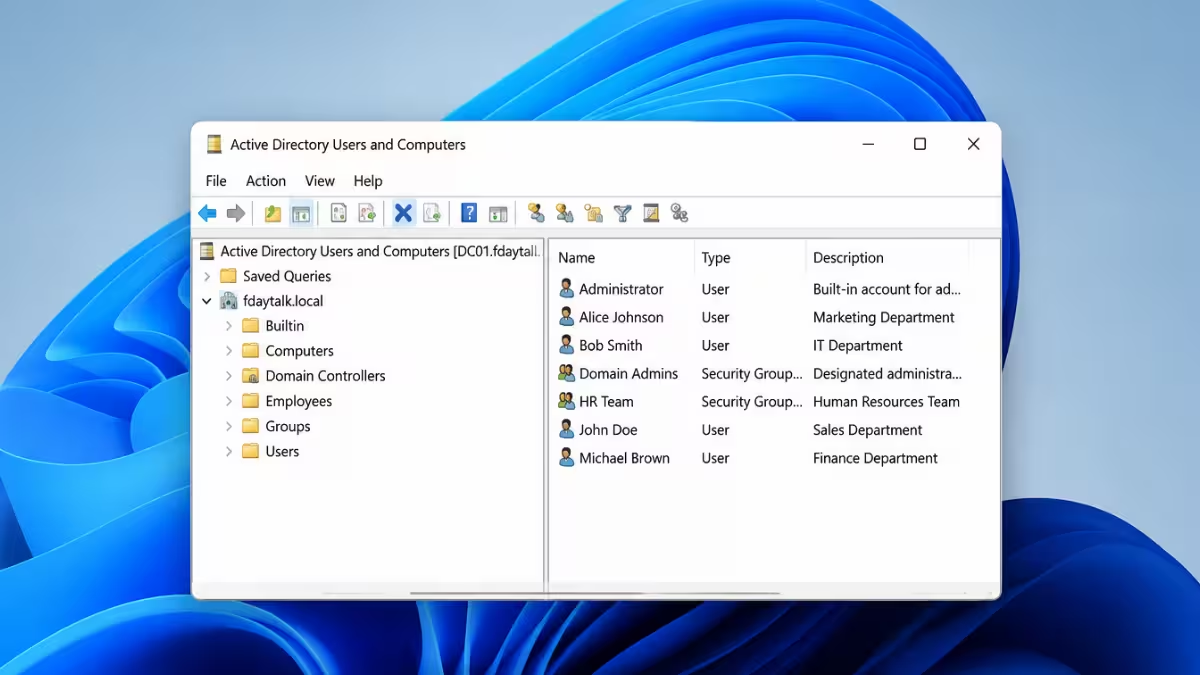
What Is Active Directory Users and Computers
ADUC is a Microsoft Management Console (MMC) snap-in used to manage domain user accounts, computer objects, security groups, and organizational units.
It is part of RSAT, a feature pack that lets administrators manage Windows Server roles remotely from a client machine.
Requirements Before Installing ADUC
A few conditions need to be met before the RSAT feature installs correctly.
- Windows 11 Pro, Enterprise, or Education edition (RSAT is not available on Windows 11 Home)
- An active internet connection, since RSAT installs as a Windows optional feature from Microsoft's servers
- An administrator account on the local machine
- Domain connectivity if the goal is to manage a live Active Directory environment
Method 1: Install ADUC via Windows Settings
This is the most direct method and works for most standard installs.
- Open Settings and go to Apps.
- Select Optional Features.
- Click View Features next to Add an optional feature.
- Type
RSATin the search box. - Check RSAT: Active Directory Domain Services and Lightweight Directory Tools.
- Click Next, then Install.
Windows downloads and installs the feature directly from Microsoft's update servers, which can take a few minutes depending on connection speed.
Method 2: Install ADUC via PowerShell
PowerShell installation is faster for admins managing multiple machines or scripting a deployment.
Open PowerShell as administrator and run:
Get-WindowsCapability -Name RSAT* -OnlineThis lists all available RSAT capabilities and their current install state. Locate the entry for Rsat.ActiveDirectory.DS-LDS.Tools, then install it with:
Add-WindowsCapability -Online -Name "Rsat.ActiveDirectory.DS-LDS.Tools~~~~0.0.1.0"Restart the machine if the console does not appear in Start immediately after installation.
Method 3: Install ADUC When Internet Access Is Restricted
Corporate machines without direct access to Microsoft's update servers need an offline source. Attempting the online install on an isolated network typically fails with error 0x800f0954.
- Download the matching RSAT feature-on-demand package from Microsoft on a machine with internet access.
- Copy the package to the offline Windows 11 device.
- Mount or extract the package, then run the install using DISM:
DISM /Online /Add-Package /PackagePath:<path-to-package>- Confirm the install by checking Optional Features in Settings.
Environments using WSUS or SCCM can also push RSAT as a managed feature update instead of installing it manually on each device.
Method 4: Deploy ADUC to Multiple Machines via Group Policy or Intune
This method suits IT admins rolling out ADUC to many machines at once instead of installing it device by device.
- Package the RSAT feature-on-demand files as a deployable script or use a native MDM policy if managing devices through Intune.
- In Intune, create a PowerShell script deployment using the same
Add-WindowsCapabilitycommand from Method 2 and assign it to the target device group. - For on-premises environments, use SCCM to deploy RSAT as an application or package tied to a device collection.
- For Group Policy environments without SCCM or Intune, deploy the install command as a startup script through a GPO linked to the relevant OU.
Test the deployment on a small pilot group of machines before rolling it out organization-wide, since feature-on-demand installs depend on each device having a working path to Windows Update or a configured WSUS source.
Method 5: Using ADUC From a Non-Domain Computer
This method works when managing a domain from a workgroup machine that is not joined to it.
- Open Command Prompt and run the MMC console under domain credentials without joining the domain:
runas /netonly /user:domain\username mmc- In the empty MMC console, go to File then Add/Remove Snap-in.
- Move Active Directory Users and Computers to the right panel and click Add.
- Click the console root and select Change Domain, then type the target domain name.
The console can also be launched directly with the domain specified in one command:
runas /user:domain\username "c:\windows\system32\mmc.exe %SystemRoot%\system32\dsa.msc /domain:domain.com"How to Open ADUC After Installation
- Press
Win + R. - Type
dsa.mscand press Enter.
ADUC can also be found by searching "Active Directory Users and Computers" directly in the Start menu, or through Control Panel > System and Security > Windows Tools.
Once open, the connected domain controller name appears at the top of the console. To manage a different domain controller or domain, right-click the console root and select Change Domain Controller or Change Domain.
Frequently Asked Questions
Does ADUC work without a domain connection?
ADUC can open without a domain connection, but it cannot browse or manage accounts unless the machine is joined to or has network access to a domain controller.
Can ADUC be installed on Windows 11 Home?
No. RSAT, and therefore ADUC, is not supported on Windows 11 Home edition.
Why does the RSAT install fail with an error?
A failed install is usually caused by no internet access to Microsoft's update servers, a pending Windows update, or a Group Policy restriction blocking optional feature installs.
Is ADUC the same as Active Directory itself?
No. ADUC is only a management console used to view and edit objects in Active Directory. Active Directory is the underlying directory service running on a domain controller.
Does installing ADUC require a Windows Server license?
No. ADUC installs as part of RSAT on a standard Windows 11 Pro, Enterprise, or Education machine and does not require a Windows Server license, though it does need network access to a domain controller to manage objects.
Is there a newer alternative to ADUC?
Yes. Active Directory Administrative Center (dsac.exe) offers similar functionality with added features like AD Recycle Bin management and Fine-Grained Password Policy configuration. It installs alongside ADUC as part of the same RSAT package.