Checking your step count used to mean opening the Fitness app or scrolling through rings. On the Apple Watch Series 12 and Apple Watch Ultra 4, Apple now lets you pin that number right on the watch face. Here is what the widget does and how to set it up.
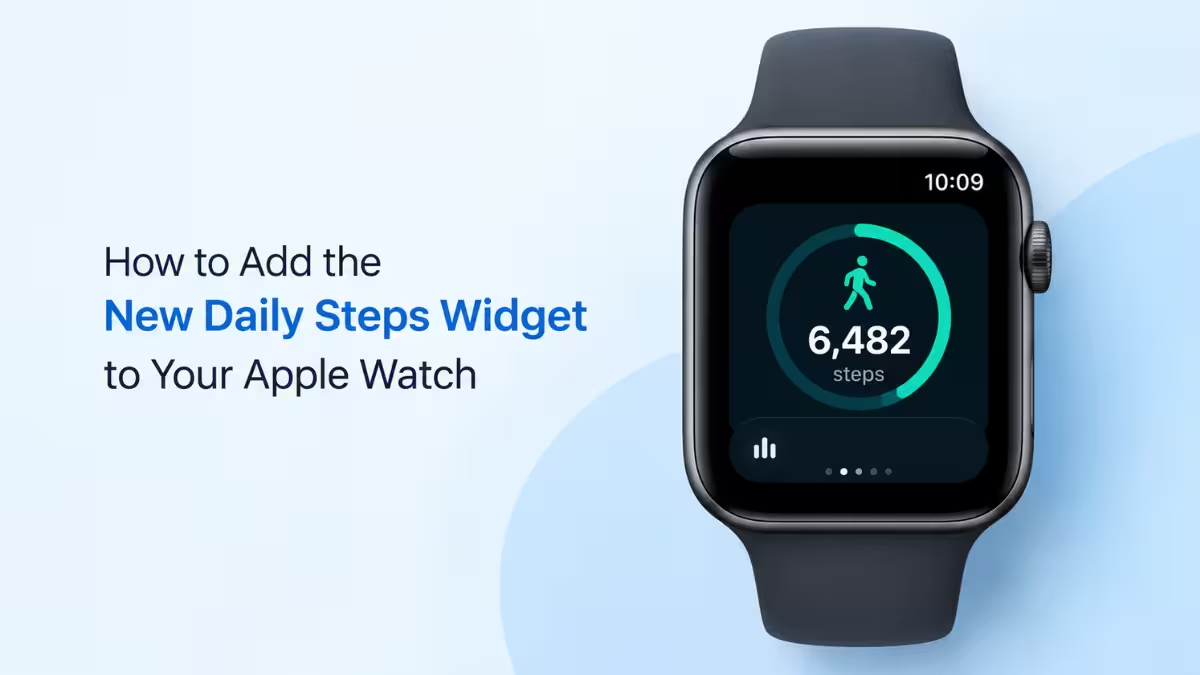
What Is the New Daily Steps Widget on Apple Watch
This widget shows your running step total right on the watch face, so you never need to open the Fitness app to check your progress.
Apple built the feature around the new S11 chip and an updated step-counting algorithm, which is why it only runs on the Series 12 and Ultra 4 for now. Older Apple Watch models cannot get it through a software update, since Apple ties the feature to the new hardware.
What You Need Before Adding the Daily Steps Widget
You need specific hardware to use this widget, so confirm your device qualifies first.
- An Apple Watch Series 12 or Apple Watch Ultra 4
- watchOS 27 installed on the watch
- The Watch app installed on your paired iPhone
Method 1: Add the Daily Steps Widget Using the Siri Modular Face
The Siri Modular face gives you the most flexibility for placing the Daily Steps widget, and this method uses your iPhone to configure it.
- Open Face Gallery on your iPhone: Launch the Watch app on your iPhone and tap Face Gallery at the bottom center of the screen.
- Find the Siri Modular face: Search for Siri Modular, or browse the New Watch Faces category to find it. Apple offers six different Siri Modular layout styles to pick from.
- Open the Complications section: Select your preferred Siri Modular style, then scroll down to the Complications section. Choose the position where you want your step count to show up. The top complication slot is the most visible spot if that matters to you.
- Select the Daily Steps complication: Tap the complication slot you picked to edit it, then scroll up to the Activity section and select Daily Steps.
- Apply the face to your watch: Tap the Add to Watch button at the top of the screen. The Siri Modular face with your Daily Steps widget now syncs to your Apple Watch.
Method 2: Add the Daily Steps Widget Directly on Your Apple Watch
If you would rather set this up without picking up your iPhone, you can edit an existing watch face right from your wrist.
- Enter edit mode: Press and hold your current watch face until the edit options appear, then tap Edit.
- Swipe to Complications: Swipe across the screen until you reach the Complications section of the editor.
- Choose the Daily Steps complication: Tap the complication spot where you want your step count displayed, then look under Activity and select the daily steps option.
- Save your changes: Press the Digital Crown to save the updated face.
Can You Add a Step Count Widget on an Older Apple Watch
Apple’s built-in Daily Steps widget only works on the Series 12 and Ultra 4, but that does not mean older watches are stuck without a step-count complication.
A third-party app like Pedometer++ can add a similar step-tracking complication to older Apple Watch models that run a compatible version of watchOS.
Frequently Asked Questions
Which Apple Watch models support the Daily Steps widget?
Only the Apple Watch Series 12 and Apple Watch Ultra 4 support the native Daily Steps widget, since it depends on the S11 chip and a new step-counting algorithm built into that hardware.
Can I add the Daily Steps widget to any watch face?
You can add it to any face that supports Activity complications, though the new Siri Modular face offers the most complication slots to choose from.
Will Apple bring this widget to older Apple Watch models?
Apple has tied this feature to the new chip in the Series 12 and Ultra 4, so a future watchOS update is unlikely to bring it to older watches.
Do I need to update to watchOS 27 to use the Daily Steps widget?
Yes, your Apple Watch needs watchOS 27 installed before the Daily Steps complication shows up in the Activity section of the face editor.
Does the Daily Steps widget drain the battery faster?
No, the widget pulls from the same step data your watch already tracks in the background, so it does not add any meaningful battery drain on its own.
Related Guides
- How to Fix Cannot Get Mail Connection to Server Failed on iPhone
- Could Not Activate Cellular Data Network on iPhone: How to Fix It
- FaceTime Audio Not Working on iPhone? 7 Fixes That Actually Help
- iPhone GPS Not Working? 10 Fixes That Actually Work
- iPhone Texts Not Sending? 13 Fixes That Actually Work
- Face ID Not Working on iPhone: 10 Fixes That Actually Work
