Windows Update fails again. Apps crash for no clear reason. You run sfc /scannow and it tells you it found corrupt files but could not fix some of them. At this point, you need DISM.
DISM (Deployment Image Servicing and Management) ships with every modern copy of Windows. It repairs the Windows component store, the protected folder that holds clean copies of system files. When that store breaks, SFC has nothing healthy to copy from, and DISM steps in to fix the foundation first.
This guide shows you which DISM commands to run, in what order, how to repair Windows without internet, and how to read the errors DISM throws at you.
What Is the DISM Command in Windows 11 and 10?
DISM is a built-in command line tool that services Windows images. That includes the Windows installation you run today, a mounted WIM file and a VHD.
Windows keeps a reference copy of its system components inside C:\Windows\WinSxS. Microsoft calls this the component store. Every update, feature install and SFC repair pulls files from it.
DISM checks each file in that store against the hash recorded in its manifest. When a hash does not match, DISM marks the file as corrupt and replaces it with a known good version. By default, it downloads that version from Windows Update.
DISM does not touch your documents, photos, games or installed apps. It only works on Windows system components.
DISM vs SFC: Which Tool Fixes What
Here is how DISM and SFC differ:
| Tool | What it fixes | Where it gets clean files |
|---|---|---|
| DISM | The component store (WinSxS) | Windows Update or a Windows ISO |
| SFC | Protected system files in use | The component store |
That table explains the golden rule: run DISM first, then SFC.
Signs Your PC Needs a DISM Repair
Reach for DISM when you see any of these problems:
- Windows Update keeps failing or rolls back its changes, for example with Windows Update error 0x80070017.
- SFC reports corrupt files it cannot fix.
- Apps crash, system files go missing or the interface glitches without a clear cause.
- Blue screens such as Critical Process Died appear after updates or crashes.
- Windows features refuse to install or turn on, or updates stop with install error 0x800f0983.
Before You Run DISM: Quick Checklist
Take two minutes to prepare. It saves you from failed scans later.
- Open an elevated terminal. Right click Start, pick Terminal (Admin) or Command Prompt (Admin), and accept the UAC prompt. Without admin rights, DISM returns error 740.
- Check your internet connection. RestoreHealth pulls replacement files from Windows Update unless you give it a local source.
- Finish any pending restart. If Windows waits on a reboot after an update, ScanHealth may keep reporting the store as repairable. Restart first.
- Close heavy apps. Games, video editors and large downloads slow the scan.
- Create a restore point or back up Windows 11. It is optional, but it gives you a fallback.
DISM CheckHealth, ScanHealth and RestoreHealth Explained
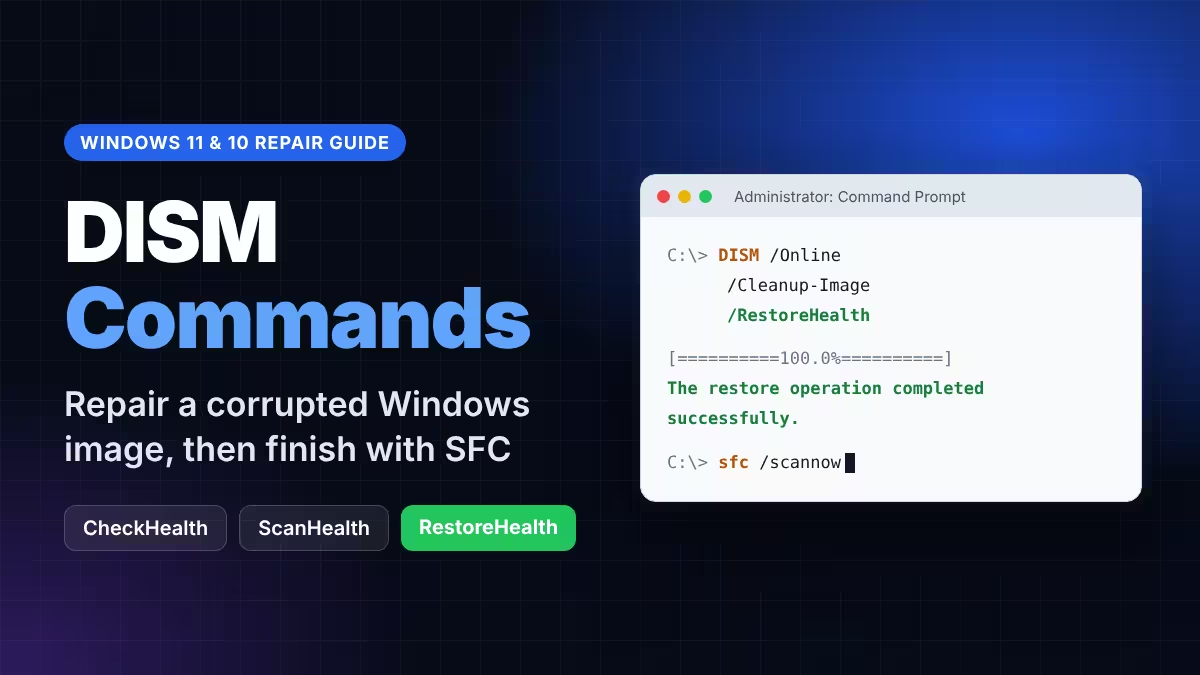
All three commands start with the same base: DISM /Online /Cleanup-Image. The /Online switch targets the Windows install you are running right now. It does not mean "connect to the internet." The /Cleanup-Image switch tells DISM you want servicing operations on that image.
DISM /CheckHealth: The Instant Status Check
DISM /Online /Cleanup-Image /CheckHealthCheckHealth reads a corruption flag that Windows already stored from earlier operations. It does not scan anything new, and it finishes in seconds.
Treat a clean result here as a hint, not proof. A healthy CheckHealth result only means Windows has not flagged a problem yet.
DISM /ScanHealth: The Full Scan Without Repair
DISM /Online /Cleanup-Image /ScanHealthScanHealth walks through the entire component store and verifies every file. It reports problems but fixes nothing. Expect it to take 5 to 30 minutes, depending on your drive speed.
You will see one of three results:
- No component store corruption detected. The store is healthy.
- The component store is repairable. DISM found damage and can fix it with RestoreHealth.
- The component store is not repairable. DISM cannot fix it. You will likely need an in-place upgrade, a reset or a reinstall.
DISM /RestoreHealth: The Command That Fixes Things
DISM /Online /Cleanup-Image /RestoreHealthRestoreHealth scans the store and repairs every corrupt component it finds. This is the only one of the three that changes your system.
You can run RestoreHealth directly without running CheckHealth or ScanHealth first. The first two help you diagnose, but RestoreHealth performs its own scan anyway.
When the repair works, you see this message:
The restore operation completed successfully.DISM and SFC Order: Run sfc /scannow After DISM
DISM fixed the source. Now SFC needs to copy those clean files into the system folders Windows actually uses. Run it as a separate command after DISM finishes:
sfc /scannowSFC returns one of these results:
- Windows Resource Protection did not find any integrity violations. Your system files are fine.
- Windows Resource Protection found corrupt files and successfully repaired them. Restart your PC and run SFC once more to confirm a clean pass.
- Windows Resource Protection found corrupt files but was unable to fix some of them. The store still has damage. Repeat RestoreHealth, ideally with a local source as shown below.
- Windows Resource Protection could not perform the requested operation. SFC cannot reach its pending-operation folders. Follow our fix for could not perform the requested operation.
If your drive itself has file system errors, add a disk check at the end:
chkdsk C: /fWindows locks the system drive, so chkdsk asks to schedule the check at the next restart. Press Y and reboot.
How to Run DISM RestoreHealth From a Windows ISO (No Internet)
RestoreHealth fails when Windows Update is broken, blocked by a company policy, or when the PC has no internet. In that case, point DISM to a Windows ISO instead.
Step 1: Download a matching ISO. Grab the ISO from the official Windows 11 download page or the Windows 10 download page. The version, language and architecture must match your installed copy. A Windows 11 24H2 system needs a 24H2 source.
Step 2: Mount it. Right click the ISO in File Explorer and choose Mount. Windows assigns it a drive letter, such as D:.
Step 3: Find your edition index. An install image holds several editions (Home, Pro, Education and others). List them:
DISM /Get-WimInfo /WimFile:D:\sources\install.wimMany newer ISOs ship install.esd instead of install.wim. If the WIM file does not exist, swap the file name:
DISM /Get-WimInfo /WimFile:D:\sources\install.esdNote the index number next to your edition. To check which edition you run, open Settings, go to System, then About.
Step 4: Run RestoreHealth with the source. Replace D: with your drive letter and 6 with your index:
DISM /Online /Cleanup-Image /RestoreHealth /Source:WIM:D:\sources\install.wim:6 /LimitAccessFor an ESD file:
DISM /Online /Cleanup-Image /RestoreHealth /Source:ESD:D:\sources\install.esd:6 /LimitAccessThe /LimitAccess switch stops DISM from contacting Windows Update. Drop it if you want Windows Update to act as a backup source.
Run DISM From Recovery Environment When Windows Won't Boot
When Windows fails to start, run DISM against the offline installation from the recovery environment.
- Boot from a Windows USB installer and press
Shift + F10on the first setup screen. You can also reach Command Prompt through Troubleshoot, then Advanced options. - Run
diskpart, thenlist vol, thenexit. Find the drive that holds your Windows folder. In recovery mode it often shows up as D: or E:, not C:. - Repair the offline component store. Here, Windows sits on D: and the USB installer sits on E:
DISM /Image:D:\ /Cleanup-Image /RestoreHealth /Source:WIM:E:\sources\install.wim:6 /LimitAccess- Repair the offline system files:
sfc /scannow /offbootdir=D:\ /offwindir=D:\WindowsIf the target drive runs low on free space, create a scratch folder on another drive and add /ScratchDir:F:\scratch to the DISM command.
If Windows still fails to start after these repairs, check the boot records next. You may need to repair the MBR, fix the Boot Configuration Data is missing error or resolve error code 0xc00000e.
Repair-WindowsImage: The PowerShell Version of DISM
PowerShell offers the same repair through the Repair-WindowsImage cmdlet. Open PowerShell as administrator:
Repair-WindowsImage -Online -ScanHealth
Repair-WindowsImage -Online -RestoreHealth
With a local source:
Repair-WindowsImage -Online -RestoreHealth -Source D:\sources\install.wim:6 -LimitAccessDISM Error Codes and Fixes: 0x800f081f, 0x800f0906, 87 and 50
| Error | What it means | Fix |
|---|---|---|
| 740 | You lack admin rights | Reopen the terminal with Run as administrator |
| 87 | DISM does not recognize an option | Check spacing before each slash and spell /RestoreHealth as one word |
| 50 | DISM does not support servicing Windows PE because DISM thinks it is servicing WinPE | Use /Online for the running OS and /Image: for an offline drive |
| 0x800f081f | DISM cannot find source files | Use a matching ISO with /Source and the correct index |
| 0x800f0906 | DISM cannot download files | Check your internet and Windows Update, or use a local source |
| 0x800f0907 | A policy blocks Windows Update | Use a local source with /LimitAccess |
| 0x800f0915 | DISM found no repair content anywhere | Run StartComponentCleanup, reset Windows Update, reboot and retry |
| 1726 | The remote procedure call failed | Restart the PC and run the command again |
For error 0x800f0915, run this cleanup before you retry:
DISM /Online /Cleanup-Image /StartComponentCleanupWhere to Find the DISM Log File (dism.log)
The console output rarely tells the full story. DISM writes every step to a log file. Open it straight from Command Prompt:
notepad %windir%\Logs\DISM\dism.logPress Ctrl + F and search for "Error" near the time of your failed command. The log names the exact package or file that caused the failure. SFC and the servicing stack write to a second log at %windir%\Logs\CBS\CBS.log.
To pull only SFC entries into a text file on your desktop:
findstr /c:"[SR]" %windir%\Logs\CBS\CBS.log > "%userprofile%\Desktop\sfc.txt"Clean Up the Component Store With DISM StartComponentCleanup
The WinSxS folder grows with every update. DISM can tell you whether cleanup will help:
DISM /Online /Cleanup-Image /AnalyzeComponentStoreIf the report recommends cleanup, run:
DISM /Online /Cleanup-Image /StartComponentCleanupNever delete files from C:\Windows\WinSxS by hand. Manual deletion breaks updates and can leave Windows unbootable. To see which folders really fill your drive, run a free disk space analyzer first.
DISM Commands List: Quick Reference for Features, Drivers and Images
DISM does much more than repair. IT admins rely on it to build and customize Windows images. Here are the commands you will reach for most:
| Task | Command |
|---|---|
| List optional features | DISM /Online /Get-Features |
| Enable a feature | DISM /Online /Enable-Feature /FeatureName:TelnetClient /All |
| Disable a feature | DISM /Online /Disable-Feature /FeatureName:TelnetClient |
| Export installed drivers | DISM /Online /Export-Driver /Destination:D:\DriverBackup |
| Mount a WIM image | DISM /Mount-Image /ImageFile:C:\images\install.wim /Index:1 /MountDir:C:\mount |
| Add a driver to a mounted image | DISM /Image:C:\mount /Add-Driver /Driver:C:\drivers /Recurse |
| Save and unmount an image | DISM /Unmount-Image /MountDir:C:\mount /Commit |
| Save logs to a custom path | DISM /Online /Cleanup-Image /RestoreHealth /LogPath:C:\dismlog.txt |
For every switch and parameter, check Microsoft's DISM command-line options reference.
Frequently Asked Questions
Is it safe to run DISM RestoreHealth?
Yes. RestoreHealth only replaces damaged Windows components with clean copies. It does not delete your personal files or installed apps.
How long does DISM RestoreHealth take?
Most runs finish in 10 to 30 minutes. Slow hard drives, heavy corruption or a weak internet connection can push it past 45 minutes.
Why does DISM get stuck at 20% or 62.3%?
DISM often pauses at these points while it processes large chunks of the store. Leave it running. Only treat it as frozen if nothing moves for over an hour and your disk shows no activity in Task Manager.
Should I run SFC or DISM first?
Run DISM first. SFC copies files from the component store, so DISM must repair that store before SFC can do its job.
Does DISM need an internet connection?
RestoreHealth uses Windows Update by default, so it needs internet. You can skip that requirement by pointing DISM to a mounted Windows ISO with the /Source and /LimitAccess switches.
What if DISM says the component store is not repairable?
Try RestoreHealth with a fresh, matching ISO as the source. If that still fails, run an in-place upgrade by launching setup.exe from the mounted ISO and choosing to keep your files and apps.
Do DISM commands work the same on Windows 10 and Windows 11?
Yes. The commands and switches are identical. Only the repair source must match your exact Windows version and build.