Most of us only think about PC maintenance when Windows starts crawling or the C: drive turns red. At that point, you go hunting through Settings, Disk Cleanup, Task Manager and Storage Sense, because Windows scatters its housekeeping tools across a dozen different screens.
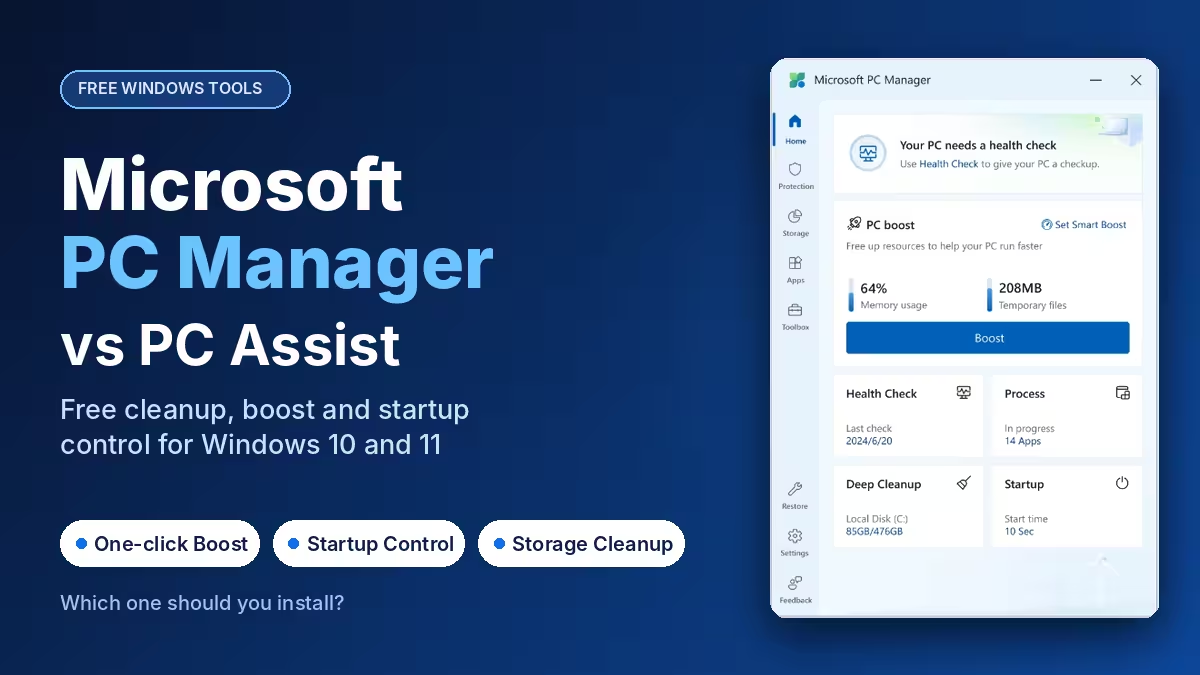
Microsoft offers two free apps that pull these tools into a single window: Microsoft PC Manager and the newer Microsoft PC Assist. Both clean junk files, show what eats your memory and let you tame startup apps. They differ in polish, regional availability and how hard they push Bing.
Here is what each app does, where it falls short and which one deserves a spot on your PC.
Do You Need a PC Cleanup App on Windows?
Windows 10 and 11 already include everything these apps offer. Disk Cleanup removes temporary files, Task Manager controls startup apps, and Storage Sense clears old downloads. So why bother?
The answer is convenience. Finding each tool takes time, and most people never open half of them. A single dashboard lets you check memory use, clear temp files and spot heavy apps in under a minute. You install it once and keep it handy whenever you need to speed up Windows 11.
Microsoft also stopped developing the classic Disk Cleanup utility, so these apps point to where Microsoft wants users to go for basic upkeep. Recent updates also changed storage settings and hid some update cleanup options, which makes a single dashboard even more useful.
What Microsoft PC Manager Can Do on Windows 10 and 11
Microsoft PC Manager runs on both Windows 10 and Windows 11. Microsoft first launched it in 2022, and it has grown into a capable maintenance hub.
Key Features
- Boost button: One click clears temporary files and frees up RAM. Don't expect a dramatic speed jump, but it removes clutter fast.
- Memory monitor: See how much RAM your system uses right now.
- Startup tracking: Check how long your PC takes to boot and which apps slow it down.
- Running apps view: Spot processes that hog resources so you can diagnose problems.
- Storage cleanup: Find and remove files you no longer need.
Where PC Manager Falls Short
Microsoft built PC Manager mainly for English and Chinese versions of Windows. Users in some regions, Germany for example, can't install it from the Microsoft Store, although WinGet sometimes works as a workaround.
Microsoft PC Assist Features and What's New
PC Assist is Microsoft's second free cleanup app. It installs natively on more language versions of Windows, including German, and ships with a localized interface. The installer weighs in at close to 70 MB, and you can grab it straight from Microsoft's website.
The current release sits at version 0.4.4.0, so treat it as an early build.
Key Features
- Performance Status: A trimmed view of Task Manager data. You can review startup apps, grant admin rights, and tap "Show Real Startup Data" to switch off specific entries. Another click shuts down the biggest resource hogs.
- Disk Status: Analyzes how you use each drive, much like a dedicated disk space analyzer.
- Quick Actions: Empties temp folders, cache and the Recycle Bin.
- Largest files list: Delete big files directly or move them to the Recycle Bin.
- Old Downloads and Duplicate Files: Two handy finders for reclaiming space.
- Network Status: Shows live network use, runs a speed test and lists the apps that used the most data over the last 30 days.
- Get Help links: The home screen leans on Windows 11's Get Help app for automated troubleshooting.
Does Microsoft PC Assist Push Bing on You?
PC Assist pushes Bing hard. During setup, it tries to make Bing your default search engine, which has nothing to do with cleaning a hard drive. Installing the app also means you accept in-app notifications with promotional offers.
The "Helpful Tools" page makes this worse. It lists 10 tools, and every one simply opens a Bing service in your browser. Watch each installer screen carefully and untick anything you don't want. You can also turn off Bing web results in Windows 11 search.
Microsoft PC Manager vs PC Assist: Feature Comparison
| Feature | Microsoft PC Manager | Microsoft PC Assist |
|---|---|---|
| Price | Free | Free |
| Windows support | Windows 10 and 11 | Windows 10 and 11 |
| One-click boost | Yes | No dedicated boost button |
| Startup app control | Yes | Yes (needs admin rights) |
| Duplicate file finder | Limited | Yes |
| Network monitor | No | Yes, with speed test |
| Automations | More built in | Fewer |
| Regional availability | Limited in some countries | Wider, localized |
| Bing promotion | Minimal | Heavy |
PC Manager or PC Assist: Which Should You Install?
Pick PC Manager if it installs in your region. It offers more automation, a cleaner experience and far less advertising.
Choose PC Assist if the Microsoft Store blocks PC Manager in your country, or if you want the duplicate finder and network usage stats. Just decline the Bing changes during setup.
Power users can skip both. If you already know your way around Task Manager and Storage Sense, these apps won't teach you anything new.
How to Clean Your PC Safely with These Tools
- Review the list first. Never hit "clean" blindly. Check what the app plans to remove, especially in Downloads and large file lists. If the files matter, back up Windows 11 before you start.
- Empty the Recycle Bin last. Give yourself a chance to restore anything you deleted by mistake. If a file is already gone, data recovery software may bring it back.
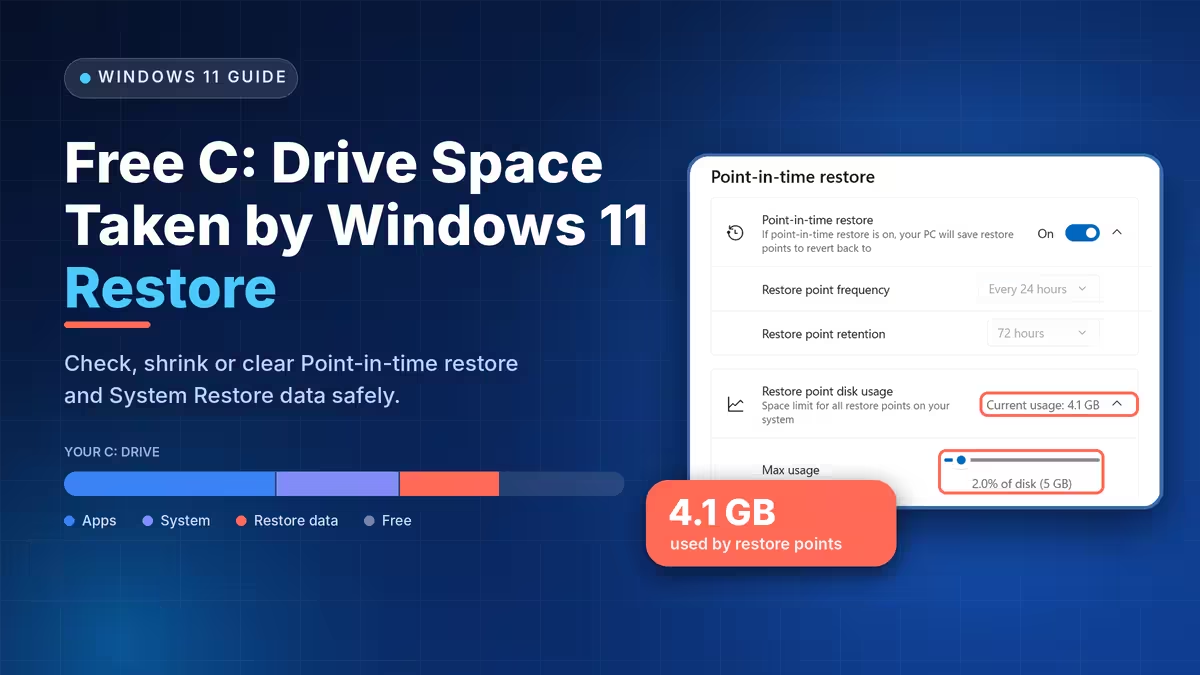
- Keep expectations realistic. Clearing temp files and RAM gives a small boost. It won't fix aging hardware or a failing drive. For bigger gains, fix the Windows 11 settings that slow down your PC. If C: drive space stays tight, check point-in-time restore storage.
- Avoid shady third-party cleaners. Many "PC optimizers" bundle adware. Microsoft's own tools carry less risk, and PowerShell commands can clean Windows without any app.
- Restart after a big cleanup. A fresh boot lets Windows rebuild caches cleanly.
Frequently Asked Questions
Is Microsoft PC Manager free?
Yes. Microsoft offers PC Manager at no cost, with no premium tier.
Does PC Manager work on Windows 10?
Yes. It supports both Windows 10 and Windows 11.
What is the difference between PC Manager and PC Assist?
Both clean junk files and manage startup apps. PC Manager has more automation and fewer ads, while PC Assist adds duplicate file and network tools but promotes Bing heavily.
Will these apps make my PC faster?
They can help a little by freeing memory and storage. They won't deliver a major speed gain on slow or old hardware.
Can I stop PC Assist from changing my search engine?
Yes. Watch the setup screens and untick the Bing default option. You can also reset your search engine later in your browser settings.
Is it safe to delete files with these tools?
Generally yes, as long as you review what the app selects before you confirm. Double check large files and old downloads.
Related Guides
- How to Speed Up Windows 11: 14 Free Fixes and Smart Upgrades for a Slow PC
- 5 Best Free Disk Space Analyzers for Windows 11 and 10
- How to Run Disk Cleanup on Windows 11 (9 Methods)
- PowerShell Commands to Clean Up Windows and Speed It Up Without a Cleaner App
- How to Turn Off Bing Web Results in Windows 11 Search