Your C: drive lost several gigabytes overnight, and you did not install anything new. On many Windows 11 PCs, the cause is a recovery feature, not your files. Microsoft added Point-in-time restore with the optional June 2026 update (KB5095093), and it switches itself on for many users. Add the older System Restore on top, and recovery data can easily take 5 GB to 50 GB of your system drive.
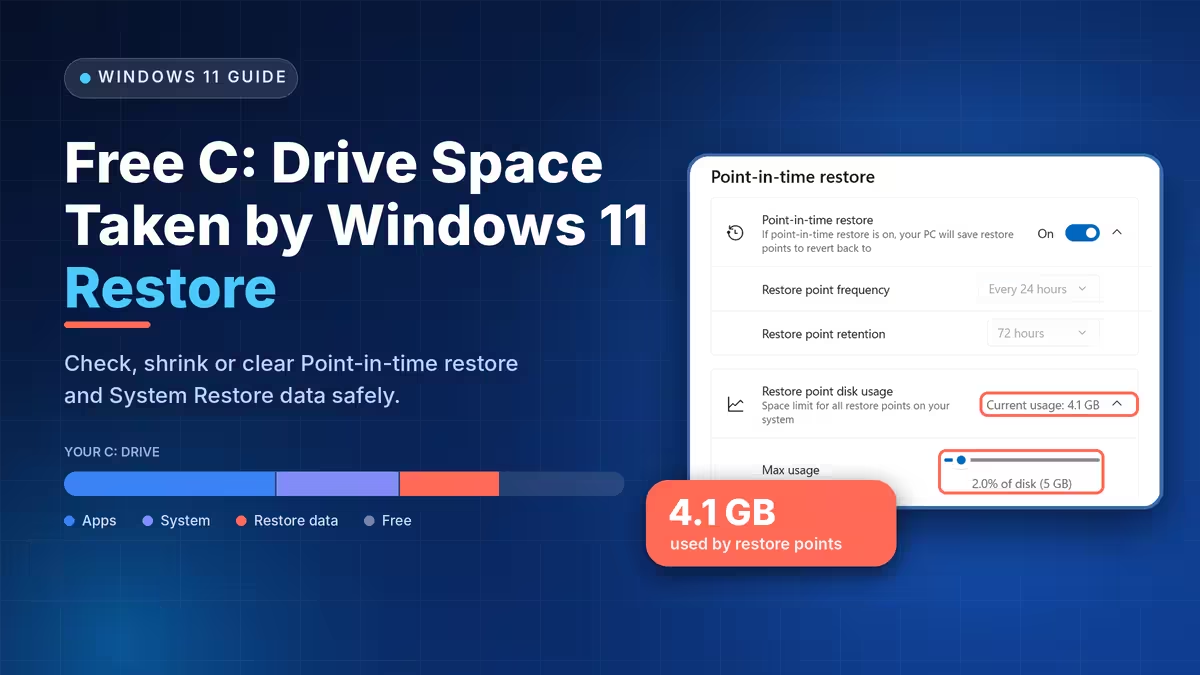
This guide shows you how to find out how much space restore data uses, how to cap it, and how to clear it without breaking your recovery options.
What Is Point-in-time Restore and Why Is It Using My C: Drive Space?
Windows 11 now runs two separate restore systems:
- Point-in-time restore: The new feature. It takes a Volume Shadow Copy (VSS) snapshot of your Windows drive in the background, covering the OS, settings, installed apps and local files on that drive.
- System Restore: The classic feature. It creates restore points when you install updates, drivers or programs, or when you make one manually.
Both store their snapshots on the C: drive itself. That makes them useful when an update goes wrong, but costly on a small SSD.
How Point-in-time restore behaves by default
KB5095093 enables Point-in-time restore automatically when your Windows drive is 200 GB or larger. On smaller drives, it stays off unless you turn it on yourself.
Once active, it works like this:
| Setting | Default value |
|---|---|
| Minimum space used | 2% of the Windows drive |
| Maximum space used | 50 GB |
| Snapshot frequency | Every 24 hours |
| Snapshot retention | 72 hours |
| Who can change frequency and retention | Enterprise edition only |
On a 256 GB laptop, 2% works out to roughly 5 GB. On a 1 TB drive, the floor jumps to about 20 GB. Microsoft says part of this space may overlap with Windows reserved storage, so the real drop in free space can come in lower. In practice, many users still see several gigabytes vanish.
How to Check How Much Space Windows 11 Restore Points Use
Measure first, before you delete anything.
- Press
Windows + Ito open Settings. - Go to System > Storage.
- Click Show more categories, then open System & reserved.
- Note the figures for System restore and Reserved storage.
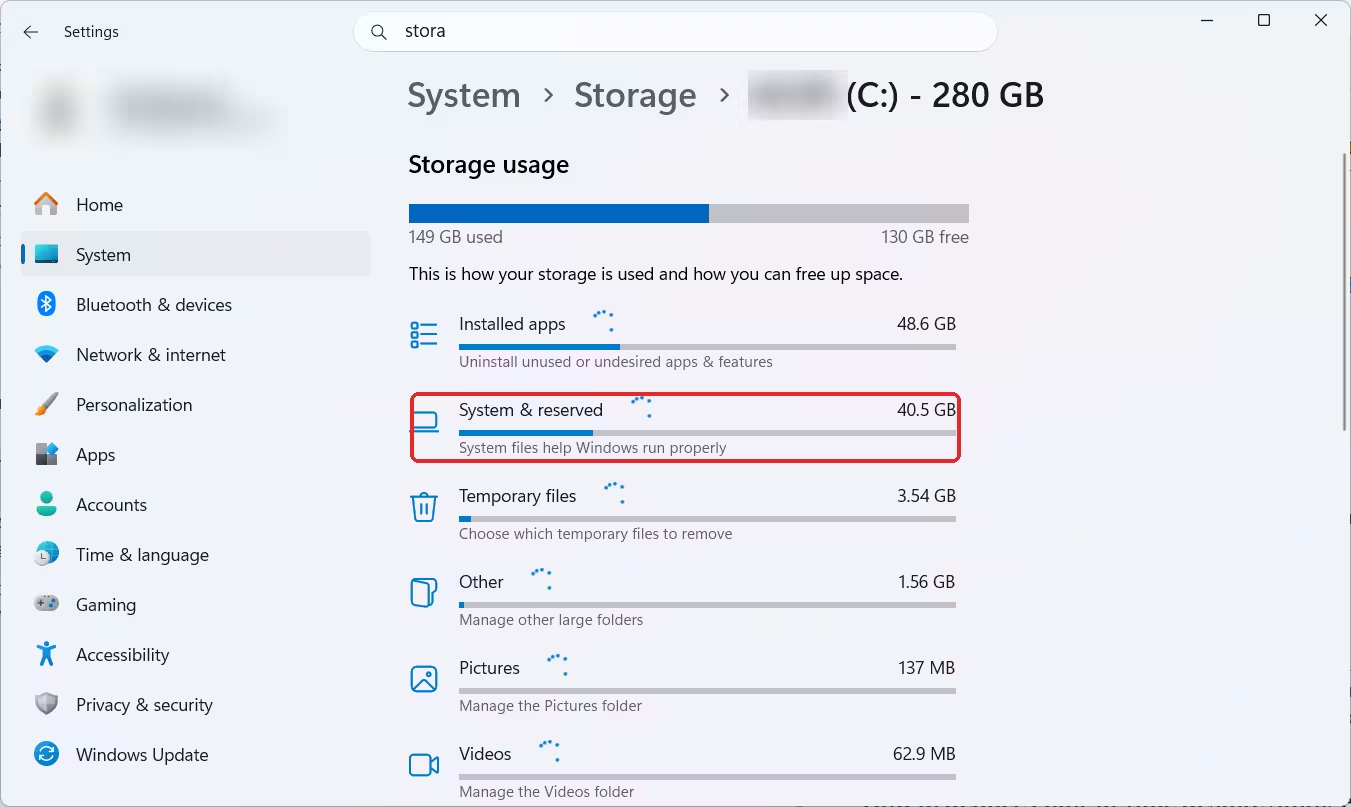
For an exact count of shadow copy storage, open Terminal (Admin) from the Win + X menu and run:
vssadmin list shadowstorageThe output shows the used, allocated and maximum shadow copy space for each drive. Point-in-time restore and System Restore both draw from this pool, so this number tells you the combined cost. To see which folders use the rest of your drive, run a free disk space analyzer.
How to Reduce Point-in-time Restore Storage in Windows 11
You can cap how much space the new feature takes.
- Open Settings > System > Recovery.
- Under Recovery options, find Point-in-time restore.
- Click View or edit.
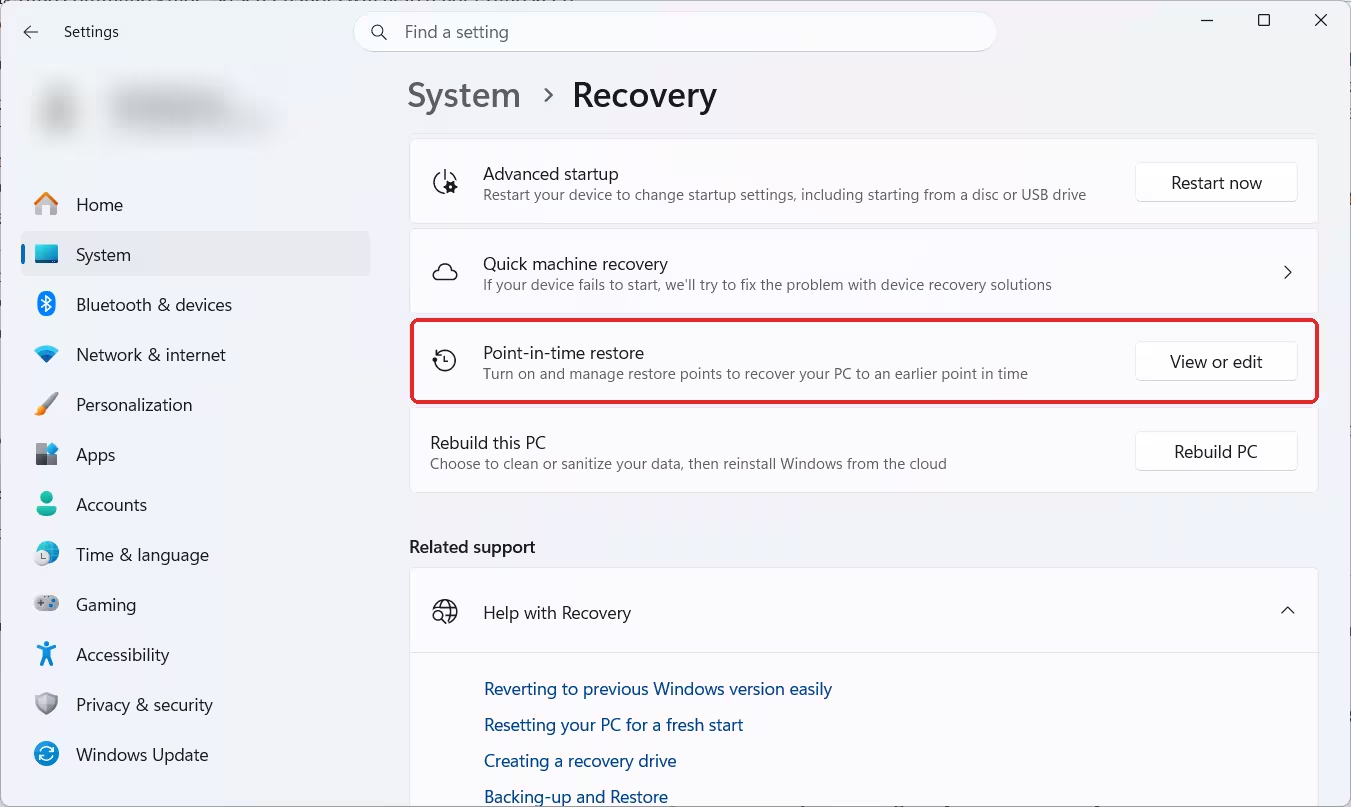
- Drag the Max usage slider down to a lower value.
- Close Settings. Windows trims old snapshots to fit the new limit.
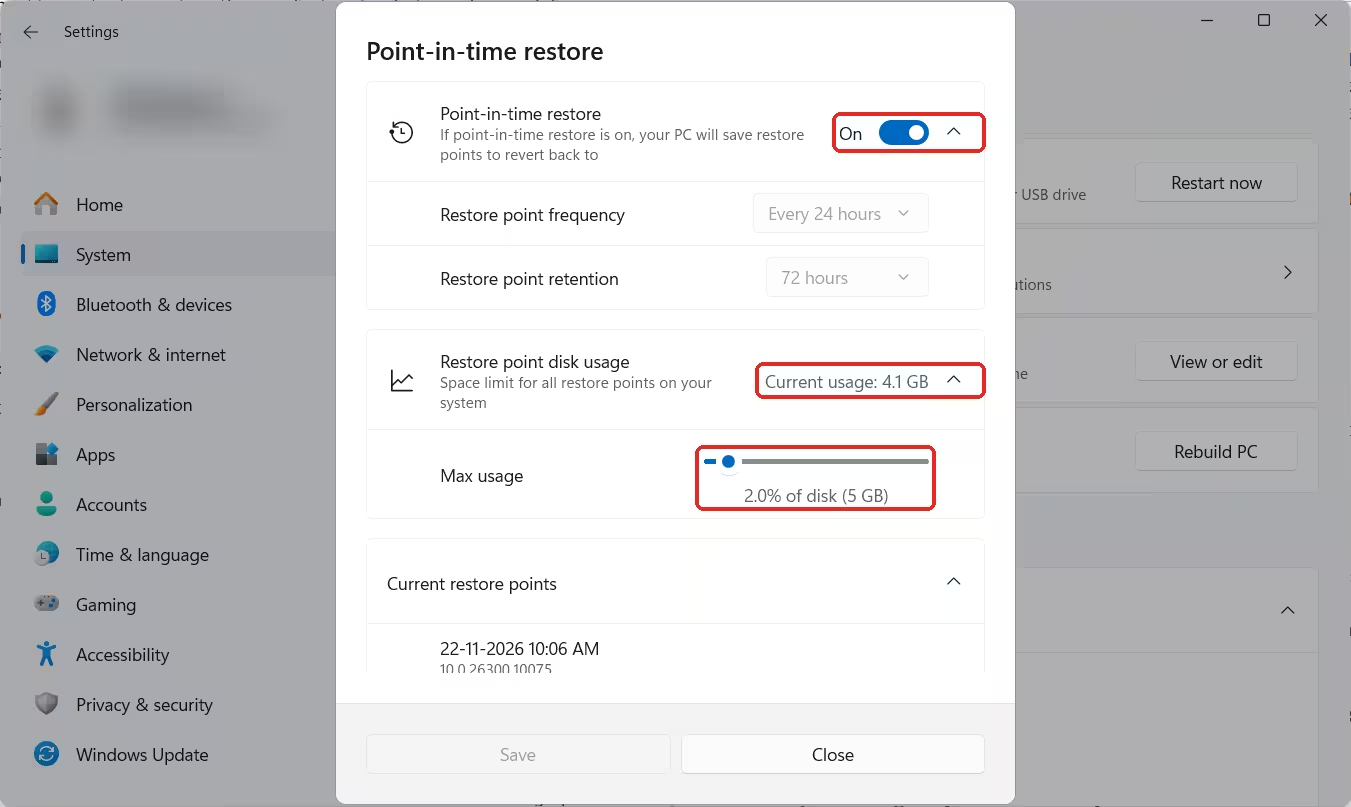
Keep in mind that a tighter limit means fewer snapshots. Windows deletes the oldest ones first when the VSS pool runs short, so some may disappear before the 72-hour mark.
How to Delete System Restore Points in Windows 11
The classic System Restore often holds more data than the new feature, especially on PCs that receive frequent driver and app updates.
Delete all existing restore points
- Open Settings > System > Storage > Show more categories > System & reserved.
- Click Manage System Restore.
- Select your C: drive and click Configure.
- Click Delete, then Continue to confirm.
This wipes every saved System Restore point on C:. Create a fresh one right after if you want a clean fallback.
Lower the System Restore disk limit
In the same Configure window, move the Max Usage slider to 3% to 5% of the drive. Windows then removes older points automatically once it hits that cap.
Keep only the latest restore point
Disk Cleanup offers a middle ground that deletes everything except the newest point:
- Press
Windows + R, typecleanmgr /d C, and press Enter. - Click Clean up system files and pick C: again.
- Open the More Options tab.
- Under System Restore and Shadow Copies, click Clean up, then Delete.
How to Limit Shadow Storage with the vssadmin Command
If Settings does not give you enough control, set a hard cap on the VSS pool. Open Terminal (Admin) and run:
vssadmin resize shadowstorage /for=C: /on=C: /maxsize=10GBReplace 10GB with the limit you want, or use a percentage such as /maxsize=5%. Windows discards the oldest shadow copies until the pool fits. Do not set this too low, or both restore features lose almost all their snapshots.
To confirm the space came back, reopen Settings > System > Storage and compare the System & reserved figure with the number you noted earlier. Rerunning vssadmin list shadowstorage also shows whether the used space dropped.
What You Lose When You Shrink or Turn Off Point-in-time Restore
Before you rely on Point-in-time restore as your only safety net, understand what it cannot do:
- No manual snapshots. Windows creates them on its schedule only, so you cannot take one right before a risky change.
- Restores only from WinRE. You must boot into recovery through Settings > System > Recovery > Advanced startup, then pick Troubleshoot > Point-in-time restore. Our guide shows how to roll back your PC with Point-in-time restore.
- Needs free space to restore. The restore fails unless your drive has free space equal to or larger than the total size of all snapshots. That makes aggressive cleanup a trade-off.
- Requires BitLocker keys if you encrypted the drive.
- Covers only the Windows volume. Files on D: or other partitions stay unprotected.
- Breaks across editions. A snapshot from Windows 11 Home will not work after you upgrade to Pro.
- Not a backup. If WinRE itself fails, you cannot reach the snapshots, and you cannot copy them to another device.
Keep a proper backup tool alongside it, whether that is Windows Backup, File History or third-party backup software.
Should You Turn Off Point-in-time Restore to Save Space?
Only if space is critical. The feature lets you roll back the OS, apps and local files from the Windows Recovery Environment (WinRE) when Windows fails to boot properly. A 5 GB cost on a 256 GB drive usually buys a safety net worth keeping. If your PC has a tiny SSD and you already run a full backup tool, lowering the Max usage slider to its minimum returns most of the space while keeping the feature alive.
If you still want it off, follow these steps:
- Open Settings > System > Recovery.
- Select Point-in-time restore, then click View or edit.
- Click Yes if User Account Control prompts you.
- Switch the toggle to Off.
Turning it off does not clear space instantly. Existing restore points stay until they expire or Windows needs the disk space. To reclaim the space sooner, run the vssadmin command above with a low /maxsize value.
More Ways to Free Up Space on a Full C: Drive
If restore data was only part of the problem, try these alongside it. A set of PowerShell commands to clean up Windows can also automate several of them:
- Turn off hibernation with
powercfg /hibernate offto removehiberfil.sys, which can match your RAM size. - Run Settings > System > Storage > Cleanup recommendations to clear temp files, unused apps and old Windows update files.
- Enable Storage Sense so Windows empties the Recycle Bin and temp files on a schedule.
- Move Downloads, Videos and Pictures to another drive through each folder's Properties > Location tab.
Frequently Asked Questions
What is Point-in-time restore in Windows 11?
It is a recovery feature from the June 2026 optional update (KB5095093). It takes a daily VSS snapshot of your Windows drive and keeps each one for 72 hours, so you can roll back the OS, apps, settings and local files from WinRE.
Why did my C: drive lose space after a Windows update?
Point-in-time restore turns on automatically for Windows drives of 200 GB or more. It reserves at least 2% of the drive and can grow up to 50 GB.
Is it safe to delete System Restore points?
Yes. Deleting them does not touch your personal files or apps. You only lose the ability to roll back to those older states, so create a new restore point after cleanup.
Can I change how often Point-in-time restore takes snapshots?
Not on Home or Pro. Only Enterprise editions can change the frequency and retention period. Home and Pro users can adjust only the maximum space through the Max usage slider.
Does Point-in-time restore replace a backup?
No. It protects only the Windows drive, stores snapshots on that same drive, and becomes useless if WinRE fails. Keep a separate Windows 11 backup on an external drive or cloud service.
How much free space should I leave on C:?
Aim for at least 15% to 20% free. Windows needs room for updates, and Point-in-time restore needs free space equal to its snapshot size before it can restore anything.
Related Guides
- How to Roll Back Your PC to an Earlier State Using Point-in-Time Restore on Windows 11
- How to Enable Point-in-time Restore on Windows 11
- Best Way to Back Up Windows 11: 5 Methods to Back Up and Migrate Your PC
- 5 Best Free Disk Space Analyzers for Windows 11 and 10: Find Large Files Fast
- How to Speed Up Windows 11: 14 Free Fixes and Smart Upgrades for a Slow PC