Right-click a file on Windows 11 and you get a slim menu with a few icons and a "Show more options" link at the bottom. Power users hit that link dozens of times a day. Tools like 7-Zip, Notepad++, Git, and most "Send to" actions live behind it.
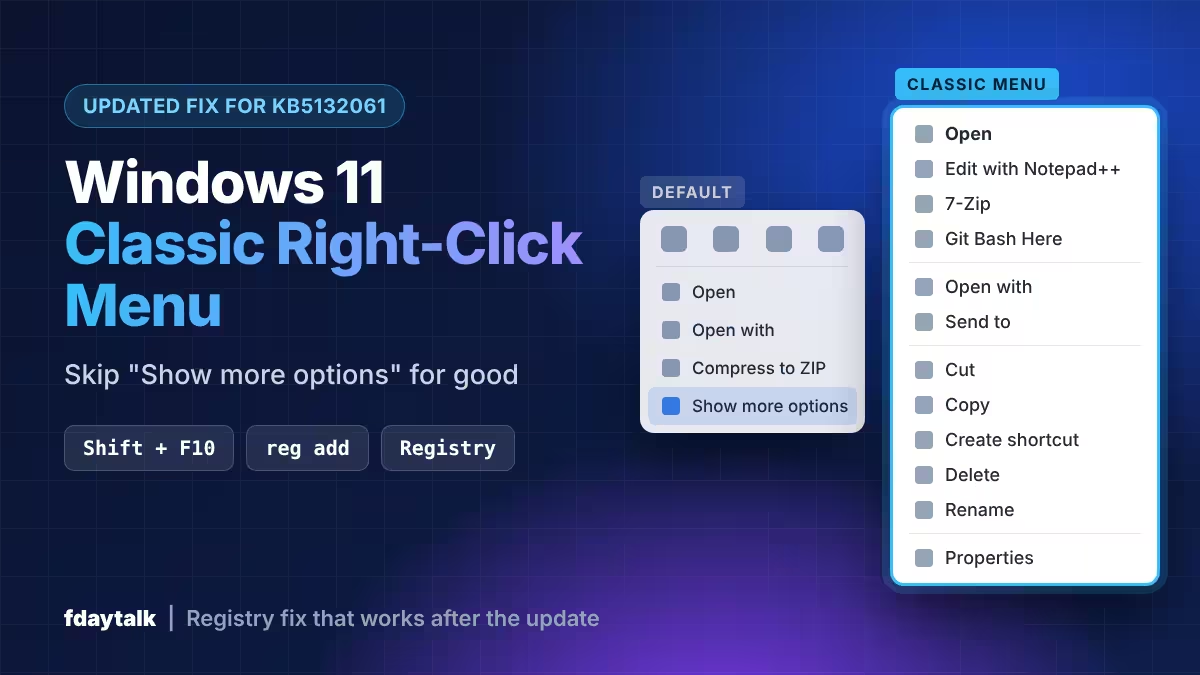
You can skip the extra click. This guide shows you three quick ways to open the full menu, plus the permanent registry fix. It also covers the change Microsoft pushed in November 2026 with update KB5132061, which broke the old trick for many people.
How to Open the Classic Right-Click Menu on Windows 11 Without Registry Changes
If you only need the classic menu now and then, use one of these shortcuts. They work on any Windows 11 PC, including work laptops where you cannot edit settings.
- Click Show more options at the bottom of the new menu.
- Hold
Shiftand right-click a file, folder, or the desktop. - Select an item and press
Shift + F10.
The Shift method skips the slim menu entirely, so it saves the most time if you do not want to touch the registry.
Restore the Classic Context Menu After KB5132061 (Updated Command)
The permanent fix tells Windows to skip the new menu handler. You do that by creating empty registry entries under your own user profile. The change only affects your account, so other users on the same PC keep the default menu.
The November 2026 update stopped the old single-key tweak from working. The updated method adds a second key. Follow these steps:
- Open the Start menu and search for Command Prompt.
- Open it normally. Do not run it as administrator, because an elevated prompt can write the keys to the wrong account.
- Paste this command and press Enter:
reg add "HKCU\Software\Classes\CLSID\{86ca1aa0-34aa-4e8b-a509-50c905bae2a2}\InprocServer32" /ve /f & reg add "HKCU\Software\Classes\CLSID\{51668040-5e31-4023-bbe3-149163bd80f1}\InprocServer32" /ve /f- Stop File Explorer:
taskkill /f /im explorer.exe- Start it again:
start explorer.exeRight-click any file and the full menu now opens straight away. The fix worked on Windows 11 build 26300.9974 during testing.
Restore the Classic Context Menu With the Original One-Line Command
If your PC does not have KB5132061, the shorter command still does the job. It creates one empty key:
reg add "HKCU\Software\Classes\CLSID\{86ca1aa0-34aa-4e8b-a509-50c905bae2a2}\InprocServer32" /f /veRestart File Explorer with the two commands from the previous section, or reboot. You do not need admin rights, because the key goes into your own user hive.
Restore the Classic Context Menu in Registry Editor Manually
Prefer to see every change? Back up your PC first, then edit the registry by hand:
- Press
Windows + R, typeregeditto open the Registry Editor, and press Enter. - Go to
HKEY_CURRENT_USER\Software\Classes\CLSID. - Right-click CLSID, choose New > Key, and name it
{86ca1aa0-34aa-4e8b-a509-50c905bae2a2}. - Right-click that new key, choose New > Key, and name it
InprocServer32. - Double-click (Default) in the right pane, leave the value box empty, and click OK.
- Restart your PC.
Step 5 matters. Until you click OK on the empty box, the entry reads "(value not set)" and Windows ignores the tweak. After you confirm it, the data column turns blank.
If you installed KB5132061, create the second key, {51668040-5e31-4023-bbe3-149163bd80f1}, in the same location with its own empty InprocServer32 entry.
How to Bring Back the New Windows 11 Right-Click Menu
To return to the modern Windows 11 menu, delete the keys you created. Run this in the same non-admin Command Prompt:
reg delete "HKCU\Software\Classes\CLSID\{86ca1aa0-34aa-4e8b-a509-50c905bae2a2}" /f & reg delete "HKCU\Software\Classes\CLSID\{51668040-5e31-4023-bbe3-149163bd80f1}" /fThen restart File Explorer. In Registry Editor, you can also right-click each key and choose Delete.
Get the Windows 10 Right-Click Menu Back With ExplorerPatcher, Nilesoft Shell, or StartAllBack
Several free and paid apps restore the classic menu with a toggle.
- ExplorerPatcher: This open-source tool has a "Disable the Windows 11 context menu" switch in its File Explorer tab. It also brings back the Windows 10 taskbar and Start menu. Download it only from the official GitHub releases page, because Defender sometimes flags it for hooking into the shell.
- Nilesoft Shell: Install it with
winget install nilesoft.shell. It removes the "Show more options" step and lets you restyle the menu. - StartAllBack: This paid app includes a "Classic context menus" option in its Explorer settings. Do not run it next to ExplorerPatcher, since both change the taskbar and Start menu.
Classic Context Menu Not Working on Windows 11? Common Fixes
The menu did not change. Explorer probably has not restarted. Open Task Manager with Ctrl + Shift + Esc, right-click Windows Explorer, and choose Restart. Then confirm the (Default) value is empty and not "(value not set)".
The taskbar vanished after taskkill. Press Ctrl + Shift + Esc, click Run new task, type explorer.exe, and press Enter.
It works for you but not another user. The key lives in each user's own profile. Sign in to the other account and run the command there.
It stopped working after an update. Check whether the keys still exist in Registry Editor. If they vanished or the update changed the behavior, run the latest command from this guide again.
You use a work PC. Your organization may block registry edits through Group Policy. Ask IT first, or stick to the Shift + right-click shortcut.
Frequently Asked Questions
Is this registry tweak safe?
Yes. The command adds empty keys inside your own user hive and touches no system files, other accounts, or Windows Update. The delete command removes them completely.
Do I need administrator rights?
No. A normal Command Prompt works, and it is the better choice, because the keys land in your own account.
Will Microsoft break this again?
It already changed the behavior once with KB5132061. If a future update stops the tweak, the Shift + right-click shortcut and the "Show more options" link still open the classic menu.
Does the tweak slow down Windows?
No. It adds a few empty registry entries and runs no background process or service.
Does it work on Windows 11 24H2 and 25H2?
The original command works on both 24H2 and 25H2. After KB5132061, use the two-key command from this guide.
Which method should I pick?
Use the command-line fix if you want the simplest permanent result. Choose ExplorerPatcher only if you also want other Windows 10 style changes.
Related Guides
- KB5132061 Install Error 0x800f0993 in Windows 11: 8 Ways to Fix It
- Windows 11 26H2 Is Out: How to Get the 2026 Update on 25H2 and 24H2
- Essential Windows 11 Settings and Tools Every User Should Know
- How to Speed Up Windows 11: 14 Free Fixes and Smart Upgrades for a Slow PC
- How to Turn Off Bing Web Results in Windows 11 Search