Minecraft error code C-0010 blocks access to the Marketplace, breaks character customization, and sometimes stops you from joining multiplayer servers entirely. It hits Bedrock Edition players across Windows, Xbox, Nintendo Switch, and Android/iOS. Mojang has not released an official fix yet, but several community-tested workarounds consistently resolve the problem. This guide walks through each fix in order from simplest to most involved.
What Is Minecraft Error Code C-0010?
Error code C-0010 is a connectivity error tied to Minecraft Bedrock Edition. It triggers when your client loses its link to the Minecraft Marketplace or Microsoft’s authentication servers. When it appears, you lose access to:
- The Marketplace (browsing, purchasing, downloading add-ons and maps)
- The Dressing Room and character creator
- Custom skins (the game falls back to the default Steve skin)
- Multiplayer server connections in some cases
Mojang’s bug tracker has logged reports, but no root cause has been officially confirmed. The error appears to stem from either a network issue on the player’s side or a temporary server-side problem with Microsoft’s backend.
Fix 1: Reconnect Your Internet Connection
Start with the most straightforward check. A dropped or unstable connection is the leading cause of this error.
- Close Minecraft completely.
- Disconnect from your Wi-Fi or unplug your Ethernet cable.
- Wait 30 seconds, then reconnect.
- Restart your router and modem by unplugging them, waiting 60 seconds, and plugging them back in.
- Relaunch Minecraft and check if the error is gone.
If your connection is fine but the error persists, move to the next fix.
Fix 2: Switch Your Wi-Fi Band
Your router likely broadcasts on both 2.4GHz and 5GHz bands. Some players have found that switching bands clears the C-0010 error.
- If you are on 5GHz, switch to 2.4GHz. The 2.4GHz band has broader range and handles Minecraft’s authentication traffic more reliably in some network environments.
- If you are already on 2.4GHz, try switching to 5GHz for higher throughput.
To switch bands, connect to the other network name in your Wi-Fi list, or go into your router settings and toggle the bands manually. After switching, relaunch Minecraft and test.
Fix 3: Check Minecraft Server Status
Sometimes the problem is not on your end. Microsoft’s Minecraft services go down for maintenance or experience outages that trigger C-0010 for everyone.
Check the current server status here:
If the servers are down, no local fix will work. Wait for Microsoft to restore service, then try logging back in.
Fix 4: Clear the Marketplace Cache
A corrupted Marketplace cache is one of the most common causes of C-0010. Clearing it forces Minecraft to rebuild that data fresh.
- Launch Minecraft Bedrock Edition.
- From the main menu, open Settings.
- Scroll down on the left sidebar and select Storage.
- Tap or click Clear Marketplace Cache.
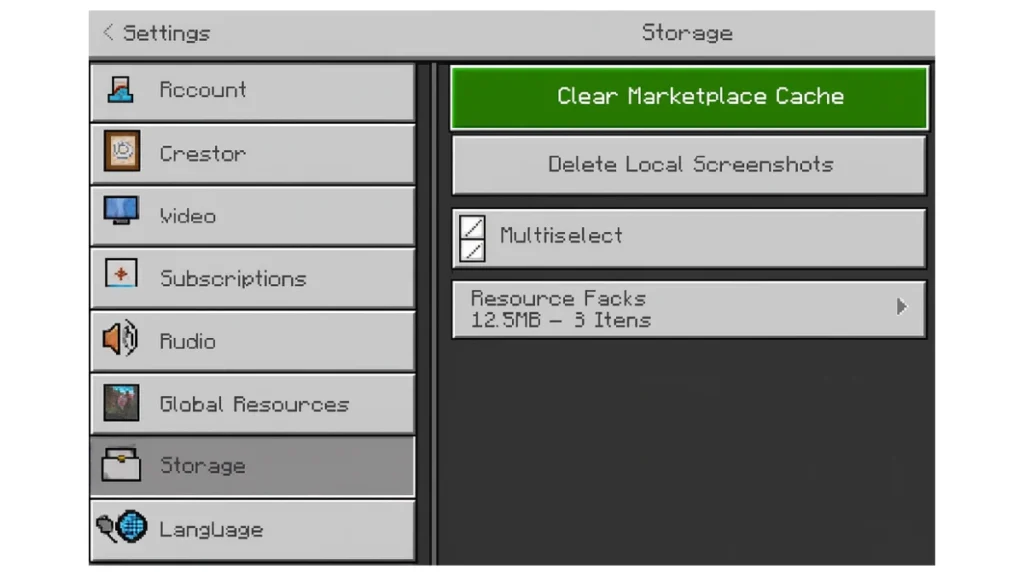
- Wait for the process to finish.
- Close Minecraft completely and relaunch it.
Test the Marketplace and character creator after the restart. This fix resolves the error for a large number of players.
Fix 5: Flush DNS and Reset Network (Windows)
On Windows PCs, stale DNS entries can block your connection to Microsoft’s servers. Flushing DNS and resetting your network stack clears that out.
- Press Windows + S, type Command Prompt, right-click it, and select Run as administrator.
- Run each of the following commands one at a time, pressing Enter after each:
ipconfig /release
ipconfig /flushdns
ipconfig /renew
netsh int ip set dns
netsh winsock reset- Restart your PC after all commands complete.
- Relaunch Minecraft and check for the error.
Fix 6: Repair or Reset the Minecraft App (Windows)
Windows has a built-in repair tool for apps from the Microsoft Store. This scans Minecraft’s installation for problems and fixes them without deleting your data. If the repair does not work, the reset option wipes the app back to default.
- Press Windows + I to open Settings.
- Go to Apps, then Installed Apps.
- Find Minecraft in the list, click the three-dot menu next to it, and select Advanced Options.
- Click Repair and wait for it to finish.
- Relaunch Minecraft and test.
- If the error remains, return to the same menu and click Reset. Note that a reset clears local app data, so back up your world saves first.
On mobile or console, clear the app cache from your device settings instead of using these steps.
Fix 7: Reinstall Minecraft Bedrock Edition
If every fix above fails, a clean reinstall is the last reliable option. It eliminates corrupted files and resets all network configurations the game uses.
Before you uninstall, back up your world saves:
- Windows: Navigate to
%localappdata%\Packages\Microsoft.MinecraftUWP_8wekyb3d8bbwe\LocalState\games\com.mojang\minecraftWorldsand copy that folder to a safe location. - Mobile: Use the in-game export option or a file manager app to back up worlds.
Steps to reinstall:
- Open Settings > Apps > Installed Apps.
- Find Minecraft, click the three-dot menu, and select Uninstall.
- Confirm and wait for the uninstall to complete.
- Open the Microsoft Store, search for Minecraft, and reinstall it.
- Launch the game and test the Marketplace.
Quick Reference: Minecraft Error Code C-0010 Fixes
| Fix | Best For | Difficulty |
|---|---|---|
| Reconnect Internet | All platforms | Easy |
| Switch Wi-Fi Band | Wireless connections | Easy |
| Check Server Status | Widespread outages | Easy |
| Clear Marketplace Cache | Most Bedrock players | Easy |
| Flush DNS | Windows PC only | Medium |
| Repair/Reset App | Windows PC | Medium |
| Reinstall Game | All platforms (last resort) | Hard |
Error code C-0010 is a known Bedrock Edition issue that Mojang has not patched with a permanent fix. Clearing the Marketplace cache and reconnecting your internet solve it for most players. If nothing works and the error is widespread, a server-side outage is likely the cause, and waiting is the only option. Keep an eye on the Xbox Live status page when that happens.
Related Guides
- Minecraft Error Code Wither Rose: 6 Fixes That Work
- How to Fix Minecraft Error 0x89235107 (GamingServicesTcui.exe Crash) on Windows
- Minecraft Error Codes: 20+ Errors Explained and Fixed
- How to Fix Minecraft Error Code B-0010 on Nintendo Switch (Step-by-Step Guide)
- How to Fix the Failed to Get Minecraft Access Error (Too Many Requests and Transferring Server)

