Google Meet has removed the paywall on Full HD video. If you use a free personal Google account, your browser can now send 1080p video, a feature that used to require Google One 2TB or a paid Workspace plan. Google switched it on by default for compatible computers, so many people already have it without touching a setting.
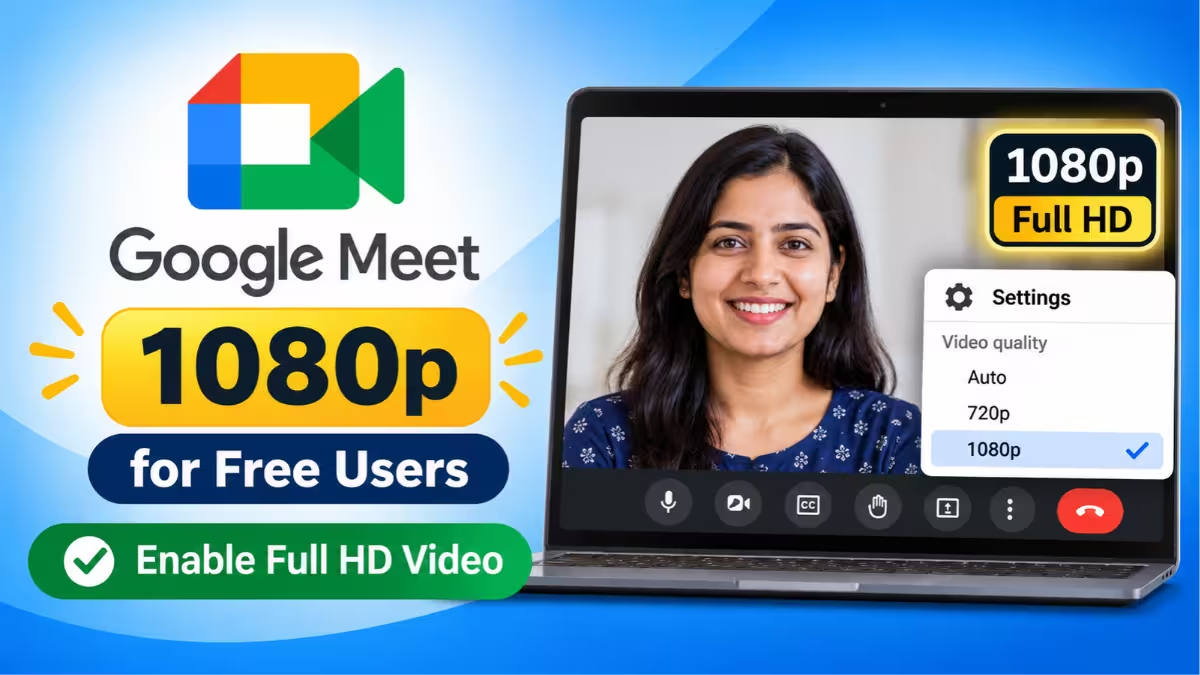
This guide explains who gets 1080p, what your computer needs, and how to confirm the setting is active.
Is 1080p Video Free on Google Meet Now?
Until now, free accounts sent video at 720p at most. Google started rolling out 1080p sending to everyone on November 11, and the company announced the full expansion on November 23. The update covers free personal accounts, Workspace Individual subscribers, and all Workspace organizations.
Two things make this update different from the 2023 launch of 1080p. Free accounts now qualify, and Meet no longer asks you to switch on the higher quality yourself. On a compatible computer, the Auto video quality setting handles it for you.
What You Need to Send 1080p on Google Meet
Your account is only one part of the equation. Meet sends 1080p only when your setup meets these conditions:
- A 1080p camera: A built-in 720p laptop webcam cannot produce Full HD, no matter what the setting says.
- Enough processing power: Meet lowers the resolution automatically if your CPU struggles.
- A stable connection: Google lists about 3.6 Mbps per direction for 1080p, compared with about 1.7 Mbps for 720p.
- A supported browser: Chrome and Edge handle 1080p sending. Firefox and Safari do not support it right now.
- Meet on the web: Google announced the change for the desktop web version. The Android and iOS apps are not part of the announcement.
How to Turn On 1080p Video in Google Meet (Step by Step)
Most users do not need to change anything. Follow these steps to check your settings or turn the option on manually.
- Open Google Meet in Chrome or Edge on your computer.
- Start a new meeting or join an existing one.
- Click the three-dot More options button in the bottom bar.
- Select Settings, then open the Video tab.
- Find the send video resolution option and leave it on Auto, or pick the highest quality available if you want to force Full HD.
- Close the settings window and check your video preview.
If your camera, CPU, and network can handle it, Meet now sends your video at 1080p.
Google Meet 1080p Not Working? 5 Fixes
Many people turn on the setting and see no difference. Meet adjusts quality all the time, so a few common causes explain it.
The Video Tile Is Too Small
Meet sends 1080p only when the viewer sees your video in a large tile. That happens in one-on-one calls, when someone pins your video, and in meeting recordings. In a large group call where everyone shows up as a thumbnail, Meet drops the resolution to save bandwidth, because extra detail would go to waste.
Your Camera Tops Out at 720p
Check your webcam specifications. Many older laptops ship with 720p cameras. An external 1080p webcam fixes this and usually improves lighting and sharpness as well.
Your Computer or Network Is Under Strain
Meet protects call stability first. When your CPU runs hot or your internet slows down, Meet scales your video down without asking. Close heavy apps and extra browser tabs, and move closer to your router or switch to a wired connection.
You Are Using an Unsupported Browser
If you join from Firefox or Safari, Meet cannot send 1080p. Switch to Chrome or Edge for Full HD.
The Rollout Has Not Reached You Yet
Google staged this release over a longer period, and the feature can take more than 15 days to appear on some accounts. If you do not see it yet, check back in a few days.
Google Meet 1080p for Work and School Accounts
If you join meetings with a company or school account, your administrator controls the default video quality. Admins can set it for each organizational unit or group, and existing bandwidth limits stay in place. If your organization restricts video quality, you will not get 1080p until the admin changes the policy.
Admins find these controls in the Admin console under Apps, Google Workspace, Google Meet, then Meet video settings. Options include adjusting video quality automatically, limiting video bandwidth to cut data use by half, and audio only.
How Much Data Does 1080p Use on Google Meet?
More than 720p. Google lists about 3.6 Mbps in each direction for 1080p, compared with about 1.7 Mbps for 720p, so a Full HD call uses roughly double the bandwidth. Actual use also changes with the number of participants, the meeting layout, and screen sharing.
For most people, leaving Auto on is the right choice. Auto mode scales the video up and down on its own, so you get sharp video when conditions allow and a smooth call when they do not. Lower the quality manually if you share a slow connection, use a metered data plan, or notice your laptop fan running hard during calls.
For the best result in one-on-one calls, interviews, and online classes, pair a 1080p webcam with good front lighting and a wired internet connection. If you record calls for work or study, an AI note-taking tool turns that sharper video into searchable notes.
Does Google Meet 1080p Work on Android and iPhone?
Not according to Google's announcement. The change covers Meet on the web for computers, and Google has not said whether the Android and iOS apps will get 1080p sending. Free mobile users should expect 720p for now. If you want Full HD, join from Chrome or Edge on a computer with a 1080p camera.
Frequently Asked Questions
Is 1080p video on Google Meet really free now?
Yes. Free personal Google accounts can send 1080p video from Meet on the web, as long as the computer meets the hardware and network requirements.
Do I need Google One or Google Workspace for Full HD video?
No. The old requirement for Google One 2TB or a paid Workspace plan no longer applies to sending 1080p on the web.
Does 1080p work on the Google Meet mobile app?
Google has not announced 1080p sending for the Android or iOS apps. Free mobile users should expect 720p for now.
Which browsers support 1080p video in Google Meet?
Chrome and Edge support it. Firefox and Safari do not support sending 1080p at the moment.
Why can I not see the 1080p option in my settings?
The rollout is gradual and can take more than 15 days to reach every account. Your camera may also lack 1080p support, or your admin may have restricted video quality.
Does 1080p use more data?
Yes. Google lists around 3.6 Mbps in each direction for 1080p, roughly double the 1.7 Mbps for 720p. Switch to a lower quality if your connection is limited.
Can I turn off 1080p video?
Yes. Open Settings, go to Video, and lower the send resolution. Admins can also set a lower default for everyone in an organization.
Related Guides
- Google AI Mode Gets Drive, Wallet and Gemini Integration: What Changes for You
- Free Gemini AI Agent: Who Gets It and How to Use It
- Google AI Pro Trial vs Paid: What Trial Users Don't Get and How to Switch to Paid
- Google Vids AI Avatars: Create Professional Videos Free
- How to Use Gemini on Apple CarPlay: Setup, Voice Prompts, Limits and Fixes