Google just gave the Gemini app for Mac a new skill called computer use. You type a plain request, and Gemini opens apps, clicks buttons, fills forms and moves between your local files and websites until the job is done. It handles the dull, many-click chores so you can focus on other work.
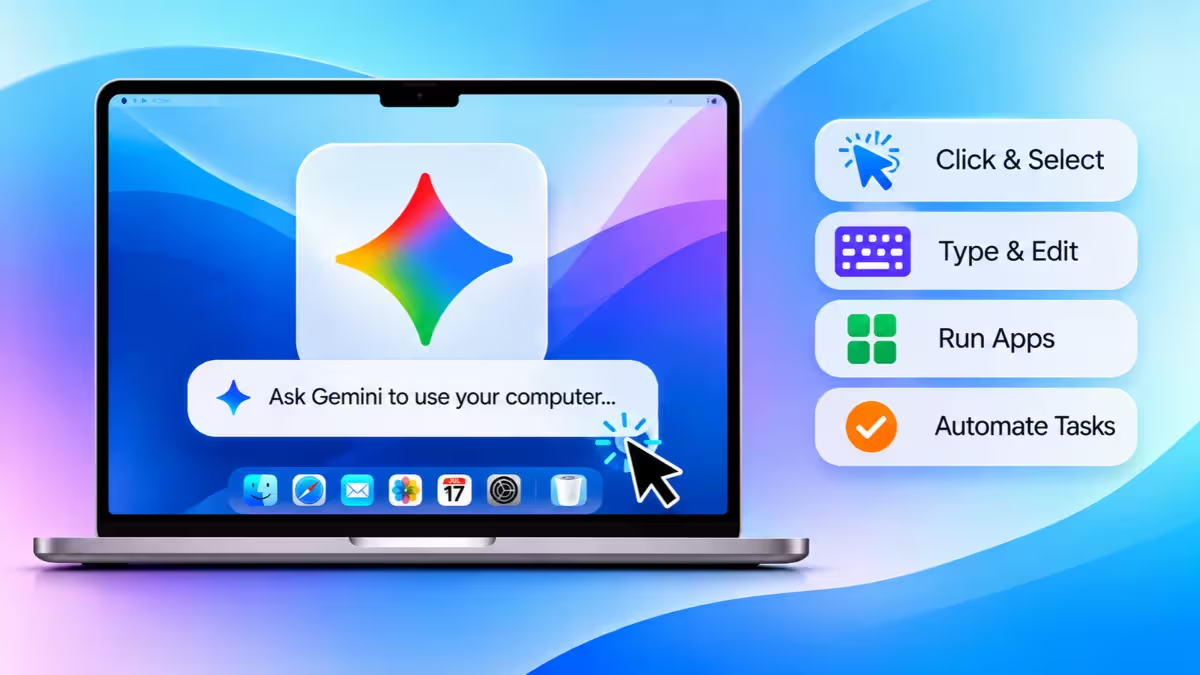
This guide explains what the feature does, who can use it, how to start a task, and which risks you should know about before you hand Gemini control of your apps.
What Is Gemini Computer Use on Mac
Computer use lets Gemini operate software the same way you would, with a pointer and a keyboard.
Earlier, the Task mode in the Mac app could read local files and pull data from connected Google apps like Gmail and Calendar. It could not drive an app that lacked a built-in connector. Computer use removes that limit. Gemini now scrolls, opens menus, types text and presses buttons inside the apps you allow, and it can mix local files, desktop programs and websites in a single task.
Google also added new Desktop integrations under Customize > Connectors, including Blender and Autodesk Fusion, next to the existing Git and Obsidian options.
Does Gemini Computer Use Block Your Mac Screen
No, Gemini runs every task on a separate virtual screen, so your own desktop stays yours.
Many older AI agents grabbed the mouse and locked you out until they finished. Gemini takes a different route. It works inside an isolated background window, and a live preview inside the chat shows each click and keystroke. Your cursor and main display stay free, so you can keep writing, editing or joining a call while the agent works.
The background window does not make Gemini faster than you. The real gain is that your attention stays on your own work.
Gemini Computer Use Requirements: Plans, Macs and Regions
Google limits the feature to a narrow group of users at launch.
| Requirement | Details |
|---|---|
| Plan | Google AI Plus, Pro or Ultra subscription |
| Account | Personal Google account, user aged 18 or older |
| Region and language | United States, English only |
| Hardware | Mac with Apple silicon |
| Operating system | macOS Sequoia 15.0 or later |
| macOS permissions | Accessibility and Screen & System Audio Recording turned on |
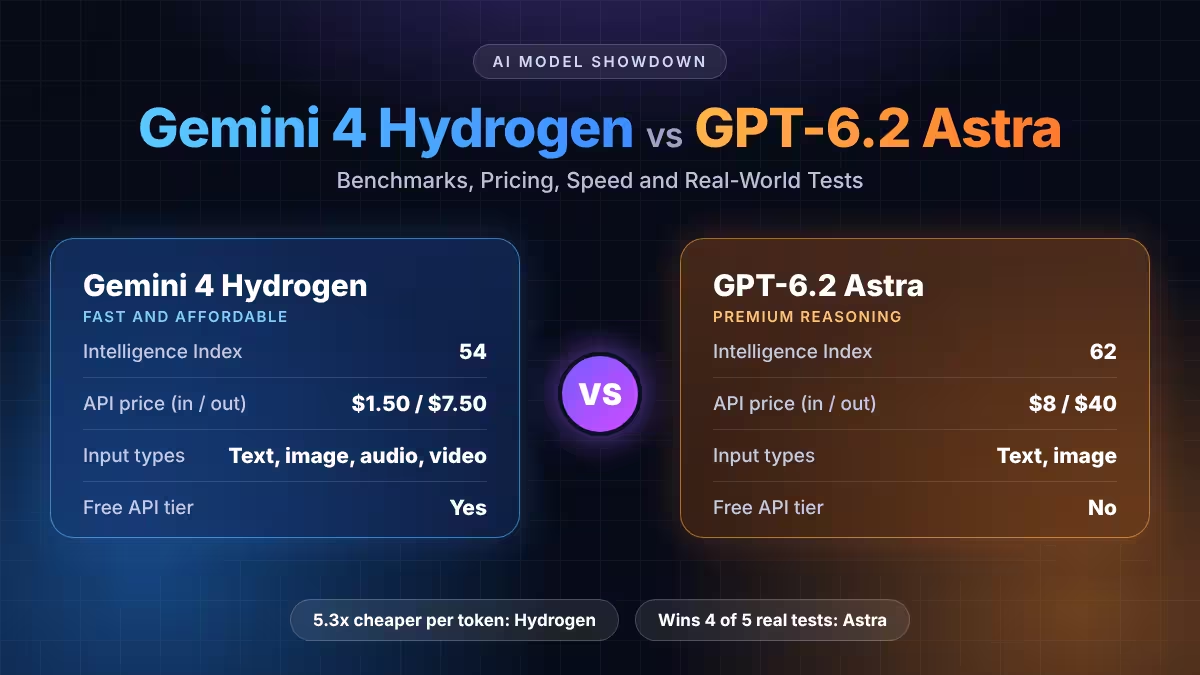
| Suggested model | Gemini 4 Hydrogen or newer |
Intel Macs and Windows PCs miss out for now.
Does Gemini Computer Use Work With Work Accounts or Outside the US
Not yet, because Google ties the feature to personal accounts in the US.
Work and school accounts stay excluded, so Google Workspace admin settings do not apply to it. That matters for companies. An employee with a personal AI Pro plan could point Gemini at a work Mac, a mail app or a folder of client files, and every risk below would then cover company data. Teams should decide in their AI policy whether staff may run personal agents on work devices.
Google has not shared a date for other countries, and neither the announcement nor the help page mentions the EU.
How to Turn On and Use Gemini Computer Use on Mac
You launch computer use from the Task mode inside the Gemini app.
- Download the Gemini app for macOS and sign in with an eligible account.
- Open System Settings > Privacy & Security and turn on Accessibility and Screen & System Audio Recording for Gemini.
- Open the Gemini chat and click Task below the message box.
- Type @Computer use and describe the job in plain language.
- When Gemini asks to open an app for the first time, choose Deny, Allow once or Always allow.
- Watch the live preview in the chat, and click Stop task whenever you want to end the run.
You can manage your allowed and blocked apps later in the Gemini settings.
Best Tasks to Automate With Gemini Computer Use
Gemini fits best on repetitive jobs that span several apps and are easy to check afterward.
- Photo editing in batches: Apply the same color grade to a folder of images in your design software.
- 3D scene setup: Build or arrange a complex scene in an app like Blender. Google showed Gemini turning a child's butterfly drawing into a rigged 3D model.
- Shipping quote forms: Read weights, sizes and addresses from local PDFs and type them into multi-field quote forms online.
- Expense reports: Fill out an expense form using receipts saved in your Downloads folder.
- Slide decks from dashboards: Collect metrics and screenshots from live dashboards for several regions and assemble them in Google Slides.
- Resale listings: Study clothing photos in a folder, research fair prices, record item details and prepare draft listings on resale sites.
Gemini Computer Use Safety Controls
Gemini gives you several ways to stay in charge of what it touches.
- App access: You pick which apps Gemini may use, and you can block others completely.
- Live view: You see every step in the chat preview as it happens.
- Stop button: One click on Stop task halts the agent at any point.
- Confirmation prompts: Gemini pauses for logins and payments and asks before sensitive actions.
- File backups: Gemini tries to back up files before it edits them. It keeps these copies for 24 hours or until your next prompt, but it does not back up every file every time.
Google does not publish a full list of the actions it treats as sensitive, so test the prompts on a harmless job first.
Is Gemini Computer Use Safe? Risks Google Admits
Handing an AI your apps carries real risk, and Google's own help page spells several of them out.
- Signed-in sessions: Gemini can use any account you are already logged into inside the apps you allow, not only in Chrome.
- Prompt injection: Hidden text inside one app or web page can push Gemini into actions in another allowed app.
- Login codes: Gemini can read and act on multi-factor codes that appear in desktop or messaging apps.
- Permanent actions: Some steps cannot be undone once Gemini takes them.
- Terms of service: Automating certain third-party apps may break their rules, and you carry that responsibility.
- Screen data: Google has not explained what happens to the screen content Gemini reads during a task.
How to Test Gemini Computer Use Safely First
Start small and raise the stakes only after Gemini earns your trust.
- Give Gemini a single PDF and a short form with three fields, then check each value it enters.
- Try a read-only job next, such as copying dashboard numbers into a document.
- Run batch jobs on copies of your files, never on the originals.
- Hold back tasks that send, post, pay or delete until you understand how the approval prompts behave.
- Block messaging, email, password manager and authenticator apps in Gemini's settings.
- For extra safety, test inside a separate macOS user account with no banking, mail or saved passwords.
A clear prompt also helps. Name the exact file and app, tell Gemini to stop and ask before it submits anything, and ask it to list every value it entered and where it found each one.
Frequently Asked Questions
Is Gemini computer use free on Mac?
No. You need a paid Google AI Plus, Pro or Ultra plan. Google has not added a new tier or announced a separate Gemini usage limit for computer use.
Does Gemini computer use work on Windows?
Not yet. The feature runs only in the Gemini app for Mac on Apple silicon. Windows users have a Gemini desktop app, but it lacks computer use for now.
How do I stop Gemini in the middle of a task?
Click Stop task in the chat. Gemini ends the job right away.
Can I block specific apps from Gemini?
Yes. Gemini asks before it uses an app for the first time, and the settings keep a list of allowed and blocked apps that you can edit at any time.
Which Gemini model should I use for computer use?
Google recommends Gemini 4 Hydrogen or a newer model for better results.
Related Guides
- Free Gemini AI Agent: Who Gets It and How to Use It
- Google Quietly Tests Gemini Skills in Chrome to Turn Browsing Into Automated Tasks
- Gemini 4 Argon: How to Access It, Which Plans Get It and API Pricing
- How to Opt Out of Gemini AI Training and Keep Your Chat History: New Settings Explained
- How to Install Gemini CLI on Windows, macOS, and Linux (Step-by-Step Guide)