Most "PC optimizer" apps sell fear. They scan your system, flash a red warning about thousands of problems, and then ask for a credit card. Open-source cleaners take the opposite approach. Anyone can read their code, they cost nothing, and the good ones show you exactly what they plan to delete before they touch a single file.
This guide covers the open-source tools worth installing on a Windows PC, what each one does best, and the habits that keep a cleanup from turning into a repair job.
What Do PC Cleaners Actually Fix on Windows?
Set your expectations first. No cleaner will double your frame rate or turn an old laptop into a new one. Hardware upgrades like an SSD or more RAM still deliver the biggest gains.
A cleaner helps with a short list of real problems:
- Low disk space. A nearly full drive slows Windows down, and caches, temp files and update leftovers can quietly eat tens of gigabytes, and a disk space analyzer shows where they went.
- Slow boot. Too many apps launching at startup is the most common cause, and you can speed up Windows 11 by trimming them.
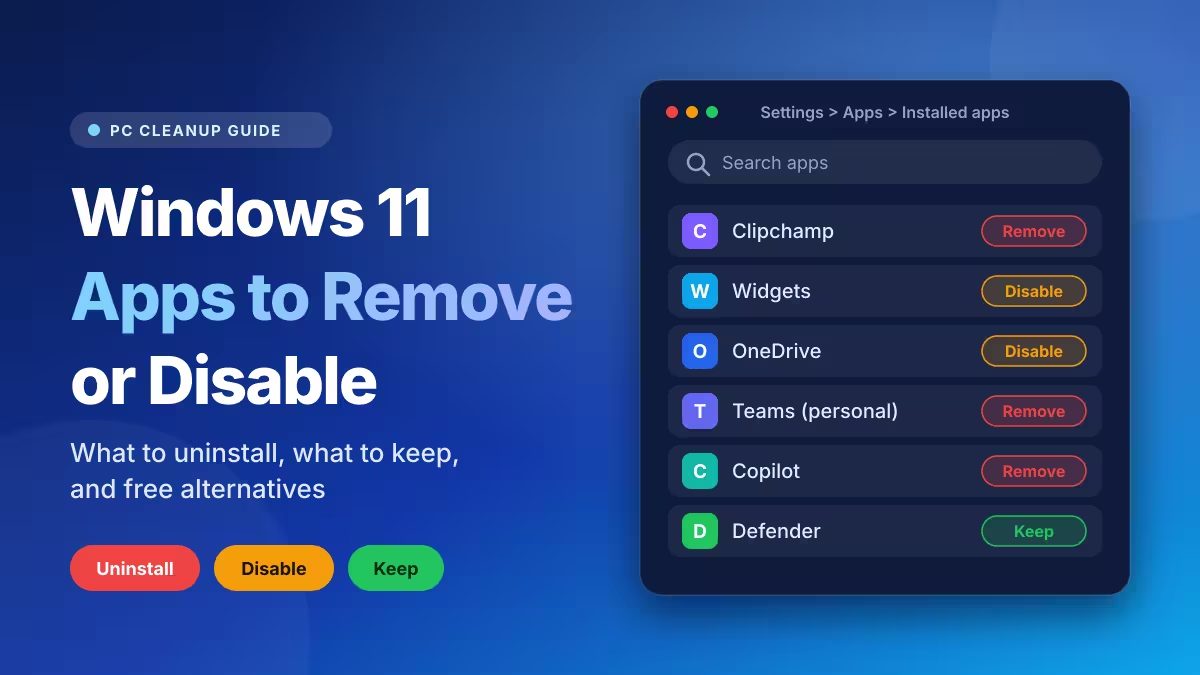
- Background clutter. Unused programs, preinstalled apps and services consume RAM and CPU even when you never open them.
- Privacy traces. Browsers and apps keep history, cookies and logs that you may want gone.
If your problem falls outside this list, a cleaner probably won't solve it. A restart, a Windows Update run or a driver update often fixes more than any system optimization tool.
Open-Source vs Commercial PC Cleaners: Key Differences
Open-source cleaners give you three practical advantages over commercial ones.
First, you can verify what they do. The code sits on a public repository, so security researchers and regular users can inspect it. Hidden telemetry or bundled adware is hard to sneak past that audience.
Second, they skip the upsell. You won't find locked "premium" features or nagging upgrade popups.
Third, many of them run portable. You download a single file, run it, and delete it when you're done. Nothing gets installed into your system.
The trade-off: most of these projects come from a single developer or a small volunteer team. You get help through GitHub issues or community forums, not a support hotline.
Best Open-Source PC Cleaners for Windows 10 and 11
1. BleachBit: Best for Junk and Privacy Cleaning
BleachBit has served Windows and Linux users for well over a decade, and it remains the default recommendation for a reason. It clears temp files, browser caches, cookies, logs and application leftovers, and it can shred files so recovery tools can't bring them back.
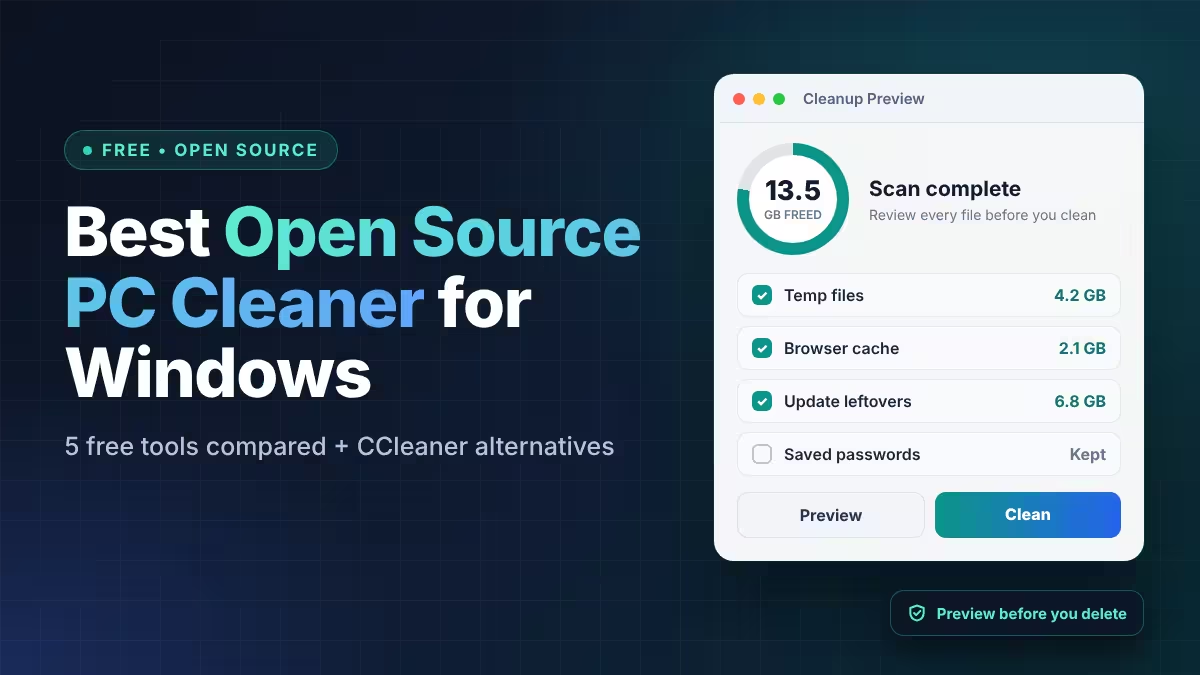
What sets it apart is restraint. BleachBit deliberately leaves out a registry cleaner, and it never runs "automatic optimizations" behind your back. You tick the categories you want, hit Preview to see every file it will remove, and only then clean.
Two features push it further:
- Deep Scan hunts for scattered file types like backups,
Thumbs.dbfiles and even developer folders such asnode_modules. BleachBit locks these results until you turn on Expert mode in Preferences, which protects you from deleting something you still need. - Winapp2.ini support adds thousands of community-written cleaning rules. Open Preferences > Updates, enable the community cleaners option, and restart the app. You'll gain rules for Adobe apps, game launchers, PowerToys and many other tools.
BleachBit also includes a command-line mode, so system admins can script cleanups across many machines.
Best for: Anyone who wants a no-nonsense, ad-free junk and privacy cleaner.
Before you use it: Fake copies circulate on download sites. Get it only from the official BleachBit website.
2. FluentCleaner: Best for a Modern Interface
FluentCleaner is a newer project from Belim, the developer behind Bloatbox. It uses WinUI 3, so it looks like a native Windows 11 app rather than a tool from a decade ago.
It runs portable. Download the ZIP from its GitHub releases page, extract it, and launch FCleaner.exe. The app scans on launch, groups results by category, and lets you open each category to inspect individual files and registry entries. You can clean a single item, a single category, or everything at once.
Like BleachBit, FluentCleaner relies on the winapp2.ini rule database, so it covers a wide range of apps out of the box. It also offers:
- A terminal mode for scripting cleanups or scheduling them through Task Scheduler (still early, but usable).
- An optional AI explainer. Add a free Groq API key in settings, and you can ask the app what an obscure file or registry key does before you remove it. The AI only explains; it never decides what to delete.
Best for: Former CCleaner users who want a familiar, polished cleaner without the baggage.
Before you use it: The app has no code-signing certificate yet, so Windows SmartScreen may warn you on first launch. Click More info, then Run anyway, but only for a copy you downloaded from the official GitHub page.
3. Bulk Crap Uninstaller: Best for Removing Programs
Years of trial software, OEM extras and forgotten utilities pile up on most PCs. Bulk Crap Uninstaller (BCU) removes them in batches instead of one painful uninstall wizard at a time.
After each removal, BCU searches for leftover folders and registry entries the official uninstaller missed and offers to clear them. It also detects orphaned apps that no longer appear in Windows Settings, and it includes a startup manager.
BCU uses the Apache 2.0 license, and its source code lives on GitHub.
Best for: Cleaning up a PC that has collected years of unwanted programs.
Before you use it: One developer maintains it, and the interface favors function over looks. Review the leftover list before you confirm deletion.
4. optimizerDuck: Best for Reversible Tweaks
optimizerDuck goes beyond junk cleaning. It bundles 42 performance and privacy tweaks across seven categories, including telemetry, Copilot and Recall controls, GPU settings for AMD, NVIDIA and Intel cards, power plans, service startup types and visual effects.
The app earns trust through its safety design:
- Every tweak carries a Safe, Moderate or Risky label and a plain description.
- It applies nothing by default. You pick each change yourself.
- It writes a revert file before every change, so you can undo one tweak or roll back all of them with a click.
- It prompts you to create a restore point before your first change.
It also ships with useful tools: a startup manager, a scheduled task browser, a disk cleanup module for temp files and old Windows installations, and a bloatware remover that rates each AppX package by risk. The app runs as a single portable EXE on Windows 10 and 11, including ARM64, and the project states it collects no telemetry. It uses the GPL v3 license.
Best for: Users setting up a fresh Windows install who want tweaks they can easily reverse.
Before you use it: It needs admin rights and changes the registry. Major Windows feature updates may reset some tweaks, so reapply them afterward. Some users see Task Manager report 100% CPU after enabling the custom power plan; that's a display bug, and you can toggle the tweak off if it bothers you.
5. WinUtil: Best for Advanced Debloating
Chris Titus Tech's WinUtil runs from a PowerShell command and packs a lot into one window. It removes bloatware, applies performance and privacy tweaks, installs apps in bulk through WinGet, controls Windows Update behavior, and can even build a debloated Windows 11 ISO.
Best for: Experienced users configuring a new PC or reinstalling Windows.
Before you use it: WinUtil makes system-wide changes with admin rights. Read the official user guide, run it only from its official source, create a restore point first, and don't disable security features you don't fully understand.
Best Open-Source CCleaner Alternatives
CCleaner built its name on simple junk cleaning, but upgrade prompts, bundled offers and a few trust scandals have pushed many users to look elsewhere. Two open-source tools cover its core job without those problems.
BleachBit is the closest match for people who care about results and privacy. It cleans temp files, browser data and app leftovers, and its Deep Scan and community rules often uncover junk CCleaner never reaches. FluentCleaner suits people who want a friendlier, Windows 11 style window with per-item control over what goes.
You will lose a few extras. Neither tool includes a built-in duplicate finder or a driver updater, and neither offers a registry cleaner by default. Pair either one with Bulk Crap Uninstaller for program removal, and you have replaced the parts of CCleaner most people actually use. If you prefer no app at all, PowerShell commands to clean up Windows handle the basics.
Open-Source PC Cleaners Compared: Features, Portability and Skill Level
| Tool | Main Job | Portable | Skill Level |
|---|---|---|---|
| BleachBit | Junk, cache and privacy cleaning | Yes | Beginner to intermediate |
| FluentCleaner | Modern junk cleaning with item-level control | Yes | Beginner to intermediate |
| Bulk Crap Uninstaller | Batch program removal and leftover cleanup | Yes | Intermediate |
| optimizerDuck | Reversible Windows tweaks and debloating | Yes | Intermediate |
| WinUtil | Debloating, tweaks and bulk app installs | Runs via PowerShell | Advanced |
Free Non-Open-Source Cleaners Worth Trying
Two Microsoft tools deserve a mention even though you can't read their code.
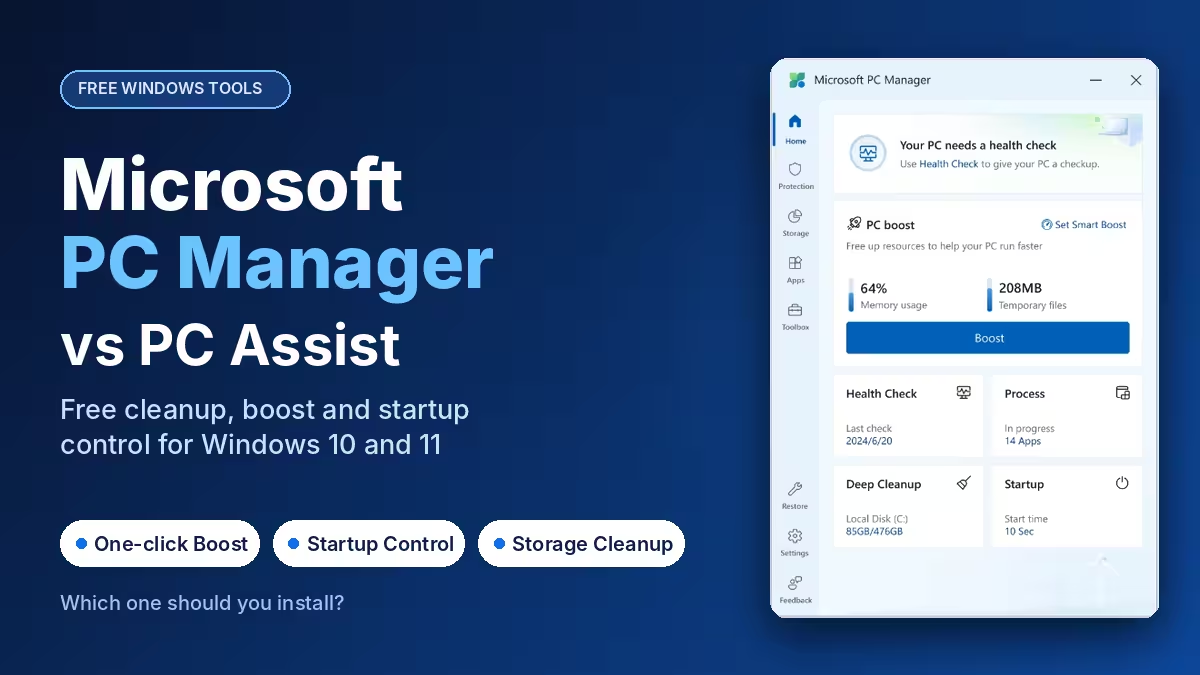
Microsoft PC Manager gives beginners a simple dashboard for temp file cleanup, startup apps and process management. Much of it simply surfaces features already inside Windows, such as Storage Sense. Our Microsoft PC Manager guide compares it with PC Assist.
Autoruns from Microsoft Sysinternals lists everything that launches with Windows, including services, drivers, scheduled tasks and browser extensions. It digs far deeper than Task Manager, but disabling the wrong entry can break Windows, so leave it to advanced users.
And what about CCleaner? It still offers a free tier, but a 2017 supply-chain attack, bundled installer offers and constant upgrade prompts have pushed many users toward the open-source options above.
PC Cleaner Types to Avoid: Registry Cleaners and Scareware
Avoid these categories no matter how convincing the marketing looks:
- Registry cleaners. They almost never improve speed, and a bad cleanup can break installed software. BleachBit leaves this feature out on purpose.
- "RAM boosters" and scare-scan apps that report dozens of critical errors and then demand payment.
- Driver updater tools. Get drivers from Windows Update or your hardware maker's website.
- Repackaged downloads from third-party sites that wrap the installer in extra offers.
How to Clean Your PC Safely, Step by Step
A few habits prevent most cleanup disasters:
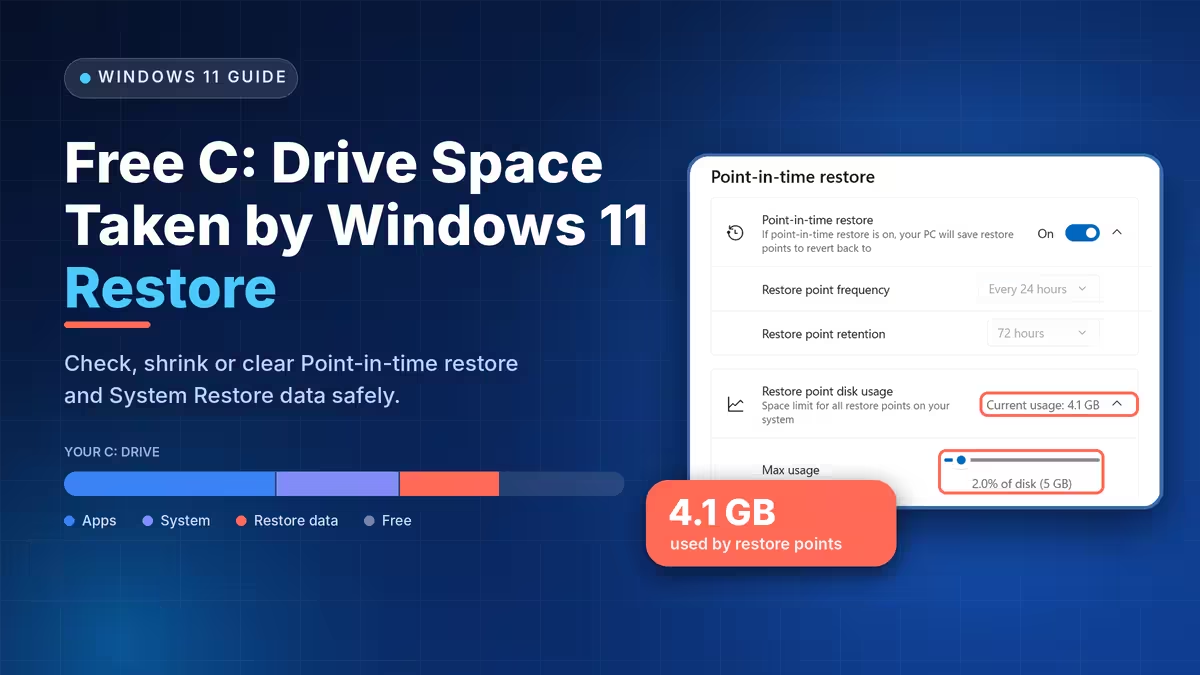
- Create a restore point. Type "Create a restore point" in the Start menu and set one up before any major change. Restore data uses disk space, so check your point-in-time restore storage afterward.
- Back up important files before you shred or bulk-delete anything, using one of the best ways to back up Windows 11.
- Preview every deletion. Read what the tool flags instead of trusting a "Fix All" button.
- Change one thing at a time. If something breaks, you'll know which change caused it.
- Download only from official sources, usually the project's own website or GitHub releases page.
For a fresh Windows install, follow this order: install drivers, run Windows Update until nothing remains, update Microsoft Store apps, install your regular software, and only then apply tweaks and debloating. This stops later updates from overwriting your changes.
Which Open-Source PC Cleaner Should You Choose?
- Need more disk space or want to wipe browsing traces? Start with BleachBit or FluentCleaner.
- Drowning in old programs? Use Bulk Crap Uninstaller.
- Setting up a new PC and want reversible tweaks? Try optimizerDuck.
- Comfortable with PowerShell and system changes? WinUtil gives you the most control.
For most people, one cleaner plus Bulk Crap Uninstaller covers everything a Windows PC needs. Run a cleanup every few weeks, keep startup apps lean, and let Windows Update do its job. Also review the Windows 11 settings that slow down your PC.
Frequently Asked Questions
Are open-source PC cleaners safe?
The reputable ones are. BleachBit, FluentCleaner, Bulk Crap Uninstaller and optimizerDuck publish their code openly, show you what they'll change, and skip bundled software. Safety still depends on you: download from official sources and preview before deleting.
Do I need a registry cleaner?
No. Registry cleaning rarely produces a noticeable speed gain, and removing the wrong key can break apps. Most trusted open-source cleaners leave this feature out entirely.
Why does Windows SmartScreen warn me about these tools?
Many open-source developers can't afford code-signing certificates, so Windows flags their apps as unrecognized. If you downloaded the file from the official project page, the warning alone doesn't mean it's unsafe.
How often should I clean my PC?
Every few weeks works for most people. Heavy browser users or anyone short on disk space may want to clean weekly.
Can a cleaner speed up gaming?
A little. Trimming startup apps and background services frees resources and can smooth out performance, but it won't replace a better GPU, CPU or SSD.
Does BleachBit work on Windows 11?
Yes. BleachBit supports both current and older Windows versions, and it runs on Linux too.
Related Guides
- How to Speed Up Windows 11: 14 Free Fixes and Smart Upgrades for a Slow PC
- 5 Best Free Disk Space Analyzers for Windows 11 and 10: Find Large Files Fast
- Windows 11 Apps to Remove or Disable: What to Uninstall, What to Keep and Free Alternatives
- Best System Optimization Tools for Windows PCs
- Windows 11 Settings That Slow Down Your PC (and How to Fix Them)