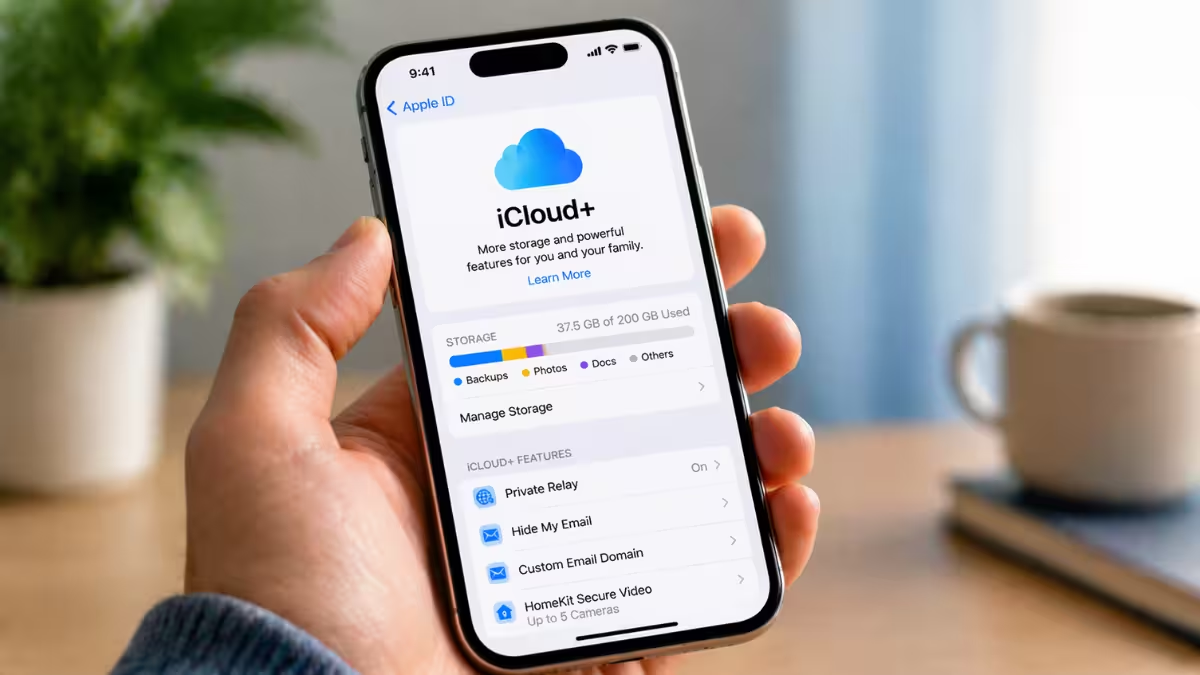
Every Apple Account comes with iCloud, and most people never look past photo sync and device backups. Apple gives you 5GB free, and iCloud+ plans unlock far more. Whether you stay on the free tier or pay for extra storage, these tips help you save space, protect your privacy, and share files with less effort.
How to Free Up iCloud Storage Without Buying More Space
You don't need to upgrade the moment you hit your storage limit. iOS can point out what you can safely delete, such as old device backups, duplicate photos, screenshots, and large videos.
- Open Settings and tap your name.
- Tap iCloud.
- Select Recommended For You and review the suggestions.
- If that section looks empty, go back to iCloud > Storage and pick an app to clean up manually.
A few minutes here often frees up gigabytes.
Turn Off App Backups to Shrink Your iCloud Backup Size
Your iPhone backup includes data from many apps that don't need it. Social apps like Instagram and Facebook already keep your content on their own servers, so backing them up wastes space.
- Open Settings and tap your name.
- Go to iCloud > Storage > Backups.
- Choose your iPhone.
- Switch off the apps you don't need in your backup.
Your next backup shrinks right away.
Enable Low Data Mode to Back Up iPhone Over Cellular Safely
iCloud backs up your iPhone automatically, including settings and home screen layout that don't sync anywhere else. Low Data Mode lets backups run over cellular, but it holds off when your connection is slow or your plan is capped. That also spares your battery from fighting a weak signal.
- Open Settings > Cellular.
- Tap Cellular Data Options.
- Tap Data Mode and choose Low Data Mode.
Recover Deleted Files and Contacts from iCloud Data Recovery
Deleted a contact by mistake or overwrote a Pages document? You can bring back files and older versions from Contacts, Calendar, Reminders, Notes, Mail, Photos, iCloud Drive, Pages, Numbers, and Keynote.
- Sign in at iCloud.com.
- Open the Data Recovery section.
- Pick the item type you want to restore.
- Choose the version or file and confirm the restore.
iCloud archives your current version before it restores an older one, so you can switch back if you picked the wrong copy. Act quickly, though. Deleted items stay recoverable for only 30 days.
Use Hide My Email to Stop Spam and Protect Your Address
iCloud+ includes Hide My Email, which creates random addresses that forward to your real inbox. When you reply, the recipient sees the alias instead of your actual address.
- Open Settings, tap your name, then tap iCloud.
- Tap Hide My Email.
- Tap Create New Address, add a label, and confirm.
Apple puts no cap on how many aliases you create. Use a fresh one for every newsletter, store account, or app signup. If one starts attracting spam, deactivate it and the junk stops. Safari, Mail, Apple Pay, and several third-party apps support the feature.
Turn On iCloud Advanced Data Protection for End-to-End Encryption
Standard iCloud already encrypts your data, but Advanced Data Protection adds end-to-end encryption to backups, Photos, Notes, Reminders, iCloud Drive, Voice Memos, Safari bookmarks, and more. With it enabled, only your trusted devices hold the keys.
- Open Settings, tap your name, then tap iCloud.
- Tap Advanced Data Protection.
- Set up a recovery contact or recovery key when prompted.
- Tap Turn On Advanced Data Protection.
Apple requires the recovery step first, because it can no longer help you if you lose access.
Set Up iCloud Mail with Your Own Custom Domain
If you own a domain, iCloud+ lets you use it for email instead of @icloud.com. Each subscriber can attach up to five domains with up to 10 addresses on each. That covers a small business or a whole family without paying for a separate email host.
- Sign in at iCloud.com.
- Open Custom Email Domain.
- Add your domain and follow the DNS instructions.
- To catch every message, even ones sent to misspelled usernames, select the domain and turn on Allow All.
Share One iCloud+ Plan with Family Sharing and Save Money
Family Sharing lets up to six people share a single iCloud+ subscription. Each person keeps a separate Apple Account, so nobody sees anyone else's photos, files, or backups.
- Open Settings and tap your name.
- Tap Family and select Set Up Family Sharing.
- Invite members and follow the prompts.
iCloud+ plans range from 50GB to 12TB. Sharing pays off most when you can fill most of the seats or when your household would otherwise pay for several mid-tier plans.
Set Up an iCloud Shared Photo Library That Adds Photos Automatically
After a trip, nobody wants to hunt through their camera roll and upload pictures to a group album. A Shared Photo Library handles it for you.
- Open the Photos app.
- Go to Collections > [Your Account] > Shared Library.
- Invite up to five people.
- Tap Sharing from Camera and choose Share Automatically.
When you shoot photos while other participants stand nearby with Bluetooth on, your iPhone adds them to the shared library on its own.
Send Full-Quality Photos to Android Users with an iCloud Link
Texting a large video to an Android friend usually crushes the quality. An iCloud link sends the original file instead.
- Open the photo or video in Photos.
- Tap Share.
- Choose Copy iCloud Link and paste it into your message.
The recipient can view and download the file for 30 days, and you can revoke the link at any time. One link can also bundle several files.
Starting with iOS 27 and macOS 27, you can also invite Windows and Android users straight into iCloud Shared Albums. Links still make more sense when you want to send a handful of files without sharing an entire album.
Add a Legacy Contact to Pass Down Your iCloud Data
Your photos, messages, files, and backups can pass to someone you trust after you die.
- Open Settings and tap your name.
- Go to Sign-In & Security > Legacy Contact.
- Tap Add Legacy Contact and follow the prompts.
- Share the access key Apple generates with your contact.
Your contact needs that key along with a death certificate to request access. Keep one limit in mind: legacy contacts don't receive your iCloud Keychain, so passwords and passkeys stay locked. Store those details somewhere your family can reach, such as a shared password group or a sealed note with your will.
Frequently Asked Questions
How much free storage does iCloud give you?
Every Apple Account includes 5GB of free iCloud storage. If you need more, iCloud+ plans start at 50GB and go up to 12TB.
How long can you recover deleted files from iCloud?
You can restore deleted files, contacts, and other data for 30 days after you delete them. Sign in at iCloud.com and use the Data Recovery section to bring them back.
Do you need iCloud+ to use Hide My Email?
Yes. Hide My Email comes with an iCloud+ subscription. Once you subscribe, you can create as many random aliases as you want.
Can you share iCloud storage with family members?
Yes. Family Sharing lets up to six people share one iCloud+ plan. Each member keeps a private Apple Account, so your photos, files, and backups stay separate.
Can a legacy contact access your passwords after you die?
No. A legacy contact can access your photos, files, messages, and backups, but not your iCloud Keychain. Passwords and passkeys stay locked, so give your family another safe way to reach them.
Related Guides
- iCloud for Windows Setup Guide: Sync Photos, Files, Passwords Easily
- How to Reset Your Apple ID (Apple Account) Password
- How to Fix Error 0x80244022 When Installing iCloud for Windows
- How to Fix idmsa.apple.com Refused to Connect Error on Chrome, Firefox, and Edge
- How to Fix "Error While SRP Initial Authentication" on iPhone