Every prompt you type into a cloud chatbot travels to someone else's server. That works fine for recipe ideas, but it gets uncomfortable when you paste client contracts, unreleased code, or personal health notes. A private local LLM solves this. The model sits on your own drive, your own GPU or CPU does the thinking, and nothing leaves your machine.

This guide walks you through the full setup. You will check your hardware, install a runtime, pull a model that fits your memory, connect a chat interface, and lock the setup down so it stays private.
What Is a Private Local LLM?
A local LLM is an open-weight language model that you download once and run on your own computer. You do not need an account, an API key, or a subscription. After the download finishes, you can unplug your router and the model still answers.
Privacy comes from three things working together:
- The weights live on your disk. No remote server handles inference.
- The runtime listens only on your machine. Tools like Ollama expose a local API on
localhost. - You control the network. You decide whether anything else on your network can reach the model.
Get all three right and you own the whole pipeline.
Why Run an LLM Locally for Privacy
Local models make the most sense if you:
- Handle confidential documents, source code, or customer data
- Run high volumes of small tasks like summaries, tagging, or rewrites
- Work offline on trains, flights, or in remote areas
- Want to test AI features in an app without paying per request
If you need the strongest reasoning available, large cloud models still win on the hardest problems. Many people use both: local for private and bulk work, cloud for the rare heavy task. Cloud keys also attract thieves, a threat known as LLMjacking, and a local model removes that risk for your private work.
Step 1: Check Your RAM and VRAM Requirements
Memory decides everything. The model has to fit in your GPU's VRAM (or your Mac's unified memory) to run fast. If it spills into regular system RAM, speed drops sharply.
A simple estimate for 4-bit models: budget about 0.6 to 0.7 GB per billion parameters, then add 1 to 2 GB for the conversation context.
| Your hardware | Model size that runs well | Good first pick |
|---|---|---|
| 8 GB RAM, no GPU | 1B to 4B | Qwen3 4B, Gemma 3 4B |
| 6 to 8 GB VRAM (RTX 4060, RTX 3070) | 7B to 8B | Qwen3 8B, Llama 3.1 8B |
| 12 GB VRAM (RTX 3060 12GB, RTX 4070) | up to 14B | Qwen3 14B, Phi-4 14B |
| 16 GB VRAM or 16 GB Apple Silicon | 8B at higher quality, 14B comfortably | Qwen3 14B |
| 24 GB VRAM (RTX 3090, RTX 4090) | 27B to 32B | Gemma 3 27B, Qwen3 32B |
| Mac with 64 GB+ unified memory | 70B class | Llama 3.3 70B |
How to check your memory:
- Windows: Open Task Manager, go to Performance, click your GPU, and read "Dedicated GPU memory."
- Mac: Click the Apple menu, then About This Mac. On Apple Silicon, the GPU shares your total memory.
- Linux with NVIDIA: Run
nvidia-smiin a terminal.
Also keep 20 to 50 GB of free SSD space. Model files run from 2 GB to 40 GB each, and you will probably try more than one.
Step 2: Choose Between Ollama, LM Studio and llama.cpp
The runtime loads the model and serves answers. Three tools cover almost every need.
Ollama suits most people. You install it, type one command, and it handles downloads, compression formats, and GPU detection. It also runs an OpenAI-compatible API, so your existing scripts work with a single URL change. Get it from ollama.com.
LM Studio gives you a desktop app with a model search box, a chat window, and a built-in local server. Pick this if you prefer clicking over typing. Download it from lmstudio.ai.
llama.cpp is the engine underneath many of these tools. It offers the most control and the least overhead, but you configure everything yourself. Find it on GitHub.
This guide uses Ollama because the commands stay the same on every operating system. Our Ollama install guide covers each platform in more depth.
Step 3: Install Ollama on Windows, Mac and Linux
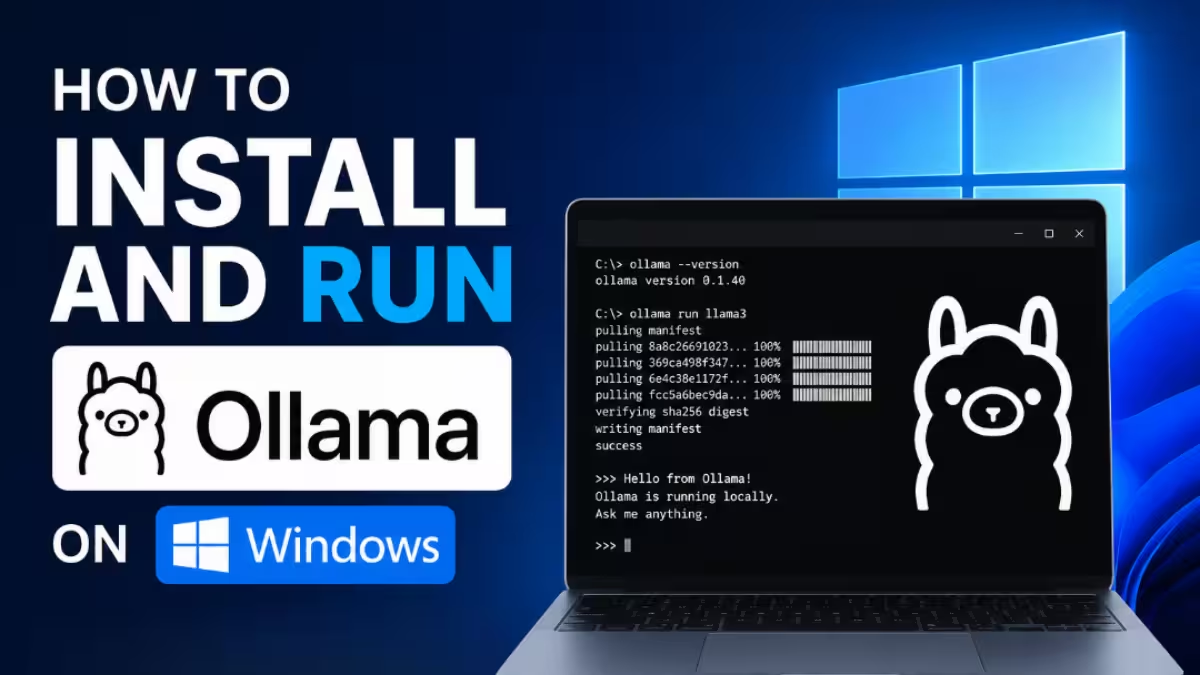
Windows: Download the installer from the Ollama site and run it. Ollama starts in the system tray. Open a fresh PowerShell window afterward so it picks up the new command.
macOS: Download the app, drag it to Applications, and open it. Apple Silicon Macs use Metal acceleration automatically.
Linux: Run the official script:
curl -fsSL https://ollama.com/install.sh | shConfirm the install worked:
ollama --versionIf you see a version number, you are ready.
Step 4: Download and Run Your First Local Model
Start with a model that matches your table row above. For an 8 GB GPU or a 16 GB Mac:
ollama run qwen3:8bOllama downloads the model on the first run, then drops you into a chat prompt. Ask it something and watch the reply stream in. Type /bye to exit.
On weaker hardware, start smaller:
ollama run qwen3:4bA few commands you will use often:
ollama list          # show downloaded models
ollama ps            # show running models and GPU usage
ollama rm qwen3:8b   # delete a model to free disk space
ollama pull gemma3:12b   # download without opening a chat
Quantization Explained: Which Q4, Q5 or Q8 Should You Pick?
Model names often carry a tag like Q4_K_M or Q8_0. That tag tells you how much the developers compressed the weights.
- Q4_K_M: The default sweet spot. It shrinks the model to roughly a quarter of its full size, and most people cannot spot the quality drop in normal chat.
- Q5_K_M or Q6_K: Slightly better output, more memory. Use these if you have spare VRAM.
- Q8_0: Very close to full quality, about double the memory of Q4.
- Q3 and below: Only for very tight hardware. Reasoning and code suffer noticeably.
Best Local LLMs by Task and Hardware
Bigger does not always mean better. A smaller model tuned for your task often beats a larger general model.
- General chat and writing: Qwen3 8B, Llama 3.1 8B, Gemma 3 12B
- Coding: Qwen2.5-Coder 7B or 14B (compare them with the best LLMs for developers)
- Step-by-step reasoning and math: DeepSeek-R1 distilled models, Phi-4
- Low-power laptops: Qwen3 4B, Gemma 3 4B, Phi-4-mini
- Image understanding: Gemma 3 (12B and up), Llama 3.2 Vision
Try two or three on your real tasks. Disk space costs little, and Ollama keeps multiple models side by side.
Step 5: Check That Your GPU Runs the Model
A slow, word-by-word reply usually means the model runs on your CPU. Check it:
ollama psThe output shows how much of the model sits on the GPU. "100% GPU" means you are good. A split like "40% CPU / 60% GPU" means the model does not fully fit. Switch to a smaller model or a lighter quantization.
NVIDIA users can also watch nvidia-smi while the model answers. GPU usage should jump high during generation.
Step 6: Add a ChatGPT-Style Interface With Open WebUI
The terminal works, but a browser chat window feels nicer for daily use. Open WebUI gives you a ChatGPT-style screen with chat history and file uploads, and it connects straight to Ollama.
If you have Docker installed, run:
docker run -d -p 3000:8080 \
  --add-host=host.docker.internal:host-gateway \
  -v open-webui:/app/backend/data \
  --name open-webui \
  --restart unless-stopped \
  ghcr.io/open-webui/open-webui:main
Open http://localhost:3000, create the first local account, and pick your model from the dropdown.
Prefer no Docker? LM Studio and Jan both include their own chat windows.
Step 7: Lock Down Your Setup for Full Privacy
Running locally does not make your setup private by default. Check these settings before you paste anything sensitive.
Keep the API on localhost. Ollama listens on port 11434. By default it binds to 127.0.0.1, which means only your own machine can reach it. Do not set OLLAMA_HOST=0.0.0.0 unless you truly need access from another device.
Block outside access. If you do open the API to your home network, add a firewall rule that allows only your local subnet, and never forward port 11434 or 3000 on your router.
Put a password in front of shared access. Open WebUI asks for an account. If you expose the raw Ollama API to other devices, place a reverse proxy with authentication in front of it.
Turn off cloud features in your chat app. Some interfaces offer web search, cloud model fallbacks, or telemetry. Disable anything that sends data out if you want a fully offline setup.
Test offline. Disconnect from the internet and ask the model a question. If it still answers, your inference truly runs on your machine.
Download from trusted sources. Pull models from the official Ollama library or well-known publishers on Hugging Face. Avoid random model files from unknown uploaders. Attacks on developer tools also happen, so learn how to secure your dev pipeline too.
Step 8: Connect Your Code to the Local API
Ollama speaks the OpenAI API format, so most existing code needs only a new base URL:
from openai import OpenAI

client = OpenAI(
    base_url="http://localhost:11434/v1",
    api_key="local",  # the SDK wants a value; Ollama ignores it
)

reply = client.chat.completions.create(
    model="qwen3:8b",
    messages=[{"role": "user", "content": "Give me three title ideas for a blog post on SSD care."}],
)

print(reply.choices[0].message.content)
LM Studio offers the same style of server on port 1234. Point your scripts, browser extensions, or coding assistants at either one, and your prompts never touch a third-party server. Our guide to build a chatbot with OpenAI and Streamlit shows an app you can aim at this local server in the same way.
Troubleshooting: Common Local LLM Problems and Fixes
"Out of memory" error: Your model is too big. Drop to a smaller size or a Q4 build, and close games or GPU-heavy browser tabs.
Replies crawl at one or two words per second: The model spilled to CPU. Run ollama ps to confirm, then pick a lighter model.
"ollama is not recognized" on Windows: Close and reopen your terminal, or sign out and back in so Windows reloads the PATH.
Port 11434 already in use: Another Ollama or LM Studio instance holds the port. Quit it from the system tray and try again.
Open WebUI shows no models: Ollama is not running, or the container cannot reach the host. Start Ollama and keep the --add-host flag in your Docker command.
Repetitive or nonsense output: Start a new chat to clear old context, and make sure you pulled an instruct or chat version rather than a base model.
Frequently Asked Questions
Is a local LLM completely private?
Yes, when you set it up correctly. The model runs on your hardware and the runtime listens on localhost. Keep the API off your public network, disable any cloud add-ons in your chat app, and confirm it works with your internet off.
Do I need a graphics card to run a local LLM?
No. Small models from 1B to 4B run on a modern CPU with 8 GB of RAM. A GPU with 8 GB of VRAM, or any Apple Silicon Mac, makes 7B and 8B models fast enough for comfortable chat.
What is the best local LLM for beginners?
Qwen3 8B is a strong all-round starting point on 8 GB of VRAM or a 16 GB Mac. On lighter machines, Qwen3 4B or Gemma 3 4B gives quick replies with decent quality.
Is Ollama or LM Studio better?
Ollama suits people who like the terminal, scripts, and automation. LM Studio suits people who want a visual model browser and a built-in chat window. Both run the same model files and both offer a local API.
Does running an LLM locally cost anything?
The software and open-weight models are free. You pay for the hardware once, plus electricity while the model runs. You never pay per prompt.
Can a local LLM work without internet?
Yes. You need internet only to download the runtime and the model. After that, everything runs offline.
How much storage do local models need?
A 4B model at Q4 takes about 3 GB, an 8B model about 5 GB, and a 32B model about 20 GB. Plan for extra space since most people test several models.