Signal now stops you from taking screenshots on iPhone, and the app does it without any warning before you update. You open a chat, press the buttons, and nothing saves. Your phone is not broken. Signal turned on a privacy setting for you, and you can change it in a few taps.
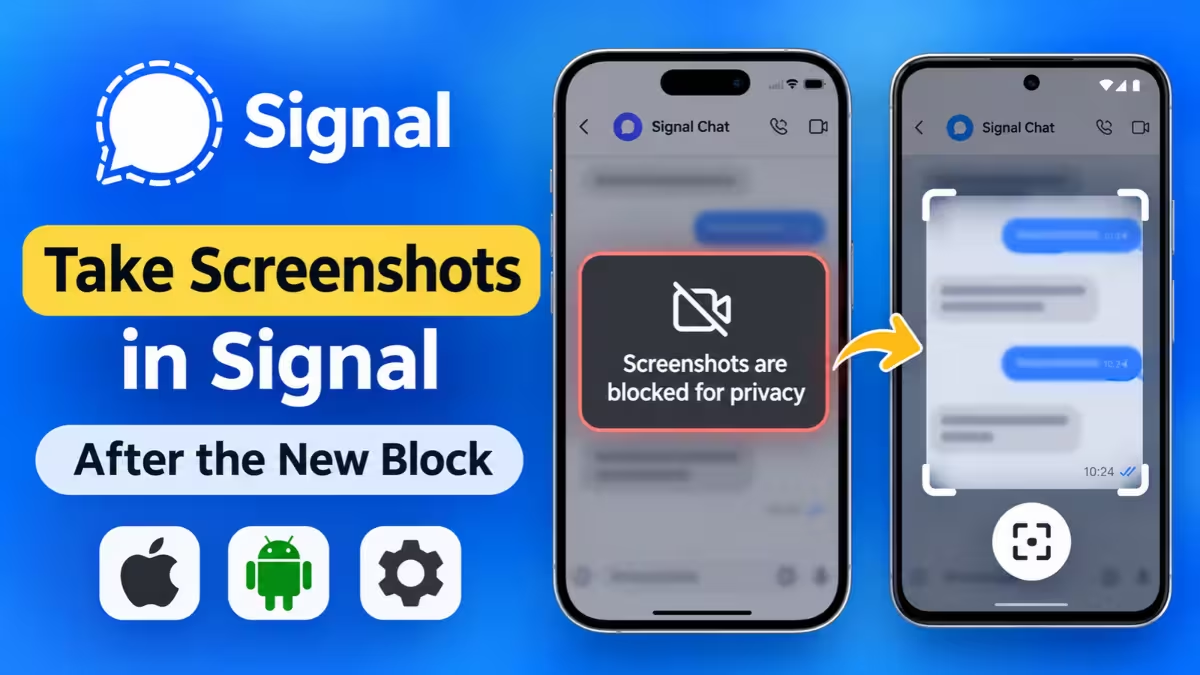
This guide shows you how to take a screenshot in Signal again on iPhone and Android, what the new setting protects, and the safer ways to keep your chats private while you capture what you need.
Signal Screenshots Not Working? The Block Siri AI Setting Is the Cause
Signal added a setting called Block Siri AI to its iPhone app and switched it on for everyone. It needs Signal 8.37 or later on iOS 27 or later. While the setting is on, Signal blocks three things:
- Screenshots and screen recordings inside the app
- Chat previews in the App Switcher
- On-device AI assistants that try to read what Signal shows on screen
When you try to capture a chat, Signal shows a message saying the screenshot was prevented by the Block Siri AI setting. The message includes an Options button, which gives you quick access to the controls below.
Signal made this move because assistants like Siri AI can read the content of any app you have open. Signal's encryption protects messages while they travel between phones, but it cannot protect text once it appears on your display. Blocking screenshots is the strongest tool Signal has to keep an assistant from reading that text.
Is Your iPhone Broken? How to Confirm in 10 Seconds
Before you change any setting, rule out a hardware problem. Take a screenshot on your Home Screen. If it works there and fails only inside Signal, the new block is the cause. On Face ID iPhones, press the side button and the volume up button together, then release both quickly.
How to Screenshot Signal on iPhone (Turn Off Block Siri AI)
You have two options. One lets you capture a single screenshot and then restores protection automatically. The other turns the block off until you change it back.
Off for 10 Minutes: The Safest Way to Take One Screenshot
This is the best choice for most people.
- Open Signal and tap your profile picture.
- Tap Settings, then Privacy.
- Tap Block Siri AI.
- Choose Off for 10 Minutes.
- Take your screenshot.
Signal switches the protection back on by itself after 10 minutes. You can capture a receipt, an address, or a message you need to report without leaving your chats exposed afterward.
Turn Block Siri AI Off Permanently
- Open Signal, then go to Settings and Privacy.
- Tap Block Siri AI.
- Choose Off.
- Confirm when Signal asks.
Screenshots work right away. Signal warns that AI assistants on your phone may then scan your Signal content, and it will not remind you later that the setting is off. Turn it back on from the same menu whenever you want the protection again.
The block also affects how your chats look in the App Switcher. If you disable it, the separate Hide Screen in App Switcher setting decides whether Signal previews appear there.
How to Allow Screenshots in Signal on Android (Screen Security)
Android works differently. Signal does not switch the protection on for every user at once. The app turns on Screen security when it detects an AI assistant, such as Gemini, trying to read the screen. You can also switch it on yourself in Settings. This feature needs Signal 8.35.1 or later. While it is on, Android refuses to take screenshots in Signal.
To turn it off and take screenshots again:
- Open Signal and go to Settings.
- Tap Privacy, then App security.
- Switch Screen security off.
If you turn it off from the pop-up Signal shows after blocking an assistant, Signal turns it back on after 90 days. If you turn it off manually in Settings, Signal does not bring it back. Screen security also hides Signal in the recent apps view while it stays on.
Can You Screenshot Signal on Mac? Why There Is No Block
Signal cannot block screenshots on macOS. Apple does not give developers a documented way to stop screenshots of a normal app window, so Mac users have no equivalent of the iPhone setting. You can screenshot Signal on a Mac as usual.
If you want to keep Siri away from your chats on a Mac, add Signal to the Excluded Apps list. Open System Settings, go to Siri, and choose Excluded Apps.
Screenshots On, Siri Off: Use Excluded Apps Instead
You can have both privacy and screenshots if you use Apple's own exclusion list instead of Signal's setting. Apple added the Excluded Apps option in iOS 27.2.
- Open Settings on your iPhone and tap Siri.
- Tap Excluded Apps.
- Tap Add Apps and select Signal.
- Confirm your choice.
Siri AI can no longer read Signal once you exclude it. Then you can switch Block Siri AI off in Signal and capture screenshots whenever you like. The two controls work separately, so removing one does not change the other.
Privacy Gaps That Remain Even With the Block On
The setting helps, but it does not close every gap in Signal security. Keep these limits in mind:
- Files on your phone: The block stops screen capture, not agents that read app data from storage.
- Notifications: If your alerts show message text, an assistant that reads notifications can see it. Set Signal notifications to show only the sender or nothing.
- Other people's phones: The setting protects only your own screen. If a contact turns it off, your messages can appear on their display.
- Accessibility tools: Screen readers and magnifiers may not work well while screen security stays on.
Block Siri AI: On or Off? Which Setting Fits You
For most people, yes. Keep Block Siri AI on and use the 10-minute pause when you need a screenshot. You lose very little convenience, and your chats stay out of reach of on-device assistants. If you screenshot Signal all day, the Excluded Apps route gives you the best balance.
Frequently Asked Questions
Why does Signal say "Screenshot prevented by Block Siri AI setting"?
Signal turned on its Block Siri AI setting by default after the update. The setting stops screenshots and screen recordings inside the app so Siri AI cannot read your chats.
How do I turn off the Signal screenshot block on iPhone?
Open Signal, tap your profile picture, go to Settings, then Privacy, and tap Block Siri AI. Choose Off for a permanent change or Off for 10 Minutes for a temporary one.
Which Signal version and iOS version do I need for this setting?
The Block Siri AI setting requires Signal 8.37 or later on iOS 27 or later.
Does turning off Block Siri AI weaken Signal's encryption?
No. The setting only affects screen capture and on-device scanning. It does not change how Signal encrypts messages or who can read them.
Can I take screenshots in Signal on Android?
Yes. Open Settings, tap Privacy, then App security, and switch Screen security off. Signal also turns it on automatically the first time it detects an AI assistant reading the screen.
Can I block Siri from reading Signal without blocking screenshots?
Yes. Go to Settings, then Siri, then Excluded Apps, and add Signal. After that, you can turn off Block Siri AI inside Signal and keep taking screenshots.
Does Signal block screenshots on Mac?
No. Signal has no screenshot block for macOS because Apple provides no documented tool for it. Add Signal to Excluded Apps in System Settings under Siri if you want to keep Siri out.
Related Guides
- Signal CVE-2026-113380: Bug Could Keep Your Call Audio Live After You Hang Up
- Why Snapchat or Signal Can Appear in Router Logs Even When the Apps Are Not Installed
- How to Protect Your iPhone Data Before Handing It In for Repair
- How to Use Snipping Tool on Windows to Capture Screenshots
- Windows 11 Screenshots Washed Out Colors: How to Fix Color Profile Issues