The Task Host Window preventing shutdown appears when Windows cannot close a background process or service before powering off. Windows displays this message to protect running tasks from forced termination, but a stuck Task Host can block your shutdown indefinitely.
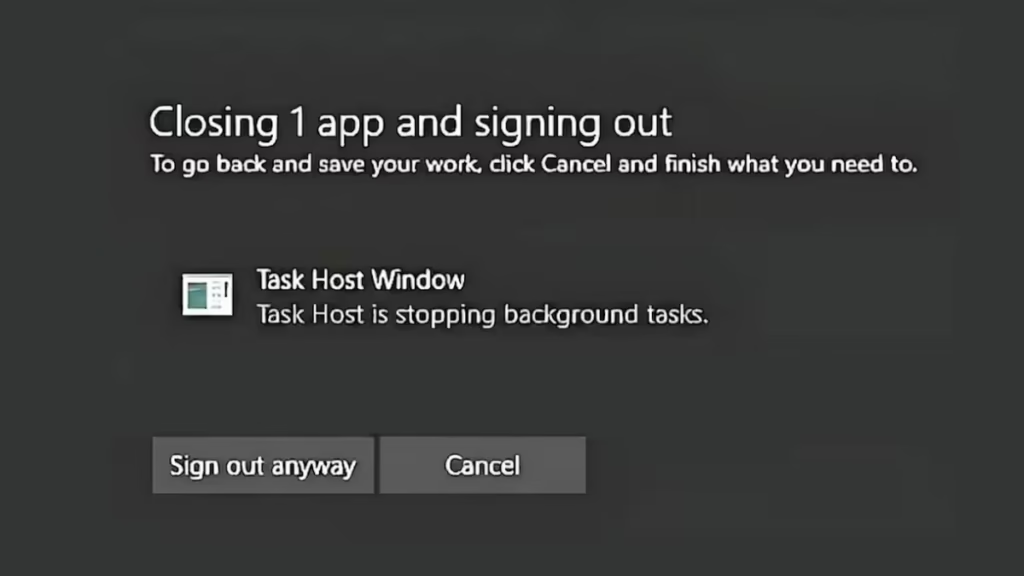
This guide covers fixes that target the actual causes: unresponsive processes, Fast Startup conflicts, registry timeout values, corrupted system files, and third-party software conflicts.
What Causes the Task Host Window to Block Shutdown
The Task Host (taskhostw.exe) acts as a host process for background Windows tasks. When you initiate a shutdown, it signals all running tasks to close. If any task hangs or does not respond within the timeout window, Task Host holds the shutdown open and displays the blocking message.
Common triggers include:
- An application or service fails to exit cleanly
- Fast Startup leaves cached session data that conflicts on the next shutdown
- The WaitToKillServiceTimeout registry value is too high, giving hung services too much time to close
- Corrupted system files prevent clean task termination
- A third-party startup application stalls during shutdown
Fix 1: End Unresponsive Processes in Task Manager
This is the fastest way to clear a stuck shutdown immediately.
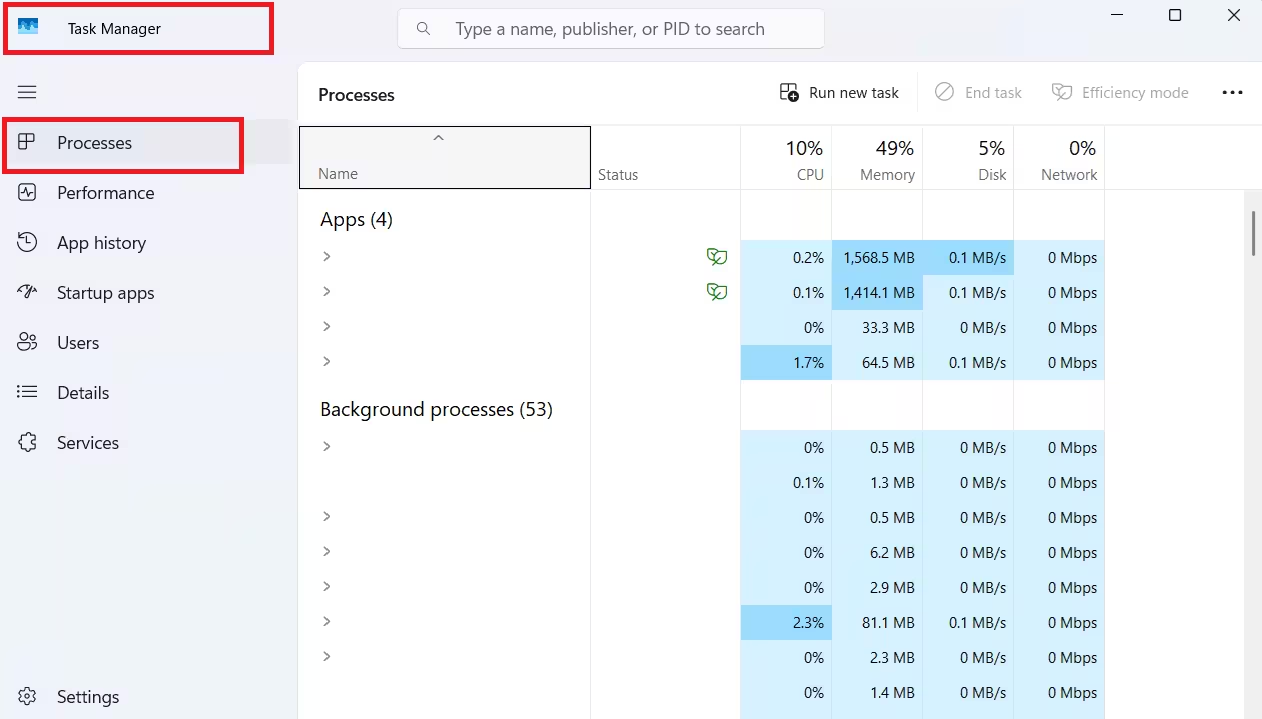
- Press Ctrl + Shift + Esc to open Task Manager.
- Click the Processes tab.
- Look for any process listed as Not Responding.
- Click the process, then click End Task.
- Repeat for every unresponsive entry.
- Attempt the shutdown again.
If you cannot tell which process blocks shutdown, sort by CPU or Memory usage and close the most active non-essential processes first.
Fix 2: Disable Fast Startup
Fast Startup saves a partial hibernation file on shutdown to speed up the next boot. This can leave background tasks in a suspended state that conflicts with a clean shutdown and triggers the Task Host Window on the next power-off.
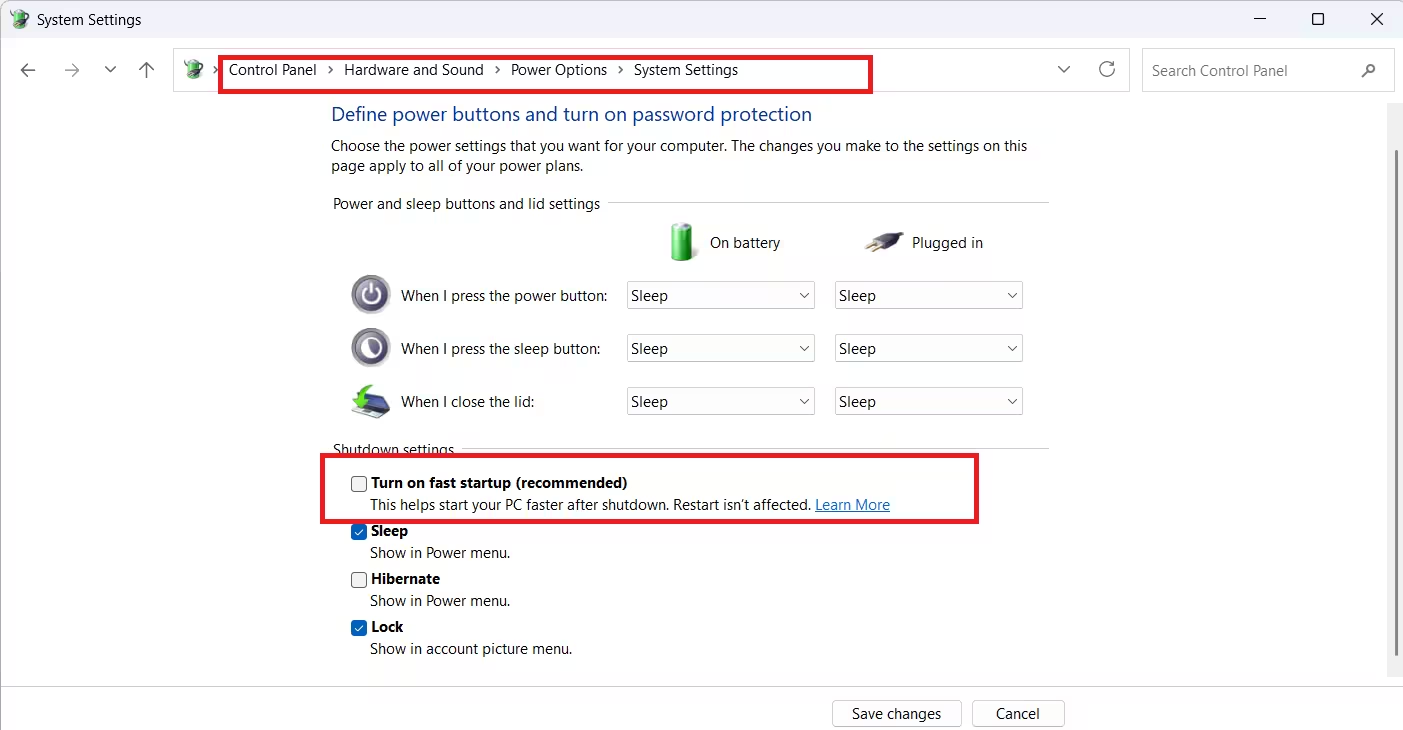
- Press Windows + R, type
powercfg.cpl, and press Enter. - Click Choose what the power buttons do in the left panel.
- Click Change settings that are currently unavailable.
- Under Shutdown settings, uncheck Turn on fast startup (recommended).
- Click Save changes.
- Restart your PC and test the shutdown.
Fix 3: Reduce WaitToKillServiceTimeout in the Registry
Windows waits a set number of milliseconds before forcing a service to close during shutdown. The default is 5000 ms (5 seconds), but it can be higher on some systems. Reducing this value forces hung services to terminate faster and clears the Task Host Window blockage.
Warning: Editing the registry can affect system stability. Back up the registry before making changes.
- Press Windows + R, type
regedit, and press Enter. - Navigate to:
HKEY_LOCAL_MACHINE\SYSTEM\CurrentControlSet\Control- Double-click WaitToKillServiceTimeout.
- Set the value to 2000 (2 seconds). For a more aggressive timeout, use 500.
- Click OK and restart your PC.
Fix 4: Enable AutoEndTasks in the Registry
AutoEndTasks tells Windows to automatically terminate any application that does not close within the timeout period instead of waiting for user input. This prevents the Task Host Window from appearing when a stubborn app refuses to exit cleanly.
- Press Windows + R, type
regedit, and press Enter. - Navigate to:
HKEY_CURRENT_USER\Control Panel\Desktop- Right-click an empty area in the right panel, select New, then String Value.
- Name it
AutoEndTasks. - Double-click it and set the value to
1. - Click OK, close Registry Editor, and restart your PC.
If the value already exists, confirm it is set to 1 and skip the creation steps.
Fix 5: Run SFC and DISM to Repair System Files
Corrupted system files can prevent Windows from cleanly terminating tasks during shutdown. The System File Checker (SFC) repairs individual files, while DISM repairs the Windows image that SFC draws from. Run both together for the best result.
- Press Windows + S, type
cmd, right-click Command Prompt, and select Run as administrator. - Run the SFC scan first:
sfc /scannow- Wait for the scan to complete. This typically takes 10 to 15 minutes.
- Then run DISM to repair the Windows image:
DISM /Online /Cleanup-Image /RestoreHealth- After DISM finishes, run SFC one more time:
sfc /scannow- Restart your PC and test the shutdown.
If SFC has been failing or returning errors repeatedly, run DISM first. DISM repairs the underlying Windows image, which fixes the source files that SFC needs to do its job.
Fix 6: Turn Off “Use Sign-in Info After Update”
Windows uses your sign-in credentials to automatically finish setting up the device after an update or restart. This triggers Task Host activity during shutdown as Windows tries to prepare for the post-update sign-in process, which can stall and block shutdown.
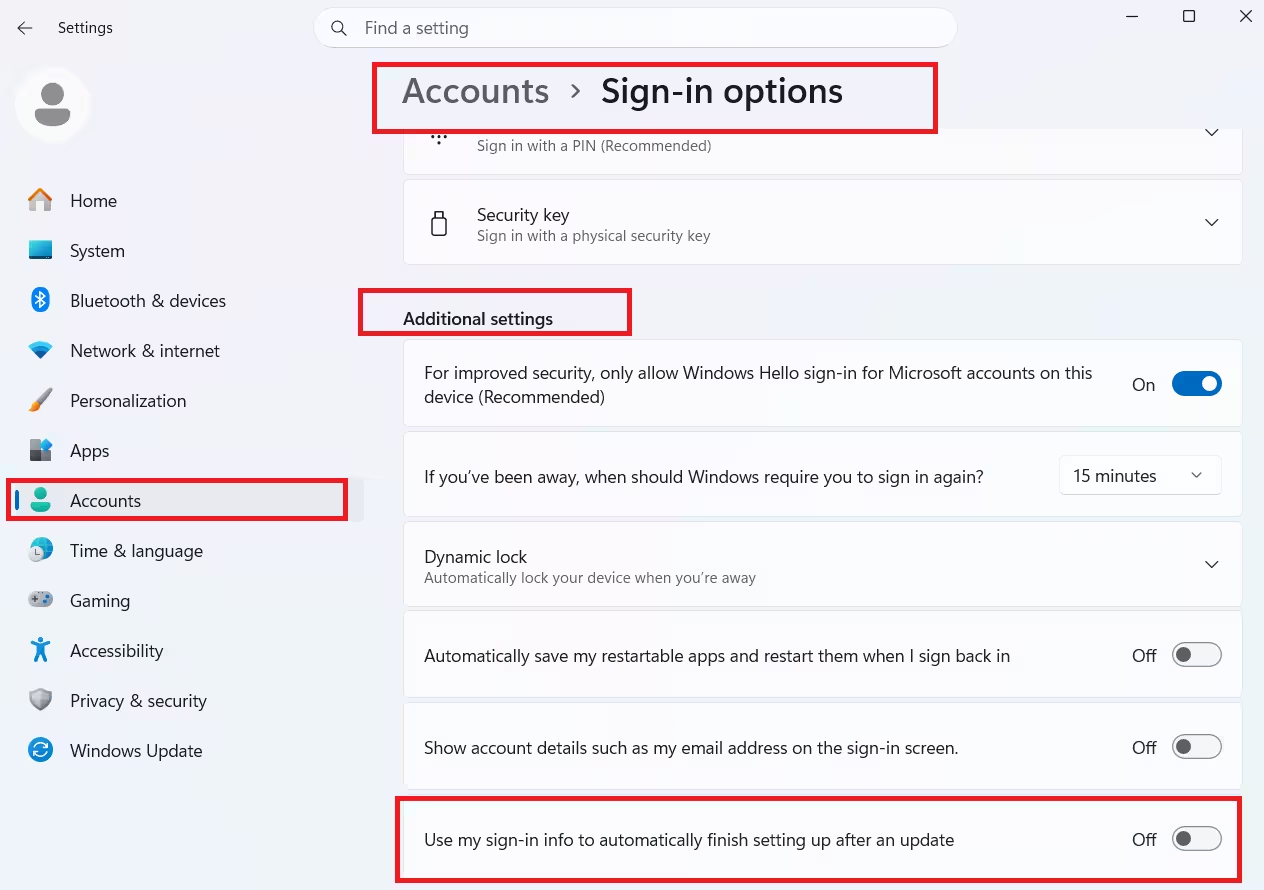
- Press Windows + I to open Settings.
- Go to Accounts, then click Sign-in options.
- Scroll down to the Additional Setting
- Turn off Use my sign-in info to automatically finish setting up my device after an update or restart.
- Restart your PC and test the shutdown.
Fix 7: Perform a Clean Boot to Isolate Software Conflicts
A clean boot starts Windows with only Microsoft services active and no third-party startup programs. If the Task Host Window stops blocking shutdown after a clean boot, a third-party application is causing the conflict.
Step 1: Set up the clean boot
- Press Windows + R, type
msconfig, and press Enter. - Click the Services tab.
- Check Hide all Microsoft services.
- Click Disable all.
- Click the Startup tab, then click Open Task Manager.
- Disable every startup item listed in Task Manager.
- Close Task Manager, click Apply, then OK in System Configuration.
- Restart your PC and test shutdown.
Step 2: Identify the conflicting program
If shutdown works cleanly after the clean boot, a disabled third-party service or startup program is the cause. Re-enable services in batches of five or six using msconfig, restart after each batch, and test shutdown each time. When the issue returns, the conflict is inside the last batch you enabled. Re-enable those one by one to find the exact program, then update, disable, or uninstall it.
Step 3: Restore normal startup
- Open
msconfig. - Select Normal startup.
- Click Apply, then restart your PC.
Frequently Asked Questions
What is the Task Host Window?
The Task Host Window (taskhostw.exe) is a built-in Windows process that manages the orderly shutdown of background tasks and services. It is not a virus or malware.
Is it safe to force shut down when the Task Host Window appears?
Forcing a shutdown occasionally is generally safe, but doing it repeatedly can corrupt open files or cause file system errors. Fix the underlying cause rather than relying on forced shutdowns.
Why does the Task Host Window appear only after a Windows Update?
Windows Updates can introduce new background services or change service timeout values. These services sometimes fail to close cleanly during the first few shutdowns after an update. Fix 3 and Fix 4 address this directly by reducing the timeout and enabling auto-termination.
Does disabling Fast Startup affect boot speed?
Yes, boot time increases slightly without Fast Startup. On SSDs the difference is minimal. On HDDs you may notice a few extra seconds on the next cold boot.
What if the Task Host Window still blocks shutdown after all fixes?
Run a full malware scan using Windows Defender or your preferred security software. Malicious software can hijack background processes and prevent a clean shutdown. If the issue persists, open Event Viewer, go to Windows Logs > System, and filter for shutdown-related errors to identify the exact process responsible.

