Star Citizen Error 19000 is one of the most common and frustrating connection errors in the game. It appears as an authentication or login failure, blocking you from entering the game entirely. The error also shows up as 19005 or other variants in the 19k series, and all of them point to the same core problem: your game client failed to authenticate your account with the game servers.
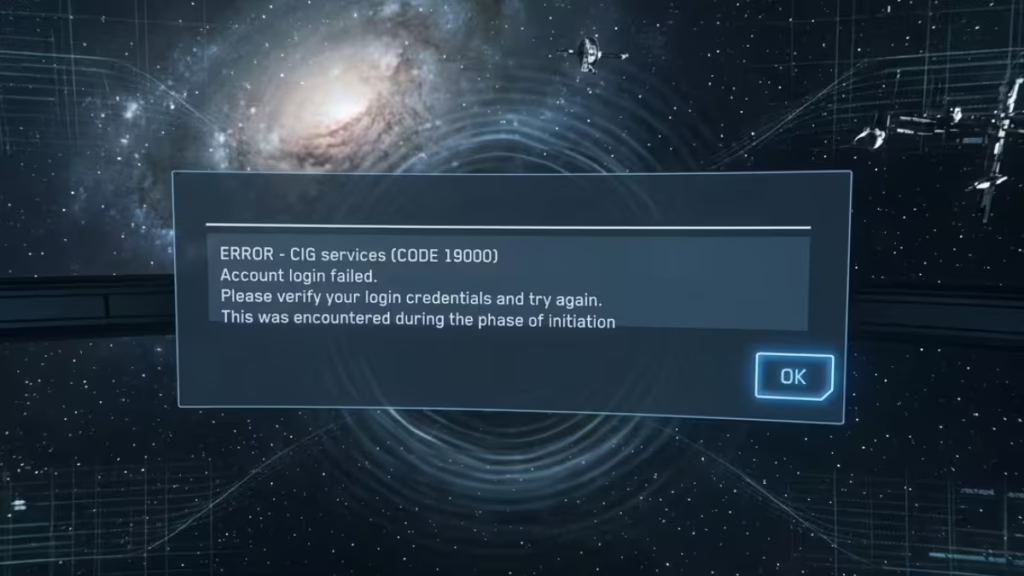
This guide covers every confirmed fix for Star Citizen Error 19000, from the fastest one-minute checks to full reinstall procedures.
What Causes Star Citizen Error 19000
The error triggers when communication between your game client and the RSI servers breaks down during the authentication process. Several different conditions can cause this:
- Your account does not have an active game package
- Server overload during major patches or live events
- Corrupted or mismatched game files
- A VPN or proxy service interfering with the server connection
- Overly restrictive antivirus or firewall programs blocking the launcher
- A desynced system clock preventing proper handshaking
- DNS cache problems causing routing failures
- Running the wrong launcher executable
Because so many different things can trigger this error, no single fix works every time. Work through the fixes below in order, starting from the simplest.
How to Fix Star Citizen Error 19000
1. Check RSI Server Status
Before changing anything on your system, check whether the RSI servers are actually online. Visit the RSI Status page to see if any services are reported down. If there is an active outage, no amount of local troubleshooting will get you in until the servers recover.
2. Wait Out a Server Load Spike
High traffic after a major patch or live event like Invictus or IAE regularly causes a surge of 19000 errors. The RSI Status page does not always catch these spikes immediately. If you just updated the game or a new event launched, wait 30 to 60 minutes and try again before doing anything else.
3. Verify Your Game Package
You cannot play Star Citizen without an active game package on your account. Go to your Hangar on the RSI website, filter by Game Packages, and confirm that your package shows as Attributed. If it does not appear, contact RSI Support directly as this is an account-level issue outside of local troubleshooting.
4. Use the Correct RSI Launcher Executable
Inside the Star Citizen game folders (such as the LIVE or PTU directories), there is a file called StarCitizen_Launcher.exe. Do not use this file. It launches the game without logging into your RSI account first, which causes a 19000 error every time.
Always launch from RSI Launcher.exe located in the RSI Launcher installation folder.
5. Close Duplicate RSI Launcher Instances
Multiple copies of the launcher running at the same time can cause authentication conflicts. Check your Windows system tray for more than one RSI Launcher icon. If you see duplicates, right-click each one and select Exit.
You can also open Task Manager, search for RSI Launcher processes, and end all of them before reopening the launcher fresh.
6. Run Character Repair
A corrupted character state can lock you out of the game with a 19000 error. RSI provides a Character Repair tool specifically for this situation. Log into the RSI website, navigate to your account settings, and run the Character Repair option. This rebuilds your in-game character data without affecting your account or ships.
7. Verify Game Files
Corrupted files from an interrupted download or a failed patch are a frequent cause of this error. The RSI Launcher includes a built-in file verification tool that checks all your game files and redownloads any that are broken or missing.
Steps to verify game files:
- Open the RSI Launcher and log in.
- Click the Settings gear icon.
- Select your game channel (LIVE, PTU, or whichever version is showing the error).
- Confirm the install path is correct.
- Click VERIFY and let it finish completely.
Do not run other resource-heavy programs while verification is running. Let it complete before launching the game again.
8. Sync Your System Clock
An out-of-sync system clock interferes with the authentication handshake between your client and the RSI servers. This is a surprisingly common cause of 19000 errors that most players overlook.
To sync your clock on Windows:
- Open Settings and go to Time & Language.
- Select Date & Time.
- Turn on Set time automatically if it is off.
- Click Sync now.
Restart your computer after syncing to make sure the change applies cleanly.
9. Run the RSI Launcher as Administrator
File permission conflicts can prevent the launcher from accessing the files and network connections it needs. Running it with administrator privileges removes this as a variable.
- Fully exit the RSI Launcher.
- Right-click the RSI Launcher icon on your desktop or in the Start menu.
- Select Run as administrator.
- Try logging in again.
10. Disable Your VPN or Proxy Service
A VPN or proxy service reroutes your connection through a third-party server, which can interfere with authentication. Temporarily disable any active VPN by disconnecting and fully closing the application.
To disable a Windows proxy:
- Open Settings and go to Network & Internet.
- Click Proxy.
- Turn off Automatically detect settings.
- Delete any saved proxy profiles.
- Restart your computer.
If the error clears after disabling your VPN or proxy, the issue is with that service routing. You will need to troubleshoot your specific VPN client or switch providers.
11. Try a VPN Service (If You Do Not Already Use One)
If you are not using a VPN and still getting the error, your ISP’s routing to the RSI servers may be the problem. A VPN changes your connection path, which can bypass a bad network route between your location and the game servers.
Try a reputable VPN service and connect through a US server if you are outside the United States. If this resolves the error, contact your ISP about intermittent routing issues to the RSI server range.
12. Flush Your DNS Cache
Stale DNS entries can send your connection to the wrong address or nowhere at all. Flushing your DNS cache forces Windows to look up fresh routing information.
Steps to flush DNS on Windows:
- Close Star Citizen and the RSI Launcher completely.
- Press Windows + S and search for Command Prompt.
- Right-click it and select Run as administrator.
- Type the following command and press Enter:
ipconfig /flushdns- You should see:
Successfully flushed the DNS Resolver Cache. - Close the command prompt and relaunch the RSI Launcher.
13. Whitelist RSI Launcher and Star Citizen in Your Security Software
Antivirus programs and firewalls sometimes flag Star Citizen’s server connections as suspicious and block or throttle them mid-authentication. Add exceptions for both executables in your security software:
RSI Launcher.exeStarCitizen.exe
The exact steps vary by program. Check the whitelist or exclusion section inside your antivirus settings. If you have Windows Defender Firewall active, go to Windows Security > Firewall & Network Protection > Allow an app through firewall and add both files.
After adding the exceptions, restart the launcher and test again.
14. Delete the USER Folder
The USER folder stores local game settings and configuration data. Corruption inside this folder can cause persistent authentication errors that survive file verification.
Deleting the folder is safe. Star Citizen rebuilds it automatically the next time you launch the game. If you want to save your keybinds or settings first, rename the folder to user-backup instead of deleting it.
Default location:
C:\Program Files\Roberts Space Industries\StarCitizen\LIVE\Navigate to that path, find the folder named user, and delete or rename it. If you installed the game to a different drive or folder, navigate to your custom install path instead.
15. Reinstall the RSI Launcher and Star Citizen
If none of the above fixes work, a full clean reinstall removes any deep file corruption that verification cannot catch. Uninstall both the RSI Launcher and Star Citizen through Windows Settings > Apps, then manually delete any remaining installation folders before reinstalling from scratch via the RSI website.
Still Getting Star Citizen Error 19000?
If you have worked through every fix above and the error persists, collect your game log files and system information, then submit a ticket to RSI Support. When you contact them, list every step you have already tried. This saves time and helps the support team focus on causes you have not addressed yet.
Game logs are located at:
C:\Program Files\Roberts Space Industries\StarCitizen\LIVE\logbackups\Star Citizen Error 19000 has a lot of possible causes, but most players resolve it within the first few fixes: checking server status, verifying game files, flushing DNS, or deleting the USER folder. Start from the top of this list and work down rather than jumping around. If you hit a specific step that clears the error, note it for next time since the same cause often repeats after major patches. For errors that survive every fix above, RSI Support is the right next step with your log files in hand.

