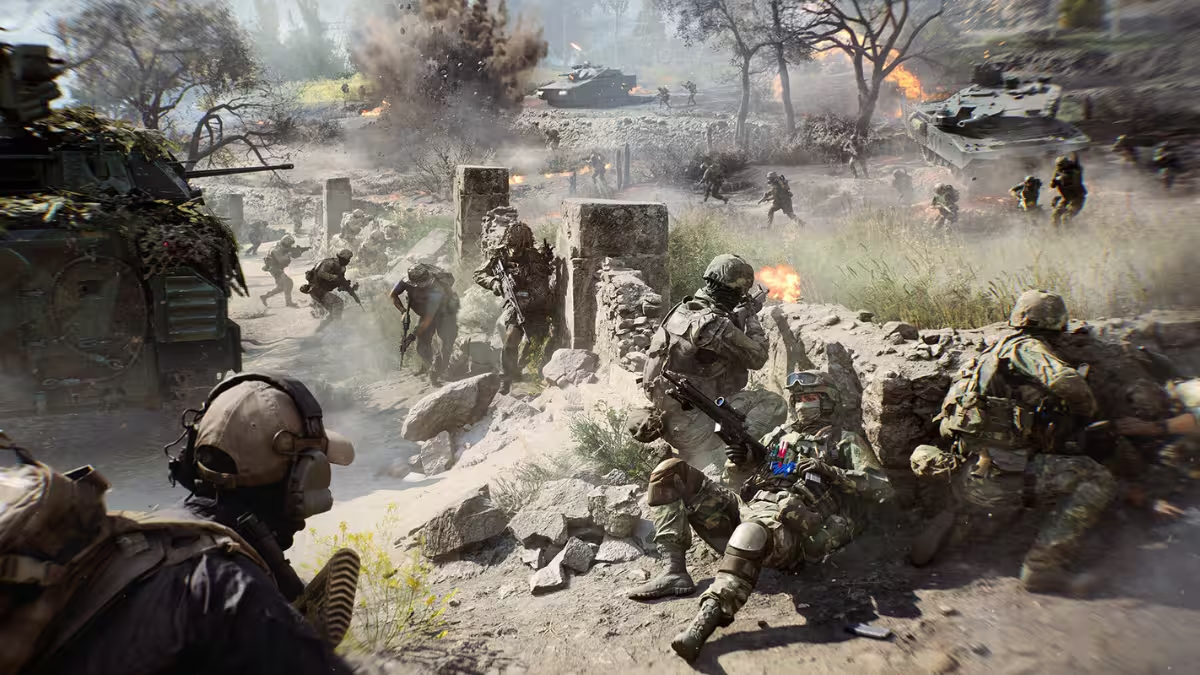
Battlefield 6 keeps crashing for a large number of PC players, whether during startup, mid match on Conquest, or while loading into a lobby. The game usually gives no warning or error message and drops you straight to the desktop. Most cases trace back to a small set of fixable causes, from Secure Boot to driver conflicts, and the fixes below walk through each one in the order most likely to solve it.
What Causes Battlefield 6 Crashing on PC
The crashes trace back to a handful of confirmed causes rather than random instability.
- Secure Boot disabled or the system still running on legacy MBR partitioning
- Outdated or conflicting GPU drivers, especially with NVIDIA Frame Generation enabled
- Insufficient virtual memory, since the game accumulates memory usage during long sessions
- Corrupted or incomplete game files from installation or a previous crash
Fix 1: Enable Secure Boot
Battlefield 6 requires Secure Boot to launch and stay stable on Windows PCs. If Secure Boot is off, or your drive still uses the legacy MBR partition style, the game can crash during startup or fail anti-cheat checks repeatedly.
Check your partition style first:
- Open Disk Management.
- In the bottom panel, right-click directly on the disk label (for example Disk 0), not on a partition or drive letter.
- Select Properties, then click the Volumes tab.
- Check the Partition style field. It will show either MBR or GPT.
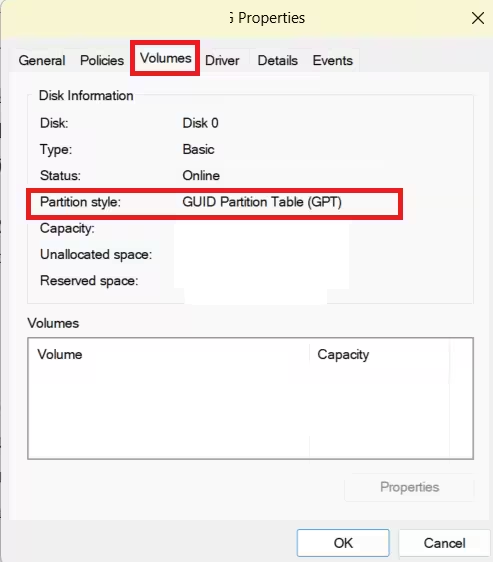
If it shows MBR, convert it to GPT before enabling Secure Boot. Windows has a built-in mbr2gpt tool for this, or you can use third-party partition software if you prefer a guided interface.
Once your disk is GPT and Windows is installed in UEFI mode, enable Secure Boot:
- Reboot your PC and enter BIOS/UEFI (usually Del, F2, or F12 during boot).
- Find Secure Boot under the Boot or Security section.
- Enable it and save changes.
- Restart and launch Battlefield 6 again.
BIOS layouts vary by manufacturer, so check your motherboard brand’s support page if you can’t locate the setting.
Fix 2: Verify and Repair Game Files
Corrupted or missing files trigger random crashes mid match. Verify the installation through your platform.
Steam:
- Open your Steam Library.
- Right-click Battlefield 6 and select Properties > Local Files.
- Click Verify Integrity of Game Files.
EA App:
- Open the EA App and go to My Library.
- Select Battlefield 6.
- Click Manage > Repair.
The Repair option in the EA App runs a deeper check than file verification alone and often fixes launch related crashes that verification misses.
Fix 3: Update Your Graphics Drivers
Outdated GPU drivers are a common crash trigger, particularly on NVIDIA cards running Frame Generation.
NVIDIA:
- Download the latest driver from NVIDIA’s driver page.
- Run the installer and choose Express Installation.
- Restart your PC after the install finishes.
AMD:
- Download the latest driver from AMD’s support page.
- Run the installer and choose Full Installation.
- Restart your PC to apply the changes.
If you’re on NVIDIA and still crashing after the update, turn off Frame Generation in the game’s Display Settings under Advanced Settings, since it has caused startup and load-in crashes for several players.
Fix 4: Increase Virtual Memory
Battlefield 6 has a known memory leak that builds up during long sessions instead of releasing properly. Raising your paging file size gives Windows more room before it crashes.
- Press
Win + R, typesysdm.cpl, and press Enter. - Go to the Advanced tab and click Settings under Performance.
- Click the Advanced tab again, then Change under Virtual Memory.
- Uncheck Automatically manage paging file size for all drives.
- Select your Windows drive (usually
C:), choose Custom size, and set:- Initial size: at least 4096 MB
- Maximum size: same or higher
- Click Set, then OK, and restart your PC.
Fix 5: Reset Your Network Stack
If crashes happen alongside connection drops or failed matchmaking, a Winsock reset clears out corrupted network settings that can interfere with the game’s online components.
- Press
Win + R, typecmd, then pressCtrl + Shift + Enterto run as administrator. - Enter
netsh winsock reset. - Restart your computer.
Fix 6: Disable Memory Overclocking
Manually overclocked RAM or an active XMP/DOCP profile can cause instability that shows up specifically in Battlefield 6, even when every other game runs fine.
- Enter BIOS/UEFI on restart.
- Find the XMP or DOCP setting, usually under Overclocking or AI Tweaker depending on your motherboard brand.
- Set it to Disabled, or load optimized defaults to reset RAM to JEDEC standard speeds.
- Save and exit.
Fix 7: Uninstall and Reinstall the Game
If nothing above resolves the crashes, a clean reinstall clears out leftover cache and corrupted installation data.
- Open the EA App, go to My Library, right-click Battlefield 6, select Manage, then Uninstall.
- After uninstalling, manually delete any leftover folders:
C:\Program Files\EA Games\Battlefield 6\C:\Users\[YourName]\Documents\Battlefield 6\
- Restart your PC and reinstall from the EA App or Steam.
Most Battlefield 6 crashes on PC trace back to Secure Boot, outdated drivers, or memory settings. Work through the fixes in order, starting with Secure Boot and driver updates, since those resolve the majority of reported cases.
Frequently Asked Questions
Why is Battlefield 6 crashing so much?
Battlefield 6 crashes are usually caused by system compatibility issues, missing Secure Boot requirements, outdated graphics drivers, or corrupted game files. Since EA enforces Secure Boot for anti-cheat protection, systems running Legacy BIOS or MBR mode may fail to launch the game or crash mid match.
What does it mean if a game keeps crashing?
It typically means the game engine or system environment hit an error it can’t recover from. Common causes include incompatible hardware or drivers, missing runtime components like DirectX or Visual C++, or a damaged installation. For Battlefield 6, the Secure Boot and UEFI requirement or incomplete installation data are the most frequent triggers.
Can you play Battlefield 6 now?
Yes, Battlefield 6 is fully available through the EA App, Steam, or Epic Games. To play without crashes, confirm your PC meets the minimum requirements, keep your GPU drivers current, and enable Secure Boot, since the game won’t launch without it.
Related Guides
- How to Fix Battlefield 6 Errors (All Codes, Login, Network & Crashes)
- Battlefield 6 Server Queue Explained: Why You See “Game Servers Full”
- Battlefield 6 Season 1 Update Patch Notes: New Map, Weapons, Fixes, and Full Changes
- Battlefield 6 Is Finally Fixing Everything in 2026
- How to Join the Battlefield 6 Free Trial on PC, PS5 and Xbox

