Your Windows 11 PC remembers every Wi-Fi network it has joined, and it keeps the password for each one. When a guest asks for the office Wi-Fi key or you set up a new phone, you don't need to flip the router over or reset anything. A few Command Prompt commands pull those passwords out in under a minute.
This guide shows you how to list every saved network, reveal the key for one of them, and dump all saved passwords in one go. It also covers the errors people hit most often and how to fix them.
What You Need to View Saved Wi-Fi Passwords in CMD
Check these three things first:
- An administrator account: Windows prints the password in plain text only for an elevated Command Prompt. A standard account usually shows the key as "Present" and hides the actual value.
- A network the PC has joined before: Windows can only show passwords for profiles it saved. If this PC never connected to a network, CMD has nothing to reveal.
- A personal (WPA2 or WPA3-Personal) network: Office and campus networks that use 802.1X enterprise sign-in don't store a shared key, so the password field stays empty.
You don't need any third-party app. Everything here uses netsh, the network shell tool that ships with Windows.
Step 1: Open Command Prompt as Administrator
- Press the
Windowskey and type cmd. - In the results, click Run as administrator on the right pane (or right-click Command Prompt and pick it from the menu).
- Click Yes on the User Account Control prompt.
The window title should read Administrator: Command Prompt. If it doesn't, close it and try again, because the password won't show otherwise.
Prefer Windows Terminal or PowerShell? Press Win + X, pick Terminal (Admin), and run the same commands. They behave identically.
Step 2: List All Saved Wi-Fi Networks with netsh wlan show profiles
Type this command and press Enter:
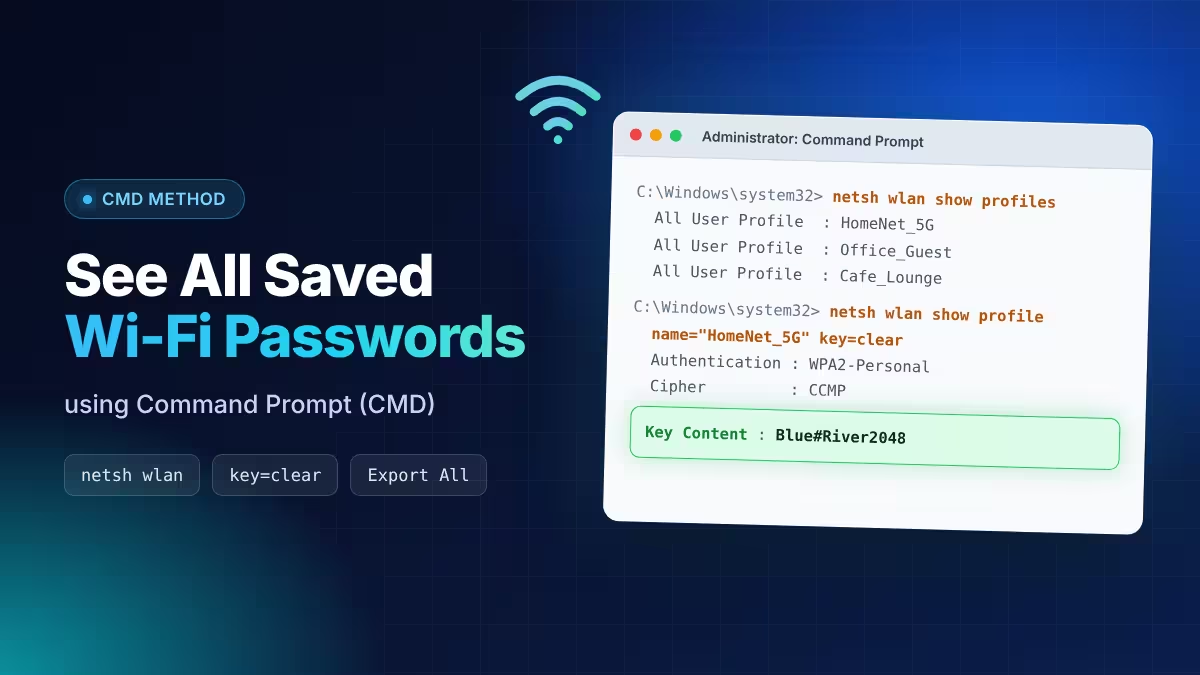
netsh wlan show profilesWindows prints a User profiles section with an entry like All User Profile : HomeNet_5G for each network. Every name on that list has a stored profile, whether you connected yesterday or two years ago.
Write down or copy the exact name you need. Spelling, spaces, and capital letters all matter in the next step.
Step 3: Show a Wi-Fi Password with netsh wlan show profile key=clear
Run the command below and swap HomeNet_5G for your network name:
netsh wlan show profile name="HomeNet_5G" key=clearThe key=clear part tells Windows to print the stored key as readable text. The command doesn't change or delete anything on your PC.
Keep the quotation marks around the name. They become mandatory when the name contains spaces, such as name="Sharma Family WiFi".
Step 4: Find the Password in the Key Content Line
Scroll through the output until you reach Security settings. You'll see something like this:
Security settings
-----------------
    Authentication         : WPA2-Personal
    Cipher                 : CCMP
    Security key           : Present
    Key Content            : Blue#River2048
The value after Key Content is your Wi-Fi password. Select it with your mouse and press Enter (or Ctrl + C) to copy it, which saves you from typos on the other device.
Don't know which network you're on right now? Run netsh wlan show interfaces first. The SSID line shows the current network name, which you can plug straight into Step 3.
How to See All Saved Wi-Fi Passwords at Once in CMD or PowerShell
Running Step 3 for twelve networks gets tedious. You have two faster options.
Export All Wi-Fi Passwords to XML Files
First create a folder to hold the files:
mkdir C:\WiFiBackupThen export all profiles with their keys:
netsh wlan export profile folder=C:\WiFiBackup key=clearWindows writes one XML file per network into that folder. Open any file in Notepad and search for <keyMaterial>. The text between <keyMaterial> and </keyMaterial> is the password.
Print All Wi-Fi Passwords as a Table in PowerShell
If you want a clean list on screen without opening files, open Terminal (Admin) and paste this script:
(netsh wlan show profiles) | Select-String "All User Profile\s+:\s(.+)$" | ForEach-Object {
    $name = $_.Matches.Groups[1].Value.Trim()
    $key  = (netsh wlan show profile name="$name" key=clear) | Select-String "Key Content\s+:\s(.+)$"
    [PSCustomObject]@{
        Network  = $name
        Password = if ($key) { $key.Matches.Groups[1].Value.Trim() } else { "(none)" }
    }
} | Format-Table -AutoSize
PowerShell loops through every saved profile and shows each network name next to its password. Open networks and enterprise profiles display "(none)" because they have no shared key.
The script reads English labels such as "All User Profile" and "Key Content". On a Windows install set to another display language, use the XML export method instead, since its tag names stay the same everywhere.
How to Back Up and Restore Saved Wi-Fi Passwords Before Reinstalling Windows
A clean Windows install wipes every saved network profile. You would then need to find and retype each password by hand, including those for networks whose router stickers are long gone.
Avoid that by running the XML export from the section above, next to your usual Windows 11 backup, before you format the drive. Copy the C:\WiFiBackup folder to a USB drive you trust, and keep it off cloud storage and email.
After the reinstall, open Command Prompt as administrator and restore each network with this command:
netsh wlan add profile filename="C:\WiFiBackup\Wi-Fi-HomeNet_5G.xml"Windows adds the network and its password in one step, so the PC reconnects without you typing anything. Delete the backup folder from the USB drive once every network works again, because the XML files hold passwords in plain text.
Key Content Missing or CMD Errors? How to Fix Them
1. The output says "Security key: Present" but shows no Key Content line.
Your Command Prompt isn't elevated. Close it, reopen it with Run as administrator, and run the command again.
2. "Profile 'name' is not found on the system."
The name you typed doesn't match the saved profile. Run netsh wlan show profiles again, copy the name exactly, and keep it inside quotes. A stray trailing space can trigger this error too.
3. "There is no such wireless interface on the system."
Windows can't find a working Wi-Fi adapter. Turn Wi-Fi on from Quick Settings, then check that the adapter shows up in Device Manager under Network adapters. Reinstall the driver if it's missing.
4. "The Wireless AutoConfig Service (wlansvc) is not running."
Press Win + R, type services.msc, find WLAN AutoConfig, and click Start. Set its startup type to Automatic so it doesn't stop again.
5. The export command fails with "path not found."
The target folder doesn't exist yet. Create it with mkdir first, then rerun the export.
6. Key Content is blank on a work or school network.
That network uses individual sign-ins through 802.1X, not one shared password. Ask your IT team for access. On company-managed PCs, IT policy may also block key viewing entirely.
How to Stay Safe After Viewing Wi-Fi Passwords in CMD
Once you print a password in plain text, anyone near your screen or with access to your files can read it too. A few habits keep it contained:
- Close the Command Prompt window as soon as you copy the key.
- Delete the export folder when you finish. Run
rmdir /s /q C:\WiFiBackupto remove it and every XML file inside. - Never upload exported XML files to chat apps, email, or cloud drives without encryption.
- Only pull passwords from PCs you own or have permission to manage. Running these commands on someone else's machine can break workplace rules or local law.
- Store keys you use often in a password manager so you don't need to repeat this process.
For guests at home, the Settings > Network & internet > Wi-Fi > Manage known networks page on recent Windows 11 builds shows a QR code for each saved network. Guests scan it with their phone camera and join without you reading the password aloud.
Frequently Asked Questions
Can I see Wi-Fi passwords in CMD without admin rights?
Usually not. A standard Command Prompt lists the saved networks, but Windows hides the key and shows "Present" in its place. You need an elevated session to print the real password.
Does this work for networks I'm not connected to right now?
Yes. As long as the PC joined the network once and you never clicked Forget, the profile stays saved, and key=clear reveals its password.
Will key=clear change my Wi-Fi settings?
No. The command only reads the stored profile and displays it. Your connection, saved networks, and router settings stay exactly as they were.
Why can't I find a network I used before?
Someone may have forgotten the network in Settings, or a Windows reset wiped the profiles. In that case, check the sticker on the router or sign in to your home router's admin page to find or change the key.
Does the same command work on Windows 10?
Yes. The netsh wlan commands work the same way on Windows 10 and Windows 11, as well as older versions like Windows 8.1 and 7.
Can I recover the password of a WPA3 network?
Yes, for WPA3-Personal networks the Key Content line shows the passphrase just like WPA2. WPA3-Enterprise networks use certificates or personal logins, so no shared password exists to reveal.
Related Guides
- How to Fix Slow WiFi: 14 Proven Methods to Speed Up Your Connection
- How to Secure Your Home Router: 12 Settings That Stop Hackers
- Is Public WiFi Safe? The Real Risks at Airports, Hotels and Cafes in 2026
- DISM Commands to Repair Windows 11 and 10: CheckHealth, ScanHealth, RestoreHealth and SFC
- Best Backup Software for Windows 11 and 10 in 2026: 8 Top Picks for Every Need