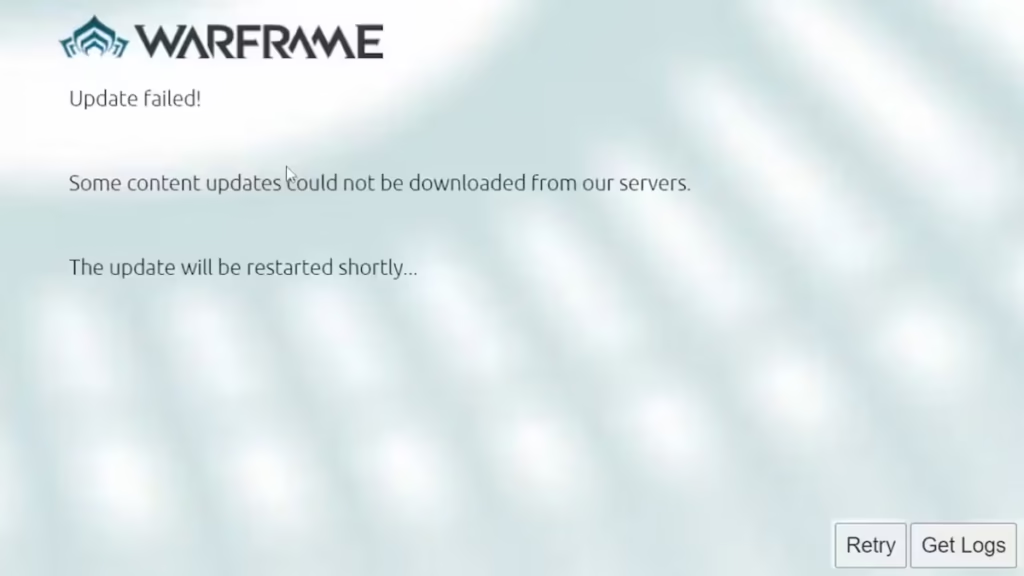
The Old Peace update has brought a massive wave of returning and new players to Warframe, but many PC players are running into the same roadblock: the recurring ‘Update Failed’ message on the launcher. Whether you’re using Steam or the standalone client, the download often stalls with the note “Some content updates could not be downloaded from our servers.” This issue can be frustrating, but the good news is that it is fixable—and in most cases, the problem isn’t from your side at all.
1. Start With the Official Launcher Fixes
Even if the error is occurring due to heavy traffic, it’s still worth ensuring your launcher settings are correct before retrying.

Here’s what to check:
- Open the Warframe Launcher.
- Select the gear icon to open Settings.
- On the Download tab, click Verify to scan your game files.
- Make sure the following options are enabled:
- Shadow Cache
- Download Optimization
- Aggressive Download
- Launcher GPU Acceleration
- Allow Network Edges
- Save and restart the launcher.
These options improve file retrieval and can prevent partial file corruption during large updates.
2. Let the Launcher Sit for a Few Moments
Since the issue is often temporary congestion, the simplest fix is also the most effective:
- Wait a few seconds without clicking anything.
The launcher frequently restarts the download automatically once the servers open more slots.
If the download still doesn’t resume, press Retry once. If it fails again, you can retry periodically—but avoid rapid clicking, which can cause additional stalls.
Many players have reported that simply leaving the launcher open eventually starts the download smoothly.
3. Try Again After the Initial Rush Dies Down
If your update repeatedly fails during peak hours, the most reliable solution is to return later.
Peak activity happens in the first few hours of a new update going live. When players finish downloading and the traffic reduces, error rates drop significantly.
Digital Extremes usually resolves these spikes quickly, so waiting a couple of hours often solves the issue without any extra steps.
4. Restart Your PC and Router
If you’re unsure whether the problem is entirely server-side, a quick restart helps clear cached network states:
- Close the Warframe launcher.
- Restart your PC.
- Restart your router.
- Launch Warframe again.
This doesn’t bypass server congestion, but it eliminates local factors such as temporary DNS issues or stale network sessions.
5. Reinstall the Launcher (Last Resort Only)
If the servers have stabilized and you still cannot update, your installation might have damaged files.
Try this only after the above steps:
- Uninstall Warframe via Add or Remove Programs.
- Download a fresh installer from warframe.com/download.
- Install, open the launcher, and verify settings again.
Players rarely need this approach, but it can fix local installation failures caused by patch interruptions.
Read More:
- How to Use Emotes and Gestures in Elden Ring Nightreign
- How to Make the Bad Dreams Cruller Donut in Pokémon Legends Z-A
- All New Mega Evolutions Pokémon Legends Z-A Mega Dimension DLC
- Helldivers 2 Reveals a New Free Cosmetic Item After Oshaune Liberation
- How to Get Jinglestar Rod in Fisch: Unlock Method, Stats, and Best Enchantments
- How to Tame a Nautilus in Minecraft: Full Taming Guide
- Genshin Impact Columbina Kit Leaks and Release Date
Once the update installs correctly, you can jump straight into the new content. Digital Extremes has even added a skip-ahead system, allowing players to experience fresh missions without completing every older quest first. This makes The Old Peace more accessible, especially if you’re returning after a break.
If you don’t encounter any update issues at all, you’re among the lucky few who can start exploring the new missions immediately. Play Now!

