7-Zip is a free, open source file archiver that compresses, extracts, and encrypts files on Windows 11. This guide covers downloading it safely, installing it, adding it to the right-click menu, and using its core features for everyday file management.
Why Use 7-Zip on Windows 11
Windows 11 can open ZIP files natively, but it lacks the compression options, encryption controls, and format support that 7-Zip offers.
- Free for personal and commercial use, no license required
- Supports AES-256 encryption for ZIP and 7z archives
- Creates 7z, ZIP, TAR, and WIM archives
- Opens RAR, ISO, GZIP, BZIP2, CAB, DMG, and dozens of other formats
- Handles archives up to 16 exbibytes in size
7-Zip cannot create RAR archives. It can only extract them, since RAR creation requires WinRAR or other licensed software.
Download 7-Zip Safely
Only download 7-Zip from its official source to avoid bundled ads or modified installers.
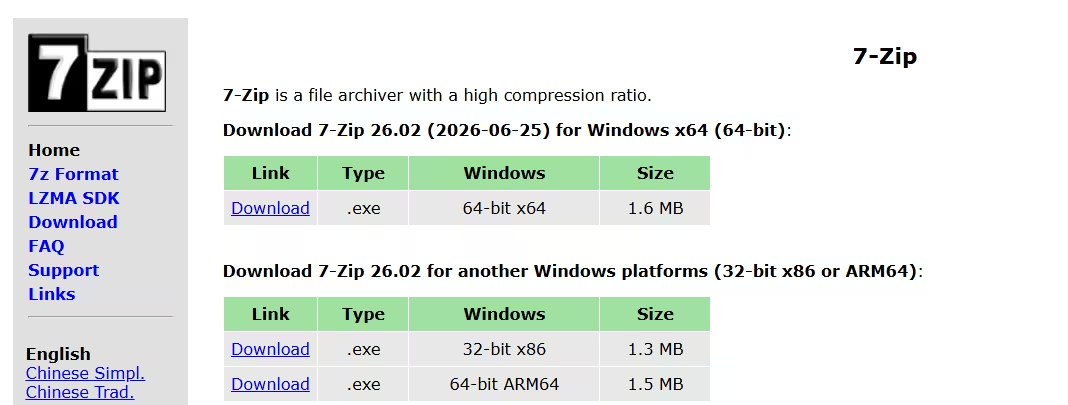
- Go to the official 7-Zip website.
- Check your system type first. Right-click the Start button, select System, and look under Device specifications for System type.
- Choose the matching installer: 64-bit x64 for most Intel and AMD PCs, 64-bit ARM64 for Windows on ARM devices, or 32-bit x86 only for older systems.
- Download the installer to your PC.
Install 7-Zip on Windows 11
The installer is small and does not need an internet connection or account to run.
- Open File Explorer and go to your Downloads folder.
- Double-click the downloaded installer file, which usually has a name like
7z2501-x64.exe. - Click Yes if Windows asks for permission.
- Leave the default destination folder unless you have a reason to change it.
- Click Install.
- Click Close once installation finishes.
7-Zip adds 7-Zip File Manager to the Start menu and typically adds right-click options to File Explorer automatically.
Enable 7-Zip in the Right-Click Menu
If 7-Zip does not appear when you right-click a file, its shell integration needs to be turned on manually.
- Open the Start menu, type 7-Zip, right-click 7-Zip File Manager, and select Run as administrator.
- Click Tools, then Options.
- Open the 7-Zip tab.
- Check Integrate 7-Zip to shell context menu.
- Click Apply, then OK.
Windows 11 hides some classic app commands by default. Click Show more options after right-clicking a file, or press Shift + F10, to see the full 7-Zip menu.
Compress Files with 7-Zip
Creating an archive takes a few clicks once shell integration is enabled.
- Select the files or folders you want to compress.
- Right-click the selection and choose Show more options.
- Hover over 7-Zip, then select Add to archive.
- Set the Archive format to zip or 7z. Use ZIP for compatibility with people who may not have 7-Zip, and use 7z for stronger compression.
- Rename the archive in the Archive field if needed.
- Adjust the Compression level if required. Store is fastest, Ultra saves the most space, and Normal balances speed and size.
- Click OK to start compressing.
Encrypt an Archive with a Password
7-Zip supports AES-256 encryption for both ZIP and 7z formats.
- Open Add to archive the same way as when compressing files.
- Set the Archive format to zip or 7z.
- Enter and reenter a password under the Encryption section.
- Confirm AES-256 is selected as the encryption method.
- For 7z archives, check Encrypt file names for extra security.
- Click OK to create the encrypted archive.
Use a long, unique password and store it somewhere safe. 7-Zip cannot recover or bypass a lost password.
How to Extract Files with 7-Zip
7-Zip offers several extraction options depending on how you want the files organized.
- Extract to “ArchiveName”: Creates a new folder matching the archive name and places all files inside. This keeps extracted files organized and avoids clutter.
- Extract Here: Unpacks files directly into the current folder. Best used only when the archive contains a single folder or a few clearly named files.
- Extract files: Opens a window where you can choose a specific destination folder and enter a password if the archive is encrypted.
To extract only certain files, open the archive in 7-Zip File Manager, select the files you need, and click Extract.
Open an Encrypted Archive
Opening a password-protected archive works the same way as opening any other archive, with one extra step.
- Right-click the encrypted archive and choose Open.
- Enter the password when prompted, then click OK to view the contents.
- Right-click inside the archive and choose Show more options to extract files.
- Enter the password again when asked to start extraction.
How to Set 7-Zip as the Default Archive Manager
7-Zip works fine through the right-click menu without being set as default, but you can change this if you prefer double-click access.
- Open 7-Zip File Manager as administrator.
- Click Tools, then Options.
- Open the System tab.
- Check the archive formats you want 7-Zip to handle, such as 7z, zip, rar, and tar.
- Click Apply, then OK.
Windows 11 may still prompt you to confirm default app changes under Settings > Apps > Default apps, depending on your version.
Use 7-Zip from the Command Line
The command-line tool is useful for scripts, backups, and repeat tasks.
7-Zip’s executable is usually located at C:\Program Files\7-Zip\7z.exe.
To create a 7z archive:
"C:\Program Files\7-Zip\7z.exe" a Backup.7z "C:\Users\YourName\Documents\Project"To create a ZIP archive instead:
"C:\Program Files\7-Zip\7z.exe" a -tzip Project.zip "C:\Users\YourName\Documents\Project"To extract an archive into a specific folder:
"C:\Program Files\7-Zip\7z.exe" x Backup.7z -o"C:\Extracted\Backup"Do not put a space between -o and the destination path, or the command will fail.
How to Update or Uninstall 7-Zip
7-Zip does not update itself automatically, so new versions need to be installed manually.
To update: Go to the official website, download the latest installer, and run it. The new version installs over the old one without needing an uninstall first.
To uninstall: Open Settings, go to Apps > Installed apps, search for 7-Zip, click the three-dot menu next to it, and select Uninstall.
After uninstalling, Windows 11 keeps basic ZIP support but loses 7-Zip’s extra formats, encryption options, and context menu commands.
7-Zip remains one of the simplest ways to manage compressed files on Windows 11 once it is set up correctly. Regular updates and the right archive format for each situation keep it running smoothly for both everyday extraction and password-protected file sharing.
Frequently Asked Questions
Can I install 7-Zip on both Windows 10 and Windows 11?
Yes, 7-Zip is fully compatible with both versions and works the same way on each.
What archive formats does 7-Zip support?
It creates 7z, ZIP, TAR, GZIP, and WIM archives, and extracts over 30 formats including RAR, ISO, DMG, and VHD.
Is it safe to use 7-Zip on Windows 11?
Yes. 7-Zip is open source, widely used, and updated regularly for security fixes.
Why doesn’t 7-Zip appear in my right-click menu?
Shell integration may be turned off. Open 7-Zip File Manager as administrator, go to Tools > Options > 7-Zip, and enable Integrate 7-Zip to shell context menu.
Why won’t my archive password work?
7-Zip passwords are case-sensitive. Check for extra spaces, incorrect capitalization, or similar-looking characters like zero and the letter O.
Read More:
- Medal Clip Upload Failed? Here’s How to Fix It
- Medal Installation Failed on Windows? Here’s How to Fix It
- UEFI2023Status Stuck at In Progress or Not Started on Windows 11
- How to Fix Fortnite Error ESP-DIST-001 on PC, Xbox, PlayStation & Switch
- How to Fix Minecraft Bedrock Stuttering and Lag on PC
- How to Fix Self Protection Failed Error Code 4

