You can install Antigravity CLI on Windows 11 with a single PowerShell command, but the install often ends with a PATH warning and an "agy is not recognized" error. That error stops many people before they ever run the tool. This guide walks you through the full setup, fixes that error, and shows you how to sign in, choose a model, and run your first prompt.
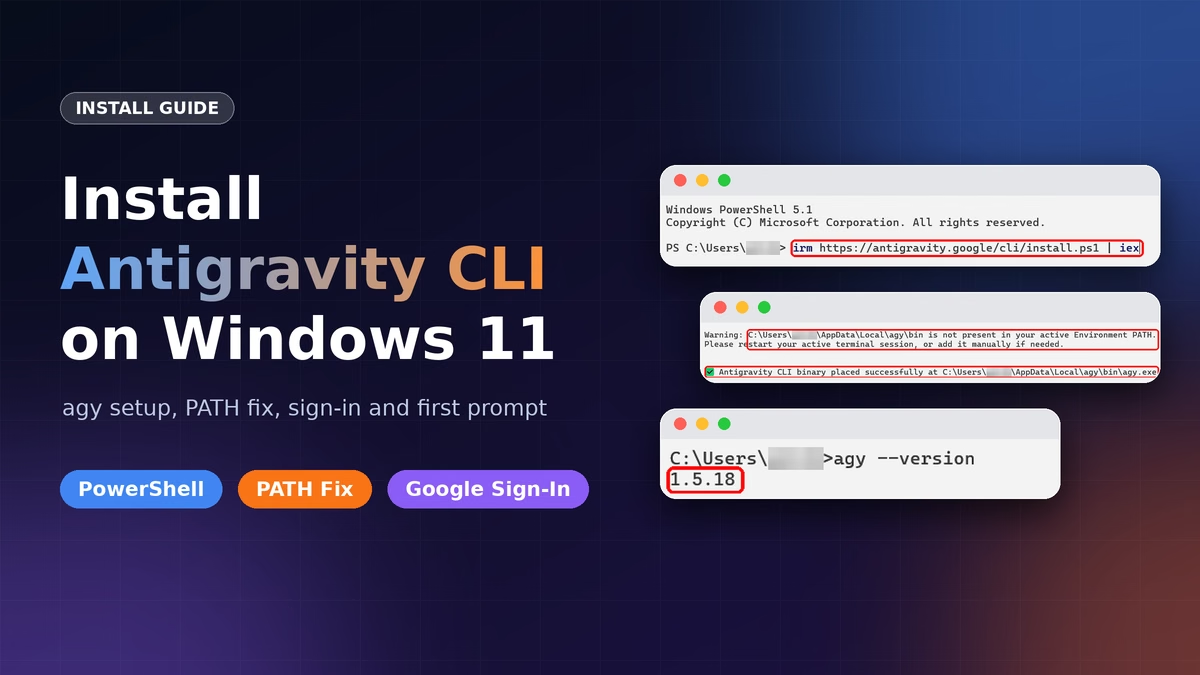
Antigravity CLI is Google's terminal coding agent. You describe a task in plain English, and it reads your project, edits files, and runs commands from your command line. The tool runs as agy. I installed version 1.5.18 on a Windows 11 PC and tested every step below, so the screenshots match what you will see.
Antigravity CLI Requirements for Windows 11
You need a Windows 11 PC, an internet connection, and a Google account. You do not need Node.js, Python, or any package manager. The installer drops a single program on your system.
Open Windows Terminal. Press Win + X and choose Terminal, or press the Windows key, type wt, and press Enter. Make sure the tab says PowerShell.
Install Antigravity CLI on Windows 11 with PowerShell
Paste this command into PowerShell and press Enter:
irm https://antigravity.google/cli/install.ps1 | iex
If you prefer Command Prompt, use this command instead:
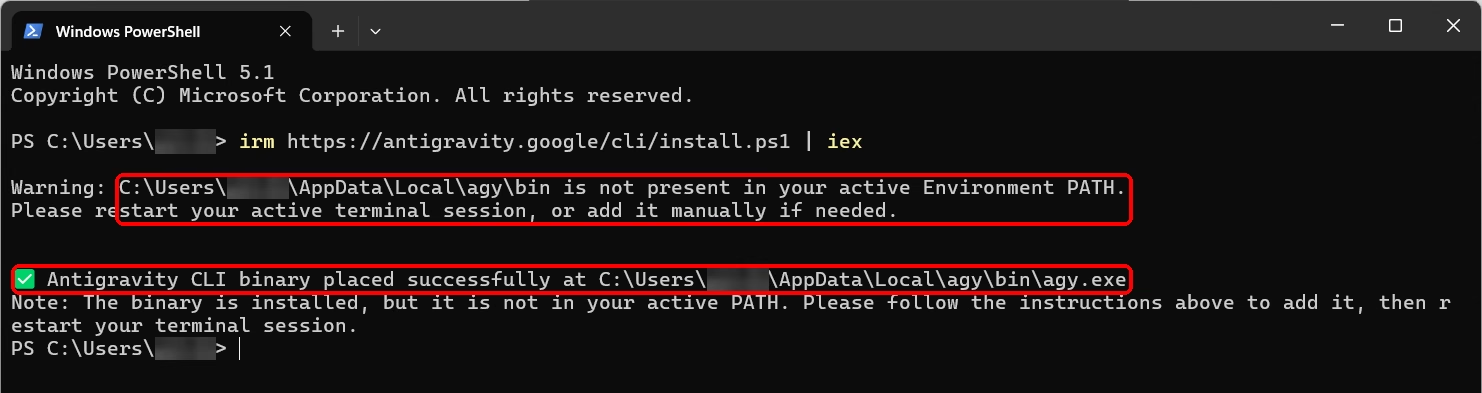
curl -fsSL https://antigravity.google/cli/install.cmd -o install.cmd && install.cmd && del install.cmdThe script downloads agy.exe and places it in C:\Users\YourName\AppData\Local\agy\bin. When it finishes, you see a green success message.
Fix "agy Is Not Recognized as an Internal or External Command"
The installer also prints a warning. It says the agy\bin folder is missing from your active PATH. If you type agy --version in that same window, Windows cannot find the program.
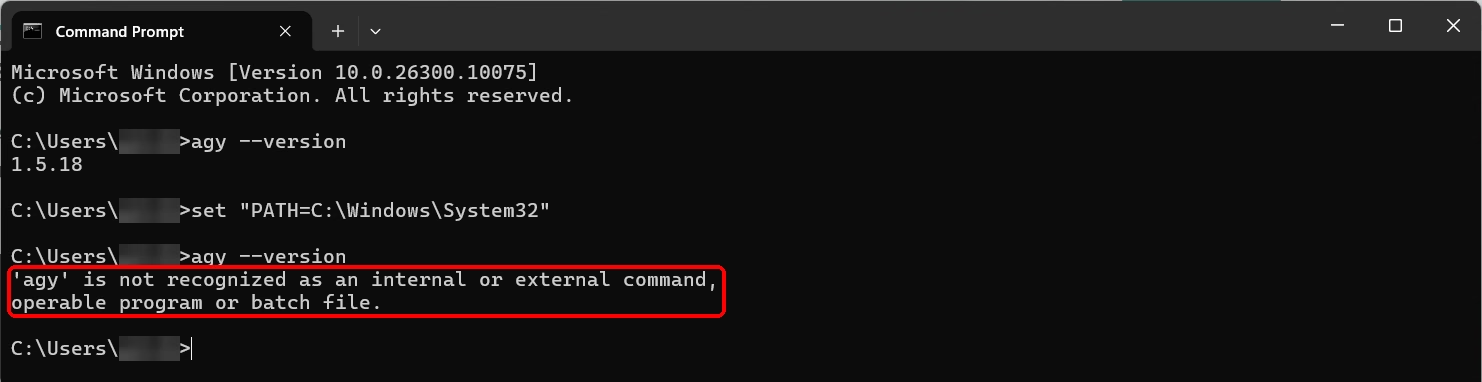
The cause is simple. Your open terminal loaded its PATH before the installer added the new folder. A fresh terminal fixes it. Close the window completely, open a new one, and run:
agy --versionYou should see a version number. Mine printed 1.5.18.

If the error still appears in a new window, add the folder to your PATH yourself. Run this command in PowerShell, replacing YourName with your Windows username:
[Environment]::SetEnvironmentVariable("Path", $env:Path + ";C:\Users\YourName\AppData\Local\agy\bin", "User")Close every terminal, open a new one, and test again.
You can also use the Windows interface. Open the Start menu, search for "Edit environment variables for your account", select Path under User variables, click Edit, and add the agy\bin folder as a new entry.
Sign In to Antigravity CLI with Google OAuth
Type agy and press Enter. The first launch asks you to pick a login method.
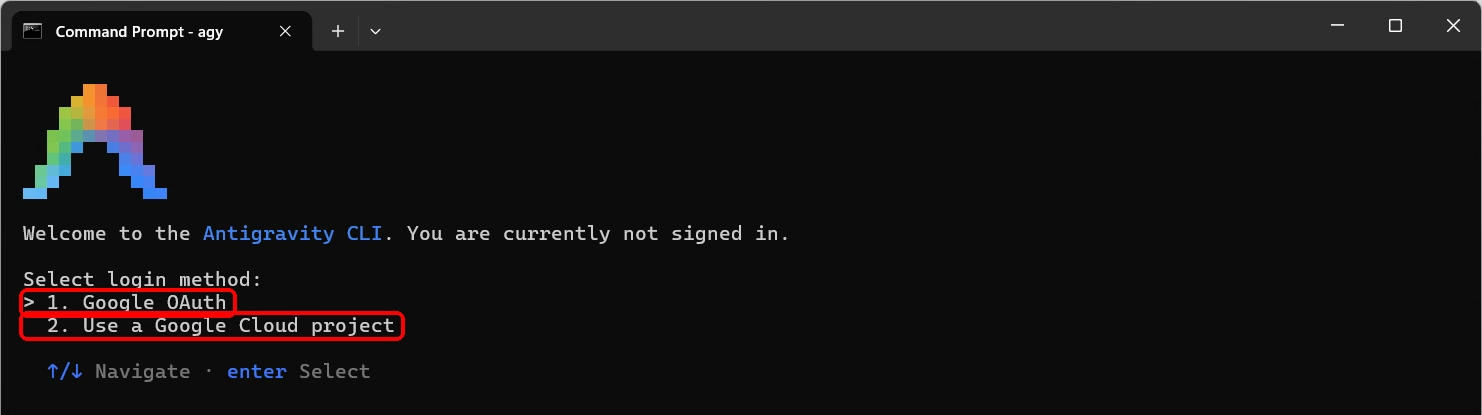
You get two choices: Google OAuth and Use a Google Cloud project. Pick Google OAuth for a personal account. Your browser opens a Google consent page. Approve it, copy the code that appears on the final page, and paste that code back into the terminal.
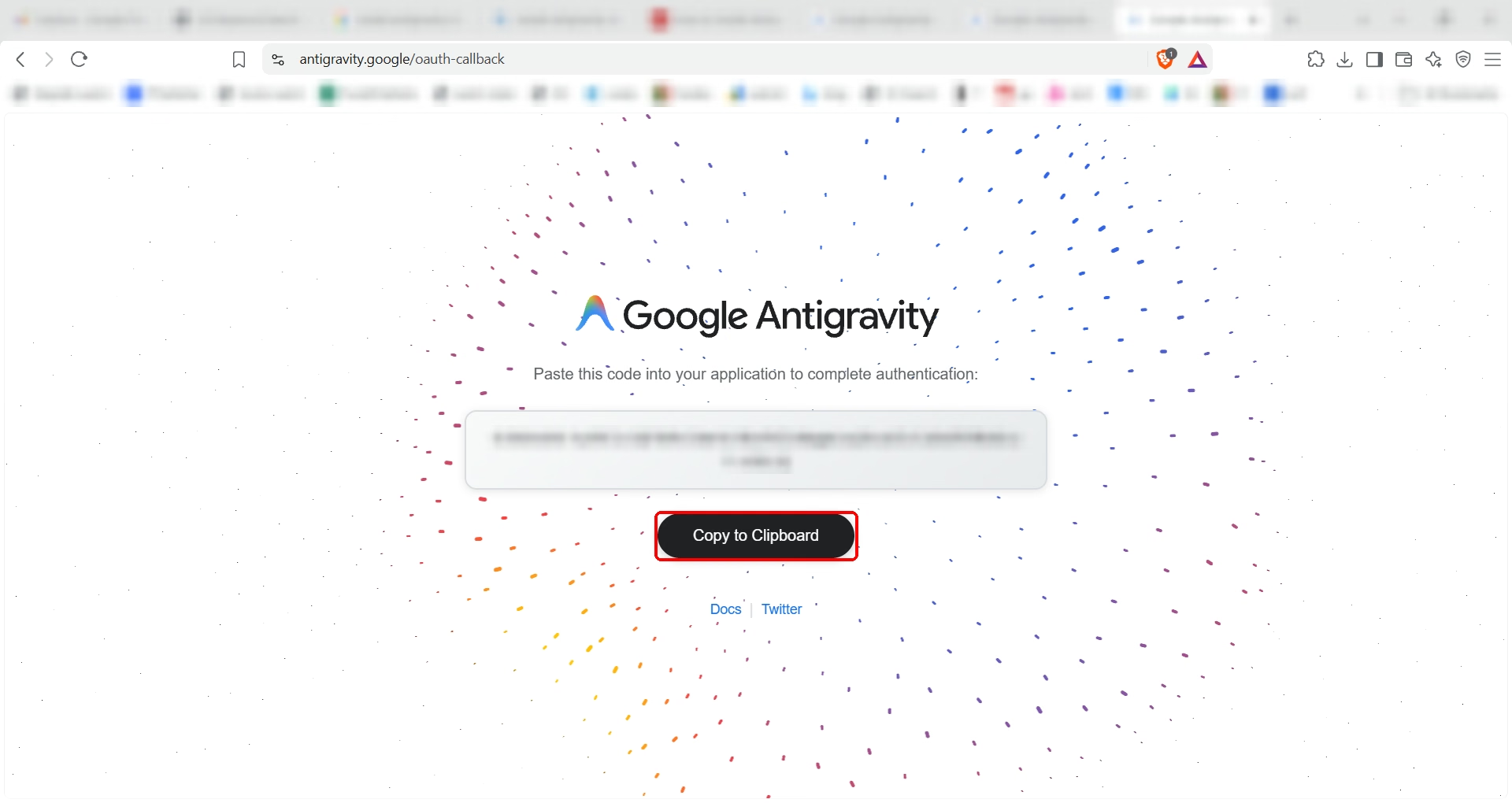
Windows stores the token in its credential manager, so you sign in only once.
Antigravity CLI Setup Wizard: Theme, Terms, and Data Sharing
After sign-in, a short wizard starts. The first screen asks for a color scheme. I chose dark because it reads clearly in screenshots.
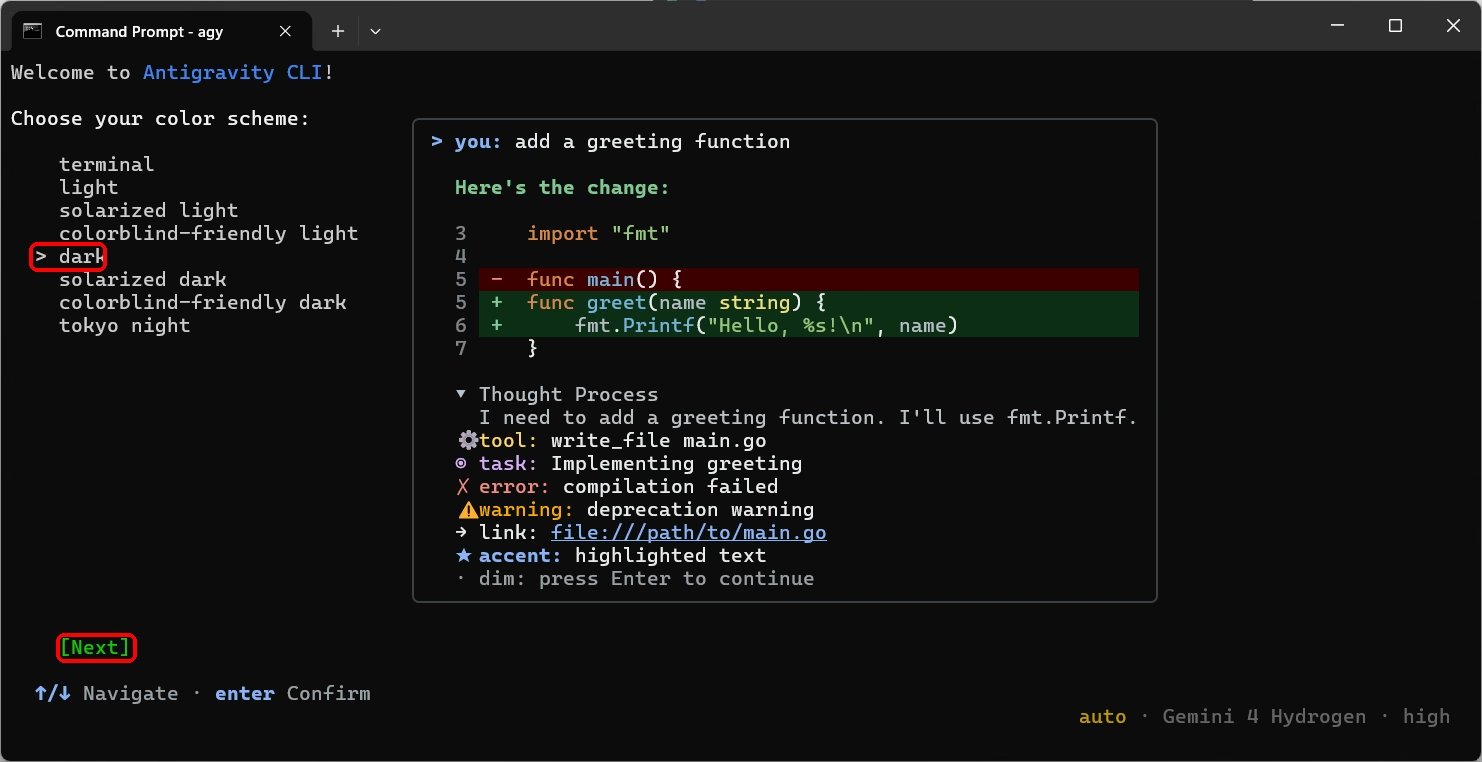
The next screen shows the Terms of Service and Data Use notice. Read the checkbox before you press Done. It starts ticked, and it lets Google collect your interaction data to improve the CLI. Press Enter on that line to untick it if you work on private or client code. You can change it later in settings.
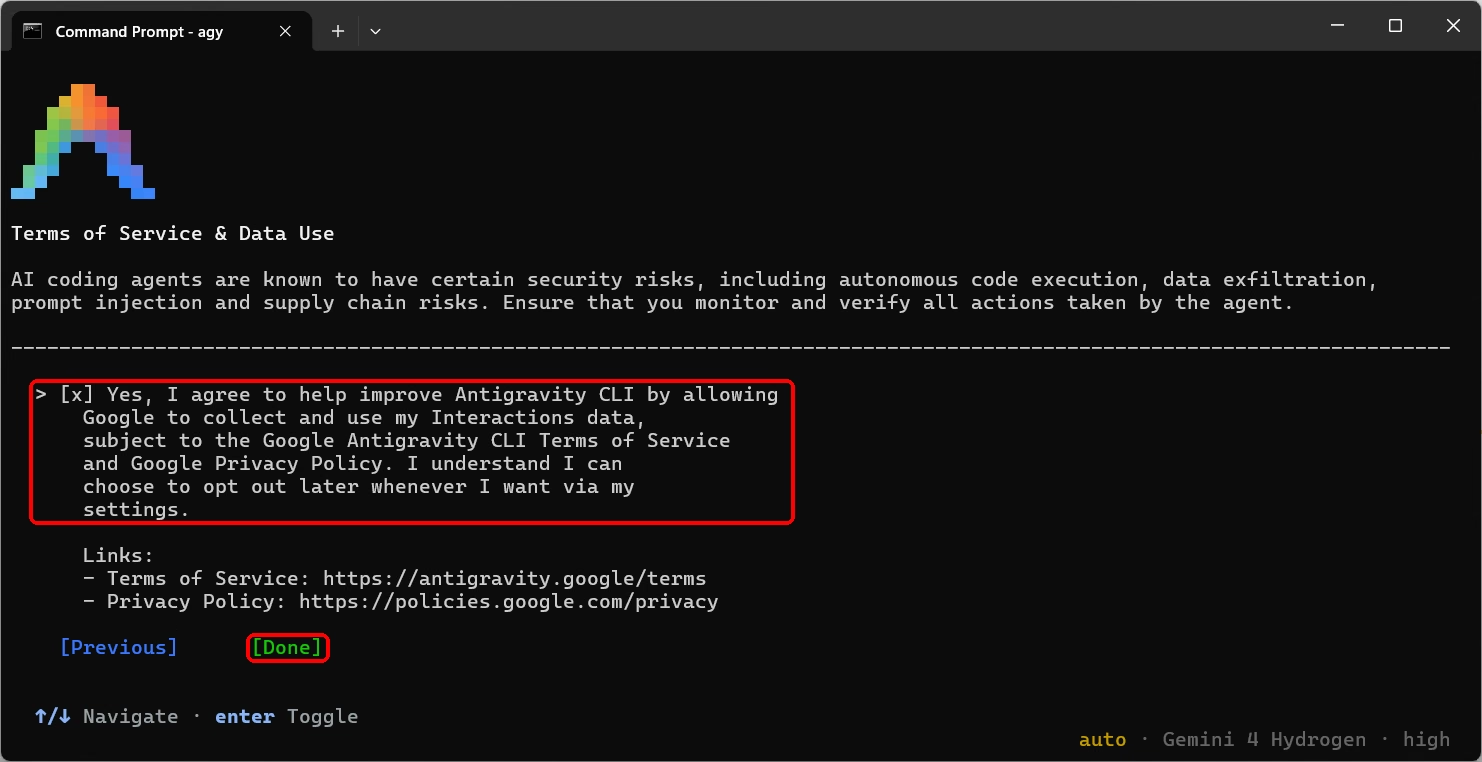
Select Done, and the main interface opens. The header shows your version, your account, and your active model.
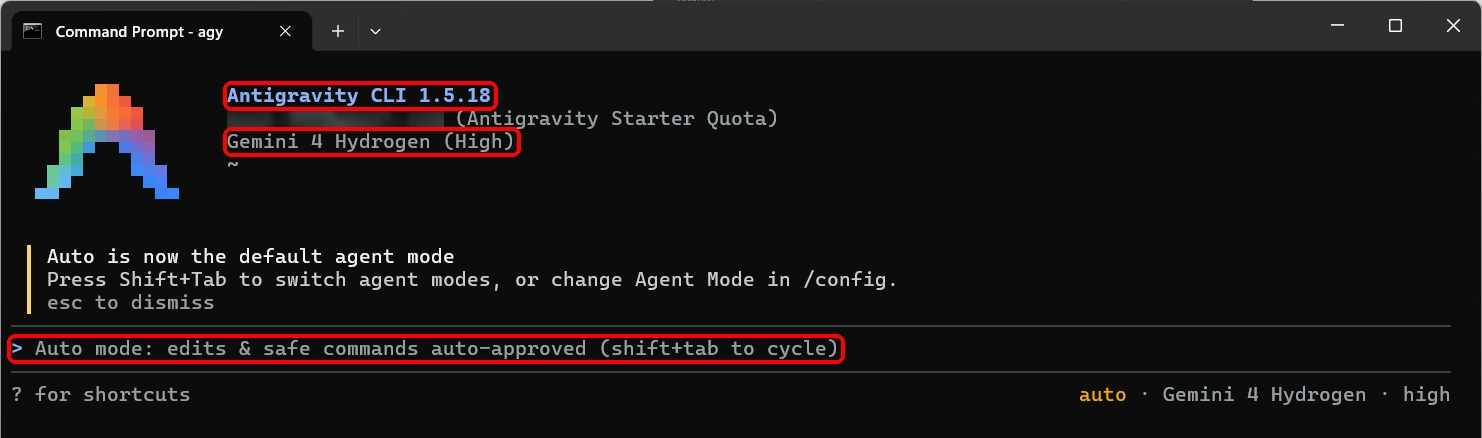
The default agent mode is Auto. It approves file edits and safe commands on its own and asks before anything irreversible. Press Shift + Tab to cycle through modes.
Switch Models and Check Antigravity CLI Usage Limits
Type /model to open the model picker. My list showed Gemini 4 Hydrogen as the current model, plus Gemini 3.8 Flash, Claude Sonnet 4.6, Claude Opus 4.6, and GPT-OSS 120B. A few Gemini 4 options appeared greyed out on my starter plan. Your list may differ.
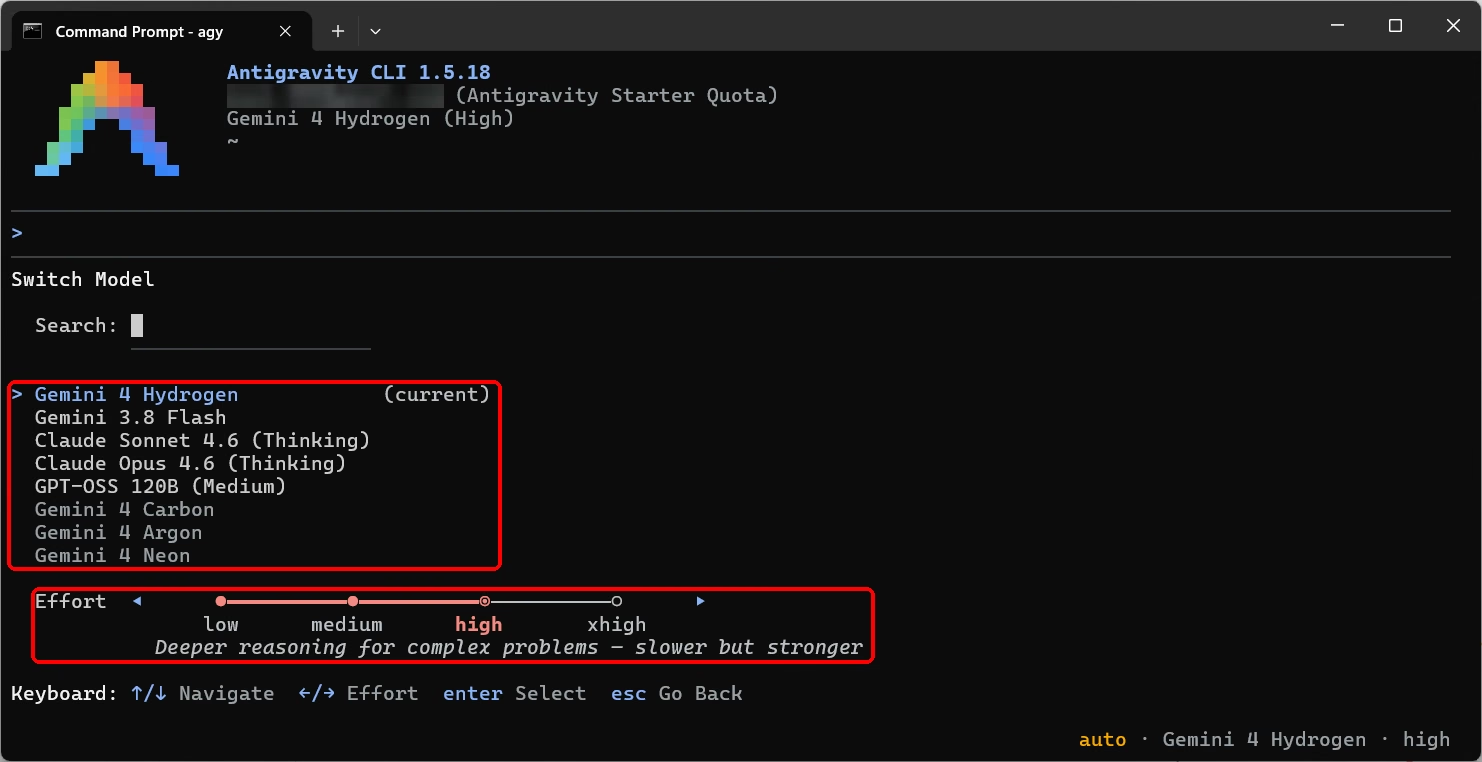
The picker also has an effort slider with four levels: low, medium, high, and xhigh. Use the left and right arrow keys to change it. Higher effort gives deeper reasoning but responds more slowly.
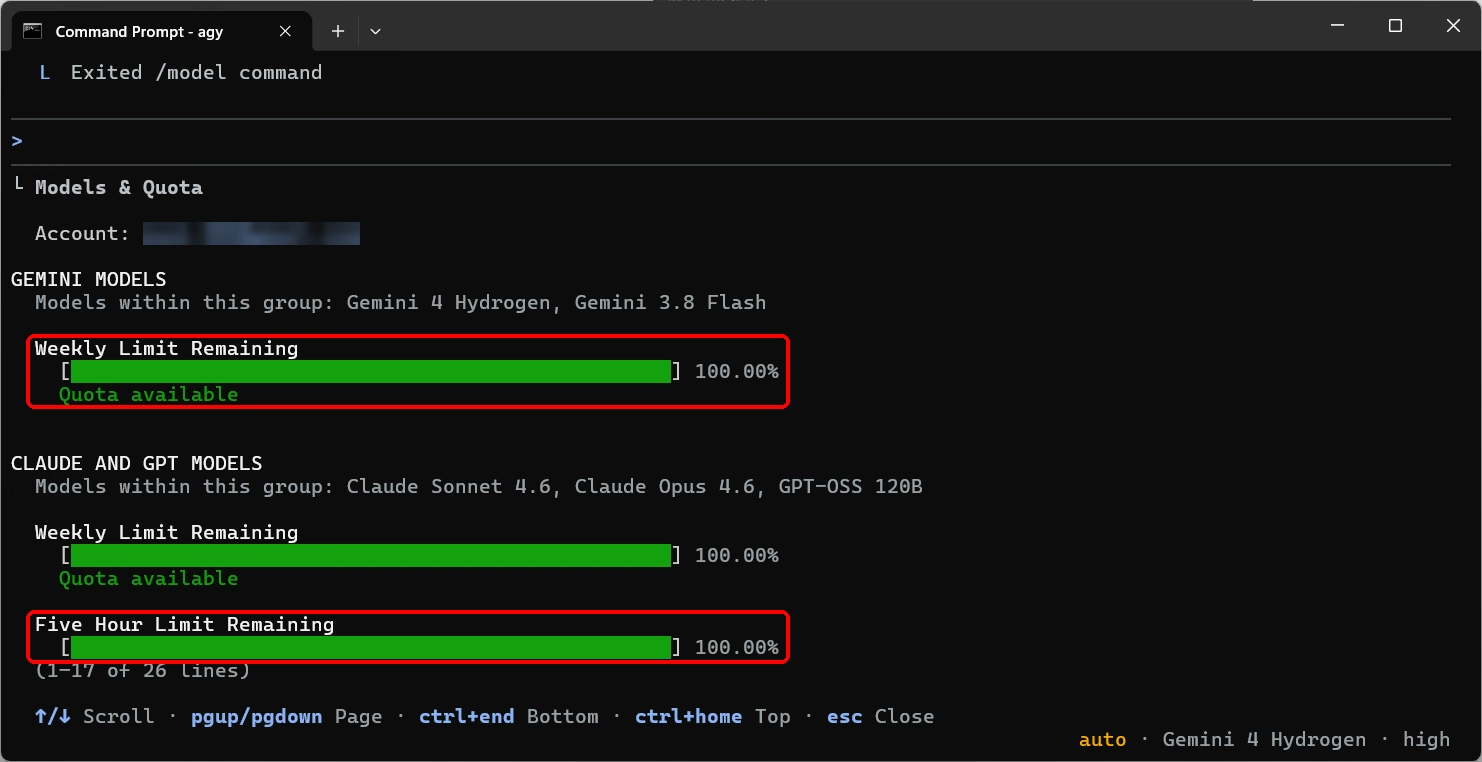
Type /usage to see your limits. Gemini models share a weekly limit. Claude and GPT models share a weekly limit and a five-hour limit, and the five-hour limit runs out first if you work heavily.
Run Your First Prompt in Antigravity CLI
Type a plain-English request at the prompt. I asked for a two-sentence explanation of a Go binary. The CLI showed a short thinking line and then the answer.
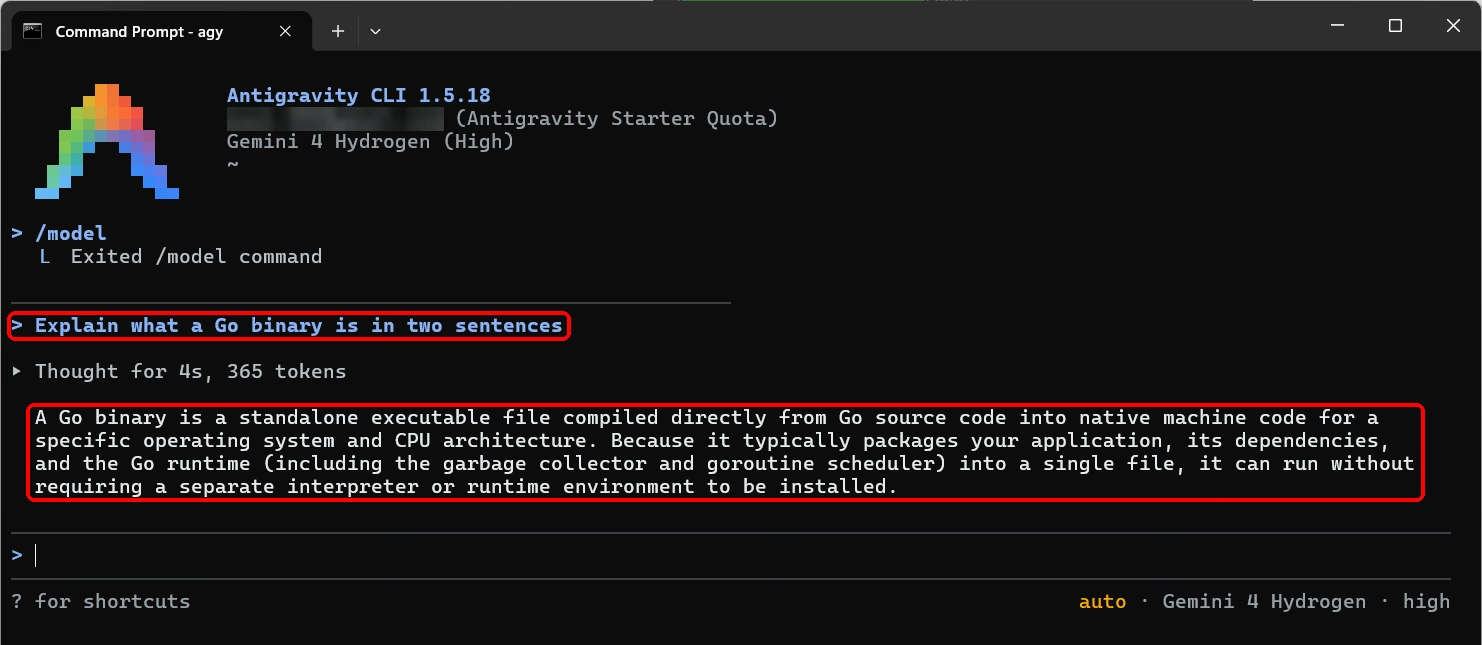
Shell commands such as cls do not work inside agy. The agent treats them as prompts and tells you it did not run them. Use your normal terminal for those.
Antigravity CLI Commands and Settings (/help, /config, agy --help)
Type /help for the version, workspace, and log file path.
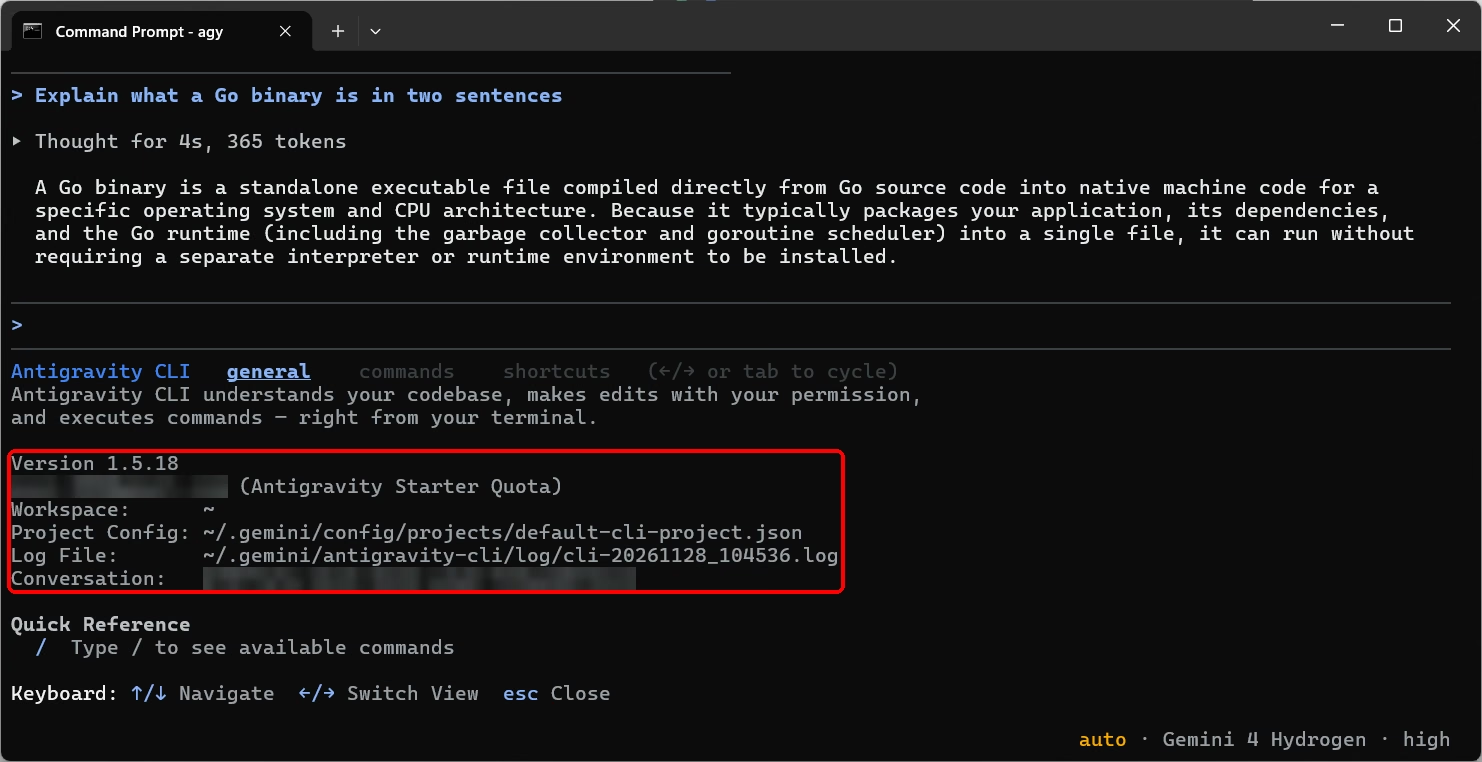
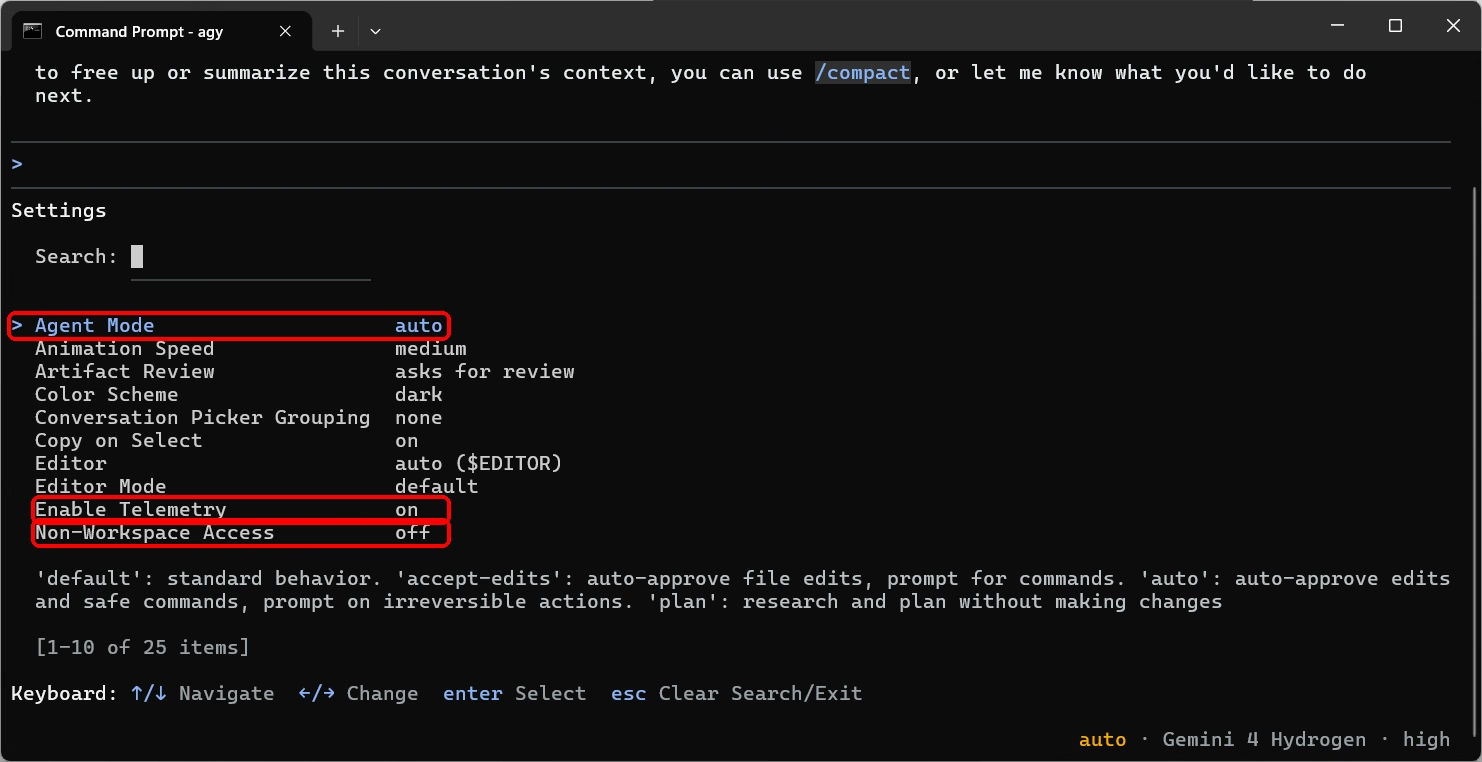
Type /config to open the settings list. Three settings matter most:
- Agent Mode sets how much the agent does without asking. The options are default, accept-edits, auto, and plan. Plan mode researches and proposes changes without touching your files.
- Enable Telemetry is on by default. Turn it off if you want less data sent.
- Non-Workspace Access is off by default, so the agent stays inside your project folder.
Exit the session and run agy --help to see every flag and subcommand. These are the ones I use most:
agy updateupdates the CLI.agy modelslists the available models.agy changelogshows release notes.agy mcpmanages MCP servers.agy pluginmanages plugins.--sandboxstarts a session with terminal restrictions turned on.--resumecontinues an earlier conversation.
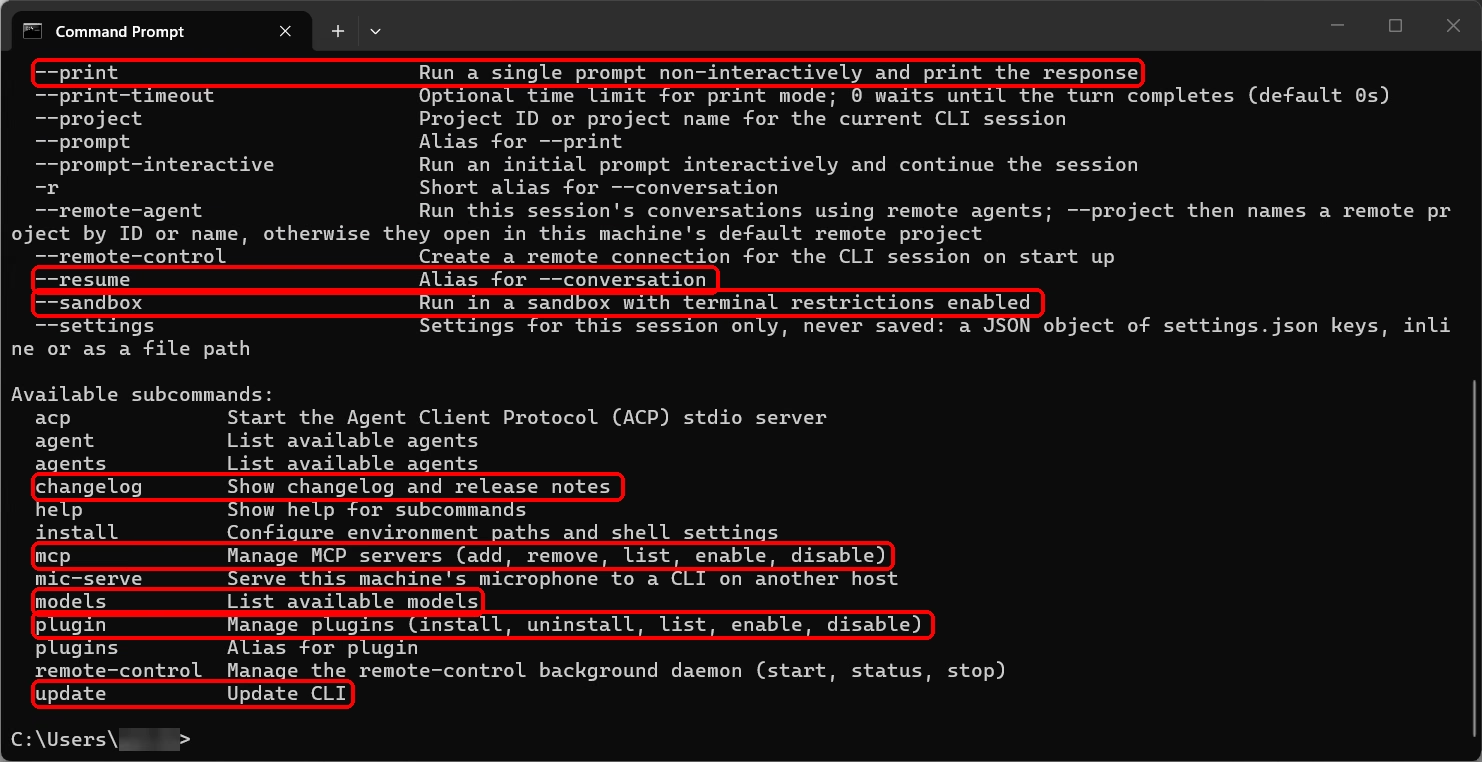
Use agy --print to Run One-Off Prompts
Use the --print flag for one-off questions. It runs one prompt, prints the answer, and returns you to your normal prompt:
agy --print "Summarize what a PATH variable is in one sentence"
The --prompt flag does the same thing. This mode works well inside scripts.
Use Antigravity CLI with a Gemini API Key
You can skip the Google account login and send requests straight to the Gemini API. Open ~/.gemini/antigravity-cli/settings.json and add this line:
{ "modelProvider": "gemini" }Then set the GEMINI_API_KEY environment variable to your key. The CLI skips the sign-in screen after that. If you set modelProvider to gemini but forget the key, the CLI exits at startup with an error. Remove the setting or add the key to fix it.
Frequently Asked Questions
How do I install Antigravity CLI on Windows 11?
Open PowerShell and run irm https://antigravity.google/cli/install.ps1 | iex. Then open a new terminal and type agy to start the CLI.
Why does Windows say agy is not recognized?
Your terminal started before the installer added the agy\bin folder to PATH. Close the terminal and open a new one. If the error stays, add C:\Users\YourName\AppData\Local\agy\bin to your user PATH manually.
Where does the installer put agy.exe?
It places the file at C:\Users\YourName\AppData\Local\agy\bin\agy.exe.
Is Antigravity CLI free to use?
My account showed a starter quota with weekly limits, so you can try it without paying. Limits and plans can change, so check /usage inside the CLI for your own numbers.
Does Antigravity CLI collect my data?
The Terms screen has a data-sharing checkbox that starts ticked, and telemetry is on by default in settings. You can untick the checkbox and turn telemetry off at any time.
Can I run Antigravity CLI without a Google account?
Yes. Set modelProvider to gemini in the settings file and export a GEMINI_API_KEY. The CLI then talks to the Gemini API directly.
How do I update Antigravity CLI?
Run agy update from any terminal.
Can I use Claude models inside Antigravity CLI?
Yes, if your plan includes them. Open /model and look for the Claude options. They draw from a separate quota with a five-hour limit.
Related Guides
- How to Install PowerShell 7.7 on Windows 11 Using Winget, Microsoft Store and MSIX (No MSI)
- Hermes Agent Windows Install: Tips, Tricks, and Best Practices Guide
- How to Install Microsoft Scout Agent on Windows and macOS
- How to Install and Use Claude Skills (Step-by-Step)
- How to Spot Fake AI Apps and Avoid Malware Before You Install