Microsoft released Windows 10 KB5087544 on May 12, 2026, as part of the May 2026 Patch Tuesday cycle. This update targets Windows 10 devices enrolled in the Extended Security Updates (ESU) program and raises the build to 19045.7291 on version 22H2 and 19044.7291 on version 21H2. Windows 10 KB5087544 patches 120 security vulnerabilities, resolves a Remote Desktop rendering bug introduced last month, and expands Secure Boot certificate delivery to more devices.
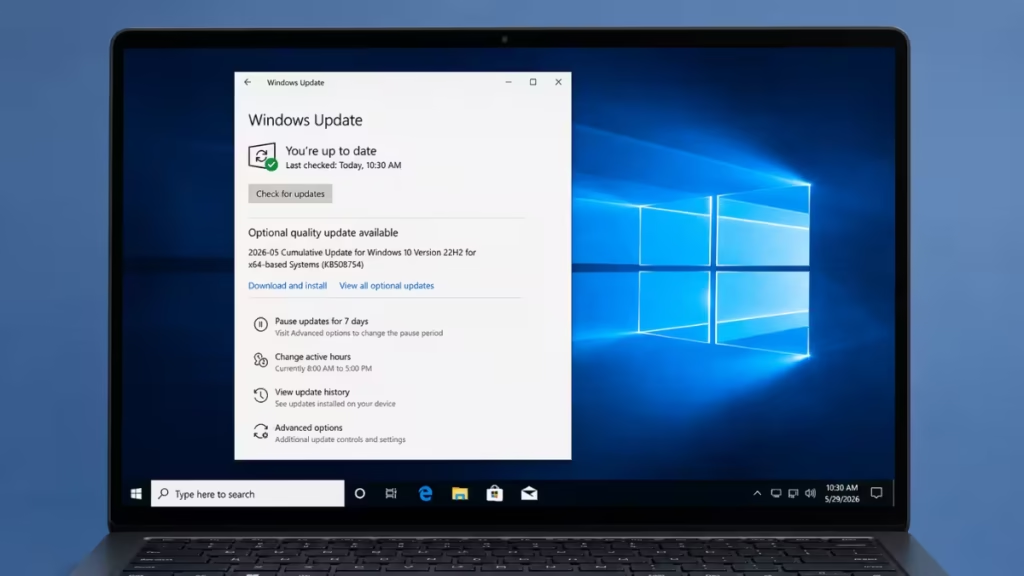
What Is Windows 10 KB5087544
Windows 10 KB5087544 is the May 2026 cumulative security update delivered through the Windows 10 ESU program. It is the sixth ESU update Microsoft has shipped since mainstream support ended on November 14, 2025.
Microsoft no longer adds new features to Windows 10. Every update released through the ESU channel focuses strictly on security patches and targeted bug fixes.
If you want to review what the previous ESU release covered, the KB5073724 Windows 10 update article breaks down those changes.
What’s New in Windows 10 KB5087544
Windows 10 KB5087544 Remote Desktop Fix
KB5087544 fixes a rendering bug introduced by the April 2026 security update (KB5082200). The Remote Desktop Connection security warning dialog was displaying incorrectly on multi-monitor setups where each monitor used a different display scaling setting. After installing KB5087544, the warning dialog renders correctly across all monitor configurations.
Secure Boot Certificate Updates
This update adds dynamic status reporting for Secure Boot states inside the Windows Security app. You can now check the current state of your Secure Boot certificates directly from the Security app without opening separate system tools.
Microsoft is also expanding Secure Boot certificate delivery to more devices. Quality updates now carry higher-confidence device targeting data, which increases the number of devices eligible to receive the new Secure Boot certificates automatically. Devices only receive the certificates after logging consistent successful update signals, keeping the rollout controlled and phased.
Important: Secure Boot certificates used by most Windows devices are scheduled to expire starting in June 2026. Devices that do not receive updated certificates before that date may fail to boot securely. Review Microsoft’s Windows Secure Boot certificate expiration guidance and act before June 2026.
If you start seeing Secure Boot-related entries inside the Windows Security app after this update and notice errors tied to the security health components, the SecurityHealthSSO.dll error (0xc000012f) guide explains how to resolve that problem.
Daylight Saving Time Update
KB5087544 includes a DST update for the Arab Republic of Egypt to comply with the government’s 2023 DST change order.
Known Issue: BitLocker Recovery Key Prompt After KB5087544
After installing KB5087544, some devices ask for the BitLocker recovery key on the first restart. This affects systems where all of the following conditions apply at the same time:
- BitLocker is enabled on the OS drive.
- The Group Policy “Configure TPM platform validation profile for native UEFI firmware configurations” is configured, and PCR7 is included in the validation profile (or the equivalent registry key is set manually).
- System Information (msinfo32.exe) reports Secure Boot State PCR7 Binding as “Not Possible.”
- The Windows UEFI CA 2023 certificate is present in the device’s Secure Boot Signature Database (DB).
- The device is not already running the 2023-signed Windows Boot Manager.
Microsoft confirms the BitLocker recovery key only needs to be entered once. Subsequent restarts do not trigger the recovery screen as long as the Group Policy configuration remains unchanged.
This configuration is almost exclusively found on enterprise devices managed by IT departments. Personal devices are unlikely to encounter this issue.
How to Work Around the BitLocker Issue Before Installing
Remove the Group Policy setting before you install KB5087544:
- Open Group Policy Editor (gpedit.msc) or the Group Policy Management Console.
- Navigate to Computer Configuration > Administrative Templates > Windows Components > BitLocker Drive Encryption > Operating System Drives.
- Find the policy named Configure TPM platform validation profile for native UEFI firmware configurations.
- Set it to Not Configured.
- Suspend BitLocker and then resume it to regenerate the default PCR bindings.
- Proceed with installing KB5087544.
Microsoft is working on a permanent fix and will provide additional guidance when it is ready.
How to Install Windows 10 KB5087544
Devices enrolled in the ESU program or running Windows 10 Enterprise LTSC can install KB5087544 through Windows Update:
- Open Settings on your PC.
- Go to Update and Security, then select Windows Update.
- Click Check for updates.
- Windows detects and downloads KB5087544 automatically.
- Restart your PC when prompted to complete the installation.
If Windows Update does not pick up the update, download the standalone installer directly from the Microsoft Update Catalog and run it manually.
Some users choose to disable Windows Update to avoid automatic restarts during work hours. If you manage your update schedule that way, apply KB5087544 manually as soon as possible given the 120 vulnerabilities it addresses.
Updates for Older Windows 10 Versions
Microsoft released separate May 2026 security updates for older Windows 10 versions alongside KB5087544:
| Version | KB Number | Build Number |
|---|---|---|
| 1809 (LTSC) | KB5087538 | 17763.8755 |
| 1607 | KB5087537 | 14393.9140 |
Both updates address the same Remote Desktop rendering bug, Secure Boot certificate improvements, and DST changes covered by KB5087544.
Update-Related Errors to Watch For After KB5087544
Cumulative updates sometimes surface driver conflicts or system incompatibilities that were previously dormant. If you experience new issues after installing KB5087544, these are the most common patterns:
Blue screen crashes: Security and kernel updates can expose existing driver problems. The DPC Watchdog Violation BSOD and VIDEO_DXGKRNL_FATAL_ERROR BSOD are two crashes that frequently appear after Windows updates because they often trace back to driver mismatches the update exposed.
Virtualization errors: If you run Hyper-V or another hypervisor on your machine, kernel-level updates can trigger virtualization stack issues. The Hypervisor Error BSOD guide covers how to diagnose and fix that crash.
Application launch failures: Updates occasionally affect how Windows resolves DLL dependencies. If any application throws a LoadLibrary failed with error 126 message after the update, that guide walks through the resolution steps.
Windows 10 End of Support and the ESU Program
The end-of-support dates for Windows 10 versions are:
- Version 21H2: Support ended June 13, 2023
- Version 22H2: Support ended October 14, 2025
- Windows 10 Enterprise LTSC 2021: Support ends January 12, 2027
- Windows 10 IoT Enterprise LTSC 2021: Support ends January 13, 2032
Devices running Windows 10 outside the ESU program receive no further security updates. Enrolling in the ESU program or upgrading to Windows 11 are the two supported options.
Users who upgrade and set up a dual boot environment often run into activation problems afterward. The Windows 11 Pro not activated after dual boot guide explains the specific steps to resolve that. Separately, if Windows is showing a “Your Windows license will expire soon” warning, that message can surface on ESU-enrolled systems when activation has lapsed and is unrelated to KB5087544 itself.
FAQs
What does KB5087544 fix in Windows 10?
KB5087544 fixes 120 security vulnerabilities, resolves a Remote Desktop Connection dialog rendering bug on multi-monitor setups with different display scaling, adds dynamic Secure Boot status reporting to the Windows Security app, and includes a DST update for Egypt.
Which Windows 10 builds does KB5087544 update?
KB5087544 updates Windows 10 version 22H2 to build 19045.7291 and Windows 10 version 21H2, including Enterprise LTSC 2021, to build 19044.7291.
Why is Windows asking for a BitLocker recovery key after installing KB5087544?
A known issue in KB5087544 triggers a BitLocker recovery prompt on devices with a Group Policy configuration that includes PCR7 in the TPM validation profile. The prompt only appears on the first restart after installation. Removing that Group Policy setting before installing the update prevents the prompt.
Can I install KB5087544 without enrolling in the ESU program?
No. KB5087544 is only available to devices enrolled in the Windows 10 Extended Security Updates program or running Windows 10 Enterprise LTSC.
Is KB5087544 safe to install?
Yes. KB5087544 is a Microsoft-released security update and is safe to install. The only known issue affects enterprise devices with a specific BitLocker Group Policy configuration. Personal devices not managed by an IT department are not affected.

