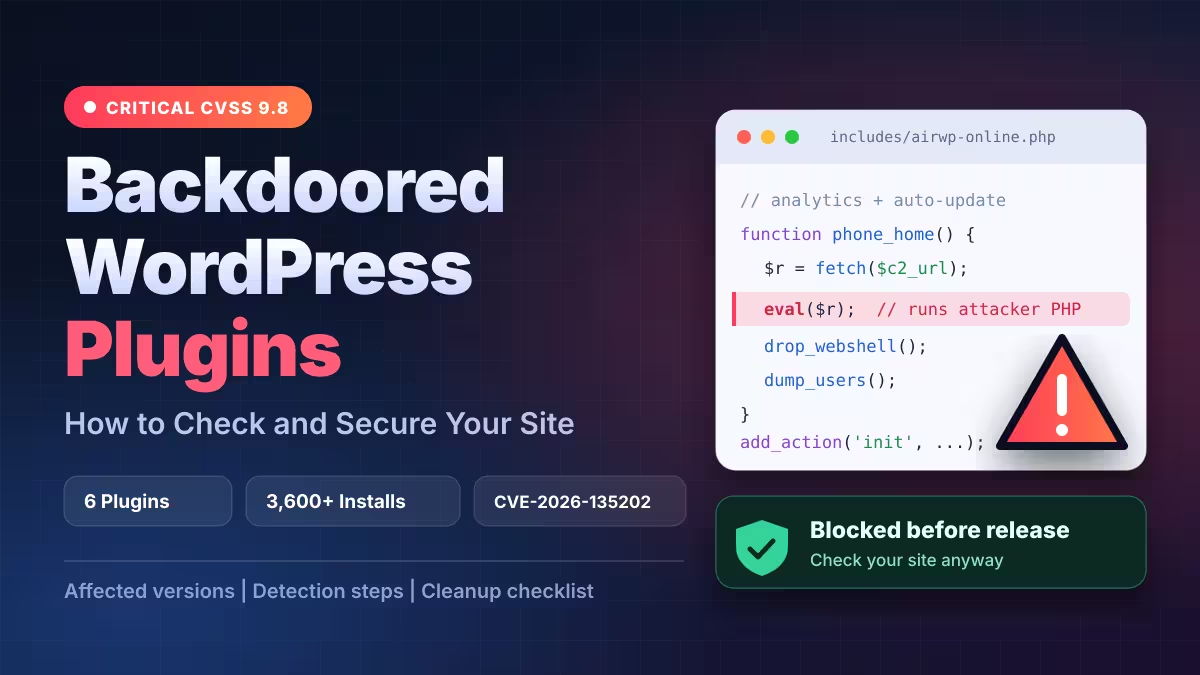
Attackers slipped a remote-control backdoor into six WordPress plugins from the developer WP Connect on November 22. The plugins connect WordPress with tools like Airtable, Notion, Brevo, Gravity Forms, Contact Form 7, and WooCommerce. WordPress.org stopped the poisoned releases before they reached the public update channel, so most site owners are safe. You still need to spend a few minutes confirming that your site is one of them.
This guide shows you which plugins and versions matter, how to check your site, what to do if you find a problem, and how to harden your setup against the next supply chain attack.
What Happened to the WP Connect Plugins (CVE-2026-135202)
Someone pushed malicious updates to six plugins through the developer's own WordPress.org account. Security researchers believe the account was compromised, because the code looks deliberate and no one would add it by accident. The attacker published the changes within about two hours.
Wordfence tracks the issue as CVE-2026-135202 with a critical severity score of 9.8. Together, the six plugins have more than 3,600 active installations. That number shows how far the plugins reach, not how many sites the attacker infected. No one has reported a confirmed site takeover so far.
WordPress.org closed all six plugins the same evening. Each plugin page now says the closure is permanent, and no patched version exists.
Which WordPress Plugins Are Backdoored? Full List of Affected Versions
Check your site against this list. The release before each affected version is clean.
- Air WP Sync (Airtable to WordPress): versions 2.9.1 to 2.9.4
- WP Sync for Notion: version 1.7.4
- Add-on Brevo for Gravity Forms: version 2.6.3
- Add-On for Contact Form 7 to Airtable: version 2.5.4
- Add-On for Contact Form 7 to Notion: version 1.6.4
- Orders Sync to Airtable for WooCommerce: version 1.0.2
The plugin folder slugs are air-wp-sync, wp-sync-for-notion, addon-gravityforms-sendinblue-free, add-on-cf7-for-airtable, add-on-cf7-for-notion, and orders-sync-to-airtable-for-woocommerce.
How to Check If Your WordPress Site Has the Backdoor
Work through these steps in order.
Step 1: List your installed plugins
Open Plugins > Installed Plugins in your WordPress dashboard and look for any of the six names above. If you use WP-CLI, run this command instead:
wp plugin listIf none of the six plugins appear, you have nothing to fear from this incident. If one appears, note its version number and compare it with the list above.
Step 2: Look for the backdoor file
Every tainted release added one new PHP file. Search your plugin folders for it:
find wp-content/plugins -name "airwp-online.php"Any result means the malicious module exists on your server. The file calls itself an analytics and update helper, which makes it easy to ignore.
Step 3: Check the other warning signs
Even if the plugin is gone, look for traces the backdoor may have left behind:
- Database options: entries in your
wp_optionstable that start withairwp_ - Scheduled tasks: WP-Cron events named
airwp_tickorairwp_persist_tick, or any hourly task you do not recognize - Unexpected files: PHP files inside
wp-content/uploads/, a folder that should hold images and documents only - Outbound traffic: requests from your server to
tascredit-pay[.]comin your firewall, proxy, or DNS logs - User agent: outbound HTTP requests that identify as
AirWP-Syncand claim to be GoogleBot-compatible
Remove the brackets from the domain when you search your logs. The brackets only keep the address from turning into a live link.
What the Backdoor Can Do to Your Website
The malicious module loaded on every page request, including visits from anonymous users. It also used a WP-Cron check-in every 30 minutes as a backup trigger. Each time it ran, it sent your site address, PHP version, WordPress version, operating system, and server account name to the attacker's server.
The server then replied with PHP code, and the module ran that code with full WordPress privileges. The developers also switched off TLS certificate checks for this connection, which lets anyone who intercepts the traffic hijack it too.
On top of that, the attacker could queue commands to:
- Run shell commands on your server
- Read, write, or delete any file
- Query any database table
- Export your users table, including usernames, email addresses, and password hashes
- Plant a webshell in your uploads folder or another path
- Register an hourly cron job that runs the attacker's code
Password hashes are not plain passwords, but attackers can crack weak ones offline. A webshell and a cron job also survive after you delete the plugin, so removing the plugin alone does not end the attack.
Why WordPress Blocked the Malicious Updates Before Release
WordPress.org launched a safety program called Protect The Shire earlier this year. It adds a waiting period before new plugin releases reach automatic updates. During that window, an automated reviewer named Gandalf scans the new code. Gandalf spotted the malicious module on its own and halted all six releases.
That means a site only has a problem if it somehow installed one of the bad versions during the short time the files sat in the repository. Sites that run automatic updates should still verify, because a quick check costs almost nothing.
How to Remove the Backdoor and Clean Your Infected Site
If you installed an affected version, treat the site as a hacked website and act in this order:
- Take the site offline or into maintenance mode if you can, so the backdoor stops talking to its server.
- Delete the plugin completely through the dashboard or by removing its folder. No fixed version exists, so do not downgrade or wait for a patch.
- Run a full malware scan with a security plugin or your host's scanner, and delete every malicious file it finds.
- Check
wp-content/uploads/by hand for PHP files, and remove any you did not upload. - Delete the leftover cron events and
airwp_database options from the warning signs above. - Reset all administrator and user passwords, and force a logout for every session.
- Replace your WordPress secret keys and salts in
wp-config.php. - Rotate every credential the site stores, including database passwords (match
wp-config.phpto avoid a database connection error), API keys, and the Airtable, Notion, or Brevo tokens these plugins held. - Restore from a clean backup made before November 22 if the scan leaves any doubt.
- Replace the plugin with an actively maintained alternative for the same job.
How to Protect WordPress From Plugin Supply Chain Attacks
You cannot prevent a plugin vendor breach, but you can limit the damage when it happens.
- Delay updates for a short time. Wait a day or two before you install new releases on important sites. Most poisoned updates get caught within hours.
- Keep fewer plugins. Each plugin adds risk. Remove any you do not actively use.
- Test updates on a staging copy first. A staging site shows odd behavior before your real visitors see it.
- Watch outbound connections. A firewall that blocks unknown outgoing requests stops many backdoors from reaching their server.
- Scan on a schedule. Run a malware scanner weekly and after every plugin change.
- Keep offsite backups. A clean backup turns a disaster into an inconvenience.
- Use unique passwords and two-factor authentication on your own WordPress.org and hosting accounts, since the same weakness hit this developer.
- Limit file permissions. Block PHP execution inside the uploads folder so a planted webshell cannot run.
- Remove abandoned plugins. Closed plugins no longer get fixes, so replace them instead of leaving them in place.
Frequently Asked Questions
Is my site hacked if I use one of these plugins?
Not necessarily. The poisoned versions never went out through the normal update channel. Check your version number and search for the airwp-online.php file. If neither shows up, your site is clean.
Does deleting the plugin remove the backdoor?
Not always. The malware could plant a webshell and a recurring cron job that keep running after the plugin disappears. Scan the whole site, and check the uploads folder and scheduled tasks too.
Is there a patch for CVE-2026-135202?
No. The code was added on purpose, so there is no bug to fix. WordPress.org closed the plugins permanently. Uninstall them and switch to a maintained alternative.
Does this affect sites that do not run these plugins?
No. Only the six WP Connect plugins carried the backdoor. Other plugins from other developers are not part of this incident.
What should I change if the backdoor ran on my server?
Change all admin passwords, regenerate your WordPress secret keys, and rotate your database and API credentials. Include any Airtable, Notion, or Brevo tokens, because the plugins stored them on your site.
Why did the backdoor use my site's regular visitors as a trigger?
The module hooked into WordPress at startup, so any page view, even from an anonymous visitor, made it run. That design let the attacker control the site without logging in.
Related Guides
- How to Fix a Hacked Website: Step-by-Step Malware Cleanup, Recovery and Prevention Guide
- PHP2Shell WordPress Check: How to Test if Your Site Is Exposed and Fix It
- PHP2Shell Exploit Attempts Hit Millions as Attackers Try to Deploy Mirai Malware: What PHP Site Owners Must Patch Now
- Rank Math PRO Malware: How to Check, Clean and Secure Your WordPress Site (CVE-2026-111862)
- WordPress Plugin Vendor Breach: How to Protect Your Site After a Credential Leak