Windows Update bundles AI components with security patches. You cannot separate them during the install. What you can do is update normally and then remove the AI layer immediately after, using only tools built into Windows 11.
This guide covers 9 areas where Microsoft pushes AI into Windows 11 and how to clean each one up.
1. Remove the Copilot App and Clean Up Windows Search
Start with the Copilot app itself, since uninstalling it clears several AI touchpoints at once, including the Taskbar icon, the “Ask Copilot” right-click option in File Explorer, and the “Share with Copilot” hover button on open apps.
Uninstall Copilot:
- Go to Settings > Apps > Installed Apps.
- Search for Copilot, click the three dots next to it, and select Uninstall.
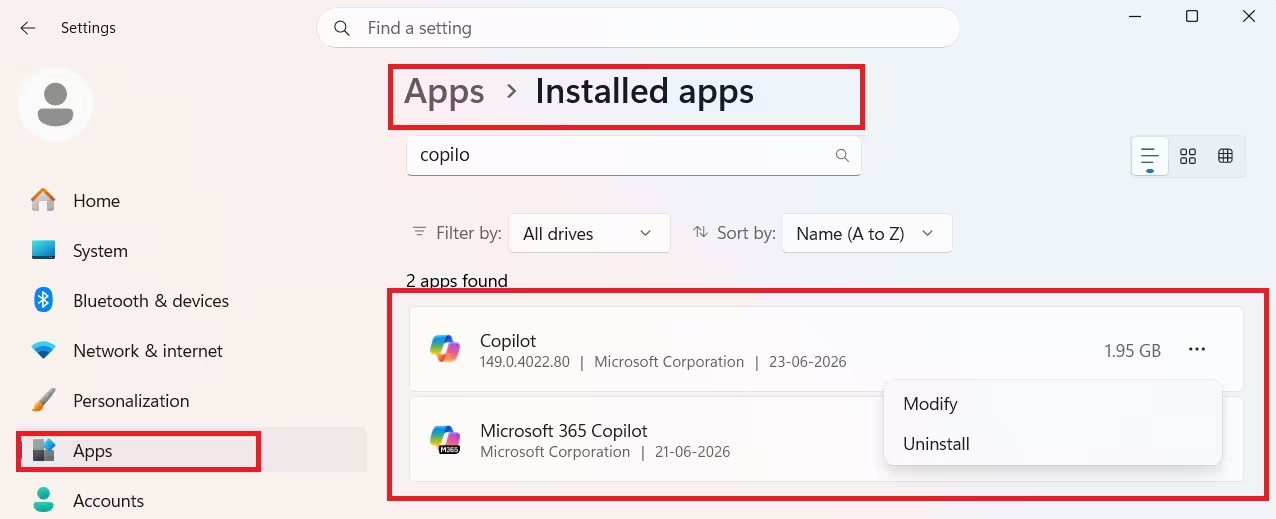
- Do the same for Microsoft 365 Copilot, which appears as a separate entry.
Uninstalling the app does not remove the Copilot logo from Windows Search. A Registry edit fixes that.
Remove Copilot from Windows Search:
- Press Win+R, type
regedit, and press Enter. - Navigate to:
HKEY_LOCAL_MACHINE\SOFTWARE\Policies\Microsoft\Windows - Look for a key named Explorer. If it does not exist, right-click the Windows key and select New > Key. Name it
Explorer. - Inside Explorer, right-click the empty right panel and select New > DWORD (32-bit) Value.
- Name it
DisableSearchBoxSuggestions, double-click it, and change the Value data from 0 to 1. Click OK. - Restart your PC.
This also removes Trending searches, Top apps, and other Microsoft suggestions from the Search panel.
2. Disable All AI Features in Microsoft Edge
Edge carries Copilot in at least three places: the toolbar button, the writing assistant, and Copilot Mode, which includes Copilot Journeys and Copilot Actions.
- Open Edge and press Alt+F, then click Settings.
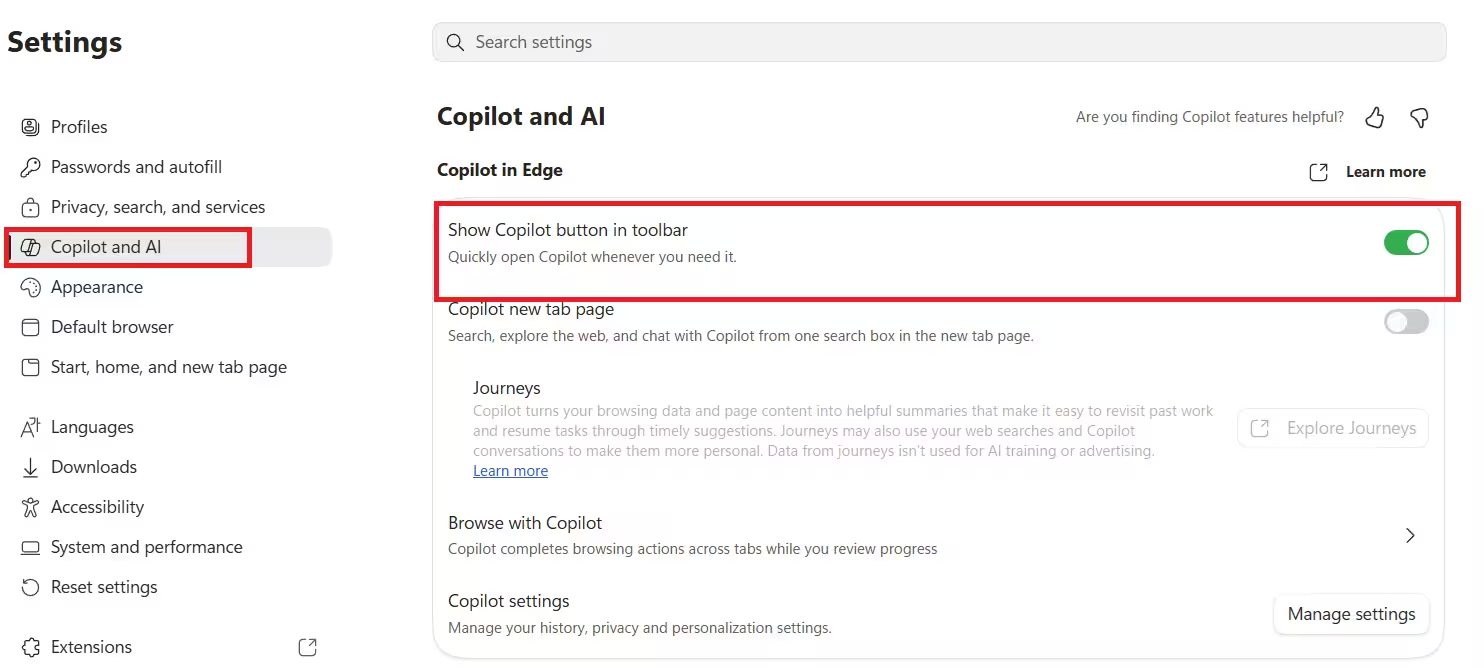
- Go to Appearance > Copilot and sidebar > Copilot.
- Turn off Show Copilot button on the toolbar and disable all other toggles on this page.
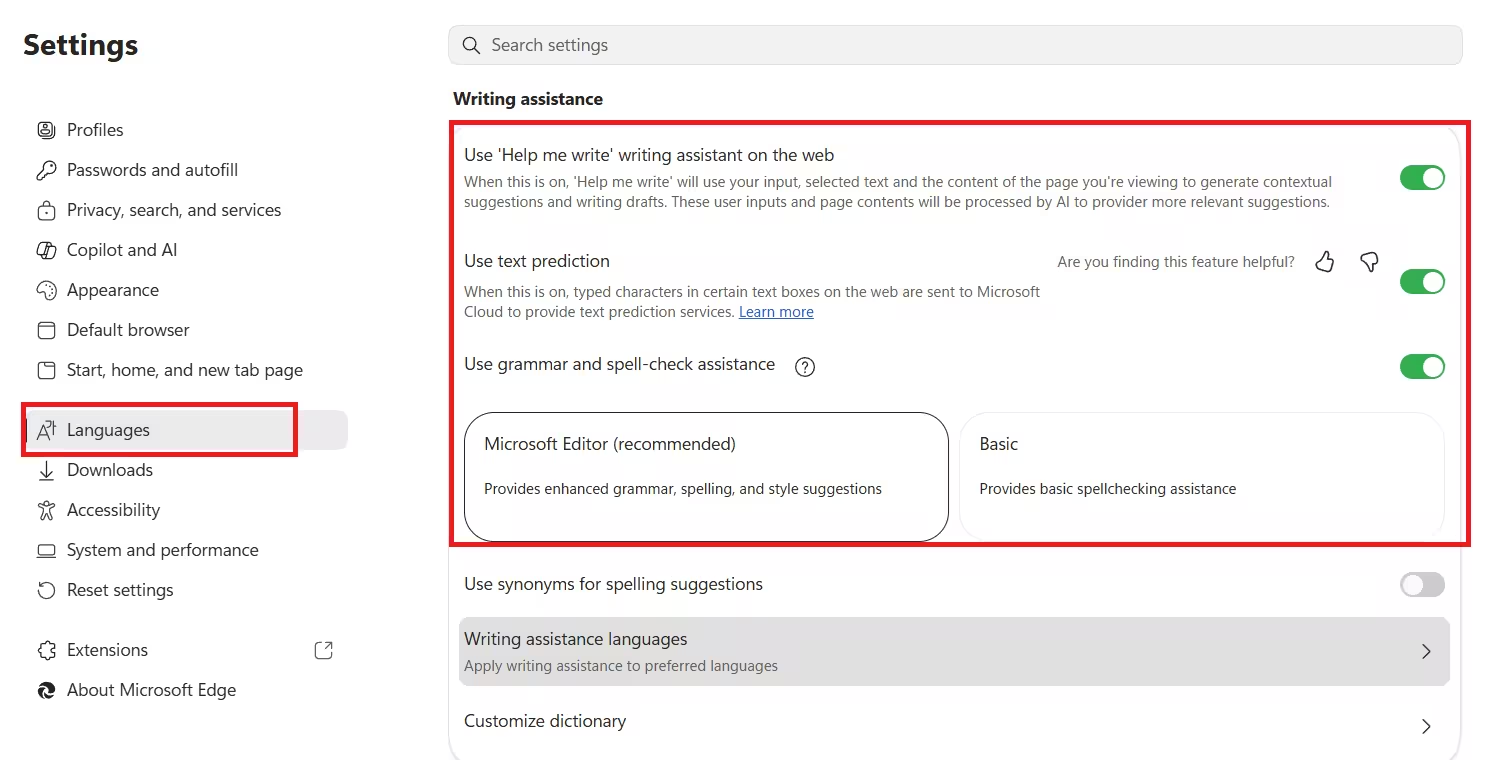
- Go to Settings > Languages and turn off Use Copilot for writing on the web.
- Go to Settings > AI innovations and turn off Copilot Mode.
These steps also remove the “Ask Copilot” option that appears when you select text while browsing.
3. Turn Off AI in Notepad and Paint
Both Notepad and Paint now carry Copilot integrations. Notepad is simpler to fix. Paint requires a Registry or Group Policy edit.
Notepad:
- Open Notepad and click the Settings icon in the top-right corner.
- Under AI Features, turn off the Copilot toggle.
Paint (via Registry Editor):
- Press Win+R, type
regedit, and press Enter. - Navigate to:
HKEY_LOCAL_MACHINE\SOFTWARE\Microsoft\Windows\CurrentVersion\Policies\PaintIf the Paint key does not exist, right-click Policies, select New > Key, and name itPaint. - Inside the Paint key, right-click the right panel and select New > DWORD (32-bit) Value.
- Create these three values and set each to 1:
DisableImageCreatorDisableGenerativeFillDisableCocreator
- Restart Paint.
Paint (via Group Policy on Pro, Enterprise, or Education):
- Press Win, type
gpedit.msc, and open it. - Navigate to Computer Configuration > Administrative Templates > Windows Components > Paint.
- Enable Disable Cocreator, Disable generative fill, and Disable Image Creator one by one.
- Restart your PC.
Note: Generative Erase and Remove Background in Paint currently have no official disable method.
4. Replace the Photos App with Photos Legacy
The modern Windows Photos app includes Copilot features like Background Erase, Object Remover, and Generative AI tools. Microsoft still offers the classic Photos Legacy app as a replacement.
Install Photos Legacy:
- Open the Photos app and click the Settings icon.
- Scroll down and click Get Photos Legacy.
- Install it from the Microsoft Store.
Uninstall the Modern Photos App:
- Go to Settings > Apps > Installed Apps.
- Find Photos, click the three dots, and select Uninstall.
Set Photos Legacy as Default:
- Go to Settings > Apps > Default apps.
- Find Photos Legacy and assign it as the default for all image file types.
5. Remove AI Actions from File Explorer
Right-clicking an image in File Explorer shows an AI Actions submenu with options like Visual Search, Blur Background, and Erase Objects.
- Open Settings > Apps > Actions.
- Turn off the toggle for every app listed, including Paint, Photos, Teams, and Microsoft 365 Copilot.
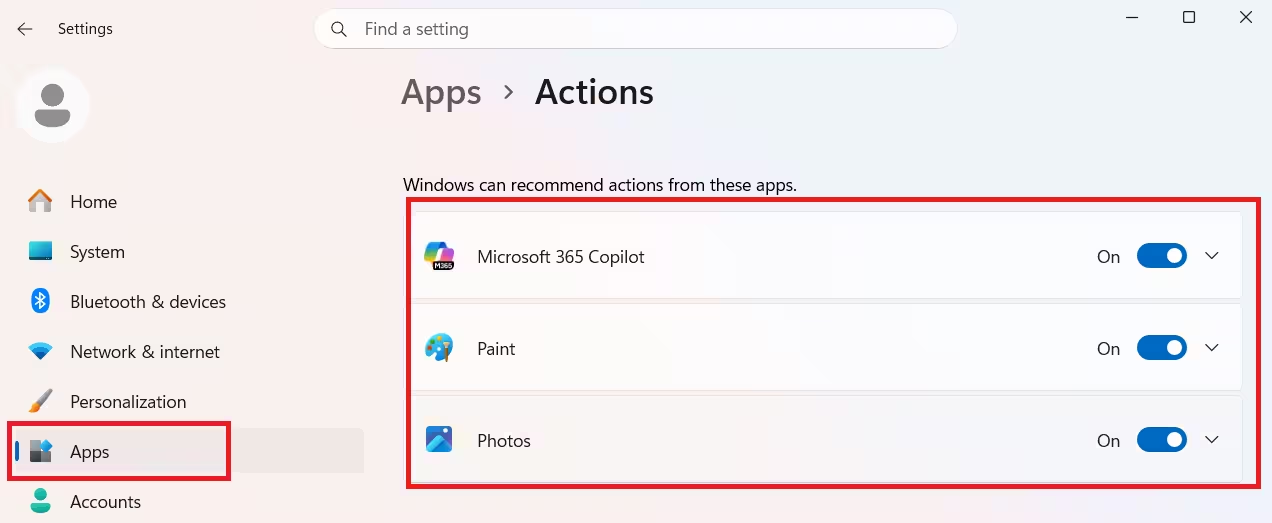
Microsoft confirmed that once all AI Actions are disabled, the AI Actions label stops appearing in the context menu entirely. This change is still rolling out, so for now the label may remain but show “No actions available” when hovered.
6. Disable AI in Outlook and OneDrive
Outlook:
Outlook analyzes your email content to power connected experiences. To stop this:
- Open Outlook and go to Settings > General > Privacy and data > Privacy settings.
- Turn off Turn on experiences that analyze your content.
- Turn off Send optional diagnostic and usage data to Microsoft and Turn on experiences that download online content as well.
If you have a Microsoft 365 subscription, Outlook also shows a Copilot button in the ribbon:
- Click the Settings icon in Outlook and select Copilot at the bottom of the list.
- Turn off Turn on Copilot.
OneDrive:
OneDrive uses AI to scan and tag faces in your backed-up photos:
- Open the OneDrive app, click the gear icon, and select Settings. This opens in your browser.
- Click Photos and turn off Use tags to find and organize photos.
7. Disable Windows Recall
Windows Recall captures continuous screenshots of your screen and indexes them using on-device AI. It runs only on Copilot+ PCs with a compatible NPU and stays disabled by default. However, its components remain on your system until you remove them manually.
Via Settings (Recommended):
- Go to Settings > System > Optional features > More Windows features.
- Find Recall in the list, uncheck it, click OK, and restart.
Via PowerShell:
- Open PowerShell as administrator.
- Run:
Disable-WindowsOptionalFeature -Online -FeatureName "Recall" - Restart when prompted.
Via Command Prompt:
- Open Command Prompt as administrator.
- Run:
Dism /online /Disable-Feature /FeatureName:"Recall" - Restart your PC.
8. Remove Gaming Copilot from Xbox Game Bar
Gaming Copilot appears as a banner inside Xbox Game Bar (Win+G) and offers in-game AI strategy suggestions.
- Open Xbox Game Bar with Win+G.
- In the Gaming Copilot panel, click Settings, then Privacy settings.
- Turn off all toggles to stop data collection.
- Close the Gaming Copilot widget.
- Click the Settings icon in Game Bar, select More settings, then click Widgets.
- Turn off the toggle for Gaming Copilot.
While you are here, also turn off Microsoft Edge Game Assist from the same Widgets panel.
9. Disable Copilot+ Only Features: Studio Effects and Click to Do
These two features only appear on Copilot+ PCs with a qualifying NPU.
Windows Studio Effects enhances video and audio using AI, including Background Blur, Eye Contact, Auto Framing, Voice Focus, and Creative Filters:
- Go to Settings > Bluetooth and devices > Cameras.
- Select your active camera and click Edit under Advanced camera options.
- Turn off Use Windows Studio Effects and click Apply.
Click to Do sends selected text, images, or screenshots directly to Copilot for AI actions:
Via Settings:
- Go to Settings > Privacy and security.
- Find Click to Do and turn the toggle Off.
Via Group Policy (Pro and higher):
- Press Win+R and type
gpedit.msc. - Navigate to Computer Configuration > Administrative Templates > Windows Components > Windows AI.
- Find Click to Do, set it to Disabled, click Apply, and restart.
After Every Major Windows Update
Microsoft re-pushes Copilot-related components through Windows Update. After each feature update, check:
- Whether the Copilot app reinstalled itself under Settings > Apps.
- Whether the Copilot Taskbar icon came back.
- Whether Registry values still hold their settings.
Group Policy offers the most durable protection on Pro and higher editions because it survives updates. Windows Home users rely on the Registry method and need to recheck after major updates.
Before editing the Registry, create a restore point at Settings > System > Recovery to protect your system.

