Public Wi-Fi risks on Windows start before you open a browser. Your laptop joins networks by name, answers name lookups from strangers, and keeps sharing services running in the background. An attacker in the same cafe, hotel, or airport needs only one of those habits to get a foothold.
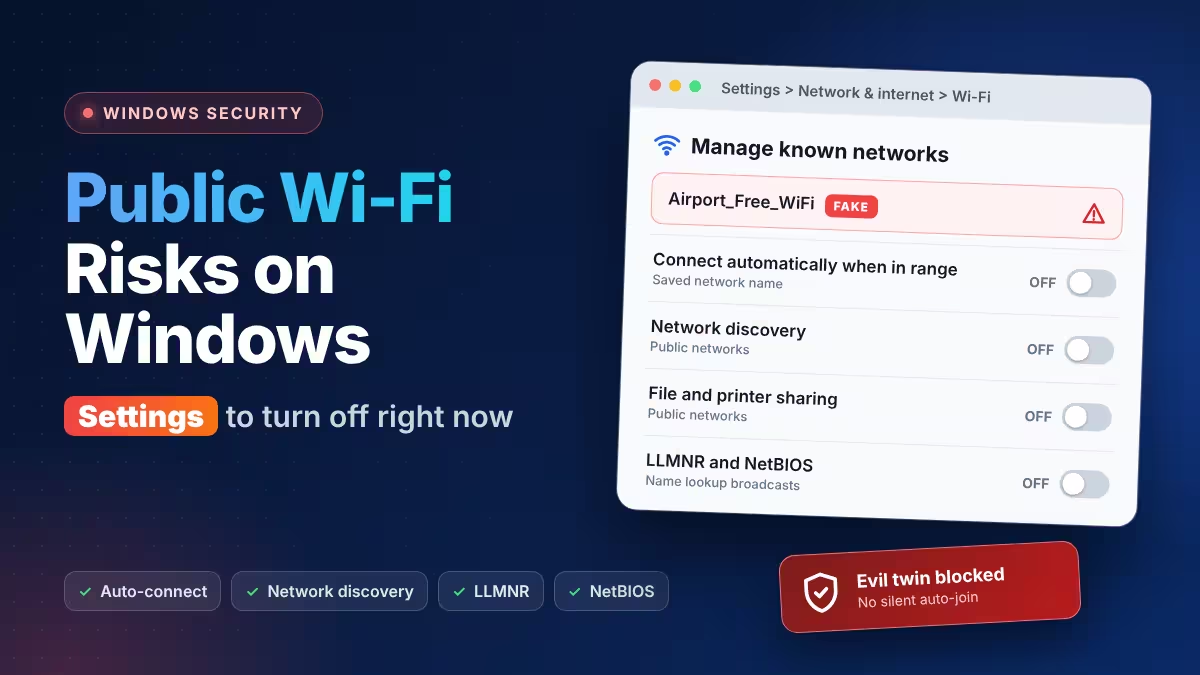
You can close most of these doors in about ten minutes. This guide walks you through the Windows settings to turn off right now: auto-connect, network discovery, file sharing, LLMNR, NetBIOS, and two background services most people never use.
Why Does Windows Auto-Connect to Public Wi-Fi Networks?
Windows saves every Wi-Fi network you join. When it sees the same network name again, it reconnects on its own. The system checks the name, not the owner of the network.
That shortcut works at home. In an airport, hotel, or cafe, it gives anyone a way in. An attacker can broadcast "Airport_Free_WiFi" or "Hotel_Guest" from a cheap hotspot. If your laptop saved a network with that name before, it connects to the fake one without a prompt.
Attackers call this setup an evil twin. They often boost the signal so your laptop prefers the fake network over the real one. The connection can also happen before your VPN or security software starts, so protection arrives too late.
What Can Hackers Do If Your Windows Laptop Joins a Fake Wi-Fi Hotspot?
A fake hotspot puts the operator between your laptop and the internet. From there, an attacker can:
- Send you to a fake login page that copies your email or bank
- Watch which sites you visit
- Remove protection from pages that handle encryption poorly
- Collect passwords you type into weak pages
- Push you toward a fake download or update page that installs malware
Most of these attacks need free tools and a believable network name, nothing more. The first fix costs nothing either.
How to Turn Off Auto-Connect Wi-Fi on Windows 10 and 11
Change this setting on every saved network you do not fully control. Your home network and office network can stay on auto-connect if you want.
- Open Settings and go to Network & internet, then Wi-Fi.
- Select Manage known networks.
- Click the network you want to change.
- Turn off Connect automatically when in range.
Windows now waits for you to click the network. That pause also closes the gap where your laptop joins a rogue network before your VPN loads.
Next, clean up your list. On the same Manage known networks page, click any old hotel, airport, cafe, or conference network and choose Forget. Each saved name is one more label an attacker can copy. If you need to review keys on a network you still use, see how to check saved Wi-Fi passwords on Windows 11.
How to Set Public Wi-Fi to the Public Profile and Turn Off Network Discovery
Windows treats networks differently depending on their profile. The Public profile turns off discovery and sharing, which hides your laptop from other devices on the network.
Set the Public profile
- Open Settings, then Network & internet, then Wi-Fi.
- Click the properties of the connected network.
- Under Network profile type, choose Public.
Turn off discovery and sharing
- Open Settings, then Network & internet, then Advanced network settings.
- Select Advanced sharing settings.
- Under Public networks, turn off Network discovery.
- Turn off File and printer sharing on the same screen.
Network discovery lets your laptop find other devices and lets them find you. That helps at home. In a cafe, it only makes your laptop easier to probe.
Should You Disable LLMNR and NetBIOS on Windows?
Auto-connect decides which network your laptop joins. A second problem sits inside Windows itself and matters most on public networks.
When Windows cannot find a device or file share by name through normal DNS, it can ask everyone on the local network. Two older features handle that job: LLMNR (Link-Local Multicast Name Resolution, released in 2007) and NetBIOS Name Service. They use separate ports and run separately, but both broadcast the question to the whole network.
A stranger on the same Wi-Fi can answer and claim to be the missing resource. Windows may then try to sign in to the attacker's machine. If that sign-in uses NTLM authentication, the attacker can capture a challenge-response value tied to your account.
Two facts keep this risk in perspective:
- The captured value is not your plaintext password. The attacker still has to crack it offline or relay it to another service.
- The full attack needs several things to line up. The attacker must share your network, catch a lookup worth faking, and then receive a sign-in attempt. Network segmentation and filtering can break the chain.
Long, unique passwords make offline cracking far harder. You can also close this door for free.
Disable LLMNR
On Windows editions with Group Policy Editor:
- Open Group Policy Editor.
- Go to Computer Configuration, Administrative Templates, Network, DNS Client.
- Enable the policy named Turn off multicast name resolution.
Windows Home has no Group Policy Editor, so use the registry. Back up the registry first, since a wrong edit can break your system.
- Open Registry Editor.
- Go to
HKEY_LOCAL_MACHINE\SOFTWARE\Policies\Microsoft\Windows NT\DNSClient. - Create a DWORD (32-bit) value named
EnableMulticast. - Set it to
0, then restart.
Microsoft's documentation says LLMNR stays enabled when this policy is left unconfigured, so the change is worth making.
Disable NetBIOS over TCP/IP
Turning off LLMNR does not turn off NetBIOS. Handle it separately:
- Open your Wi-Fi adapter's properties and select Internet Protocol Version 4 (TCP/IPv4).
- Click Properties, then Advanced.
- Open the WINS tab.
- Select Disable NetBIOS over TCP/IP.
If you rely on old file shares or legacy office tools, test your normal workflow after both changes. Most home users notice nothing.
Which Windows Services Should You Turn Off on Public Wi-Fi?
Some Windows services run in the background and reach out over the network. If you do not need them, switch them off.
WebClient. This service supports WebDAV, which lets File Explorer open files from web servers. Attackers have used WebDAV flaws for remote code execution and drive-by attacks. If you never map a WebDAV drive, disable it.
Print Spooler. This service manages print jobs and printer drivers, and it works over the network with high privileges. The PrintNightmare flaw showed how attackers can abuse it. If you do not print from this laptop, disable it.
To disable either one:
- Type "services" in Windows Search and open the Services app.
- Find WebClient or Print Spooler, right-click it, and choose Properties.
- Click Stop if the service is running.
- Set Startup type to Disabled, then click OK.
Printing stops working after you disable the Print Spooler. Set the Startup type back to Automatic when you need it again.
How Can You Stay Safe on Public Wi-Fi Besides Windows Settings?
Settings handle the automatic part. Your habits handle the rest.
- Confirm the network name with staff: If two networks look like they belong to the same venue, ask which one is real. Do not pick the strongest signal.
- Use mobile data for sensitive tasks: Banking, tax accounts, medical portals, shopping, and password resets belong on your cellular connection.
- Run a trusted VPN on unknown networks: A VPN encrypts traffic between your laptop and the VPN server, which blocks local snooping. It does not stop fake websites, phishing, or malware. If your L2TP connection stalls, check these VPN fixes.
- Check for HTTPS before you type anything: HTTPS protects your data on its way to a genuine site. A padlock alone does not prove the site is genuine, so read the domain.
- Turn on two-factor authentication: A stolen password then opens far less.
- Keep Windows updated: Updates patch the flaws attackers use after they reach your device. If an update fails, look up the install error instead of skipping it.
- Check downloads before you open them: Look at where a file came from with Mark of the Web.
- Sign out when you finish: A logged-in session can be stolen and reused, so close it.
- Turn off Wi-Fi when you do not need it: Airports, malls, and conference halls are where your laptop hunts for networks the most.
- Skip updates and downloads offered by pop-ups: A captive portal that pushes software is a classic malware delivery trick.
For ordinary browsing, such as reading news or checking a map, public Wi-Fi on HTTPS sites carries modest risk today. For anything involving money or work accounts, avoid it or add a VPN.
What Should You Do After Connecting to a Fake Wi-Fi Network?
Move fast, because attackers can use a stolen session within minutes.
- Disconnect and forget the network.
- Change your email password first, then your banking and other account passwords, from a trusted network.
- Sign out of all active sessions in each account's security settings.
- Review recent logins, sent messages, and transactions for anything you do not recognize.
- Run a Windows Security scan and check for browser extensions or apps you did not install.
- Call your bank right away if money moved.
If you typed a password into a page that turned out to be fake, change it everywhere you reused it.
Frequently Asked Questions
Is auto-connect dangerous on my home network?
No. At home you control the router, so the risk is low. Keep auto-connect on for networks you own and turn it off for cafes, hotels, airports, and other shared spaces.
Does turning off auto-connect stop all public Wi-Fi attacks on Windows?
No. It stops your laptop from joining a fake network silently, which removes the easiest attack. You still need the Public profile, updates, two-factor authentication, and a VPN or mobile data for sensitive tasks.
What is an evil twin attack?
An evil twin is a fake hotspot that copies the name of a real one. Your laptop connects to the attacker's network, and the attacker can watch, redirect, or alter your traffic.
Does a password-protected public Wi-Fi network make me safe?
Not by itself. Everyone in the venue usually shares the same password, including an attacker. A password also does not prove the network is the real one.
What are LLMNR and NetBIOS, and should I disable them?
They are older Windows features that ask everyone on the local network to resolve a name. Attackers can answer those questions and try to capture sign-in data. If you do not depend on legacy file sharing, disabling both reduces your risk on public networks.
Is a VPN enough to make public Wi-Fi safe on Windows?
A VPN encrypts your traffic and blocks local snooping, which helps a lot. It cannot protect you from fake websites, phishing, malware, or a dishonest VPN provider, so treat it as one layer.
Can someone see my activity on public Wi-Fi if the site uses HTTPS?
Usually they can see the domain you visit, but not the page content, your password, or your messages. A VPN hides even the domain from people on the local network.
Is it safe to disable the Print Spooler and WebClient services?
Yes, if you do not print from the laptop and do not use WebDAV drives. Set the services back to Automatic when you need them.
Can I use public Wi-Fi for banking on Windows?
Avoid it. Use mobile data for banking, medical portals, tax accounts, and password resets. Cellular traffic is much harder for a nearby stranger to intercept.
Related Guides
- Is Public WiFi Safe? The Real Risks at Airports, Hotels and Cafes
- Is Hotel Wi-Fi Safe? What Your IP Reveals on Public Networks
- Router Security Checklist: 9 Settings to Lock Down Your Home Wi-Fi
- How to See All Saved Wi-Fi Passwords on Windows 11 Using CMD
- How to Fix Wi-Fi Not Connecting on Windows, Android, and iPhone