Microsoft is rolling out Windows 11 KB5095093 on July 14, 2026, for both Windows 11 25H2 and 24H2. This optional preview update, titled “2026-06 Preview Update (KB5095093),” brings a long list of improvements covering recovery, Windows Update controls, File Explorer, Bluetooth, accessibility, and more.
Because Microsoft uses a gradual rollout, not every device receives the new features right away. You can use the ViveTool command-line utility to unlock them manually before they reach your PC through the normal update process.
This guide covers every new feature in KB5095093, the ViveTool command to enable them early, and step-by-step instructions to install the update.
What Is Windows 11 KB5095093?
KB5095093 is an optional cumulative update for Windows 11. It targets two versions:
- Windows 11 25H2 (Build 26200.8737)
- Windows 11 24H2 (Build 26100.8737)
The update is part of the June 2026 update cycle. It takes roughly ten minutes to install. Since it is optional, Windows will not push it automatically. You need to manually check for updates and click Download and install to apply it.
What’s New in Windows 11 KB5095093
1. Point-in-Time Restore
Windows 11 now includes a Point-in-time restore feature, also referred to as snapshots. It lets you roll back your PC to a recent restore point, including apps, settings, and personal files.
The system creates restore points automatically every 24 hours on Windows 11 Home and Pro. Enterprise editions get more granular options: every 4, 6, 12, 16, or 24 hours.
By default, restore points are kept for 72 hours (3 days). Enterprise users can adjust retention to as low as 4 hours. You can also cap how much disk space restore points use.
Where to find it: Settings > System > Recovery > Point-in-time restore
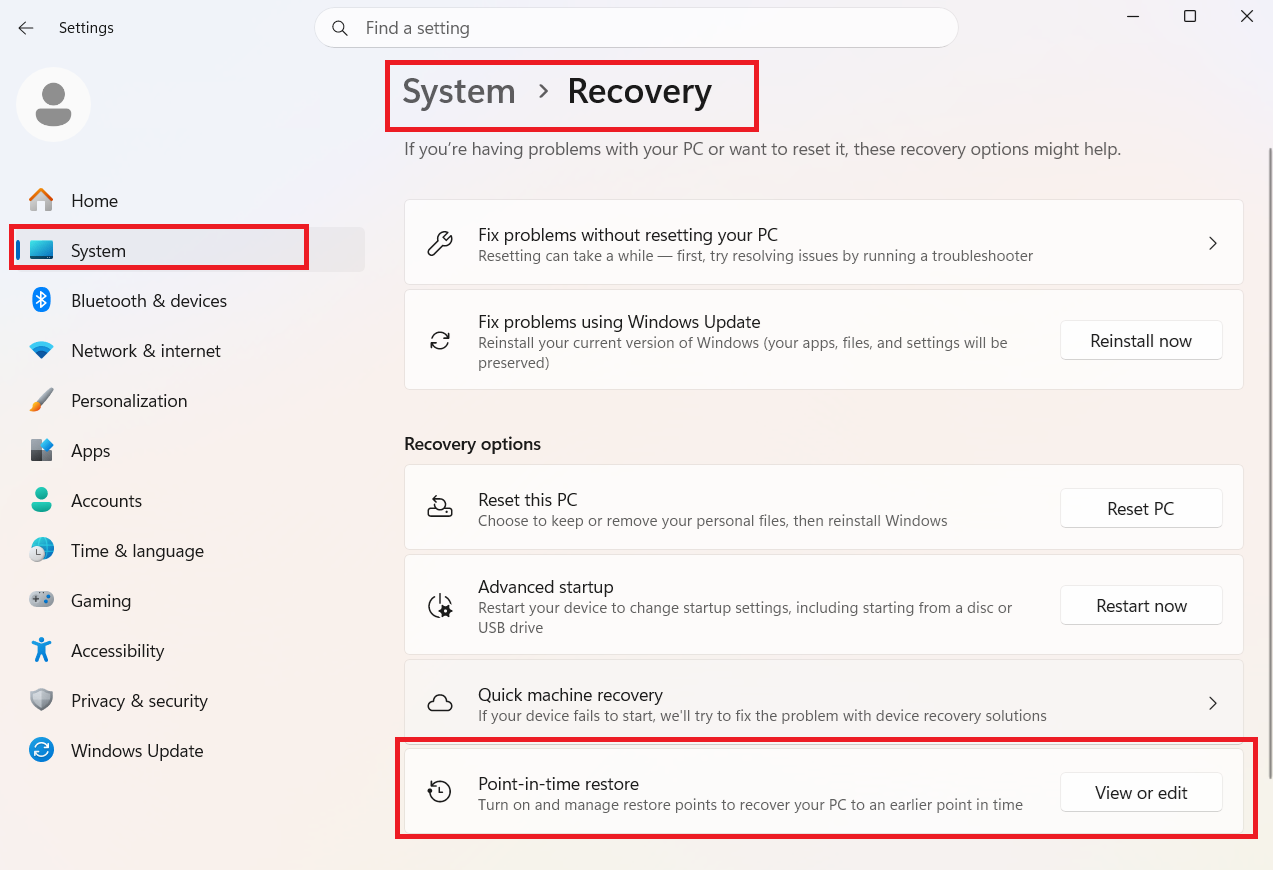
To restore your PC, boot into Advanced Startup, select Troubleshoot, and choose Point-in-time restore. Note that any data created after the restore point will be lost when you confirm.
2. Pause Windows Updates with a Calendar
Previously, you could pause Windows updates for up to four weeks, but you could not pick a specific end date. KB5095093 changes that.
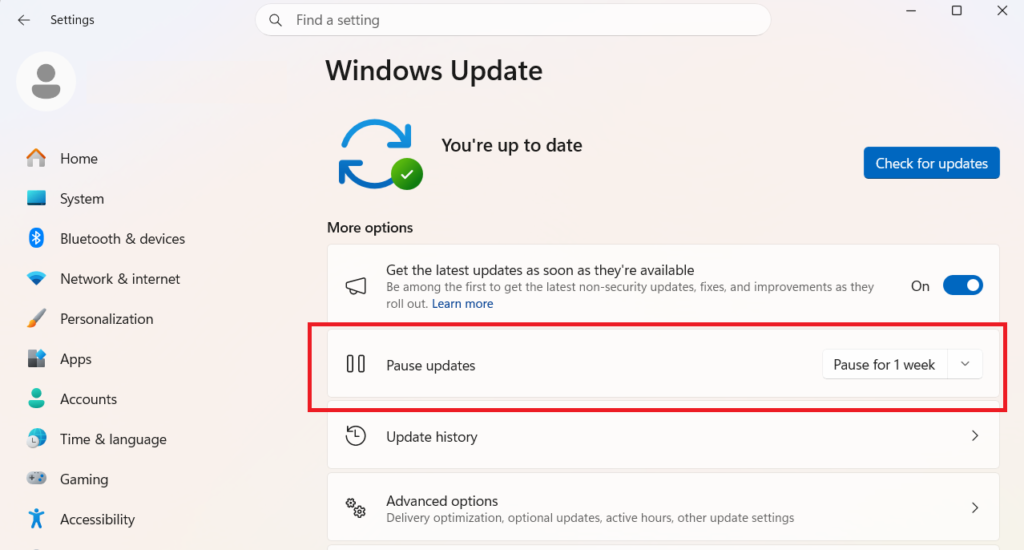
A new calendar view in Windows Update settings lets you choose the exact date until which updates stay paused. You can pause for up to 35 days at a time. Once the 35 days expire, you can pause again. Microsoft confirmed there is no limit on how many times you can re-pause.
Where to find it: Settings > Windows Update > Pause updates
3. Widgets Get Less Annoying
Widgets no longer open when you hover over the weather icon in the taskbar. You now need to click it intentionally. Microsoft is also removing MSN clutter from the default Widgets board. The first time you open Widgets after the update, it shows a clean dashboard instead of a feed full of news articles.
Other Widgets changes in KB5095093:
- Dashboard icons show a count of pending alerts
- Badges clear automatically when you leave a dashboard
- Widgets is noticeably faster and more responsive
- You can configure Widgets defaults from the Settings option inside the navigation bar
4. Screen Tint
Screen Tint is a new accessibility feature that places a full-screen color overlay on your display. It is not a replacement for Night Light; it serves a different purpose, targeting eye strain and readability.
You get six preset tint options:
- Amber for long screen sessions
- Cool blue for glare sensitivity
- Rose for users who experience severe headaches
- Three additional presets for other use cases
- Custom tint where you pick your own color and control the intensity
Where to find it: Settings > Accessibility > Screen Tint
5. Bluetooth Improvements
Microsoft addressed several long-standing Bluetooth reliability issues in this update. Here is what changes:
- Microphone mute sync: Windows now keeps the mic mute state consistent between the audio mixer and the Hands-Free Profile (HFP). If you mute on your headphones, Windows reflects that state accurately.
- AirPods: AirPods appear faster in pairing mode.
- Beats Studio Pro: Microphone reliability improves on Beats Studio Pro headphones.
- Audio delay bug fix: A bug where headphones using the microphone caused audio delay is now fixed.
- Faster reconnect after sleep: Bluetooth audio devices reconnect faster when Windows wakes from hibernation.
- LE Audio improvements: LE Audio streaming is more reliable after a connection drops and restores.
- Phone Link calls: When you dial an outgoing call from a paired phone, audio stays on the phone while it rings and only transfers to the PC when you answer from the PC side.
- Do Not Disturb: When DND is active on Windows, incoming call audio from a paired phone no longer rings through the PC.
6. File Explorer Is Faster and More Reliable
KB5095093 speeds up File Explorer launch and fixes several bugs:
- Address bar: The suggestion dropdown now closes consistently after you select an item. It also supports paths with double backslashes and quotation marks (for example,
C:\\Users\\useror"C:\Users\user"). - OneDrive fix: A bug where OneDrive integration slowed down File Explorer is now patched. A separate bug where OneDrive files appeared duplicated in the Favorites section on File Explorer Home is also fixed.
- Ask Copilot: The “Ask Copilot” quick action now appears for all users on the Home tab, including work and school accounts (Entra ID), when hovering over a file.
- Rename fixes: Two rename bugs are fixed: one where text was repeatedly selected during rename, and another where case-only renames did not reflect immediately in folder views.
7. Voice Access in French, German, and Spanish
Voice access and voice typing now support three additional languages: French, German, and Spanish. The feature corrects grammar, punctuation, and recognition errors in real time as you speak, even with background noise.
8. Touchpad Right-Click Zone Control
You can now customize how much of the bottom-right corner of your touchpad responds to a single-finger right-click. Four options are available: Default, Small, Medium, and Large.
Where to find it: Settings > Bluetooth and devices > Touchpad > Right-click zone
This setting only appears on touchpads with a pressable surface. If your device manufacturer provides its own touchpad app, a Custom option will appear instead.
9. Printing: Windows Ready Print by Default
New printers now install using Internet Printing Protocol (IPP) by default when supported. This means Windows uses its own modern driver selection instead of requiring third-party drivers. Existing printers are not affected.
Where to find it: Settings > Bluetooth and devices > Printers and scanners > Default install printers using Windows Ready Print
10. Other Changes and Fixes
- WSL: Windows Subsystem for Linux works better in mirrored networking mode with VPNs.
- AI memory management: PCs with more than 32 GB of RAM get improved memory management for running local AI models.
- Magnifier: You can now type a specific zoom percentage directly in the Magnifier window and adjust it in custom increments from the magnifier bar.
- Faster shutdown: Background Intelligent Transfer Service (BITS) shuts down faster when you turn off your PC.
- Taskbar reliability: Taskbar icons should no longer appear as blank gray placeholders. Explorer.exe stability also improves generally, including during desktop switching and acrylic blur effects in the Start menu, Settings, and lock screen.
- Secure Boot: Expanding to more PCs.
- Start menu: The new Start menu is now on for all PCs by default, including commercial PCs.
- Multi-monitor scrolling: Apps scroll more smoothly across multiple monitors.
- Remote Desktop dialog: The dialog design refreshes when you enable Remote Desktop in Settings > System > Remote Desktop.
- Location settings: Settings > Privacy and Security > Location now greys out inapplicable options (like Default location) when location services are turned off, reducing confusion.
Known Issue
Microsoft is investigating a bug where third-party applications cannot launch Microsoft Office apps or open Office documents. The workaround is to open the Office app or document directly instead of launching it from the affected third-party software. A fix will arrive in a future update.
How to Enable Hidden Features Early with ViveTool
Microsoft rolls out features gradually through Controlled Feature Rollout (CFR). Even after you install KB5095093, some features may not appear on your device. ViveTool lets you force-enable them.
Note: Feature IDs change frequently. Once Microsoft permanently integrates a feature, the associated ID stops working. Not all features will activate even after running the command, and some features are region-locked.
Step 1: Download ViveTool
- Open github.com/ViVe-Project/ViveTool-GUI/releases in your browser.
- Download the latest ViveTool-vx.x.x.zip file.
Step 2: Extract ViveTool
- Double-click the downloaded ZIP file to open it in File Explorer.
- Click Extract all.
- Click Extract and note the folder path where it extracts.
Step 3: Run the ViveTool Command
- Press Start, search for Command Prompt, right-click the top result, and select Run as administrator.
- Navigate to the ViveTool folder by typing:
cd C:\path\to\ViveTool-v0.x.xReplace the path with the actual folder location.
- Run the following command to enable the new features:
vivetool /enable /id:58989177- Restart your PC to apply the changes.
To Undo the Changes
Run this command in the same Command Prompt window (admin):
vivetool /disable /id:58989177To reset all ViveTool customizations at once, run:
vivetool /fullresetHow to Install Windows 11 KB5095093
Method 1: Through Windows Update (Recommended)
- Open Settings.
- Click Windows Update.
- Toggle on Get the latest updates as soon as they’re available.
- Click Check for updates.
- If KB5095093 appears as an optional update, click Download and install.
- Click Restart now after the download completes.
- Open Microsoft Store, go to Downloads, and click Check for updates to update Store apps.
Method 2: Install Before General Availability (Windows Insider)
If the update has not reached your device yet, you can enroll in the Release Preview channel to access it early.
- Open Settings > Windows Update > Windows Insider Program.
- Click Get started.
- Click Link an account and sign in with your Microsoft account.
- Select Release Preview under “Pick your Insider settings.”
- Click Continue and agree to the terms.
- Click Restart.
- After reboot, go to Settings > Windows Update, toggle on Get the latest updates as soon as they’re available, and click Check for updates.
- Install the update and restart when prompted.
- Open Microsoft Store > Downloads > Check for updates to finish.
Direct Download Links for KB5095093 (Offline Installer)
If Windows Update is not working or you want to update multiple devices with a single download, use the Microsoft Update Catalog.
| OS Version | Architecture | Build Number | Size |
|---|---|---|---|
| Windows 11 25H2 | x64 (Intel/AMD) | 26200.8737 | 5,423.6 MB |
| Windows 11 25H2 | ARM64 | 26200.8737 | ~4,835.9 MB |
| Windows 11 24H2 | x64 (Intel/AMD) | 26100.8737 | ~4,835.9 MB |
| Windows 11 24H2 | ARM64 | 26100.8737 | Available |
Search for KB5095093 at catalog.update.microsoft.com to find and download the correct installer for your device.
These offline installers are large (roughly 5.4 GB for x64 and 4.8 GB for ARM) because Windows updates now bundle AI model components.
Frequently Asked Questions
What ViveTool command enables the July 2026 features?
Run vivetool /enable /id:58989177 in Command Prompt as administrator.
Will ViveTool enable all features in KB5095093?
No. Some features are not available to everyone even after running the command, and others are limited to specific regions.
Do I have to use ViveTool?
No. You can wait for Microsoft to push the features to your device automatically. ViveTool is only for users who want early access.
Is KB5095093 a mandatory update?
No. It is an optional preview update. Windows will not install it automatically unless you check for updates manually and click Download and install.
Which Windows 11 versions does KB5095093 support?
It supports Windows 11 25H2 (Build 26200.8737) and Windows 11 24H2 (Build 26100.8737).

