You pick a server in Germany, the app says "Connected," and then a website greets you with content for another country or keeps geo-blocking your streaming service. Most people assume the VPN failed. In most cases, it did not. Your VPN changes the path your traffic takes, but websites decide your location from several different signals, and the VPN controls only one of them.
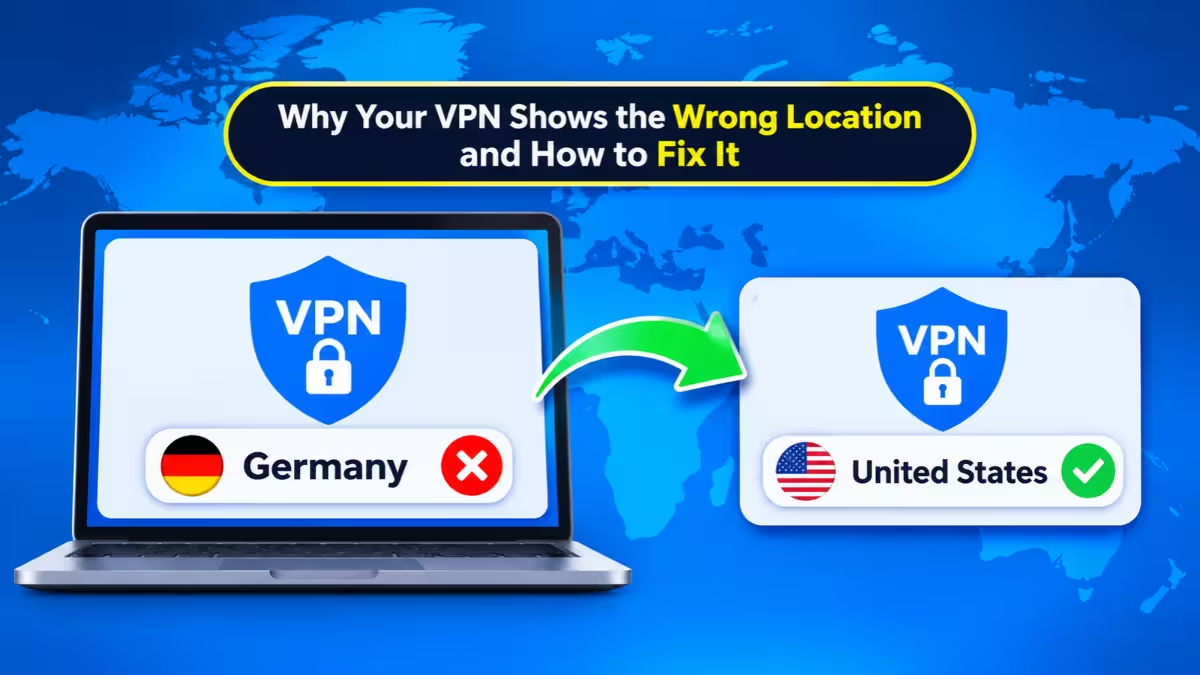
This guide explains why the mismatch happens, how to find the exact cause on your device, and which fix suits each situation.
Why Websites Show a Different Location Than Your VPN Server
A VPN swaps your real IP address for the IP address of its server. Websites then look up that IP in a geolocation database and guess where it sits. That guess, not your actual route, decides the city or country you see.
Two things follow from this. First, the database can hold wrong or old information. Second, a site can ignore your IP altogether and use other clues, such as GPS, your account history, or a leaked address. Each cause below maps to one of these two problems.
Outdated IP Geolocation Databases Misplace Your VPN IP
Websites do not track IP ranges themselves. They query providers such as MaxMind, IPinfo, IP2Location, and DB-IP. Each provider builds its own dataset and updates it on its own schedule.
VPN companies add new IP blocks and move servers between data centers all the time. A database may need days or weeks to notice. Even after a provider fixes a record, a site that stores an old copy of the database keeps showing the old location until it refreshes.
This is why one site can place you correctly while another picks a neighboring city or the wrong country. Smaller and newer VPN services see this more often, because databases have less data on their ranges.
Fix: Disconnect and join a different server in the same country. If the new IP carries a correct record, the problem sits in the old range's database entry, not in your setup.
Virtual VPN Servers Do Not Match Their Physical Location
Some VPN providers list a country but run the physical machine in another one. The IP address registers to the advertised country, while the hardware sits elsewhere. Providers use this approach where reliable data centers are scarce or costly.
Geolocation systems often detect the real hosting location, so a site may see the physical country instead of the one on your VPN app. Several major providers publish which of their locations are virtual.
Fix: Check your provider's server list or support pages for virtual locations. If you need a precise country, pick a physical server, or pay for a dedicated IP that does not use virtual hosting.
Load Balancing Gives You a Different Exit IP Each Time
When you choose a city, your VPN app usually assigns one machine out of a pool. Each machine has its own IP and its own database record. Two connections to the same city can therefore produce two different results, such as one correct city and one nearby city or "unknown."
Some providers also rotate your exit IP during a session. If the new IP has a different record, the location sites see can change without any action from you.
Fix: Reconnect a few times and check your IP location after each attempt. Stay on a server that reports the right place.
Browser Location Permission Bypasses Your VPN
IP lookup is only one way to find you. When a site asks for your location and you click Allow, your browser sends coordinates from GPS, nearby Wi-Fi networks, and cell towers. The VPN never touches these signals, so the site can see your real position down to a few meters.
Logged-in accounts add another layer. Streaming services and search platforms remember where you usually connect, and they can tailor content to that history no matter which IP you use.
Fix: Open the site in a private window and check again. If the location changes, a saved permission or account history caused the mismatch. Revoke location access in your browser's site settings, sign out of the account, or use a clean browser profile.
WebRTC and DNS Leaks Expose Your Real Location
Your traffic can follow the VPN tunnel while other parts of the browser slip around it.
WebRTC powers video calls and peer-to-peer connections. It can reveal your real IP through a request that bypasses the tunnel. Browser-extension VPNs and older split-tunnel setups leak this way most often.
DNS leaks happen when your device sends domain name resolution requests to your ISP's resolver instead of the VPN's. The sites you visit stay hidden in the encrypted tunnel, but the lookups still point back to your real network. Resolvers that sit far from you can also place you in the wrong country on their own.
Fix: Run a leak test with a tool like BrowserLeaks. If it shows your real IP or your ISP's DNS, turn on DNS leak protection in your VPN app and use a full-system VPN client instead of a browser extension. Firefox ships with WebRTC protection, while Chrome and Edge need an extension to block it.
Why Google Shows a Different Location Than Your VPN
Google does not rely on your IP alone. It also weighs your account's location history, saved Wi-Fi networks, browser permissions, and signals from your Android device. An IP checker can confirm your VPN IP sits in Germany while Google still serves results for your home region.
That mismatch does not prove a leak. Google simply holds more data about you than a basic IP lookup does.
Fix: Test in Incognito mode, sign out of your Google account, and turn off location access for the browser. If the result changes, your account and device signals caused it. For a lasting fix, pause Location History in your account settings and use a separate browser profile for VPN sessions.
Why Maps and Weather Apps Misplace You on a VPN
Apps pick their location method in different ways, and that explains the odd mix of right and wrong results.
- Navigation and fitness apps use GPS and Wi-Fi positioning, so they stay accurate on a VPN.
- Weather, shopping, and news sites use your IP, so they follow your VPN server to another country.
- Web maps often open at an IP-based default view while the blue dot still shows your true position.
- App store and subscription catalogs use the country in your account, which a VPN does not change.
Fix: Give location-aware apps precise location permission so they use GPS. For sites that guess from your IP, set the city, country, and currency by hand. If you only need the VPN for certain apps, use VPN split tunneling so local apps connect directly.
What Your VPN Controls and What It Does Not
| Signal | What controls it | Does the VPN help? |
|---|---|---|
| Browser geolocation (GPS and Wi-Fi) | Browser permission | No |
| Account location history | Your logged-in profile | No |
| WebRTC | VPN type and leak protection | Sometimes |
| DNS resolver | VPN's DNS routing | Sometimes |
| IP geolocation database | Your exit IP | Yes, if the record is current |
How to Check Your VPN Location Step by Step
- Disconnect your VPN and note your real IP, country, city, and network owner at a lookup site such as ifconfig.co.
- Connect to your VPN and run the same check. The country and network owner should match the VPN, not your home ISP.
- If the details do not match, run a WebRTC test and a DNS leak test. A real IP in either result means you found a leak.
- If both tests come back clean, compare your IP on two or three different geolocation services. Different answers point to database differences.
- If only one site gets it wrong, test it in a private window with location permission off. A change there means your browser or account supplied the wrong signal.
Does a Wrong City Mean Your VPN Is Leaking?
No. City-level data is an estimate, and mismatches here are common. A wrong city with the right country, no leak in the tests, and an IP owned by your VPN provider means your privacy still works. Country-level accuracy matters far more for checking that the VPN does its job.
Treat it as a real problem only when your actual IP or ISP shows up in a leak test, or when the country itself is wrong across several independent databases.
How to Fix a Wrong VPN Location
- Switch to another server in the same country.
- Use a physical server instead of a virtual location when precision matters.
- Turn on DNS leak protection in your VPN app.
- Block WebRTC leaks in your browser.
- Clear cookies and cached site data after switching servers.
- Revoke browser location permissions for the affected site.
- Sign out of accounts that store location history.
- Use split tunneling when local apps need your real region.
Can You Correct a Wrong IP Location Record?
Yes, in many cases. Major geolocation providers accept correction requests for IP ranges they classify wrongly, and VPN companies file these when they launch new servers. Individual users can submit reports too, but the result depends on the provider.
Expect delays. Each provider updates on its own schedule, and websites that store local copies of a database keep the old record until they refresh. Corrections pay off mainly for IPs you keep long term, such as a dedicated VPN IP. For a shared server IP, switching to another server is faster than waiting for a fix.
Frequently Asked Questions
Why does my VPN say I am in one country while websites show another?
Websites read your IP through third-party databases. If the database holds an old record for your VPN's IP range, or the server is virtual, the site reports a different country than your VPN app shows.
Why does Google show a different location than my VPN?
Google uses more than your IP. It also checks account history, browser permissions, known Wi-Fi networks, and device signals. Test in Incognito mode with location access off to see what the IP alone produces.
Can websites see my real location while I use a VPN?
They can if you grant location permission, if WebRTC or DNS leaks, or if your logged-in account carries location history. The VPN hides your IP, not your GPS data.
Do free VPNs show the wrong location more often?
Usually yes. Free services tend to run smaller IP pools that databases track poorly, and many skip WebRTC and DNS leak protection.
Can someone fix a wrong IP location record?
Yes. Major geolocation providers accept correction requests. The change still takes time, and sites that store older copies of the data keep the old result until they refresh.
Should I switch servers when a site shows the wrong city?
Yes, it is the fastest test. If another server in the same country reads correctly, the first IP range had a bad record.
Related Guides
- How to Bypass Geo-Blocking and Watch Streaming Services with a VPN
- How to Use VPN Split Tunneling for Online Banking Without Getting Locked Out
- Can You Be Hacked Through a VPN? What You Need to Know
- How to Choose a No-Logs VPN: Key Features to Check in 2026
- How to Use Firefox Built-In VPN and Pick Your Server Location (Firefox 151)