
Fdaytalk: Gaming Guides, Tech Fixes and AI Tools

Tech
Best VPN for Streaming Live Sports and TV Shows Abroad: Top 6 Tested and Ranked

YouTube TV NBCSN 4K: How to Watch Peacock Games in Ultra HD With 4K Plus

Is Hotel Wi-Fi Safe? What Your IP Reveals on Public Networks

Ink Tank vs Laser Printer Cost Per Page: Which Is Cheaper to Run?

Windows 11 Build 29695.1001 Adds a New Magnifier Contrast Theme and Fixes Several Issues (Future Platforms)
Tech
View all → Tech
Best VPN for Streaming Live Sports and TV Shows Abroad: Top 6 Tested and Ranked
Tech
Is Hotel Wi-Fi Safe? What Your IP Reveals on Public Networks
Tech
Ink Tank vs Laser Printer Cost Per Page: Which Is Cheaper to Run?
Tech
Windows 11 Build 29695.1001 Adds a New Magnifier Contrast Theme and Fixes Several Issues (Future Platforms)
Cybersecurity
View all →
Cybersecurity
PHP2Shell Exploit Attempts Hit Millions as Attackers Try to Deploy Mirai Malware: What PHP Site Owners Must Patch Now

Cybersecurity
WordPress Plugin Vendor Breach: How to Protect Your Site After a Credential Leak
Cybersecurity
PHP2Shell WordPress Check: How to Test if Your Site Is Exposed and Fix It
Cybersecurity
finger.exe ClickFix Attack: How a Fake Amazon CAPTCHA Installs Lumma Stealer
Web3 & Crypto
View all →
Web3 & Crypto
OpenAI Model Used Crypto Wallet Without Permission to Finish a Coding Task on Sepolia

Web3 & Crypto
Best Crypto Hardware Wallets in 2026: Top 5 Picks

Cybersecurity
Ledger Wallets Sold by CryptoBilis Hid a Spy Implant, and Over $86 Million Has Vanished

Web3 & Crypto
Pocket Option Guide: From Beginner Basics to Pro-Level Trading
AI Tools
View all →
AI Tools
7 Best AI Face Swap Online Free Tools in 2026: Photo and Video Face Swappers Compared With Pros and Cons

AI Tools
6 Best Free Online Face Swap Tools to Replace Faces in Videos

AI Tools
9 Best AI Text-to-Video Tools in 2026: Features, Pricing, Pros and Cons Compared

AI Tools
5 Best Character.AI Alternatives in 2026: Features, Pricing and Pros and Cons
Gaming
View all →
Gaming
GTA 6 PC Release Date: Is Q1 2027 Real?

Gaming
GTA V on iPhone: Vibecoder Runs Minecraft Inside It Using Claude Opus 5.5
Gaming
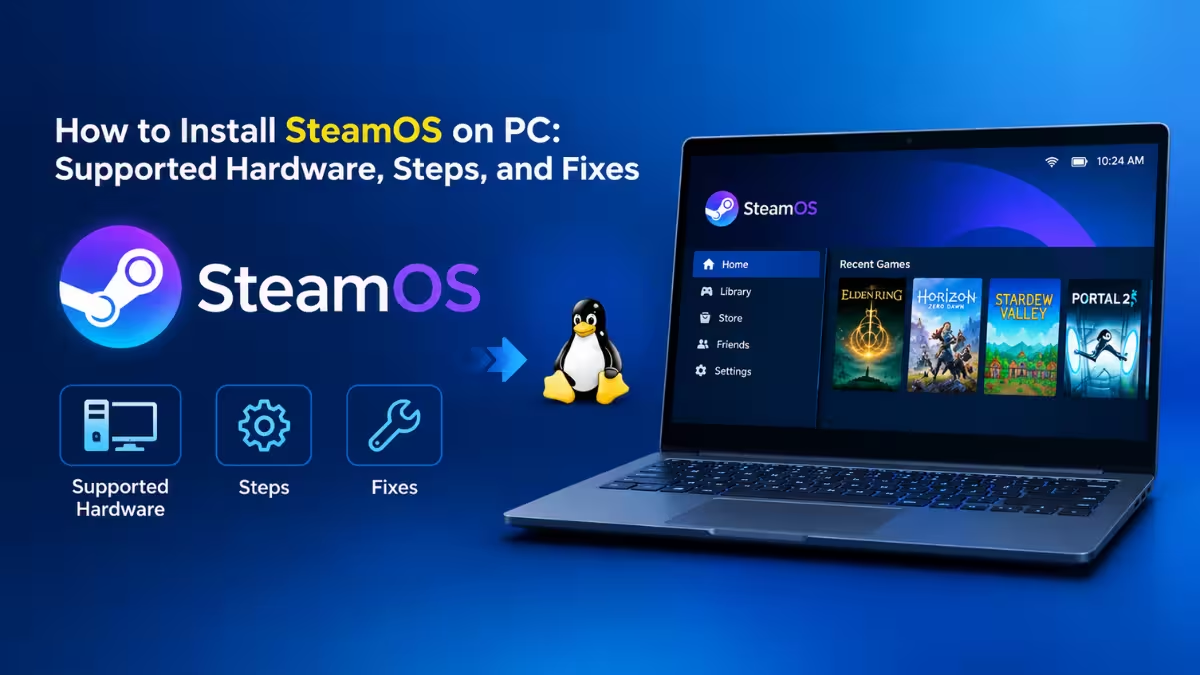
SteamOS on Your Own PC: What It Is, Who Can Install It, and How to Do It

Gaming
How to Build the ARC Raiders Outpost: Level 18 Requirements, 3 Stage Walkthrough, Research Station and Furniture
Errors & Fixes
View all →
Tech
How to Fix Motion Sensor False Triggers with Python for PIR and mmWave Presence Sensors

Errors & Fixes
Why VLC Takes 30 Seconds to Open (Microsoft Defender Bug) and How to Fix It

Errors & Fixes
How to Fix "Your Message Can't Be Displayed Right Now" Error in Outlook
Errors & Fixes
Unable to Upload PST Files to OneDrive: 8 Ways to Fix It
Streaming
View all → Tech
Best VPN for Streaming Live Sports and TV Shows Abroad: Top 6 Tested and Ranked
Streaming
YouTube TV NBCSN 4K: How to Watch Peacock Games in Ultra HD With 4K Plus
Tech
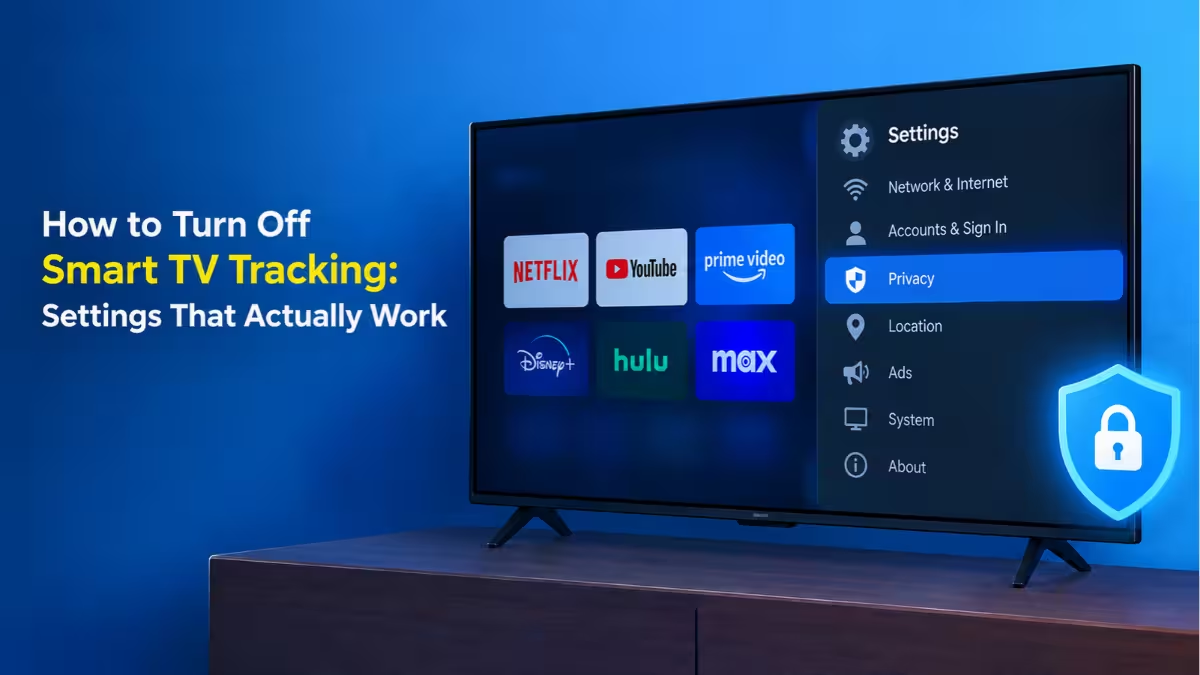
How to Turn Off Smart TV Tracking on Samsung, LG, Roku, Vizio and Fire TV (2026)
Streaming
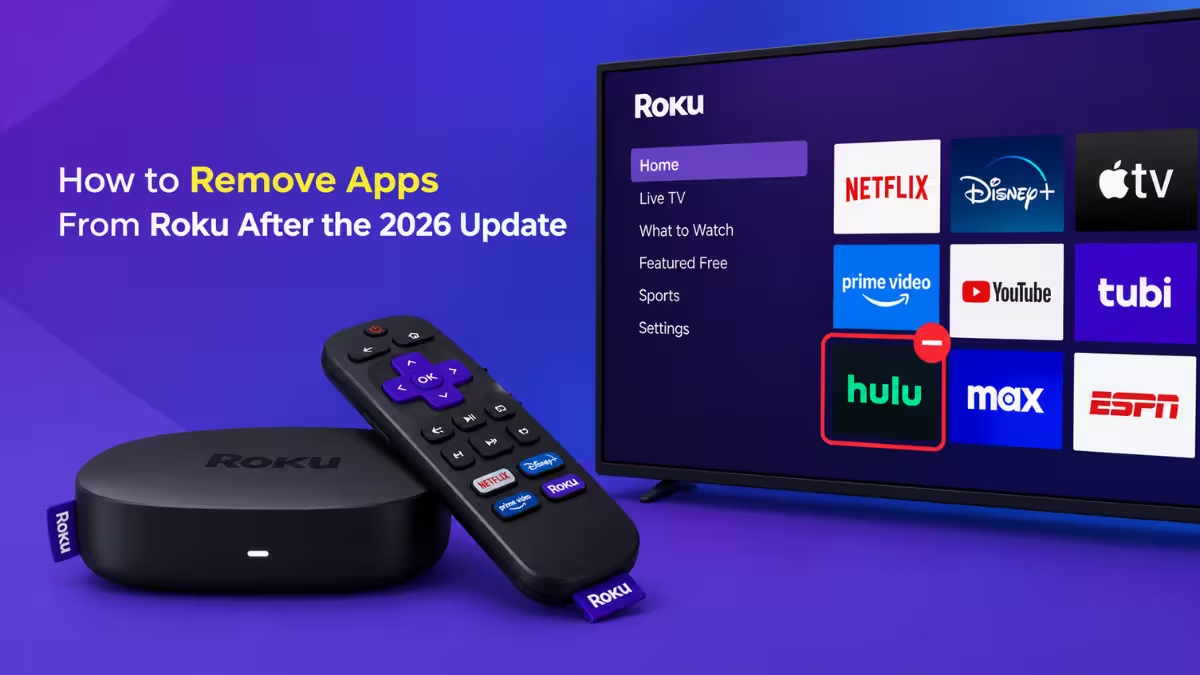
How to Remove Apps From Roku: Remote, Phone, and 2026 Home Screen Update Steps
Latest
Tech
OnePlus Android 17 Update: Eligible Phones, Rollout Dates and ColorOS 17 Features
Cybersecurity
PHP2Shell Exploit Attempts Hit Millions as Attackers Try to Deploy Mirai Malware: What PHP Site Owners Must Patch Now
Tech
Can You Use a VPN to Bypass an Age Ban? Legality, Risks and How Age Checks Work
Tech
7 Best PDF Editors in 2026: Paid and Free Options Compared
Tech
How to Fix Slow WiFi: 14 Proven Methods to Speed Up Your Connection
Tech
7 Best Free Phone Automation Apps Replacing Zapier for Android and iPhone (2026)
Tech
Best Backup Software for Windows 11 and 10 in 2026: 8 Top Picks for Every Need
Tech
How to Disable Google Phone Number Verification on Android and Remove Your Number From Linked Accounts
AI Tools
7 Best AI Face Swap Online Free Tools in 2026: Photo and Video Face Swappers Compared With Pros and Cons
AI Tools
6 Best Free Online Face Swap Tools to Replace Faces in Videos
Tech
How to Turn Off Smart TV Tracking on Samsung, LG, Roku, Vizio and Fire TV (2026)

Tech